Sales Summary FAQ
Last updated: Oct 2, 2026, 11:22 AM
Find answers to the most common questions about the Sales Summary report in Toast Web — what each card shows, how to filter or share the report, and what to do when the numbers don't match another report.
- Read Your Sales Summary Report
- Filter, Display, and Access the Report
- When the Sales Summary Doesn't Match Another Report
- Sales Categories and Tax Data
- Other Common Questions
- Related Articles
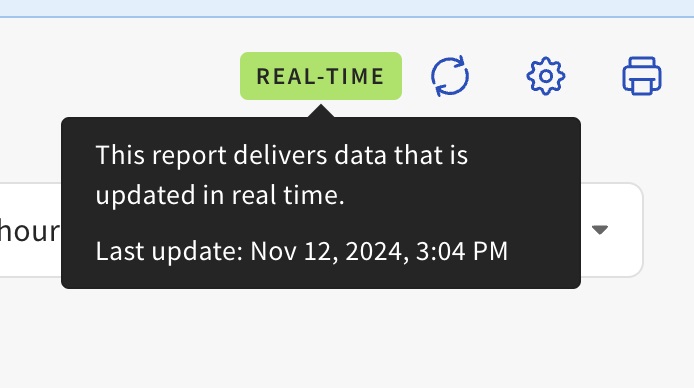
The Sales Summary report is found in Toast Web by navigating to Toast Web > Reports > Sales > Sales summary. The freshness of your Sales Summary data is shown at the top right corner of the report — hover over the data indicator to see whether the data is real-time or still updating.
Read Your Sales Summary Report
What's the difference between gross sales and net sales?
The Sales Summary report shows both gross sales and net sales:
- Gross sales — The regular price of all non-deferred items and all service charges on the order, not including tax or tip.
- Net sales — Gross sales minus discount and refund amounts.
Net sales appears on the Revenue Summary card and the Net Sales Summary card. Gross sales appears on the Net Sales Summary card.
Also asked as:
- What is gross sales vs net sales?
- How is net sales calculated?
What does the Tax Summary card show?
The Tax Summary card shows the eligible net sales and tax amount for each tax rate set up at your restaurant, plus a summary of non-taxable sales. To get from gross sales to a taxable amount, the report subtracts non-taxable items, tax-exempt sales, and any items without a configured tax rate.
If you need to reconcile gross sales to taxable amount line by line, see Configure and Report on Deferred Amounts and Sales for items that are excluded from net sales, and see Configure Sales Categories for items that may have missing tax configuration.
For information on Marketplace Facilitator Taxes specifically, see the question "What Are 'Marketplace Facilitator Taxes Paid' and 'Not Paid'?" below.
Also asked as:
- Help me understand the tax summary at the bottom of sales summary?
- How do I read the Tax Summary card?
- How do I get from gross sales to taxable amount?
What does the Deferred Summary card show?
The Deferred Summary card shows the gross amount, discounts, refunds, and net amount for any deferred sales — sales that are excluded from your net sales because the goods or services will be delivered later. The card only appears when you have deferred sales for the selected time period.
Common Deferred Summary line items include:
- Deferred (gift cards) — gift cards or eGift cards sold during the time period. The revenue is realized when the gift card is redeemed, not when it is sold.
- Deferred (house accounts) — value added to a house account that has not yet been paid by the guest.
- Deferred Other — any other menu item configured with the Defer Revenue setting set to Yes (for example, event deposit payment, vouchers or charitable items).
To learn more about how deferred sales are configured and reported, see Configure and Report on Deferred Amounts and Sales.
Also asked as:
- What is deferred summary on the sales summary?
- What does deferred other mean?
- What does deferred (gift cards) mean?
What is the "Other" line on the Payments Summary card?
The Payments Summary card lists each payment type — credit, gift card, cash, and Other. The Other line aggregates payment types that don't fit the main three buckets, including third-party delivery service payouts (for example, Toast Delivery Services), house account redemptions, and any custom tender types your restaurant has configured.
If you see an entry like "Delivery Service" under Other, that is payment from a third-party delivery integration. To see the breakdown by individual payment type, select the caret icon on the Payments Summary card to open the underlying Payments report.
Also asked as:
- What is the 'other' line item under payment summary?
- What is delivery service under other on today's sales summary?
What does "Paid in Total" mean on my Sales Summary?
"Paid in total" includes payments collected within your selected date range for orders outside of the date range. For example, if a customer places an order on October 19th and pays for it but picks it up on October 24th, the Sales Summary on October 19th will show that payment as deferred revenue labeled "Paid in total." Paid in total sales count toward your Sales Summary total but won't appear in net sales that day.
If a payment you applied is not appearing in Paid in Total for the date you applied it — for example, a catering invoice payment received on April 23rd that's not in that day's Paid in Total — check the underlying detail view by selecting the report card. The detail view sometimes includes payments that don't surface in the card-level total.
For more information, see Future Orders/Invoices Reporting.
Also asked as:
- Why does my Sales Summary show 'Paid in total'?
- What is paid in total on the sales summary?
What does "Deposit Sales Collected" mean on my Sales Summary?
Deposit Sales Collected includes payments taken outside of your selected date range for orders completed within the date range. For example, if a customer picks up an order on October 24th but paid for the order on October 19th, the Sales Summary will show that payment as Deposit Sales Collected on October 24th. Deposit Sales Collected sales appear in your net sales for the day the order was completed.
If the Deposit Sales Collected line on your Sales Summary shows an amount but the linked report appears empty when you select it, the link may be filtered to a different location — verify the location filter on the detail report matches the location you selected on the Sales Summary.
For more information, see Future Orders/Invoices Reporting.
Also asked as:
- Why does my Sales Summary show 'Deposit Sales Collected'?
- What is deposit sales collected?
What are "Marketplace Facilitator Taxes Paid" and "Not Paid"?
Marketplace Facilitator Taxes are sales taxes collected by a third-party platform — for example, DoorDash, Uber Eats, or Grubhub — on orders placed through that platform. The platform remits these taxes to the tax authority on your behalf, so they don't deposit into your bank account.
- Marketplace Facilitator Taxes Paid — taxes that the third-party platform has already remitted on your behalf.
- Marketplace Facilitator Taxes Not Paid — taxes that have not yet been remitted; you may still be responsible for them.
For details on how these taxes affect your restaurant, see Understand Marketplace Facilitator Laws.
Also asked as:
- Why am I seeing Marketplace Facilitator Taxes on my Sales Summary?
How are gift card sales shown on the Sales Summary?
On the day a gift card is sold, the value appears as a Deferred (gift cards) line on the Revenue Summary card and on the Deferred Summary card. When the gift card is later used by your guest, the redeemed value appears in the Payments Summary card as a gift card payment.
If you adjust a gift card balance manually (for example, to correct an error), the adjustment appears in the Deferred Summary card on the day the adjustment was made.
If your gift card sales total on the Sales Summary doesn't match a separate report you run — for example, the Gift Tax Liability report — see "Why Doesn't My Sales Summary Match My Z Report?" for the general reconciliation approach, or contact Customer Care.
Also asked as:
- Where do gift card sales show up on the sales summary?
- How do gift card adjustments appear?
Where do paid outs appear on the Sales Summary?
Paid outs are not displayed as their own line on the Sales Summary report. They are factored into the Cash Summary card as a cash adjustment that affects the difference between expected closeout cash and actual closeout cash, and into the Cash Activity Summary card under adjustments.
To see individual paid out amounts and reasons, navigate to Toast Web > Reports > Cash and loss management > Cash drawer history and review the cash drawer detail.
Also asked as:
- Where can I see paid outs?
- Why are paid outs missing from the sales summary?
Filter, Display, and Access the Report
How do I check if my Sales Summary data is current?
The Sales Summary report has a data indicator in the top right corner, just beside the Refresh icon. Hover over the indicator to see whether the data you are viewing is real-time or still updating.
To make sure you are viewing the latest data, follow these steps:
- In Toast Web, navigate to Toast Web > Reports > Sales > Sales summary.
- In the top right corner of the page, hover over the data indicator next to the Refresh icon.
- If the data is not yet current, select the Refresh icon to reload the report.
Also asked as:
- How do I know if my sales summary data is up to date?
- Is the sales summary real time?
How far back can I pull data on the Sales Summary?
There is no date range limit for this report.
Also asked as:
- How long is sales summary data kept?
- Can I see sales summary from over a year ago?
Why aren't all my sales showing for a custom time range?
The Sales Summary report records a sale when a check is first opened, not when the payment is processed. If you filter the report by specific restaurant hours or service periods (for example, a lunch service from 12:00 p.m. to 3:00 p.m.), any sales from checks opened outside that time frame are not included — even if the payment was processed inside the window.
For example, if your lunch service is 12:00 p.m. to 3:00 p.m. and a guest's check is opened at 11:50 a.m. and the payment is processed at 2:15 p.m., that sale will not appear in your lunch service reporting because the key action — opening the check — happened before the filtered time.
The same rule applies to gratuity, tips, and tax: if the underlying check was opened outside your filter window, the values for that check will not appear under that filter.
Also asked as:
- Why isn't gratuity showing on the revenue summary when I use time filters?
- Why is my custom hours report missing sales?
Can I filter the Sales Summary to catering sales only?
There is no separate Catering Sales Summary report, but you can filter the Sales Summary to show only catering sales by source.
For step-by-step instructions, see View Catering Sales Summary Report.
Also asked as:
- How do I see catering-only sales?
- Is there a separate catering sales summary?
Why can't I see the correct location's Sales Summary?
If you can't see the correct location's Sales Summary, check the following:
- Make sure you are logged in to the correct Toast Web account.
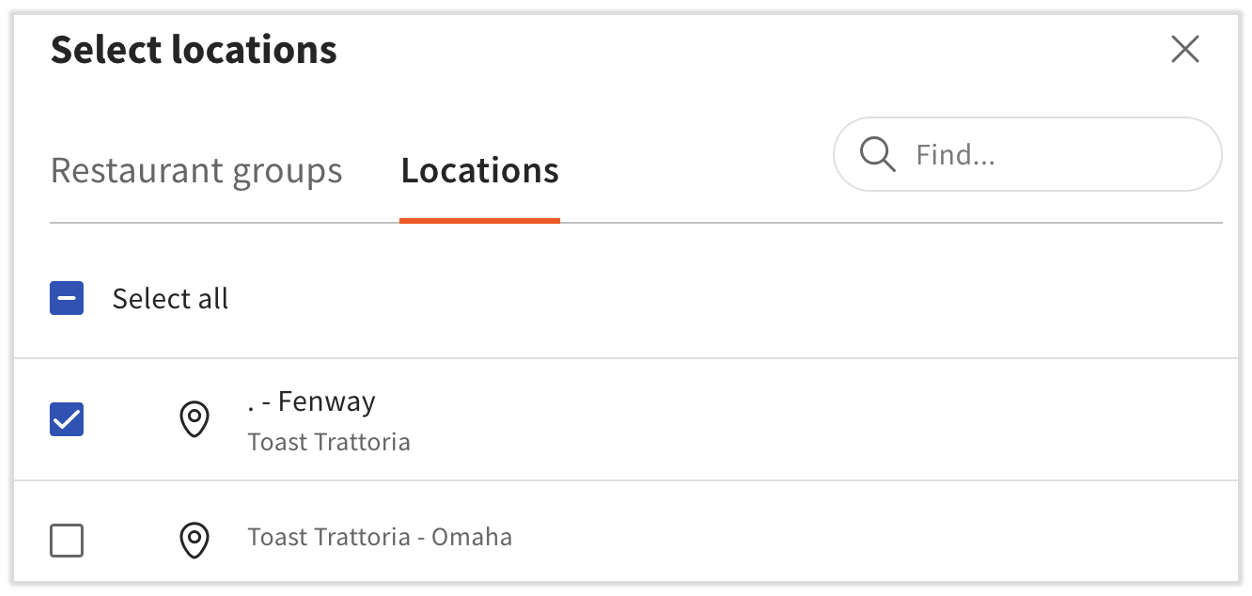
- Confirm the location drop-down at the top of the Sales Summary has the correct location selected and no other locations are checked.
- Check the Restaurant groups tab in the location selector, in case your location is grouped under a parent organization.
- Verify your user permissions are correctly set for the intended location. The 4.1 Sales reports permission is required. For details, see Permissions Reference Guide. Use Google Chrome — other browsers are not optimal for the Sales Summary.
Also asked as:
- Why am I seeing a different location's sales?
- How do I switch locations on the sales summary?
Why can't my managers access the Sales Summary?
Access to the Sales Summary is controlled by the 4.1 Sales reports permission. If a manager or other user can't access the report, follow these steps:
- In Toast Web, navigate to Team > Settings > Jobs and select the user's job title.
- Open the Permissions section and confirm 4.1 Sales reports is enabled.
- Save and publish the change.
- Have the user log out of Toast Web and log back in for the change to take effect.
If the user has the permission enabled and still cannot access the report, contact Customer Care. For a full list of permissions, see Permissions Reference Guide.
Also asked as:
- My shift managers can't see sales summary?
- How do I give a manager access to sales summary?
Why is the Sales Summary page blank?
If the Sales Summary page is blank or not loading, try the following in order:
- Make sure you are using Google Chrome. Other browsers, including Safari, have known compatibility issues with the Sales Summary.
- Refresh the page using the Refresh icon in the top right corner of the report or your browser's reload control.
- Clear your browser cache and cookies, then sign in to Toast Web again.
- Confirm the date range and location filters are set to a period and location with sales data.
- Verify your user permissions include 4.1 Sales reports (see "Why Can't My Managers Access the Sales Summary?").
- Try a different device — if the page is blank on multiple devices, including desktop, phone, and tablet, contact Customer Care with the date range you are trying to view.
Also asked as:
- Why isn't my sales summary loading?
- Sales summary is not displaying?
- I can't see any sales summary info?
Where are the tabs for other reports on the new Sales Summary?
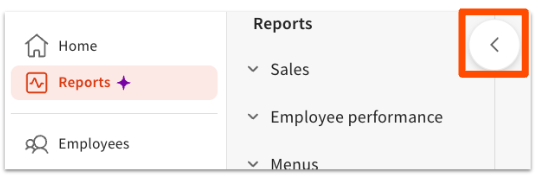
The tabs for other reports — Group Sales Overview, Cash Drawer Overview, Orders, Order Details, and others — are no longer visible at the top of the new Sales Summary report. All Toast reports are now accessible using the left-hand report navigation.
Note: The new Sales Summary experience is currently in limited release with select customers.
Also asked as:
- Where did the report tabs go?
- How do I get to Group Sales Overview from Sales Summary?
When the Sales Summary Doesn't Match Another Report
Why doesn't my Sales Summary match my bank deposit?
Your bank deposit may not match the Total Credit Card Amount on your Sales Summary because of timing delays, deducted Toast fees, taxes remitted on your behalf (such as Marketplace Facilitator Tax), refunds, held transactions, or transactions grouped across multiple settlement dates.
To reconcile, compare the Net Deposits column on the Settled Deposits Daily Breakdown report to your bank statement. For full step-by-step instructions, see Bank Statements and Sales Summary Report Do Not Match.
Also asked as:
- My credit card sales don't match what was deposited?
- Why is my bank statement different from sales summary?
- What was actually deposited in my account?
Why doesn't my Sales Summary match my Z Report?
If sales figures on your Z Report and Sales Summary don't match, check the following:
- Date range — Does the date range on the Sales Summary match the period covered by the Z Report?
- Time the Z Report was printed — Were there same-day sales after the Z Report was printed? Try reprinting the Z Report and comparing again.
- Cash adjustments — Voids, paid outs, and refunds processed after the Z Report was printed will appear on the Sales Summary but not on the printed Z Report.
If the totals still don't match after these checks, contact Customer Care with both reports for the same date and location.
Also asked as:
- Z report total is different from sales summary?
- Why are my Z report and sales summary different?
Why doesn't my Sales Summary match my Labor Summary or Payments report?
Net sales on the Sales Summary, Labor Summary, and Payments report can differ because each report uses a different basis for calculation:
- Sales Summary records a sale when a check is opened.
- Labor Summary records sales against the shift the employee was clocked into when the check was opened.
- Payments report records each payment when it was processed (which may be after the check was opened, or on a later date for split or scheduled payments).
To narrow down a difference:
- Run all three reports for the same date range and location.
- Compare the order timestamps — sales tied to checks opened near a shift boundary or near midnight are the most common source of mismatch.
- For tip differences specifically, see "Why Are My Tips Not Showing for Integrations on My Sales Summary?" and Get Help With Tip Discrepancies in Reporting.
If the difference is unexplained, contact Customer Care with the report exports for review.
Also asked as:
- Net sales is different than payments summary total?
- Labor report net sales don't match sales summary?
- Why are tips on payments report different from sales summary?
Why doesn't my Sales Summary match my Group Sales Overview report?
Small differences between the Sales Summary net sales and the Group Sales Overview net sales for the same date range usually come from order modifications or refunds reflected on one report but not yet on the other (see "Why Are There Differences Between the Old and New Sales Summary?" for the data-sync timing rule).
If the difference is more than a few dollars, run both reports a second time after waiting six hours and compare again. If the gap persists, contact Customer Care.
Also asked as:
- Group sales overview shows different net sales than sales summary?
How can I resolve sales discrepancies with third-party delivery services?
When using third-party delivery services through an integration provider (for example, Stream), sales discrepancies can occur between the delivery platform's totals and Toast's end-of-day sales. Here is what you need to know:
- Order synchronization issues must be addressed with your integration service provider, not with Toast. Toast cannot directly access or modify third-party integration data.
- To troubleshoot a discrepancy:
- Verify the orders in both your Toast system and the third-party platform.
- Reach out to your integration service provider for resolution.
- Marketplace Facilitator Tax collected on third-party orders is remitted by the platform to the tax authority and does not deposit into your bank account (see "What Are 'Marketplace Facilitator Taxes Paid' and 'Not Paid'?").
If you have already worked with your integration provider and the discrepancy is still unresolved, contact Customer Care.
Also asked as:
- Toast and DoorDash don't match?
- Why are Uber Eats sales different from my sales summary?
Why are my tips not showing for integrations on my Sales Summary?
Third-party deliveries do not always display tips in the Sales Summary or Sales Analytics report because they are paid out at the end of the month. If you think the tip totals are wrong or are unsure, reach out to integrations-support@toasttab.com.
Also asked as:
- Why are integration tips missing?
- Where are DoorDash tips on my sales summary?
Why are there differences between the old and new Sales Summary?
Depending on the order fulfillment date, it may take some extra time for order modifications to be reflected in Toast reporting. This can cause numbers to look different between the old and new versions of the Sales Summary report:
- Any modification on orders with a fulfillment date up to 11 days in the past and 4 days in the future will sync within 2 to 4 hours in Toast reporting.
- Any modification on orders with a fulfillment date more than 11 days in the past or more than 4 days in the future can take up to 4 to 6 days to reflect in reporting.
If your Sales Summary appears to have changed weeks or months after the original date, that is usually because of an order modification (for example, a void, refund, or correction) made later, syncing through these timing rules.
Also asked as:
- Sales summary numbers changed after a few days?
- Why is the new sales summary different from the old one?
Sales Categories and Tax Data
Why are items showing as "No Sales Category Assigned"?
If items are listed with "No Sales Category Assigned" on your Sales Summary, those items haven't been set up with a sales category in your menu.
To find and fix the items:
- Navigate to Toast Web > Reports > Menus > Product mix.
- Select More filters, expand the Sales categories drop-down, and check No sales category.
- Select Apply filters. The PMIX report refreshes to show only items without a sales category.
- Use the menu editor to assign a sales category to each of these items. For step-by-step instructions, see Configure Sales Categories.
Note: Sales categories assigned today do not retroactively update past sales. Customer Care can update historical sales category data for the past two weeks — provide the date range, locations, and items.
Also asked as:
- How do I find items with no sales category?
- Why are my menu items all under one category?
- I just updated sales categories — can sales summary be updated?
How do I confirm all my items have a sales category?
After you assign sales categories, follow these steps to confirm no items are still missing a category:
- Wait at least one full business day after publishing your menu changes so new sales record under the updated categories.
- Run the Product Mix report again with the No sales category filter applied (see "Why Are Items Showing as 'No Sales Category Assigned'?").
- Confirm that no items appear in the filtered report. If items still appear, check whether they belong to an archived menu — items in archived menus can still appear as uncategorized. To resolve, restore the archived menu, assign a sales category, and re-archive the menu. For details, see Configure Sales Categories → Identify Items Without a Sales Category Assigned.
Also asked as:
- How can I tell if items showing as no sales category still are missing one?
- How do I verify my sales category fix worked?
Why do I have non-taxable sales on my Sales Summary?
Non-Taxable Sales on the Tax Summary card of your Sales Summary report can include both tax-exempt sales (orders flagged as exempt at the time of sale) and items on your menu that are not configured with a tax rate.
To investigate each category, use these reports:
- Tax-exempt orders — Navigate to Toast Web > Reports > Cash and loss management > Tax exempt. Adjust the date range to see exempt orders along with their tax exemption number.
- Items without configured tax rates — Navigate to Toast Web > Reports > Accounts > Accounting overview. Select the date range and location, then select Submit. The data takes around 48 hours to generate, so the most recent day or two may not be available. Open the Taxes tab and look for the Non-Taxed Items table.
To fix items missing tax rates:
- Navigate to Toast Web > Menus > Bulk management > Advanced properties.
- Open the Show/Hide drop-down and select Applicable Taxes.
- Expand all menus and groups and confirm tax rates are applied to every item, including any open items. Use the drop-down under the Applicable Taxes column to apply the correct tax rate.
- Save and publish your changes.
Also asked as:
- Where can I find my non-taxable sales?
- What counts as non-taxable on the sales summary?
Other Common Questions
Why are orders showing as sold during "No Service"?
If orders are categorized as "No Service" on the Sales Summary, those orders were either placed outside of a scheduled service time or no service times are assigned at your restaurant. To check your hours and service times, navigate to Toast Web > Reports > Settings > Hours/services.
To learn more, see Set Up Restaurant Hours and Services.
Also asked as:
- What does no service mean on the sales summary?
- Why are sales categorized as no service?
Related Articles
- Sales Summary Report Overview
- Bank Statements and Sales Summary Report Do Not Match
- Configure and Report on Deferred Amounts and Sales
- Configure Sales Categories
- Sales Reports Overview