Set Up Your Toast Switch
Last updated: Sep 16, 2026, 4:56 PM
A switch is a piece of networking equipment that plugs into your router to increase the number of available ports.
- Toast Switch Overview
- Port Mapping Your Toast Switch
- Device Port Mapping for Non-PoE Switch
- Install Your PoE Switch
- PoE Switch Technical Capabilities
Toast Switch Overview
A switch is a piece of networking equipment that plugs into your router to increase the number of available ports. This allows you to connect your Toast devices and wireless access points via an Ethernet cable to provide a hardwired connection to the internet. We refer to this as a cable homerun. Toast offers two different types of switches—one with Power over Ethernet (PoE) capabilities and one non-PoE switch. Learn more about PoE capabilities in our Install Access Points article.
Port Mapping Your Toast Switch
The biggest consideration when setting up your Toast device is that it is a "smart" switch. To facilitate that, specific ports on the switch are designated as trunk, hybrid, or access ports. This means specific devices must be plugged into particular ports to align with their configured function.
These ports are as follows:
- Uplink ports (Trunk): These connect to routers or an upstream switch if needed
- Toast device ports (hybrid): These are designated for Toast devices, such as printers and terminals. There is no specific order or sequence in which you need to install the end-use devices in that range of ports
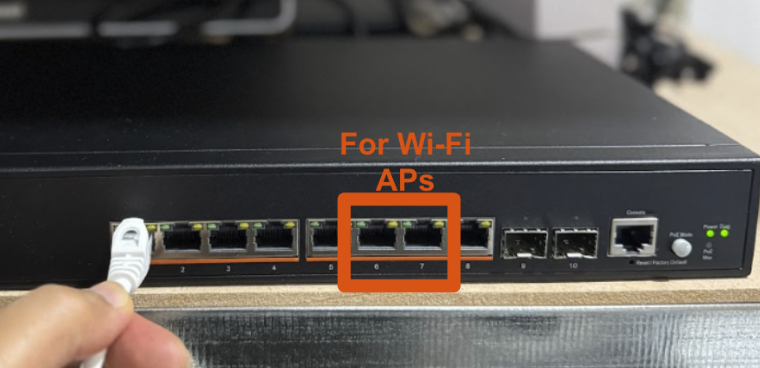
- Wireless Access Point ports (access): These are the only ports that should connect to the wireless access points.
- Downlink ports (trunk): If you need to connect another switch, you can use this port to daisy chain an additional switch
Refer to the following table to instruct on where to plug each device into the PoE switch:
| Switch Size | Model Number | Uplink Port | Toast Device Ports | Wireless Access Point Ports | Downlink Port |
|---|---|---|---|---|---|
| 8-port Switch | SC-08P | 1 | 2 - 5 | 6 - 7 | 8 |
| 24-Port Switch | SC-24P | 1 | 2 - 17 | 18 - 23 | 24 |
| 48-Port Switch | SC-48P | 1 | 2 - 41 | 42 - 47 | 48 |
Note: Some Toast switches (including the 48-port model) include additional SFP fiber ports beyond the numbered ports listed above. These SFP ports are not configured or supported by Toast — please do not connect anything to them, and use only the numbered ports in the table above.
Device Port Mapping for Non-Power over Ethernet (POE) Switch
Refer to the chart below for device port mapping for non-POE switch devices.
| Switch Size | Model Number | Uplink Port | Toast Device Ports | Wireless Access Point Ports w/PoE injector | Downlink Port |
|---|---|---|---|---|---|
| 8-port Switch | SC-08 | 1 | 2 - 5 | 6 - 7 | 8 |
Install Your Power over Ethernet (POE) Switch
Once the router setup is complete, you can set up the switch.
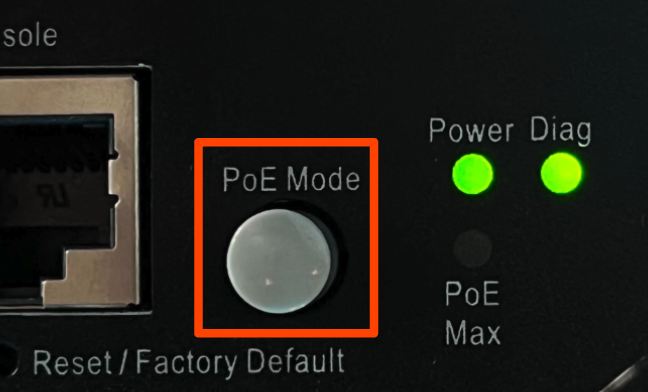
- First, ensure the “PoE Mode” button is not pressed. This indicator light, when pressed, signals which ports are receiving power rather than confirming the switch’s connection to downstream devices. We want to make sure each device is connected to confirm proper install.
- Confirm your switch is powered, via the green “power” indicator light, as well as green lights above each port. Once the lights are on, begin to connect devices to your switch.
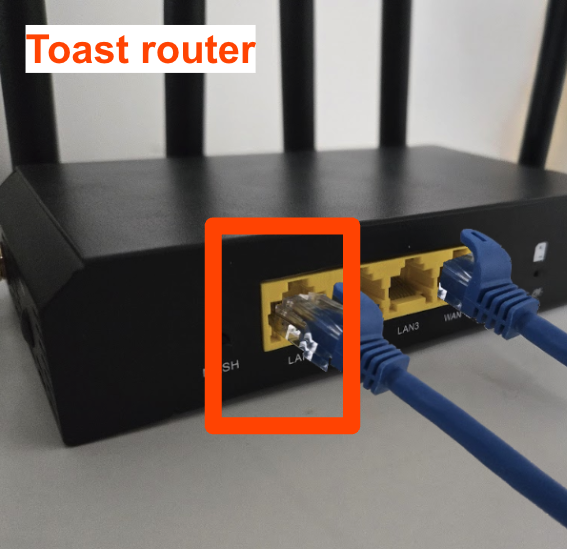
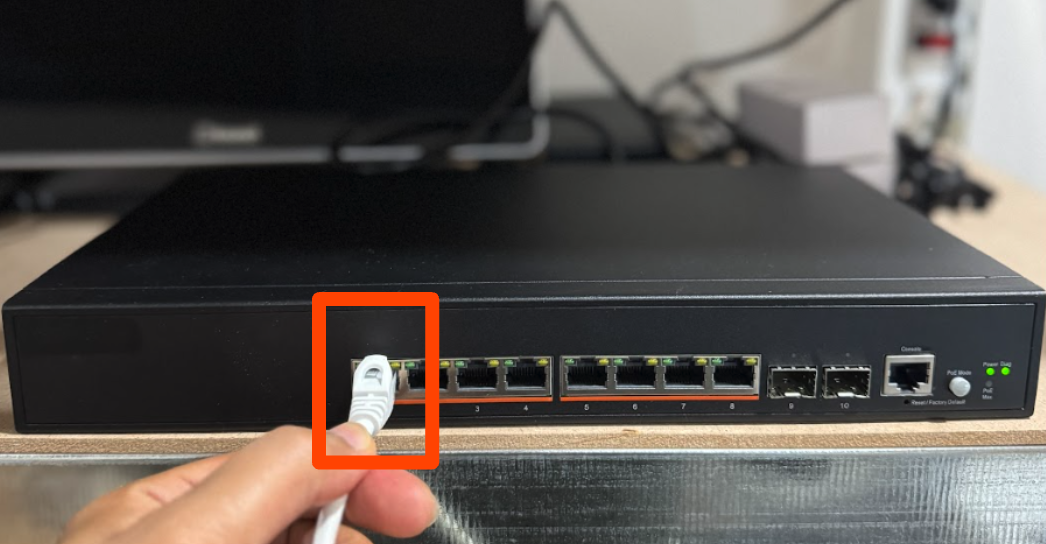
- Regardless of switch size, connect the Ethernet cord that comes with the router between the router's LAN1 port and the network switch's Port 1.
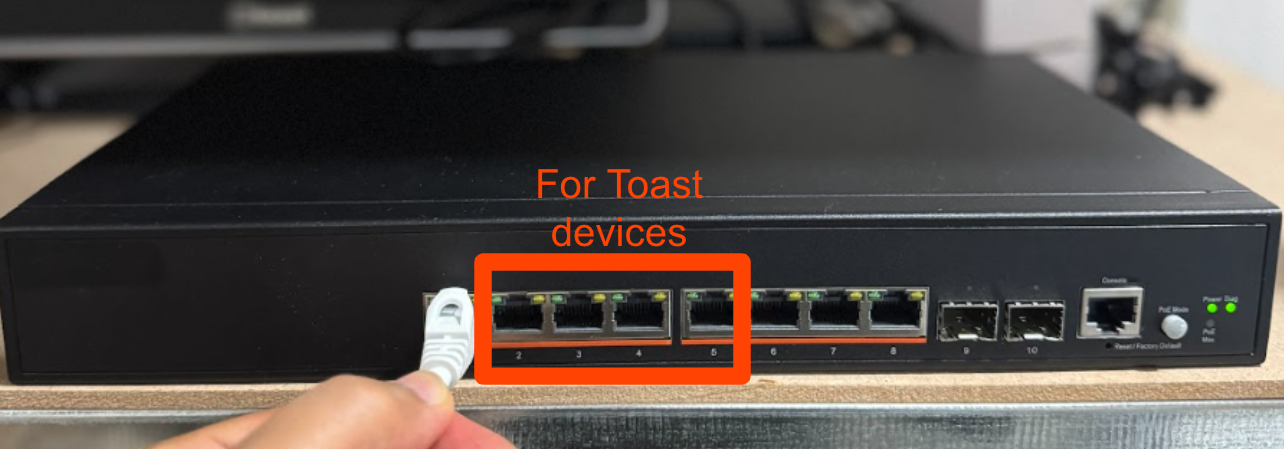
- Then, refer to the table above for the correct installation instructions based on your switch’s size. The following describes installing an 8-port switch– connect Toast terminals, Kitchen Display System (KDS), and kiosks to ports 2–5 on the switch using Ethernet cords that come with your Toast devices.
- Next, attach Wi-Fi access points to ports 6–7 using Power-over-Ethernet (PoE).
- Confirm your switch has been installed correctly by confirming your devices are connected and online:
- Print a test ticket from your terminal
- Confirm your access points are online
Power over Ethernet (POE) Switch Technical Capabilities
| Switch Size | Model Number | Power Supply | Power Consumption (max.) | PoE Power Budget |
|---|---|---|---|---|
| 8-port Switch | SC-08P | 100-240 VAC, 50-60 Hz | 80 W | 65W |
| 24-Port Switch | SC-24P | 100-240 VAC, 50-60 Hz | 160 W | 200W |
| 48-Port Switch | SC-48P | 100-240 VAC, 50-60 Hz | 490 W | 370W |