Set Up Your V400m Card Reader
Last updated: Sep 17, 2026, 8:54 AM
Learn how to install and set up your V400m card reader.
V400m Device Setup Overview Steps
Products this applies to: V400m card reader | Access needed: N/A
- Set up and board the V400m card reader
- Pair the V400m to your Toast device
- Confirm EMV and digital receipts are enabled
- Test a payment on the V400m
- Access V400m device information, if needed
- Update V400m network settings, if needed
V400m Device Setup Process
- Set up and board the V400m card reader
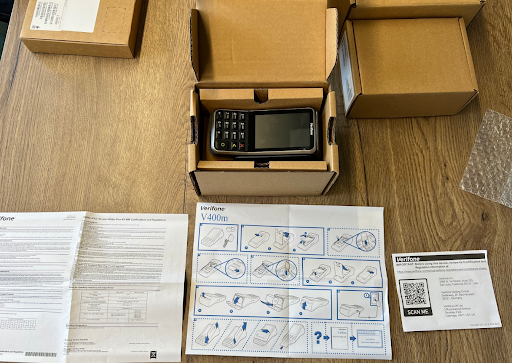
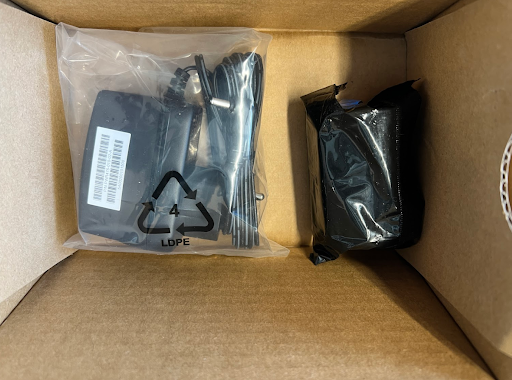
- Unbox the device and remove the V400m reader and power supply. The paper roll may be discarded or reused, as the reader's built-in printer will not be used.
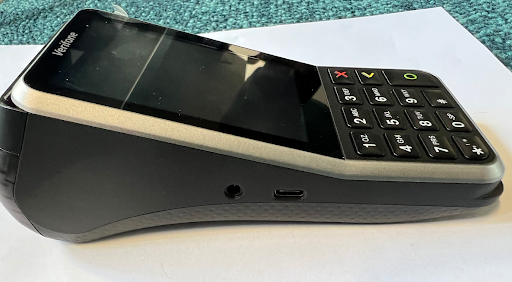
- Connect the power supply to the side of the device.
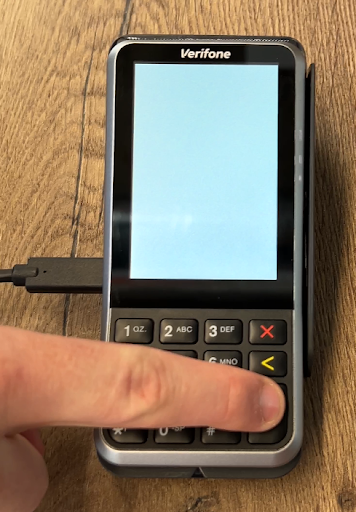
- If the device does not immediately turn on when connected to power, press the green circle button. The power-on process can take 1-2 minutes.
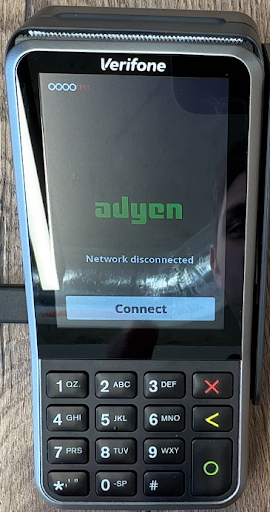
- Once the card reader powers on, it will prompt you to connect to a network. Select Connect.
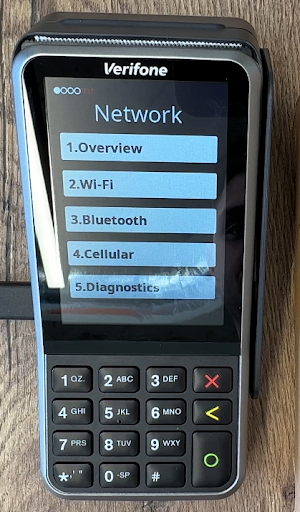
- You’ll then be taken to a network page. Select Wi-Fi.
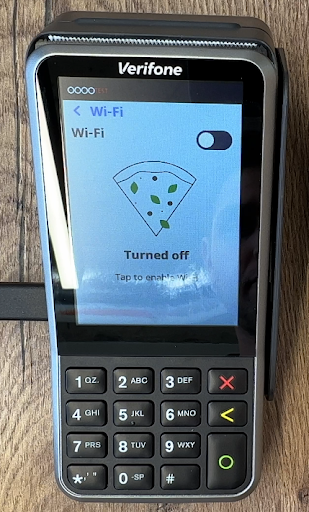
- Toggle Wi-Fi to enable. This process can take 30+ seconds.
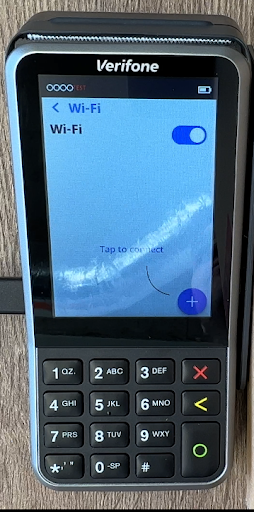
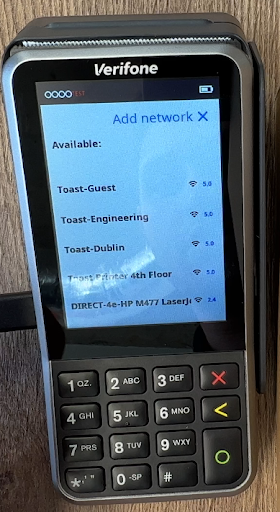
- Select the blue + button in the bottom right to search for available SSIDs.
- Once the device is done searching, select the Toast-provided SSID.
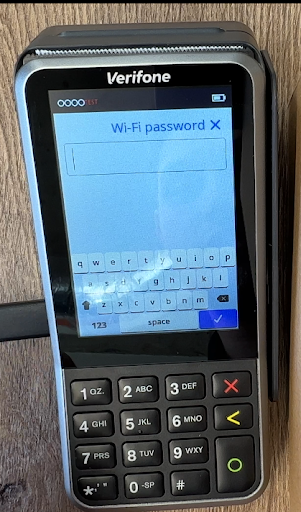
- Use the onscreen keyboard to input the password for the SSID, and select the blue checkmark on the screen.
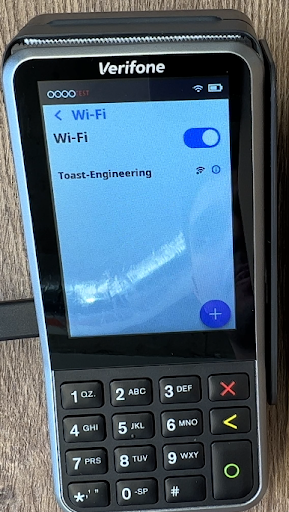
- Once successfully connected, you will see the SSID on the Wi-Fi screen as well as a Wi-Fi logo in the top right of the screen.
- Navigate to the home screen of the card reader by selecting the red X button on the keyboard.
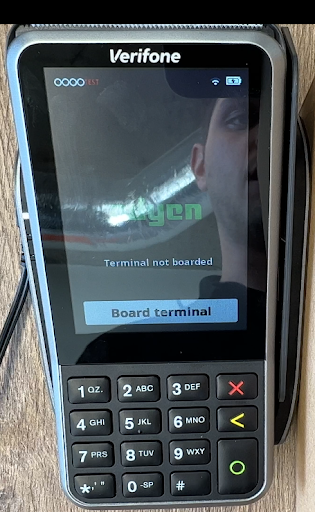
- Select Board terminal to finish the boarding process. This can take a few minutes to 45 minutes to complete.
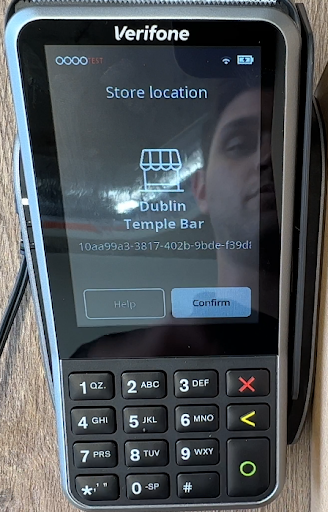
- Once the boarding process starts, you will be prompted to confirm that it is syncing with the correct store. Select Confirm if everything is correct.
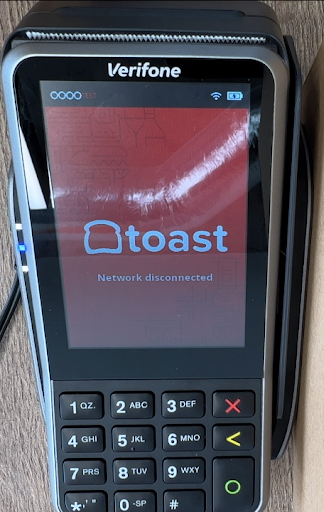
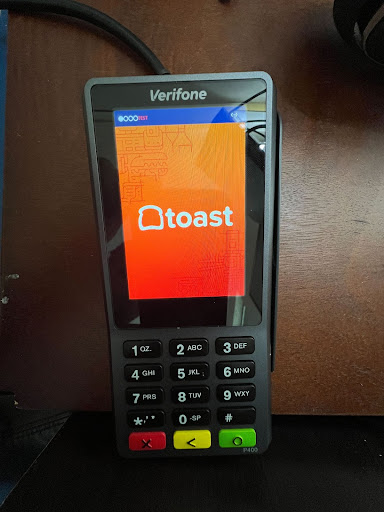
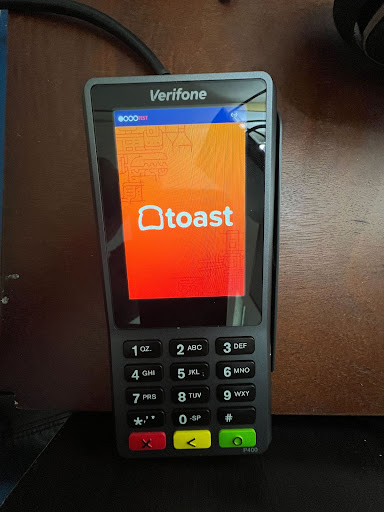
- Once the device has successfully completed the boarding process, it will show the Toast logo and have a Wi-Fi logo in the top right of the screen.
- The card reader is now ready to pair with a Toast device.
- Unbox the device and remove the V400m reader and power supply. The paper roll may be discarded or reused, as the reader's built-in printer will not be used.
- Pair the V400m to your Toast device
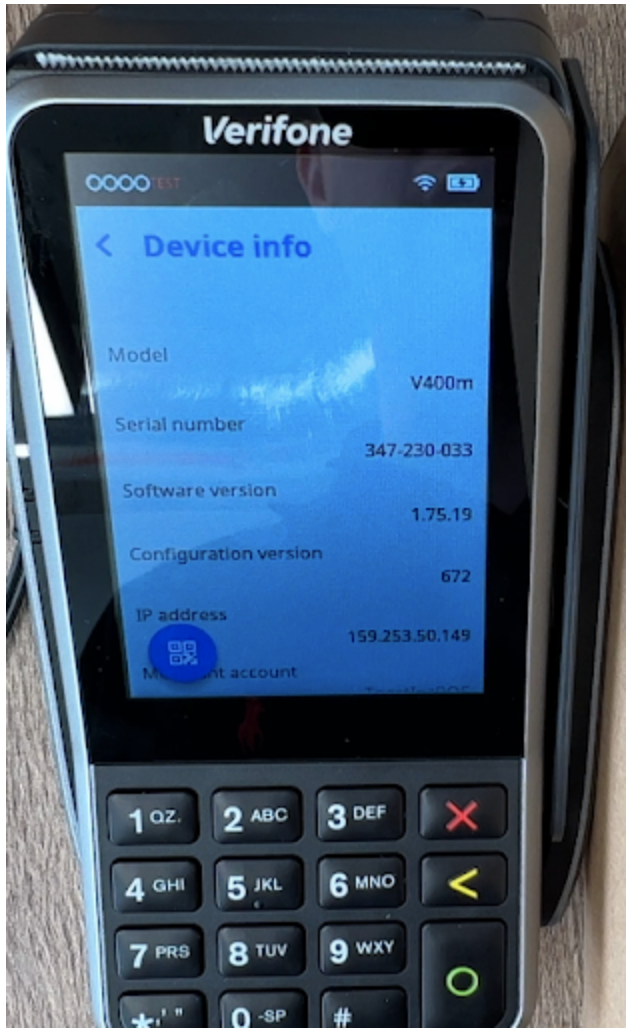
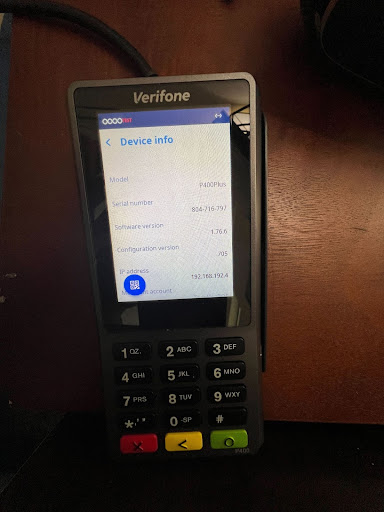
- On the physical keyboard, select the 5 button and then the green circle button to arrive on the Device info page.
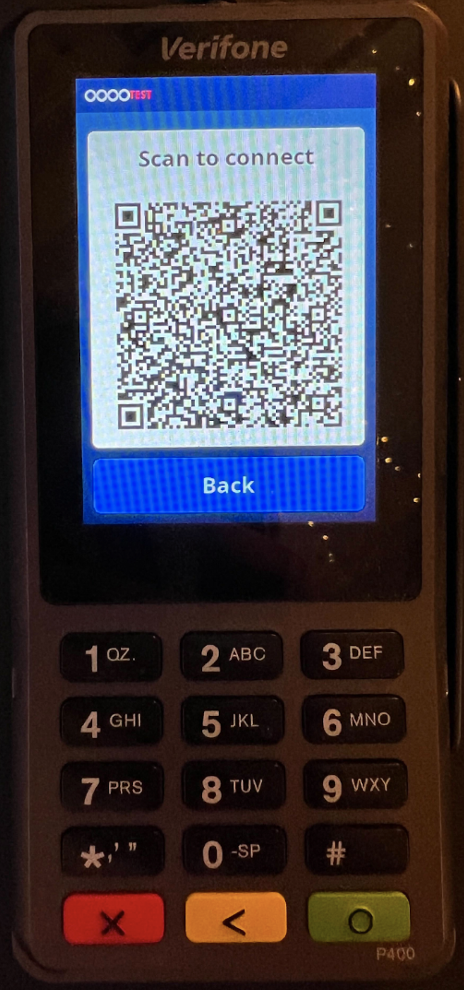
- Select the QR code button in the bottom-left corner to pull up a Scan to connect QR code.
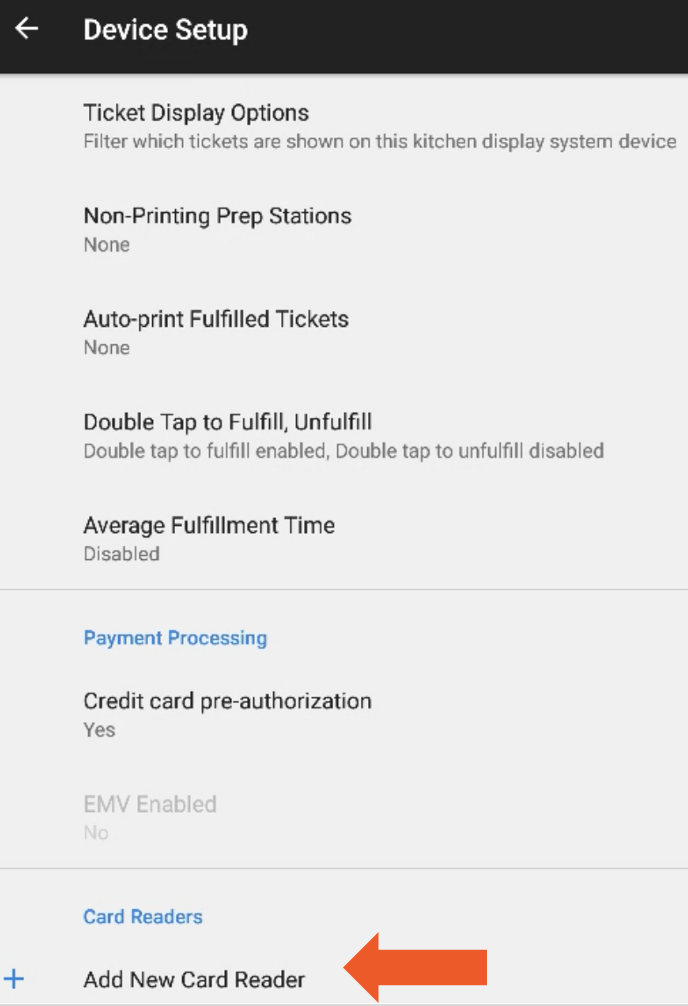
- On your Toast device, within the Toast app, navigate to Device Setup and select Add New Card Reader.
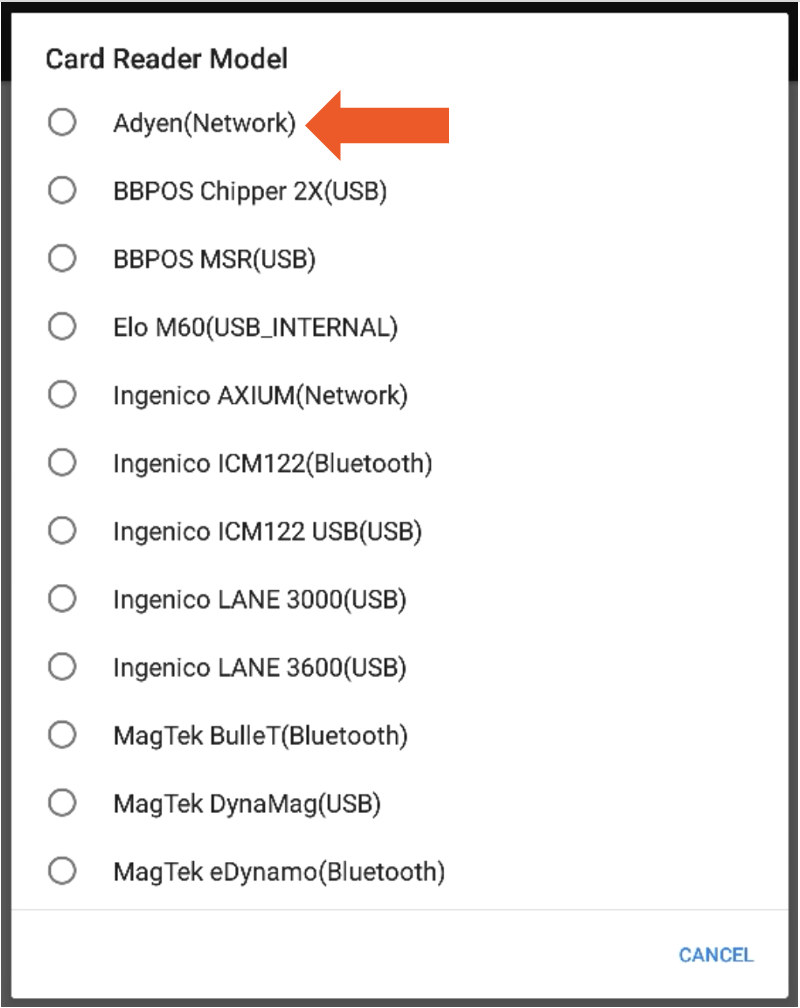
- Select Card Reader Model and then choose Adyen (Network).
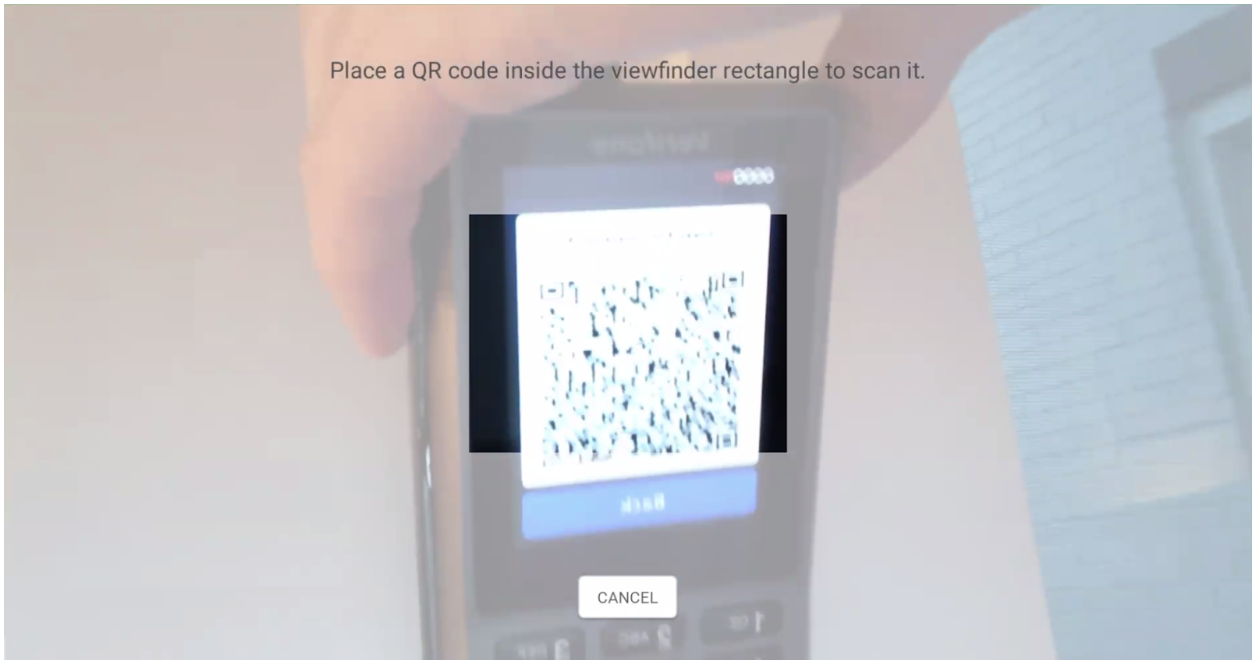
- Select Scan QR Code and place the V400m card reader in front of the QR code box on the screen.
- Once complete, the device is successfully paired. Select Complete Setup at the bottom of the page.
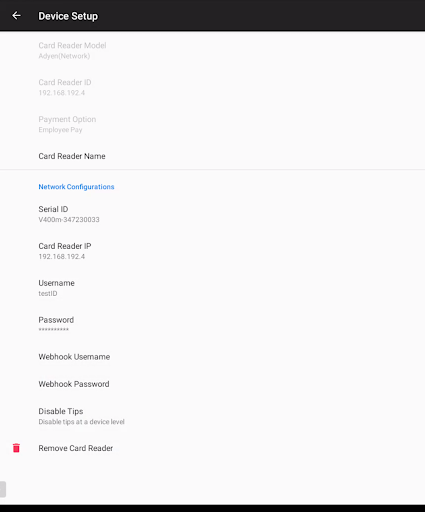
- If scan to sync does not work, manually sync the card reader:
- Use the information from the device information page on the card reader.
- Fill in the following information found on the card reader's device information page:
- Serial ID: (Model-SN) V400m-347230033
- Card Reader IP: xxx.xxx.xxx.xxx
- Username: toastID
- Password: The passphrase can be found by following the steps in this article: Adyen Passphrase/Password for International Devices.
- Disable Tips: Decide if you want the device to prompt for tipping or not.
- Select Complete Setup at the bottom of the page.
- On the physical keyboard, select the 5 button and then the green circle button to arrive on the Device info page.
- Confirm EMV and digital receipts are enabled
- Before leaving the Device Setup menu, enable two settings to ensure the card reader can communicate with the Toast terminal:
- EMV Enabled - Yes
- Digital Receipts - Yes
- Before leaving the Device Setup menu, enable two settings to ensure the card reader can communicate with the Toast terminal:
- Test a payment on the V400m
- To test that everything works, navigate back to the home page on the card reader by selecting the red X button.
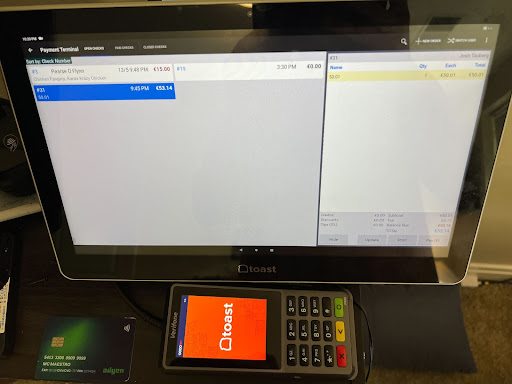
- Navigate to the payment screen to test the device.
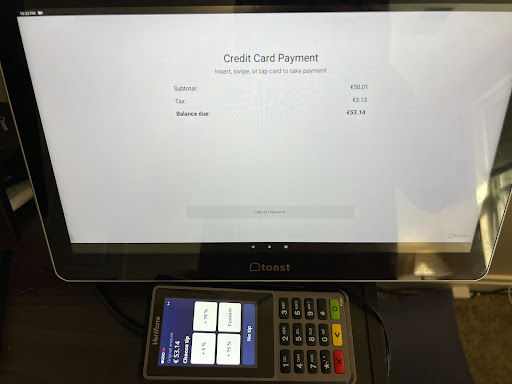
- Upon selecting Credit on the payment screen, the workflow will then move over to the card reader.
- Select the tip amount, if applicable, and provide payment via tap, dip, or swiping the card.
- Access V400m device information, if needed
- On the home screen of the card reader, select the 5 button and then the green circle button.
- On the next page, you’ll see device information such as:
- Model
- Serial Number
- Software Version
- Config Version
- IP Address
- Merchant Account
- Store ID
- On the home screen of the card reader, select the 5 button and then the green circle button.
- Update V400m network settings, if needed
- On the home screen of the card reader, select the 9 button and then the green circle button.
- You may be prompted for a password. If so, enter 8678 (TOST).
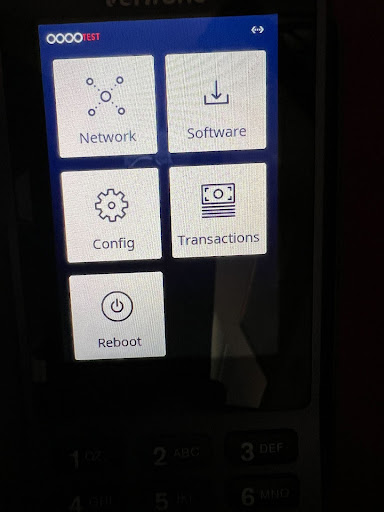
- The next page will prompt you with a list of options. For network settings, select Network.
- Network: Network information for both Ethernet and Wi-Fi
- Software: Update device software
- Config: View current, update, and remove config (requires reboarding)
- Transactions: Recent Transactions page
- Power Options: Reboot and power off options
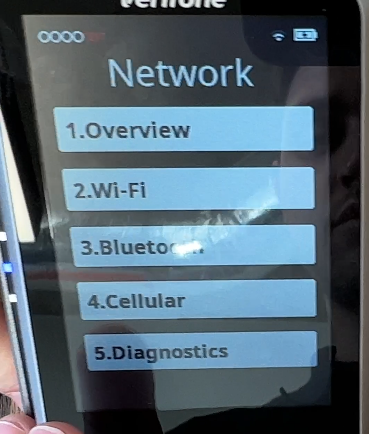
- Within Network, you’ll see the following five options. Select Ethernet to adjust settings to network or IP information. Select Wi-Fi to connect or adjust network settings for wireless networks.
- Overview: Connected Network Information
- Wi-Fi: Wi-Fi settings, default off but can be used
- Bluetooth: Not used
- Cellular: Not used
- Diagnostics: Connection testing
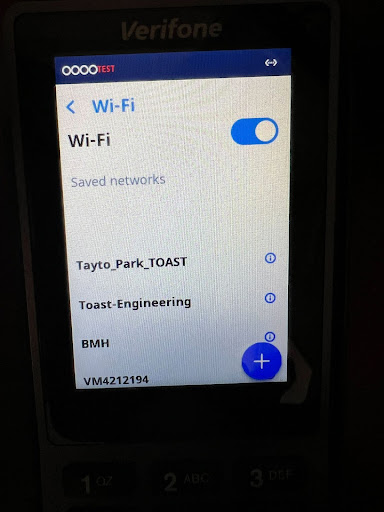
- In the Wi-Fi section, you’ll see a list of previously connected networks. If you need to connect to an SSID, select the + button in the bottom right of the screen. Then select the correct SSID and enter the password.
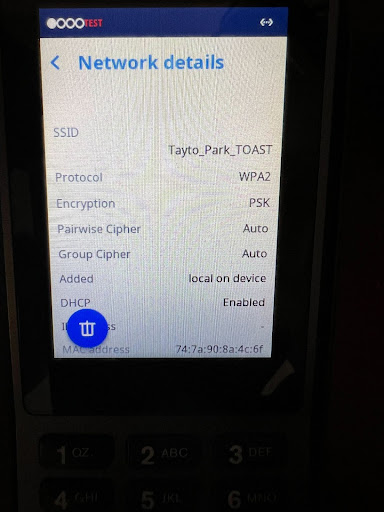
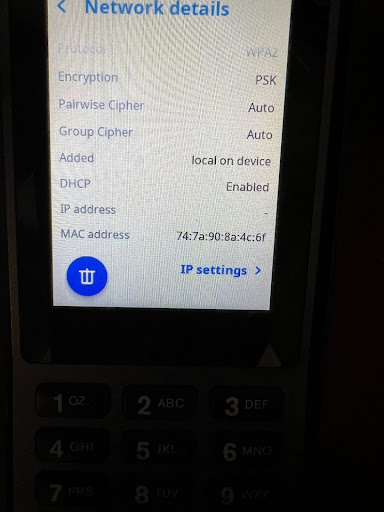
- If you need to adjust or update IP information, select the i icon next to the SSID.
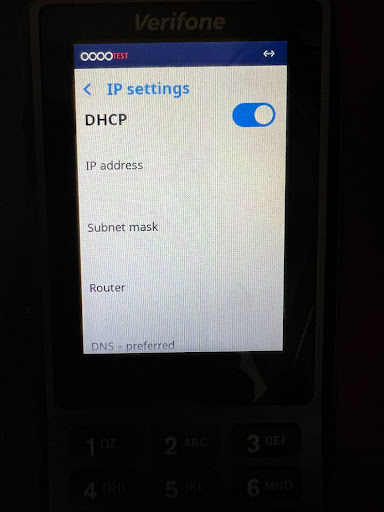
- Scroll to the bottom of the page and select IP settings. You will then see a list of network information.
- To manually adjust the IP information, uncheck DHCP and you’ll be able to enter IP information. If adjusting IP information, the following is required:
- IP address
- Subnet mask
- Router IP
- DNS - Preferred
- DNS - Alternate
- On the home screen of the card reader, select the 9 button and then the green circle button.