Set Up the STORM Accessibility Device for Toast Kiosk
Last updated: Sep 23, 2026, 11:57 AM
Learn how to set up the STORM accessibility device for Toast Kiosk.
This guide covers how to purchase the device, install the hardware, enter Kiosk Accessibility Mode, configure your Kiosk for the best experience, and troubleshoot common issues.
| Kiosk Accessibility features only work in Kiosk mode. They do not work in other Toast POS modes at this time. |
Purchase the STORM device
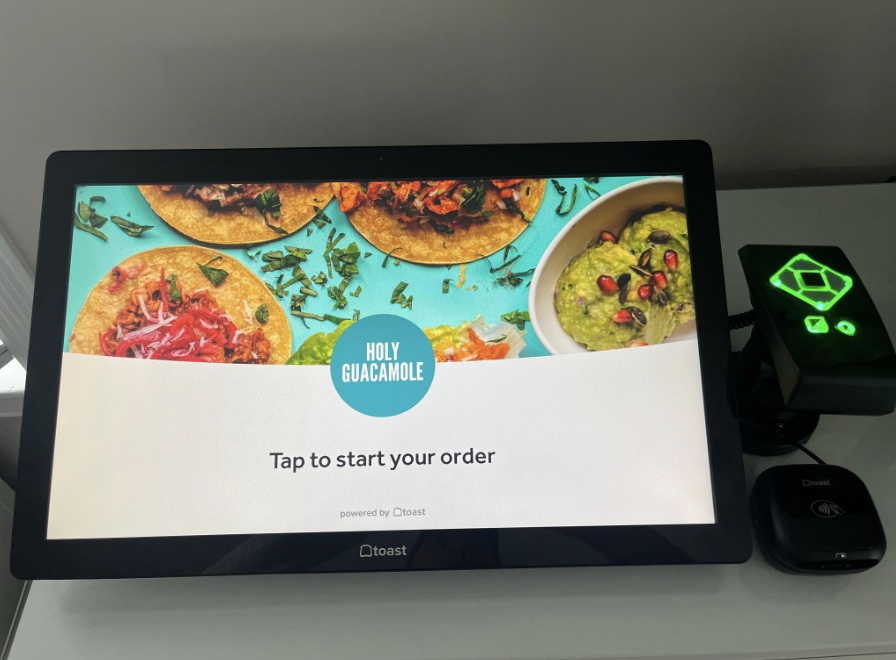
The STORM Audio-Nav device is an accessible keypad with a headphone jack that enables blind and low vision guests to navigate the Toast Kiosk screen while listening to the JAWS screen reader. The device attaches to the Kiosk by USB-A and is installed with a counter mount.
| The STORM device and counter mount are sold by a third-party provider through Toast Shop. A floor stand and wall mount solution from additional third-party providers is in progress and is expected to be available through Toast Shop in the near future. |
Install the STORM device
To install the STORM device, you will need a small Phillips head screwdriver. Follow the third-party instructions in the box of your STORM device to install the hardware components in this order:
- Install the counter mount.
- Choose the tape or screw option for mounting to the counter.
- Select a mounting height appropriate for your setup.
- Attach the quick release adapter plate.
- Attach the STORM Audio-Nav device.
Note: For the best guest experience, mount the STORM device on the right side of the Toast tablet, near the payment device.
Once the STORM device is mounted, connect it to the Kiosk:
- Locate the two "doors" on the back of the Toast tablet hardware.
- Unscrew the "door" opposite the power button.
- Insert the STORM device USB-A connector into the slot.
- The STORM device will illuminate to indicate it has power.
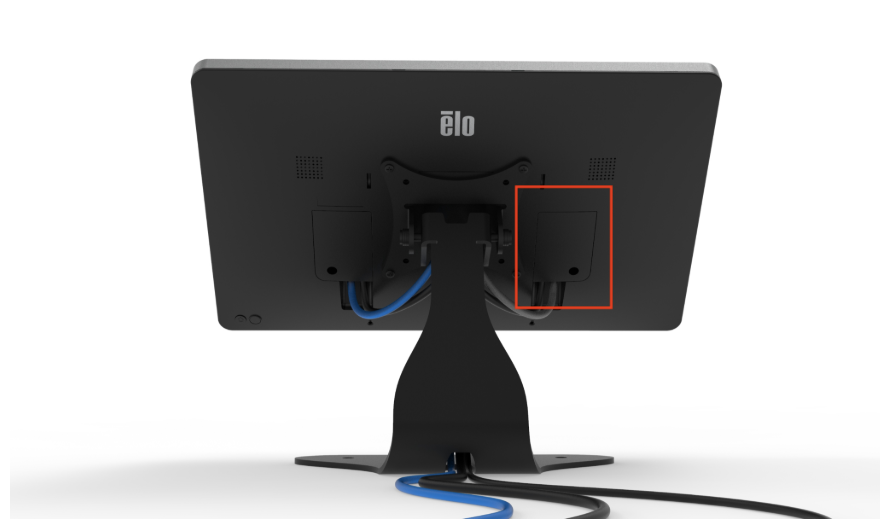
Note: If your Kiosk device is an ELO V4 or Flex 22” model, your devices have built in USB-A ports. If you are using a Toast Flex 14”, you will need to purchase a USB-C to USB-A adapter. To learn about compatible adapters, see Compatible USB-C® to USB-A Adapters for Supported Hardware.
Confirm the JAWS screen reader is installed
JAWS is the voice-output software that reads on-screen text aloud for the guest in conjunction with the STORM keypad device. Toast pre-installs JAWS on your device, so no separate installation is required. JAWS reads text on the screen out loud. Some elements, such as unlabeled graphics, may not be read or interacted with effectively.
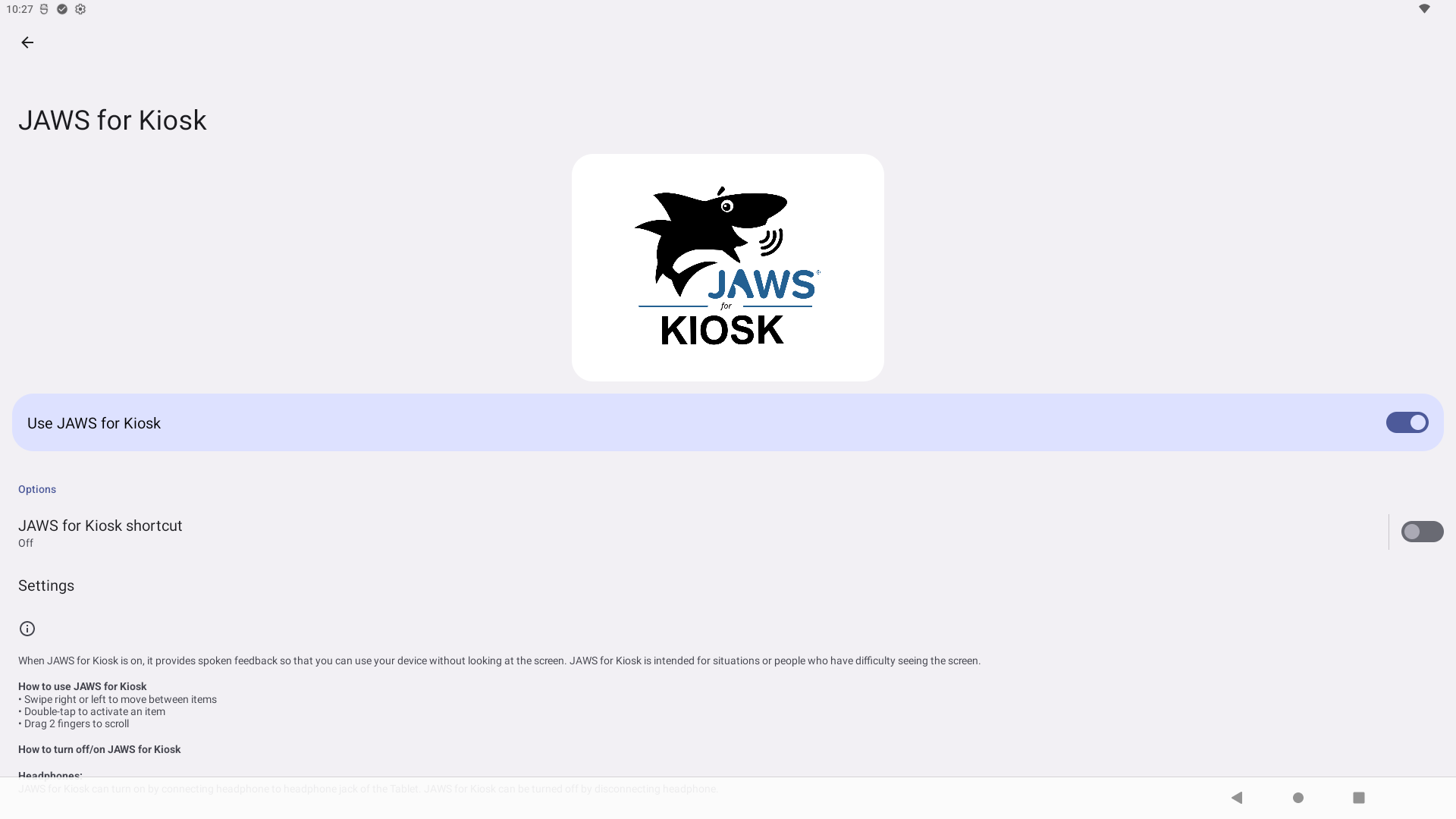
To confirm JAWS is enabled, go to Android Settings > Accessibility, look for the JAWS for Kiosk logo as seen below, and make sure the toggle is on.
Use Kiosk Accessibility Mode
If you are not a blind or low vision guest, navigating with a screen reader may feel unintuitive. Sighted users often expect different navigation patterns. For accurate testing, follow the navigation below so the experience is evaluated the way screen reader users actually navigate. You can also view the video below for a walkthrough.
Watch to see Kiosk Accessibility mode in action.
To use Kiosk Accessibility mode after installing the STORM device:
- Enter Kiosk mode on your terminal screen. To learn more, see Use Kiosk Mode on Your Terminal.
- Insert a standard 1/8" (3.5mm) wired audio plug into the audio jack on the STORM device.This triggers the screen reader to begin speaking.
- Listen to the initial prompt, then press the center Enter key on the STORM device, or double tap the kiosk screen to begin.
- Use the right or left arrow keys on the STORM device to move the screen reader's focus between screen components.
- Press the center Enter key to make your selection.
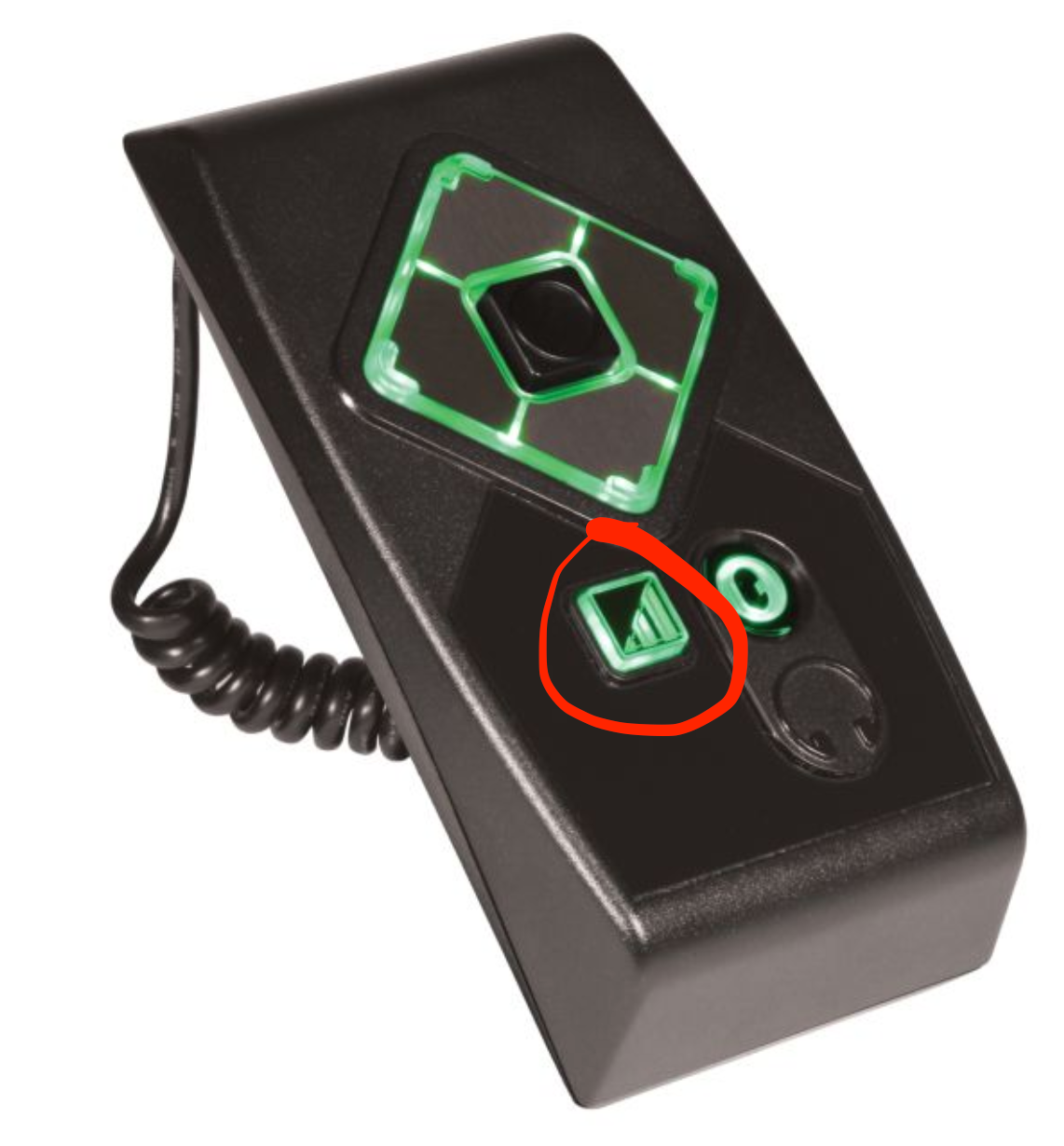
To adjust the volume, press the Volume key next to the audio jack as seen in the image below. Each press increases the volume by 20%. When the volume reaches 100%, the next press returns it to 20%.
Configure your Kiosk for accessibility
To give blind and low vision guests the best ordering experience, consider the following Kiosk configuration changes within your Kiosk Setup settings in Toast Web (Front of House > Mobile Dining Solutions > Kiosk Setup).
Under the Dine in orders header:
- Enable Ask for phone number for easier screen reader navigation.
- Set Ask for guest information as an optional field so blind and low vision guests can skip this step.
Blind and low vision guests may prefer to use tap-to-pay during checkout for ease of use. To reduce the need for an on-screen signature, increase the credit card signature threshold. To do so:
- In Toast Web, navigate to Payment Options > Credit > Signature Threshold.
- Enter an uncommon order value into the signature threshold field.
For Loyalty programs, it is also important to ensure your signup method is set as Phone Number. To do this:
- Navigate to Marketing > Loyalty > Settings in Toast Web.
- Select the blue Settings button at the top of the page.
- Under the Signup Method header, select Phone Number.
Note: QR code check-in is not easily navigable with the screen reader.
Troubleshoot the STORM device
If the STORM device or screen reader is not working, try these steps in order:
- Confirm that your device has Kiosk mode enabled. Accessibility features do not work in other Toast POS modes.
- Confirm the STORM keypad is plugged into a USB-A port on the Toast Kiosk and that the keypad lights are illuminated. If the lights are off, try a different USB-A port.
- Plug wired headphones into the headphone jack to activate the screen reader. It should begin speaking immediately. Confirm the wired headphones are working. Note: Bluetooth headphones do not work with this application.
- If you cannot hear the screen reader through the headphones, press the right or left arrow keys on the STORM keypad to move the focus forward. A sighted user should see a green box around the component currently in focus.
- Confirm Accessibility is enabled in the Android device settings. Go to Android Settings > Accessibility, confirm the JAWS for Kiosk logo appears, and make sure the toggle is on.
If these steps do not resolve the issue, please contact STORM customer service for further troubleshooting here: Enhance Your Toast Kiosk with Storm Accessibility Solutions (external link). You can request a return or replacement (RMA) for your STORM device directly through the third-party provider should it be deemed necessary.