Set Up Multi-Factor Authentication
Last updated: Oct 16, 2026, 2:28 PM
Set up, reset, or disable multi-factor authentication (MFA) for your Toast Web login using an authenticator app or SMS code.
- Multi-Factor Authentication Overview
- Before You Begin
- Set Up MFA
- Update or Reset MFA
- Disable MFA
- Frequently Asked Questions
- Related Articles
Multi-Factor Authentication Overview
Multi-factor authentication (MFA), sometimes called two-factor authentication or 2FA, adds an extra layer of security to your Toast Web login. After you enter your email and password, you enter a six-digit code from a text message (SMS) or an authenticator app. This protects your account and your business information even if someone learns your password.
Toast offers two MFA methods for your Toast Web login:
- A one-time code from an authenticator app, such as Google Authenticator
- A one-time code sent by SMS (text message) to your personal phone
Note: Use your personal phone number for SMS, not a business phone or your restaurant's landline. A shared or landline number can prevent you from receiving your code.
MFA is required for users with any of the 8.X Account Admin permissions, and for HR+ Toast Payroll users. Because MFA is tied to your individual login, each person at your business should have their own Toast Web account rather than sharing one login. To set up individual accounts, see Separate Your Shared Toast Web Accounts.
MFA does not apply when you log in on a Toast POS device.
Before You Begin
Applies to: Toast Web, Toast Payroll, MyToast app
Permissions needed:
- Any Toast Web or Toast Payroll login can set up MFA
- MFA is required for users with any of the 8.X Account Admin permissions
What you'll accomplish: You'll enable MFA for your login and choose how you receive your six-digit code, so your account is protected at every login.
Set Up MFA
Follow these steps to set up MFA for your account. If you were prompted to set up MFA while logging in, start at step four.
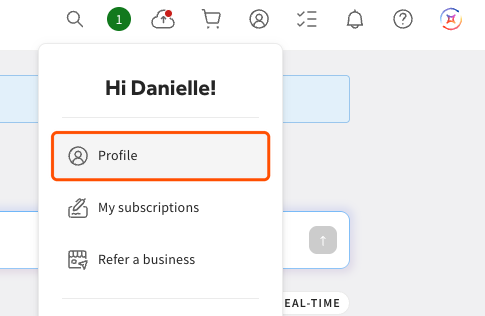
- In Toast Web or Toast Payroll, select the avatar icon in the upper-right corner and choose Profile.
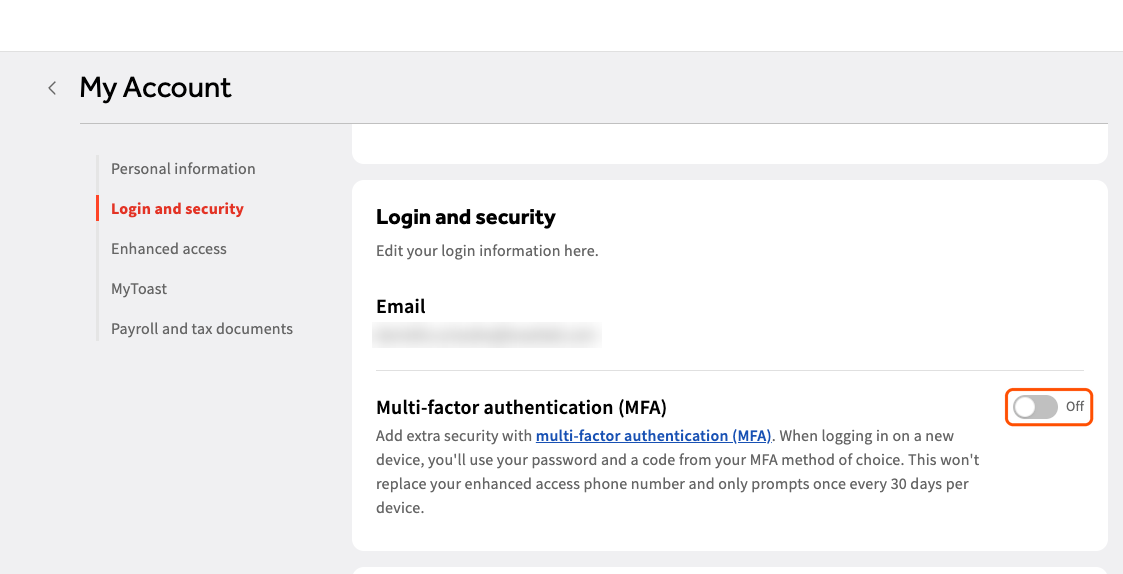
- Scroll to the Login and security section and enable Multi-factor authentication (MFA).
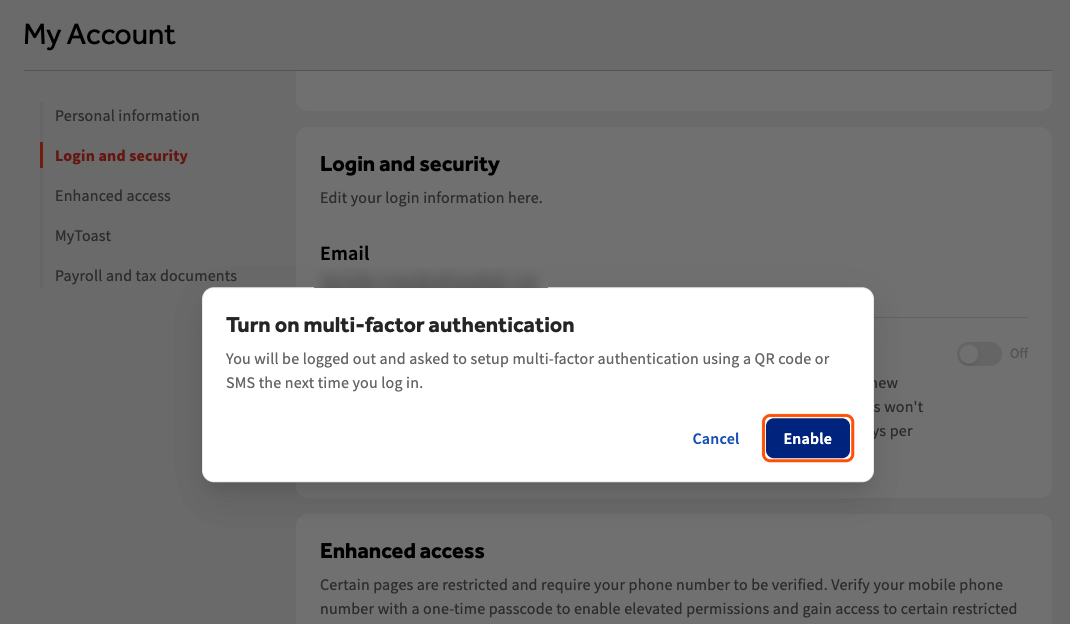
- Select Enable on the pop-up window to confirm.
- You'll be logged out. Log back in with your email address and password.
- When asked to choose your MFA method, select either Google Authenticator or similar or SMS (text message) code.
To finish with an authenticator app:
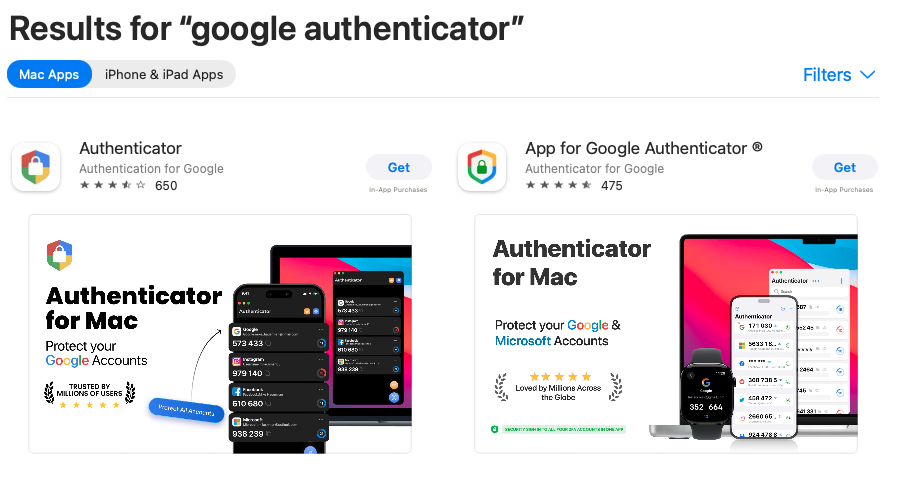
- If you don't have one, download an authenticator app such as Google Authenticator from the Google Play Store or the App Store.
- Open the authenticator app on your mobile device.
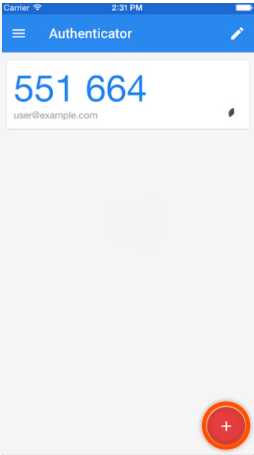
- On the QR code screen, use the app to scan the code and add Toast. In Google Authenticator, select the + button in the lower-right corner and choose Scan a QR code.
- After Toast is added, the app shows a six-digit code that refreshes every 30 seconds.
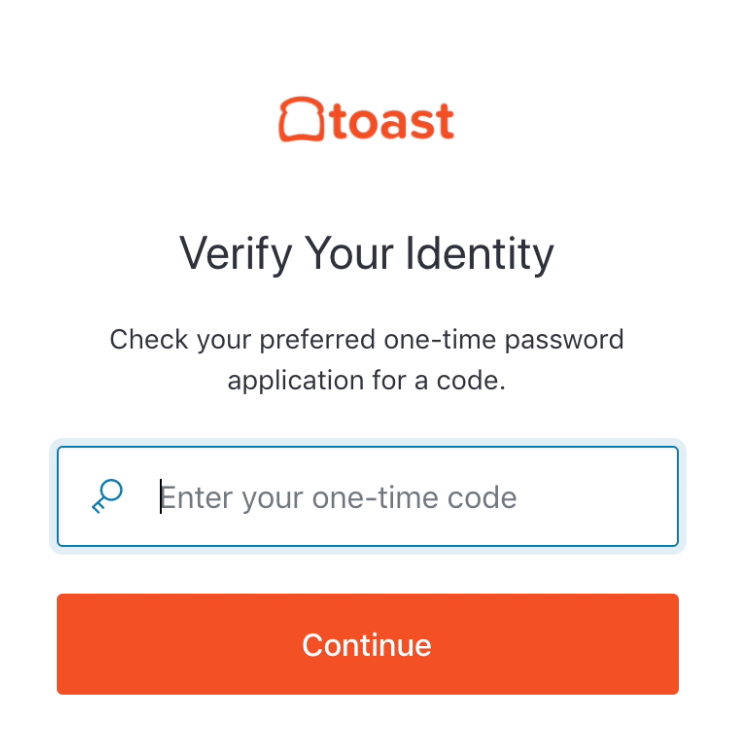
- Enter the current code into the login portal and select Continue.
To finish with SMS (text message):
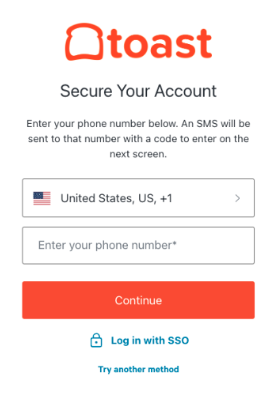
- Enter your personal phone number and select Continue.
- Toast immediately texts you a six-digit code. Enter it into the login portal and select Continue.
Note: You may see an optional screen asking if you want to set up biometrics (Log In Faster on This Device). This is optional and is not part of MFA. To learn more, see Log in to Toast Web With Biometrics.
Expected outcome: MFA is on for your login. Going forward, expect an MFA code challenge about every 30 days per device (computer, laptop, or mobile phone).
Update or Reset MFA
If you can still log in to Toast Web, you can reset MFA yourself to switch between SMS and an authenticator app, or to update the phone number that receives your code.
- Navigate to toasttab.com/login and log in to Toast.
- Select the avatar icon in the upper-right corner and choose Profile.
- Scroll to the Login and security section and select Reset multi-factor authentication.
- You'll be logged out and prompted to set up MFA again the next time you log in. Follow the steps in Set Up MFA to choose your method.
Expected outcome: The next time you log in, you set up your preferred MFA method and code delivery.
Note: If you know you're about to lose access to your MFA phone number — for example, before switching numbers or when an employee with MFA access is leaving — reset your MFA and choose a new number now, while you can still log in. Self-service reset only works if you can log back in with your email and password; it does not let you change your number after you've already lost access to it.
If you followed the reset steps above while still logged in, entered your new number, and the code is still going to your old number or not arriving at all, this is not expected behavior. Contact Toast Customer Care rather than repeating the reset — they can look into it further and, if needed, escalate it.
Once you lose access to both your login and your MFA code — for example, if your phone with your authenticator app is lost, or the number you no longer have access to is the only one on file — only Toast Customer Care can restore access.
If you cannot log in because you lost your phone, can't access your authenticator app, your code is going to a number you no longer have, or the reset isn't working, you will not be able to log in until MFA is reset for you. For these situations and other MFA login errors, see Log in to Toast: Troubleshoot Login.
Disable MFA
You can disable MFA only if your account does not have any of the 8.X Account Admin permissions. Accounts with these permissions are required to keep MFA on.
- Navigate to toasttab.com/login and log in to Toast.
- Select the avatar icon in the upper-right corner and choose Profile.
- Scroll to the Login and security section and disable Multi-factor authentication.
Expected outcome: MFA is off for your login, and you will no longer be asked for a six-digit code at login.
Frequently Asked Questions
Do I have to set up MFA, and why do I need it?
You have to set up MFA if you are a Toast Payroll user who is required to, or if you have any of the 8.X Account Admin permissions. MFA protects your account and business information by requiring a second verification step at login, so a stolen password alone can't get someone in. Other users can choose to skip MFA.
Also asked as:
-
- Can I skip setting up MFA?
- Why do I need MFA?
What is MFA?
MFA, or multi-factor authentication, is a security step that asks for a six-digit code from an SMS text or an authenticator app after you enter your email and password to log in to Toast Web. People sometimes call it two-factor authentication or 2FA.
Also asked as:
-
- What does MFA mean?
- What is two-factor authentication on Toast?
How do I reset my MFA?
To reset your MFA, log in to Toast Web, select the avatar icon, choose Profile, scroll to Login and security, and select Reset multi-factor authentication. You'll set up your method again at your next login. If you can't log in to reach this screen, see Log in to Toast: Troubleshoot Login.
Also asked as:
-
- How do I change my MFA?
- How do I set up MFA again?
- I need to switch my MFA method.
What if I lose my phone or can't get my MFA code?
If you lose your phone, you don't have access to an old phone number, or you can't get your MFA code, you will not be able to log in to Toast until your MFA is reset, and Toast Customer Care must reset it for you. For what to do and what to have ready, see Log in to Toast: Troubleshoot Login.
Also asked as:
-
- I lost the phone with my authenticator app.
- I can't access my MFA code.
- My MFA code goes to my old phone number and that doesn't exist anymore.
I chose SMS but I'm not getting the text with my code. What do I do?
If you chose SMS but aren't getting the text with your six-digit code, first confirm the phone number you entered is correct. Then clear your browser cache and cookies and resend the code. If it still doesn't arrive, contact Toast Customer Care. If this keeps happening, reset MFA and use an authenticator app instead, which avoids text-delivery problems. For more, see Log in to Toast: Troubleshoot Login.
Also asked as:
-
- Why haven't I received my MFA text?
- I'm not getting the code by text.
- No code is being sent to me.
How does MFA affect the MyToast app?
MFA affects the MyToast app the same way it affects Toast Web, because the MyToast app uses the same MFA protocol. You enter your six-digit code from SMS or your authenticator app when prompted.
Also asked as:
-
- Does the MyToast app use MFA?
- Will I need MFA on the app?
Why am I getting an MFA text when another person logs in on a shared device?
You may get an MFA text when another person logs in on a shared device because the browser saved the previous person's email on the login screen, so the code goes to that account. To fix this, clear the browser's cache and cookies, or open a private or Incognito tab so each person enters their own email and password.
Also asked as:
-
- Someone else's login is texting my phone.
- MFA code goes to the wrong person on a shared computer.
Why shouldn't my business use a shared login with MFA?
Your business shouldn't use a shared login with MFA because each person would have to rely on someone else's code to get in, and they'd be acting under another person's identity. When everyone has their own Toast Web account, only users with sensitive financial permissions are required to enable MFA. To learn more, see Separate Your Shared Toast Web Accounts.
Also asked as:
-
- Can multiple people share one MFA login?
- How does MFA work with a shared account?
Related Articles
- Log in to Toast: Troubleshoot Login
- Separate Your Shared Toast Web Accounts
- Log in to a Toast Product or Device
- Set Up One-Time Password Verification for Enhanced Access
- Protect Your Toast Account From Scammers