Set Up Tax Rates and Adjust Tax Options
Last updated: Jul 7, 2026, 2:40 PM
Create, edit, and apply percent, fixed, or tax-table rates to menus and items in Toast Web, and split rates for cleaner reporting.
| This guide is informational only and is not legal or tax advice. Per the Merchant Agreement between you and Toast, Toast has no obligation to determine whether taxes apply to your business or transactions, or to calculate, collect, report, or remit any taxes to any tax authority. Consult your tax professional for advice specific to your business.
Note: If your business is part of a Toast Multi-location Management (MLM) or Enterprise account, use Toast Platform Guide: Manually assigning applicable taxes instead of this article. MLM tax setup is managed at the corporate level. |
- Before You Begin
- Create a Tax Rate
- Edit an Existing Tax Rate
- Apply Tax Rates at the Menu Level
- Apply Tax Rates at the Item Level
- Update Tax Settings for All Items in Bulk
- Set Up Separate Tax Rates for Reporting
- Temporarily Adjust Tax Rates
- Related Articles
Before You Begin
Applies to: Toast POS (configured in Toast Web). For Australia, Canada, Ireland, and UK accounts, the Tax Rates page is also where you create and adjust value-added tax (VAT), Goods and Services Tax (GST) or other local taxes.
Permissions needed: 6.8 Tax Rates Setup and 4.5 Edit Full Menu
What you'll accomplish: A configured tax rate (percent, fixed, or tax table) applied to the menus, menu groups, or items where it should apply.
Create a Tax Rate
Follow these steps to create a new tax rate. Use this when you're adding a tax type that doesn't exist yet — for example, a state sales tax, an alcohol tax, a takeout tax, a bag tax, or VAT.
- In Toast Web, navigate to Menus > Settings > Manage tax rates. The Tax Rates page lists every tax rate configured for your restaurant.
- Select + Add Tax Rate.
- In the Basic section, name the tax (for example, "State Sales Tax" or "Alcohol Tax"), choose the Type, and enter the rate.
- Percent — a percentage applied to the item price (most common).
- Fixed — a flat dollar amount per item, useful for bag fees and bottle deposits.
- Tax Table — bracketed amounts for jurisdictions that publish a sales tax table. For details, see Configure Tax Tables.
- Note: Some jurisdictions have different tax or VAT rates for different takeout items (for example, cold versus hot food). Some restaurants in this situation prefer to create a takeout-specific menu and attach the correct taxes there.
- If your restaurant collects a separate takeout tax, use the Takeout Tax section to set it. Select Yes and enter the takeout rate.
Important: The Dining Option Tax setting (No Tax for Takeout and Delivery) is not supported when combined with a takeout tax rate. If you use a takeout tax rate, set Dining Option Tax to No Effect on every menu, group, and item the takeout tax applies to. You can confirm this in Advanced properties.
- To check the Default? box, mark this rate as the default. New menus and menu items will automatically inherit this rate going forward.
- In the Advanced Settings section, choose how pennies round. The default is Half Even Rounding. Reference tables below the setting show how each option behaves.
Note: Penny-rounding rules vary by jurisdiction. Consult your tax professional before choosing a method. This option does not appear for tax tables.
- Select Save and then Publish.
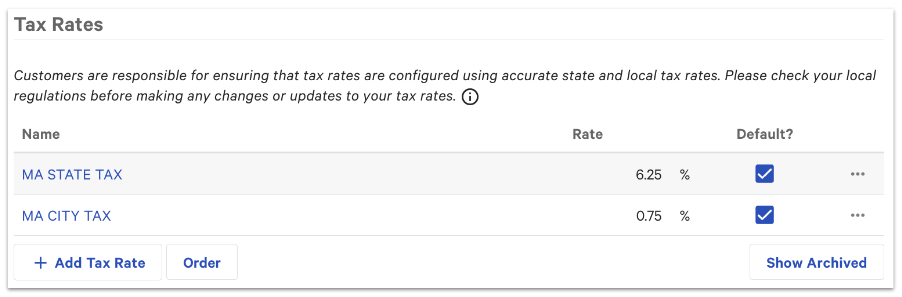
Expected outcome: The new tax rate appears in the list on the Manage tax rates page. Any tax-rate changes you save and publish automatically to your POS devices.
Edit an Existing Tax Rate
Note: Changing the name of the tax rate will have an impact on how this is displayed in historical reporting. We recommend creating a brand-new tax profile for the new rate to preserve this data.
To edit an existing rate to tweak rounding behavior, or fix a typo before it has been used in live transactions in Toast Web:
- Navigate to Menus > Settings > Manage tax rates.
- Select the name of the tax rate you want to edit.
- Make your changes. For a percent-type tax, adjust the Rate field. For a fixed-type tax, adjust the dollar amount.
Note: Changing the Type changes the field immediately below it. Switching between Percent, Fixed, and Tax Table is allowed, but verify the settings after the switch.
- Select Save and then Publish.
Expected outcome: The updated rate publishes automatically to your POS devices. New orders use the new rate; existing checks remain unchanged.
Apply Tax Rates at the Menu Level
Use this when an entire menu needs a different tax setup than your default. Common reasons: a bar menu that needs an alcohol tax, a catering menu for a different location, a happy-hour menu with tax-inclusive pricing.
- In Toast Web, navigate to Menus > Bulk management > Advanced properties.
- Select the name of the menu you want to edit. The Taxes section is at the bottom of the menu setup page.
- Configure the following settings:
- Inherit Tax Rates from Restaurant?
- Select Yes to use the default tax rates configured on the Manage tax rates page.
- Select No, specify tax rates here to override the defaults. Then choose the Applicable Taxes for this menu.
- Tax Inclusion Option
- Tax Not Included — the item price excludes tax; Toast adds the applicable tax to the check. This is the standard "additive tax" approach used by most U.S. restaurants.
- Tax Included — the item price already includes tax; Toast calculates the tax portion for reporting but does not add tax on top. Common with tax in Australia, Ireland and the UK, and useful for round-number pricing.
- Smart Tax (U.S. only) — the price includes tax in one section of the restaurant (for example, the bar) and excludes tax in another (for example, the dining room). Smart Tax is enabled separately; see Toast Platform Guide: Smart tax.
- For details and examples, see Configure Tax Inclusion Option.
- Dining Option Tax
- No Effect — Toast applies tax to dine-in, takeout, and delivery orders. Use this option whenever a separate takeout tax rate is enabled.
- No Tax for Takeout and Delivery — items are tax-exempt when ordered for takeout or delivery.
- Important: Dining Option Tax and Takeout Tax cannot be enabled together. If you have a takeout tax rate, set this to No Effect.
- Inherit Tax Rates from Restaurant?
- Select Save and then Publish.
Expected outcome: Items on this menu now use the tax settings you configured. Items inherit these settings unless overridden at the menu group or item level.
Apply Tax Rates at the Item Level
Use this when a specific item needs a different tax setup than the rest of its menu group — for example, a fixed-rate bottle deposit such as the California Redemption Value (CRV) fee, or an item that should not be taxed even though the surrounding items are.
- In Toast Web, navigate to Menus > Bulk management > Advanced properties.
- Select the item you want to edit.
- Scroll to the Taxes section. For each tax setting, choose whether to inherit from the menu group (the default) or specify a different configuration for this item.
- Select Save and then Publish.
Expected outcome: This item uses the tax settings you configured. The surrounding menu group's settings remain unchanged.
Note: For open items (open food, open bar, and so on), see Configure an Open Item's Tax Settings. For modifier taxes in Australia, Canada, Ireland, and the U.K., see Set Up Tax Rates on Modifiers (Australia, Canada, Ireland and U.K.).
Update Tax Settings for All Items in Bulk
Use this when you need to view or change tax settings across many items at once — for example, after creating a new tax rate that needs to be applied to several menu groups.
- In Toast Web, navigate to Menus > Bulk management > Advanced properties.
- Select the Show/Hide drop-down and enable the three Taxes columns at the bottom of the list (Applicable Taxes, Tax Inclusion Option, and Dining Option Tax).
- Use the arrow icons on the left side of the page to expand menus and view their menu groups and items.
- Use the drop-down in each row to change a menu, menu group, or item's tax settings. Menu groups and items inherit from their parent menu unless you override them here.
- Select Save and then Publish.
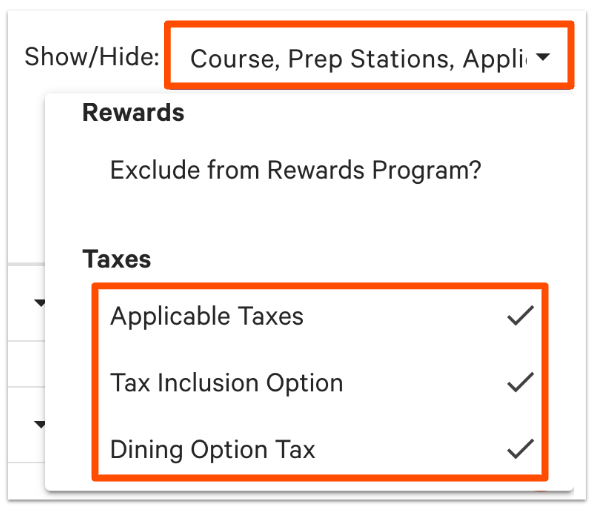
Expected outcome: All edited rows now reflect the new tax settings. Items still inheriting from their parent display the parent's value in parentheses (for example, "Tax Not Included (inherited)").
Set Up Separate Tax Rates for Reporting
Splitting tax rates into separate entries makes reporting easier. For example, a U.S. restaurant might create separate sales tax and liquor tax rates, even when they apply to the same items, so each rate appears as its own line in the Sales Summary report. An Ireland or U.K. restaurant might split VAT into separate rates for first-rate VAT, second-rate VAT, and zero-rate.
To view tax data by rate:
- In Toast Web, navigate to Reports > Sales > Sales summary.
- Adjust the date range. In the Tax Rate section, you'll see the tax amount and net sales for each rate you have set up.
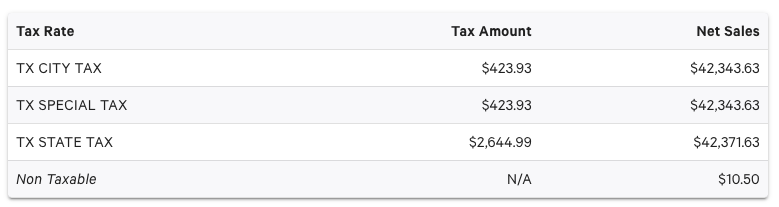
U.S. example
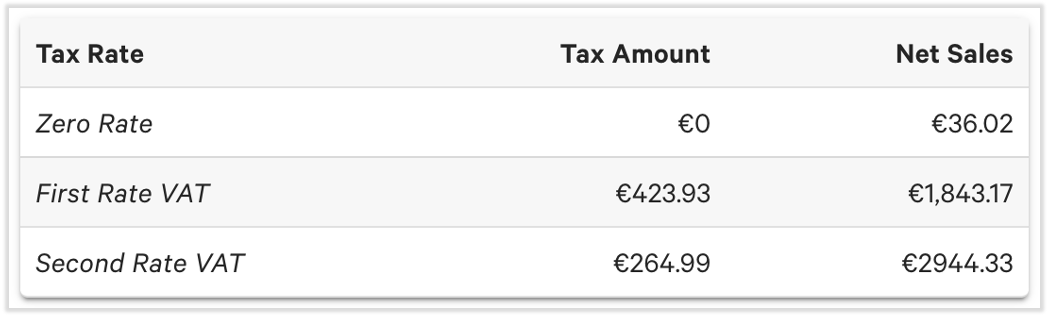
Ireland/UK example
Expected outcome: Each tax rate appears as its own line in the Tax Rate section, making it easier to reconcile against state or county filings.
Note: If reported tax amounts do not match what you expected, see Understand Tax Rate Discrepancies. Common causes include rounding settings and missing tax rate assignments on new menus or groups.
Temporarily Adjust Tax Rates
There may be times when you need to temporarily adjust a tax rate, for example reduced tax rates for a Holiday period, or Special event. If you need to lower or alter tax rates, do not change your standard, live tax rates. Changing live rates will distort your historical sales reports. To ensure smooth reporting, and keep your tax rates and tax periods distinct, it is recommended to follow the steps outlined below:
- Create the Temporary Tax Profile:
- Before the date of the change, navigate to Menus > Settings > Manage tax rates and select + Add Tax Rate.
- Name the rate clearly for tracking purposes (e.g., Reduced Holiday VAT, or Sales Tax Holiday).
- Input the temporary lower percentage rate and select Save.
Note: Leave your standard rates active in the system so your historical reports look correct.
- Assign the Temporary Rate to Menus:
- You will need to use Bulk Management to temporarily swap your menus to this new rate the night before the event.
- To do this, navigate to Menus > Bulk management > Advanced properties.
- Use the Applicable Taxes column dropdown to swap your impacted menus or menu groups to the newly created rate.
- Save and Publish your changes to push the temporary rate live.
- Revert to Standard Rates:
- You will need to revert the menus back to your standard rate profile immediately after the event ends.
- To do this, return to the Advanced properties screen.
- Change the Applicable Taxes mapping on your menus back to the applicable rate profile.
- Save and Publish your changes to return the restaurant to normal operations.
Related Articles
- Configure Tax Tables
- Configure Tax Inclusion Option
- Configure Temporary Tax Rates
- Add a Tax to an Individual Item
- Configure an Open Item's Tax Settings
- Set Up Tax Rates on Modifiers (Australia, Canada, Ireland and U.K.)
- Add a Bag Tax or Bag Fee
- Understand Tax Rate Discrepancies
- Can I set location-specific tax rates for off-site catering orders?
- Understand How Marketplace Facilitator Laws Affect Your Restaurant
- Manage Tax-Exempt Orders
- Differences in Toast Web for Canada, Ireland, and UK Locations
- Toast Platform Guide: Smart tax