Sling by Toast: Activity Log
Last updated: Jun 3, 2026, 2:43 PM
Learn how to use the Activity Log to review changes to your company's schedule.
Activity Log
Sling's Schedule page includes an option to review the details of changes made to shifts. This option is accessible to admins and managers on the account.
Note: If the "Visibility of schedules for managers" setting is disabled, managers can only view activity for their assigned locations.
The activity log provides details for changes to shifts added to the schedule and displays up to 60 days of history.
View the Activity Log
To view the activity log:
- Access the web version of Sling
- From the Schedule page, select the View activity icon near the upper right corner of the screen.
- This opens the activity log, where shifts appear from most recent to oldest.

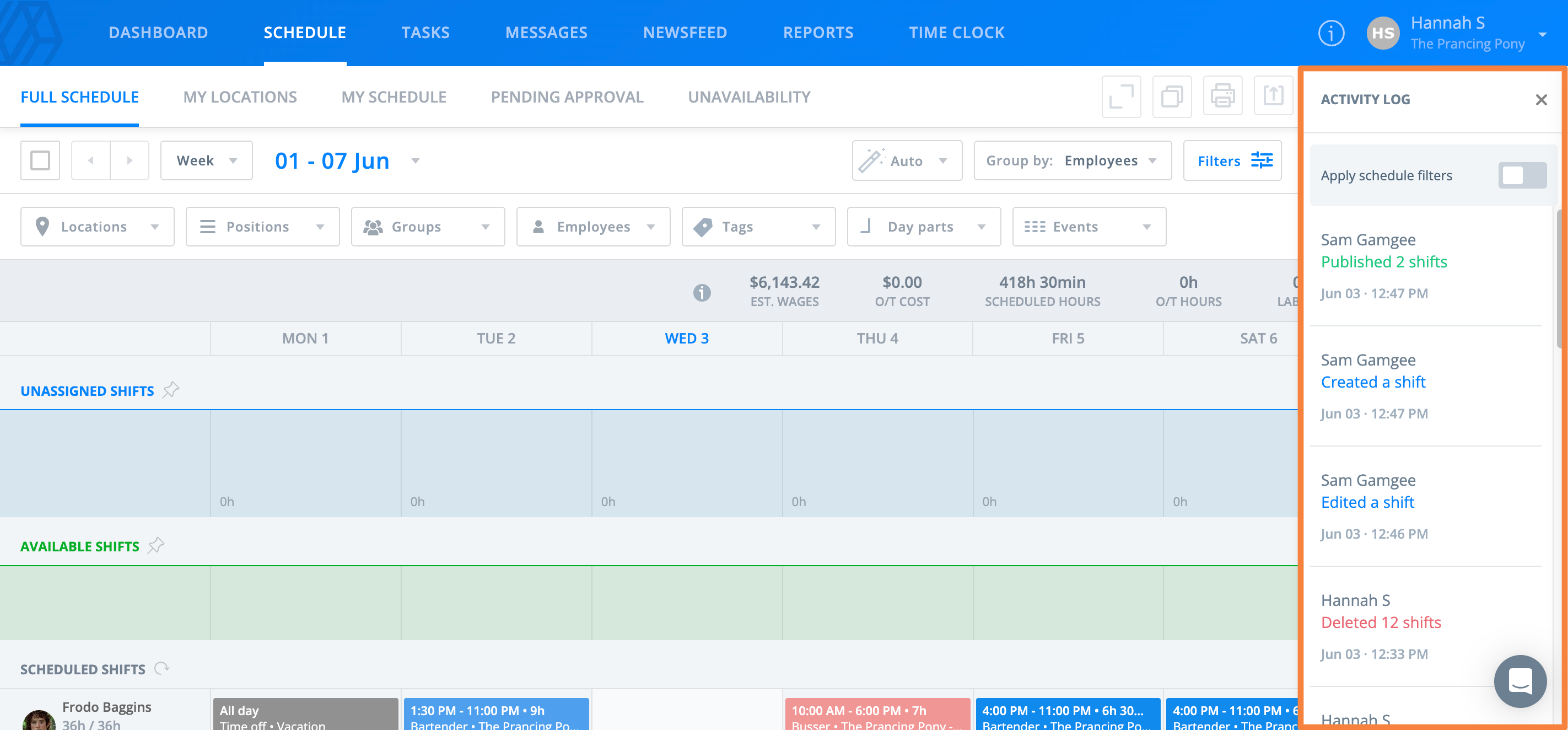
The details include the person responsible for the change, a description of the action taken, and the date and time of the action.
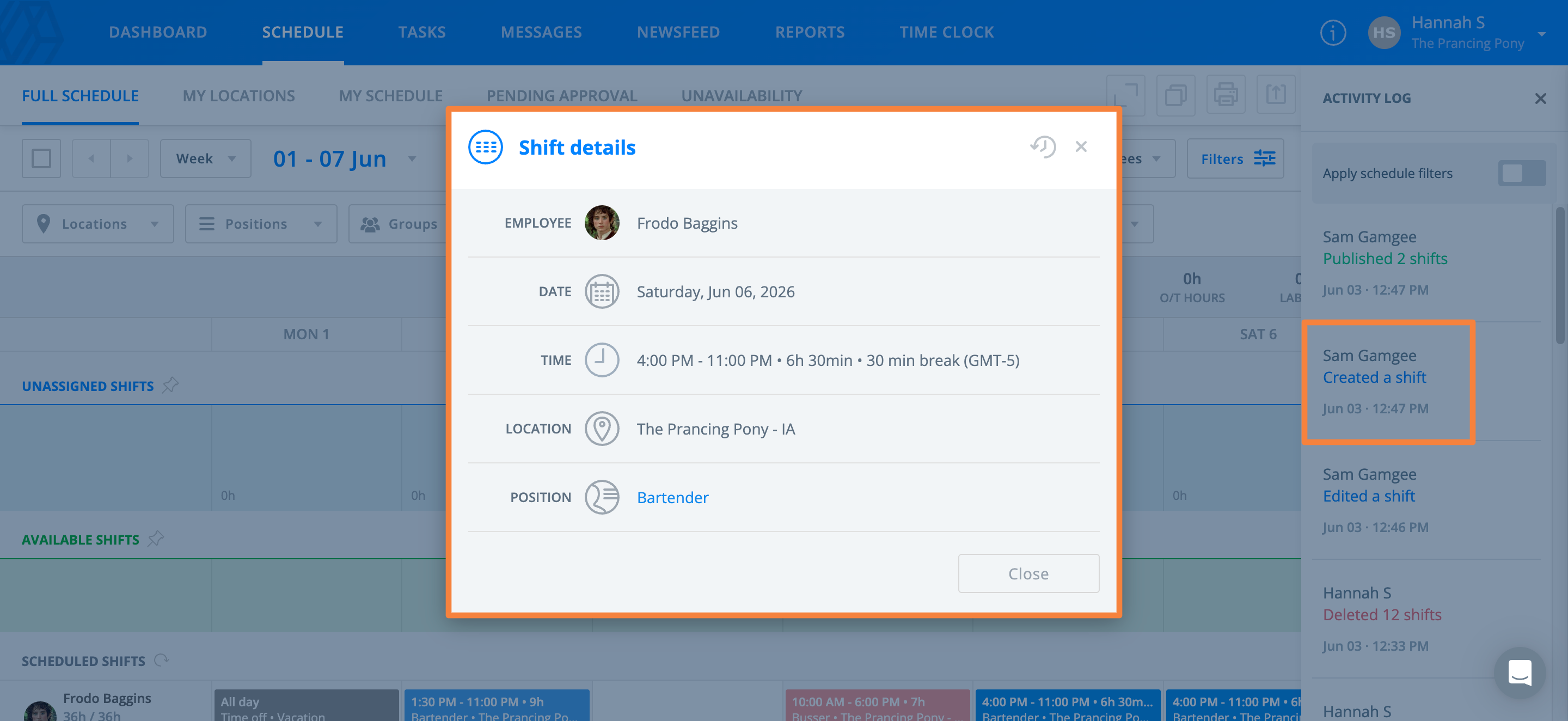
To view more details about a shift, select an entry in the activity log.
Apply Filters
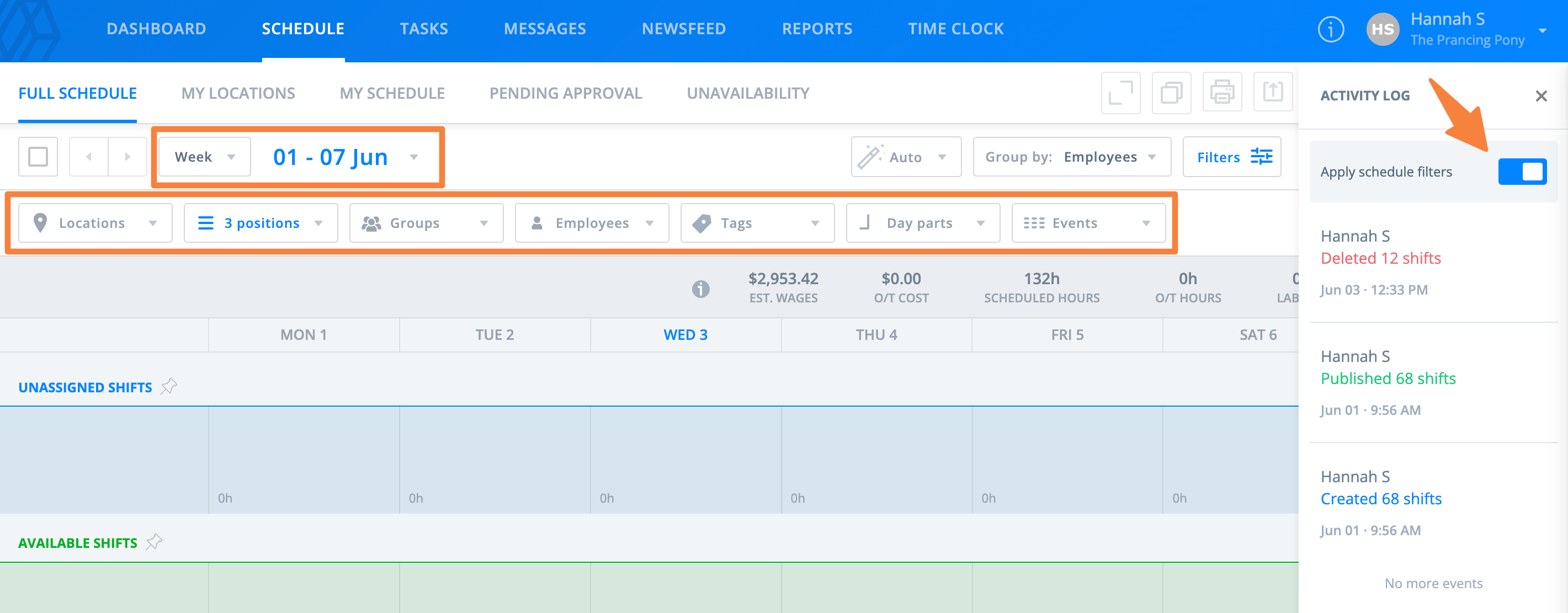
You can also apply the same filters used in your schedule view to the activity log results to narrow the date range and displayed shifts.
To apply filters to the activity log:
- Select and apply schedule filters.
- Choose the date range.
- Enable Apply schedule filters.