Sling by Toast: Employee Mobile App Guide
Last updated: Jun 2, 2026, 11:44 AM
Learn how to use the Sling mobile app as an employee.
Sling by Toast: Employee App Overview
Once you’ve joined your company’s Sling account, you’ll be able to log in to Sling using the email address you used to join Sling and the password you created.
This guide will provide an overview of the tabs and functions on the Sling mobile app. Download the app from the Google Play Store for Android or the App Store for iPhone. Use the most recent version of Sling to ensure proper performance.
You may notice that you do not have access to certain functions detailed in this guide. This is due to the different settings and subscription types, which determine what details users have access to.
Sling by Toast Employee App Dashboard
The Dashboard is where you can clock in and out, view notifications, and start or end breaks.
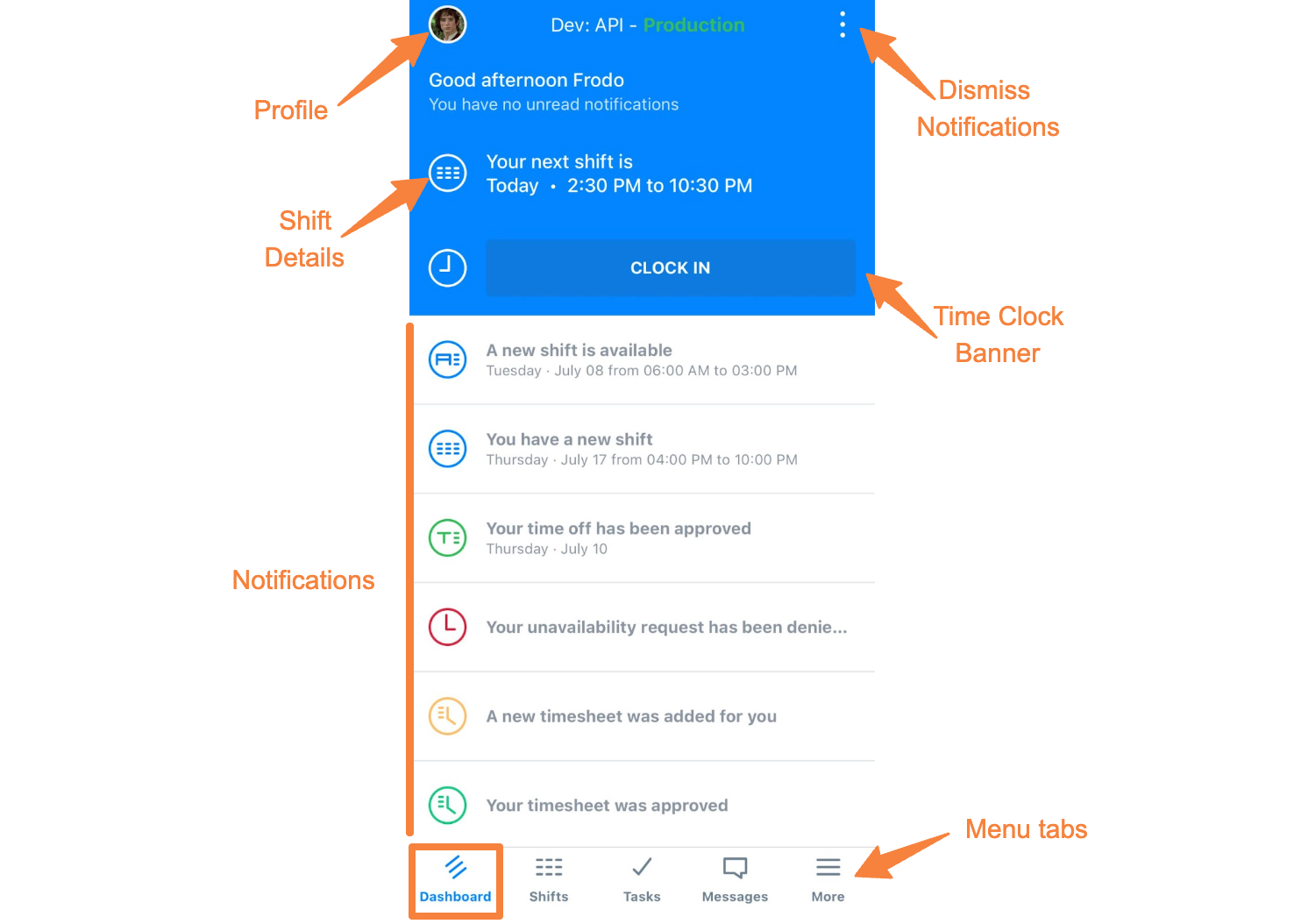
Select the profile circle in the top left corner to edit your profile or upload a profile picture.
Select the 3-dot option in the upper right corner to dismiss all notifications. You can also swipe left on individual notifications to dismiss them. Dismissed notifications can be viewed in the web version of Sling.
The time clock banner appears near the top of the Dashboard. It is blue before you clock in and green while you are clocked in. When you select the banner to clock in, Sling asks you to confirm before the shift starts.
Below the time clock banner, you can review notifications, such as newly assigned shifts or available shifts. Select an available shift notification to apply, or swipe left to apply or dismiss it.
Select a shift notification to view details such as date, time, location, position, and coworkers.
At the bottom of the screen, you will see the other tabs: Shifts, Tasks, Messages, and More. These may vary depending on the features your company uses.
Sling by Toast Employee App: Shifts
The Shifts tab displays your schedule. You may see up to three schedule views: My Schedule, Full Schedule, and Available Shifts. Depending on your company’s settings, you may only see two of these views.
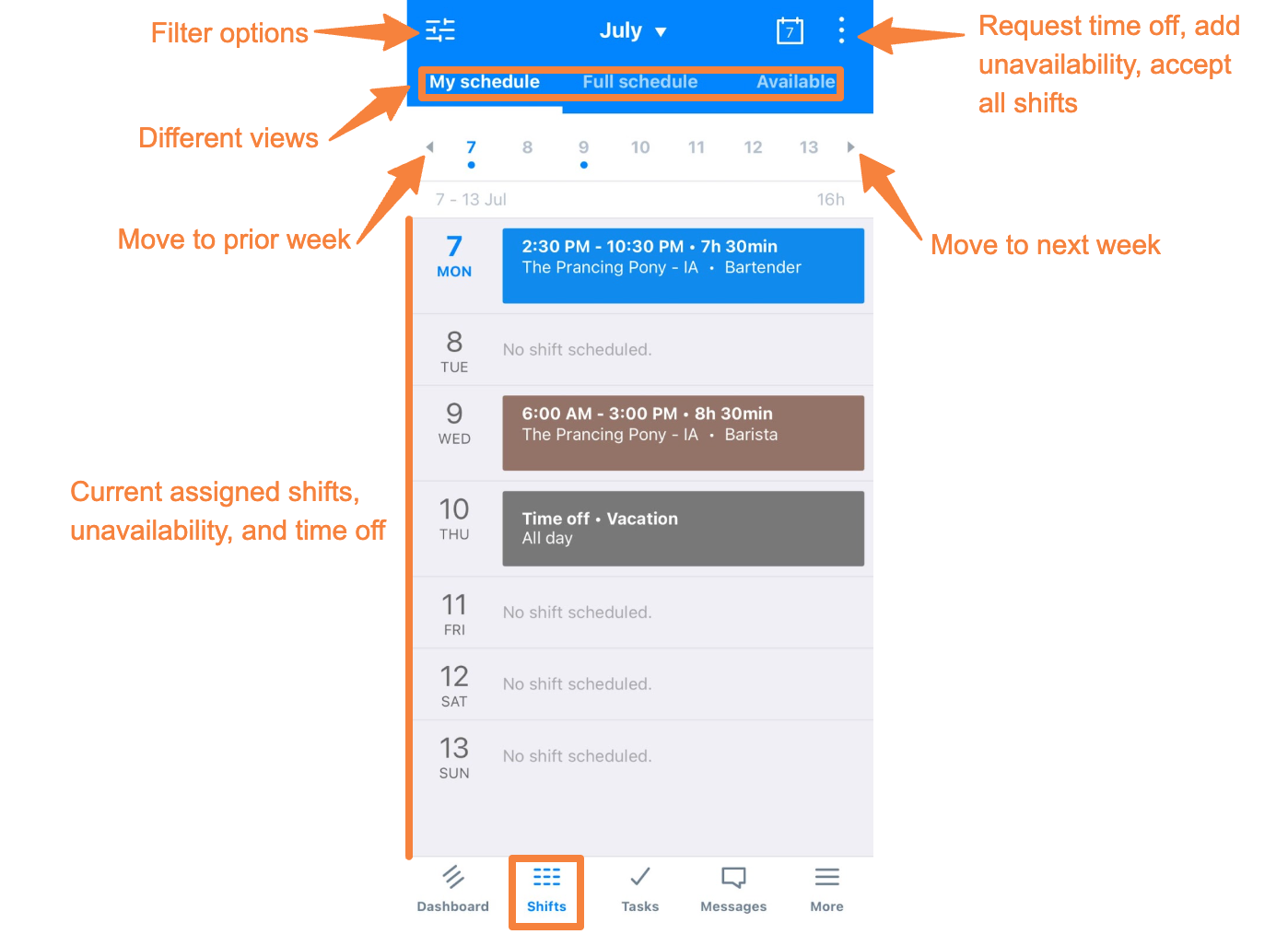
Select the filter icon in the top left corner to adjust schedule filters. Items you turn off will no longer appear in the schedule. To restore default settings, select Reset Filters.
Select the month at the top center to jump to a different date. Select the calendar icon to return to the current day.
Some days may include notes that indicate a holiday. Shifts may appear in different colors because each position in Sling has its own assigned color.
Select a shift to open the shift details. Shift details may include a tag or task that identifies items you are expected to complete during the shift.
Select the 3-dot option in the upper right corner of a shift to make the shift available, offer it to a coworker, or request a swap. Available options depend on your company’s settings.
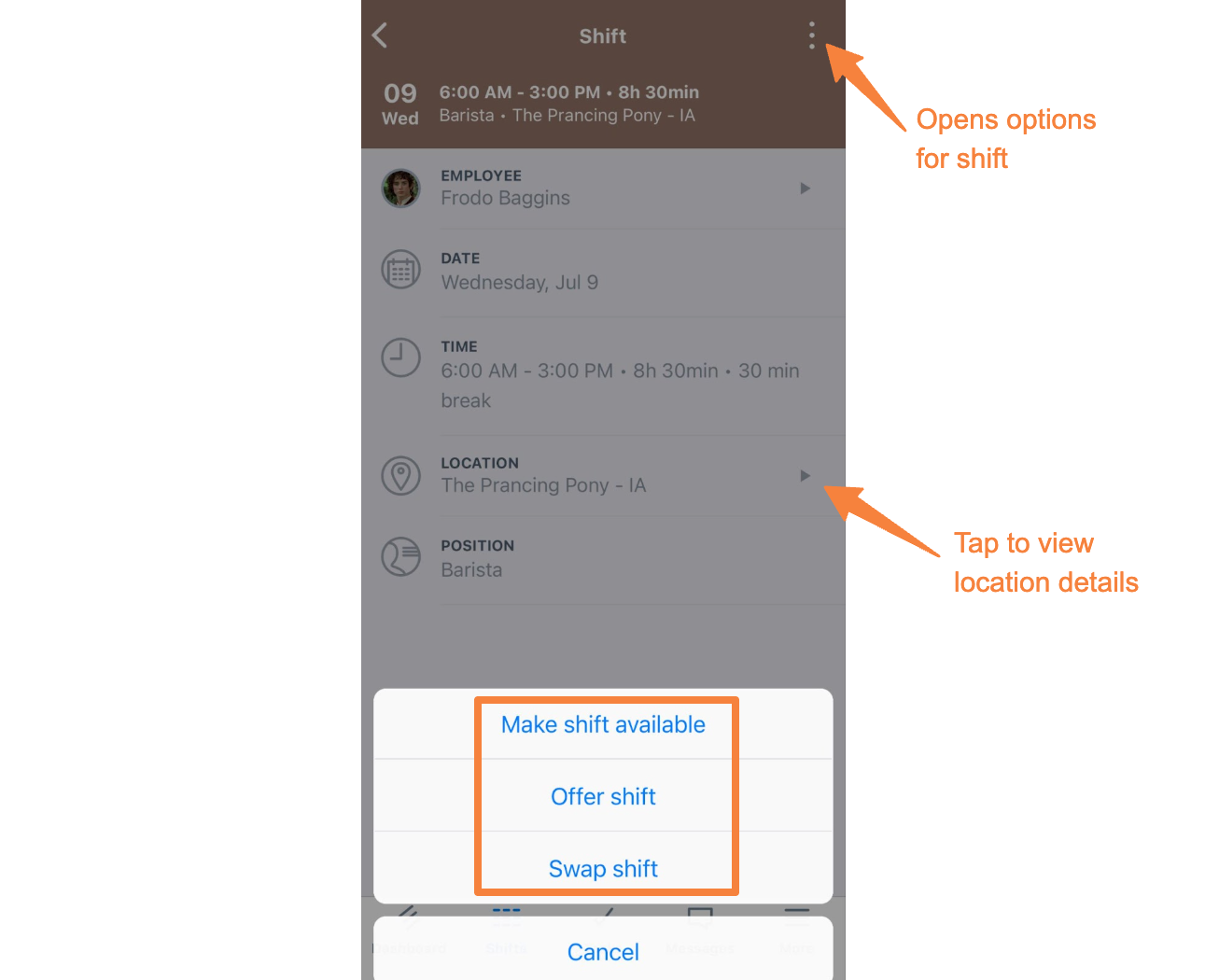
A shift remains on your schedule until another person takes responsibility for it. Contact the appropriate manager whenever you are unable to work a shift.
Sling by Toast: Employee App: Tasks
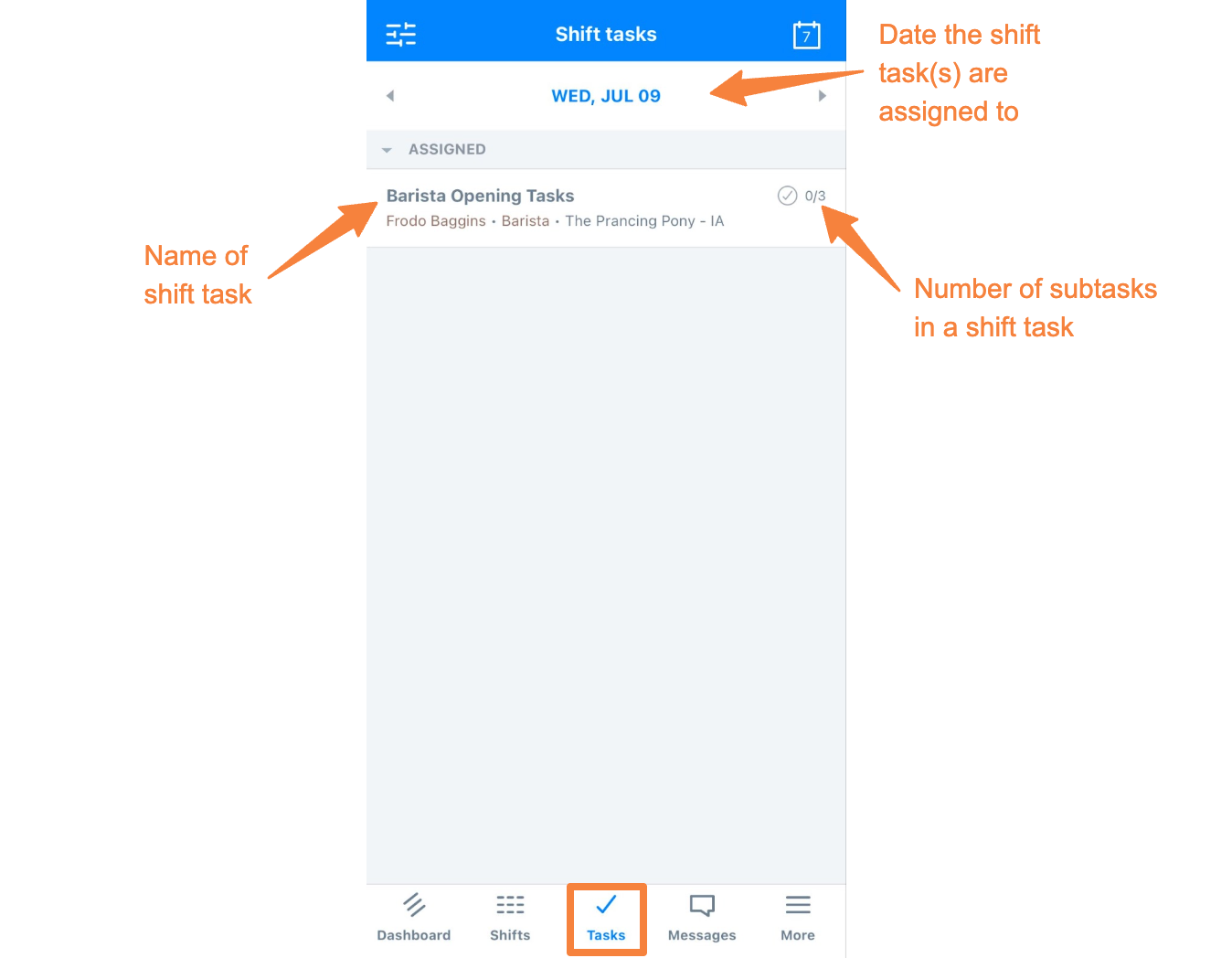
In the Tasks tab, you can view tasks assigned to you and review completed tasks.
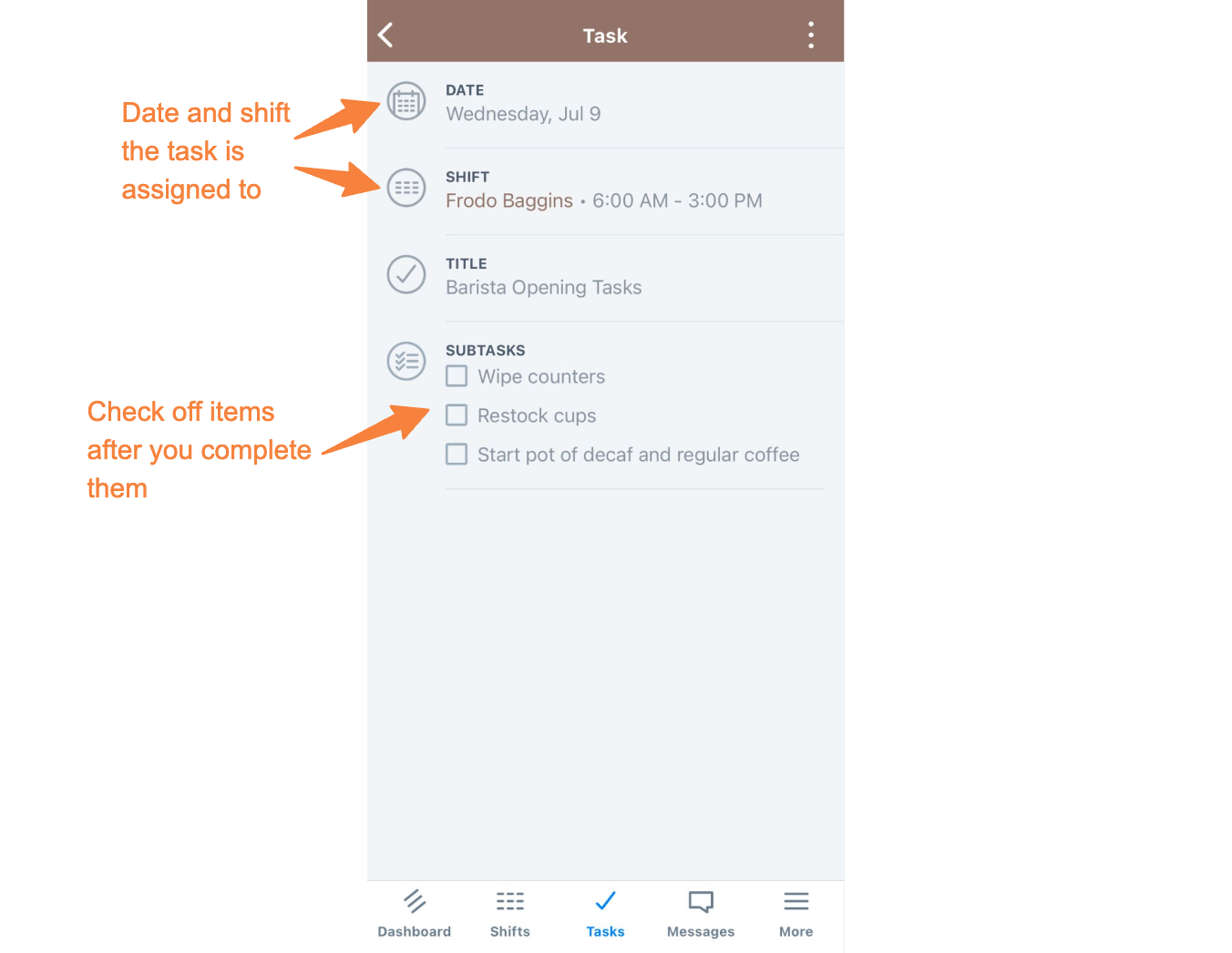
Sling by Toast: Employee App: Messages
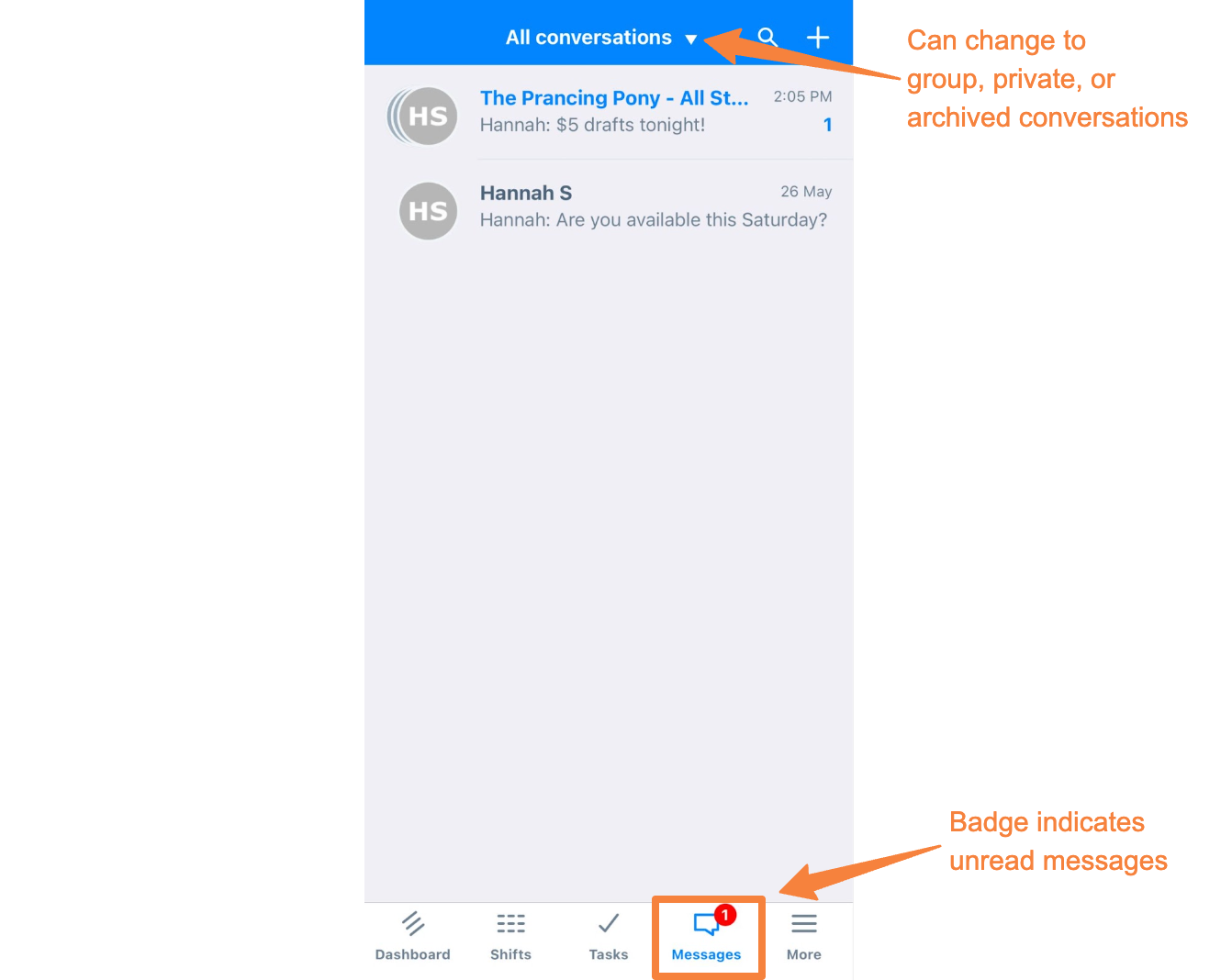
Use the Messages tab to communicate with coworkers.
At the top of the screen, the default view is All Conversations. Select it to filter by private conversations, group conversations, or archived conversations. Existing conversation threads appear in this tab. If your permissions allow it, select the + icon in the upper right corner to start a new conversation.
Within a conversation, select the 3-dot option in the upper right corner to pin, archive, or disable notifications for that conversation. You can also swipe left on a thread to pin or archive it. Pinning a conversation moves it to the top of your list for easier access.
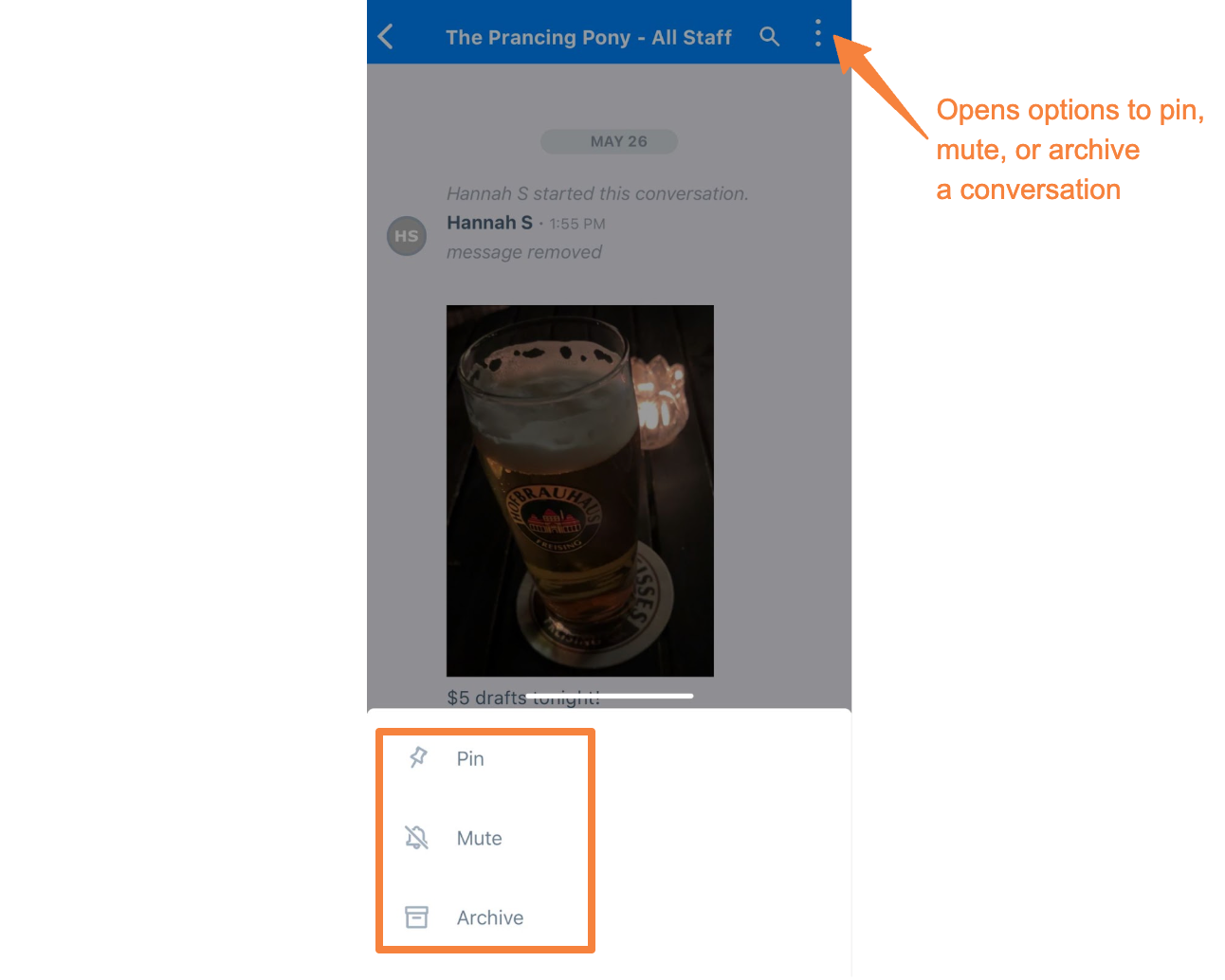
Employees cannot delete a conversation. Only admins and managers can delete group conversations. If a conversation is no longer needed, you can archive it. Archived group conversations automatically reappear if other users continue posting in the thread. Consider disabling notifications if you want to stop receiving alerts.
Sling by Toast: Employee App: More
The More tab may include Profile, Newsfeed, Unavailability, Time Sheets, Settings, Coworkers, Give Us Feedback, and Help & Support. The options you see depend on your company’s settings.
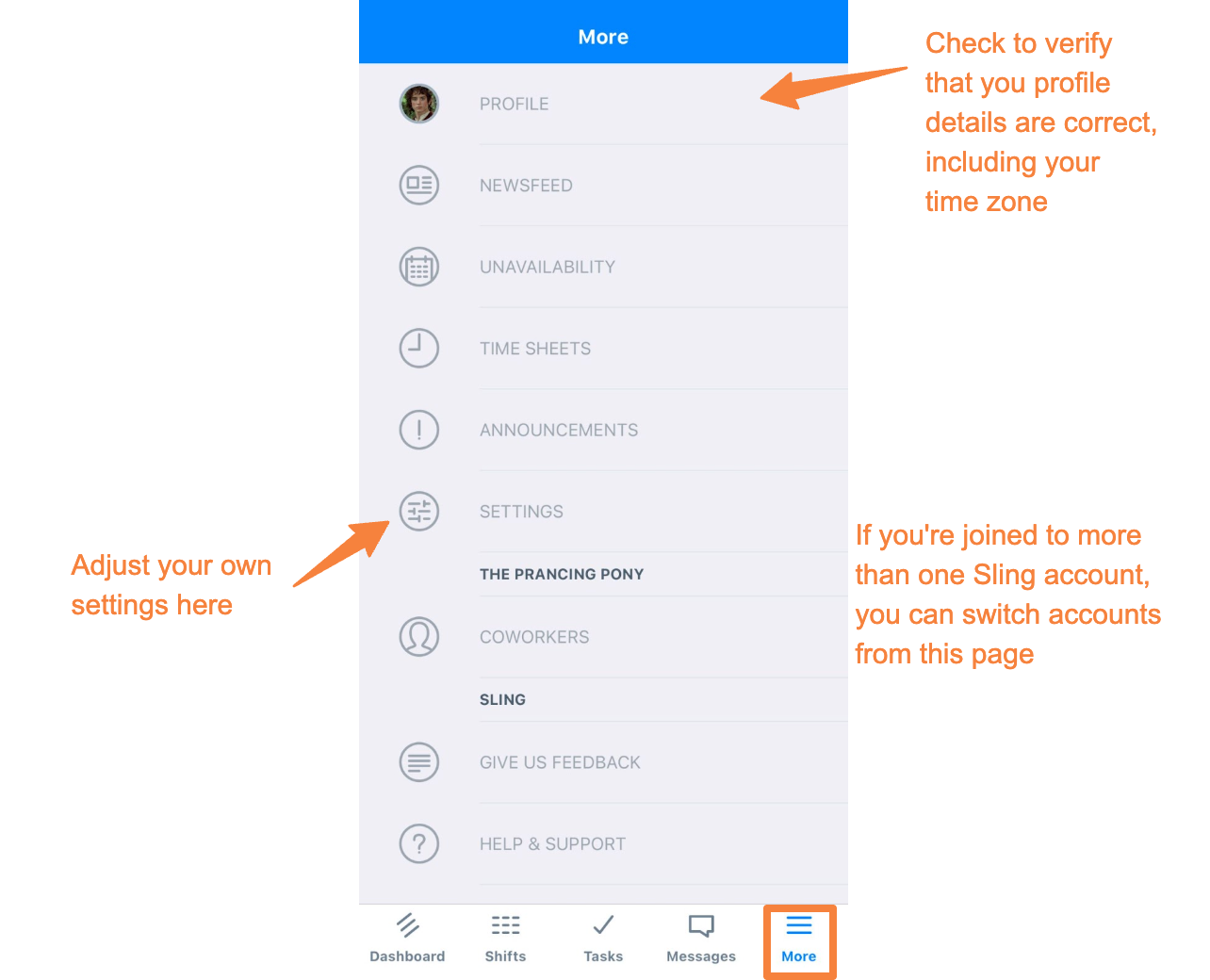
In Profile, you can view your profile picture, name, email address, country code, phone number, date of birth, unavailability, system role, time zone, locations, positions, and assigned groups.
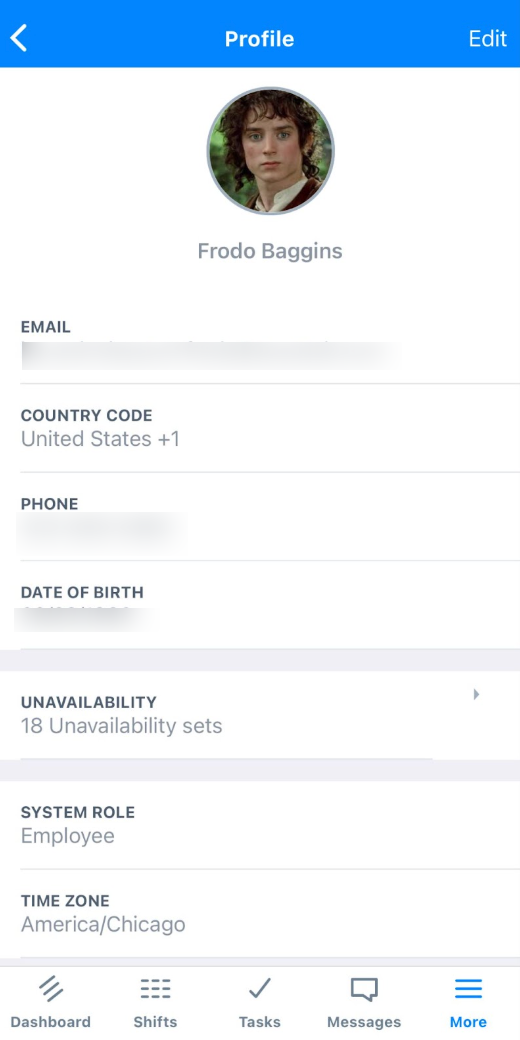
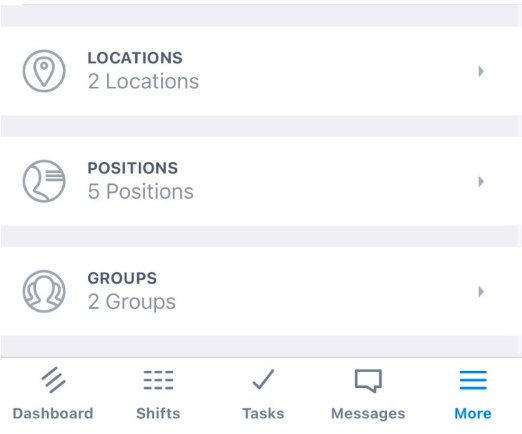
Note: You cannot edit the locations or positions assigned to you. You must be assigned at least one location and one position to view available shifts.
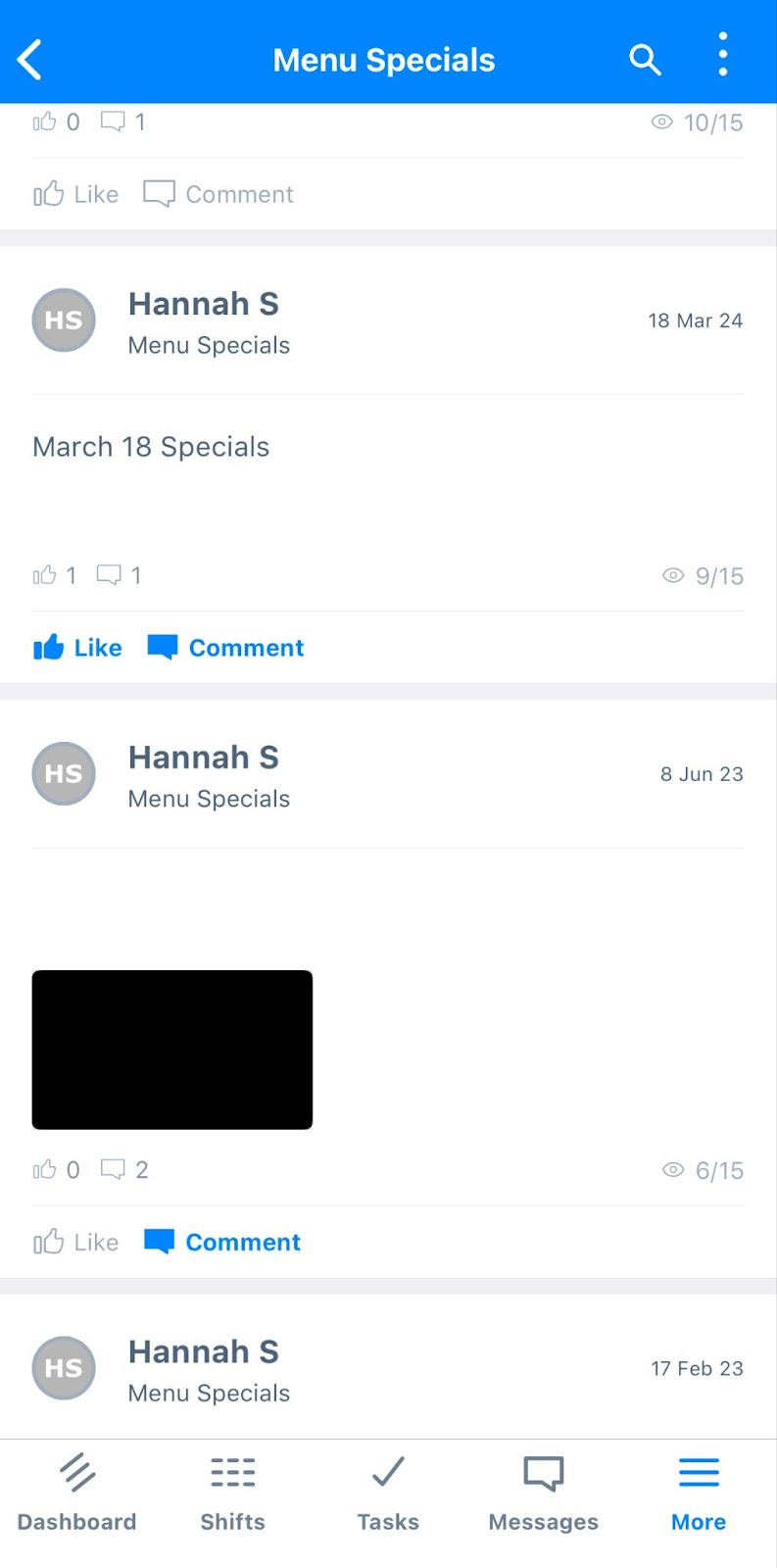
The Newsfeed includes company posts, updates, and shared information.
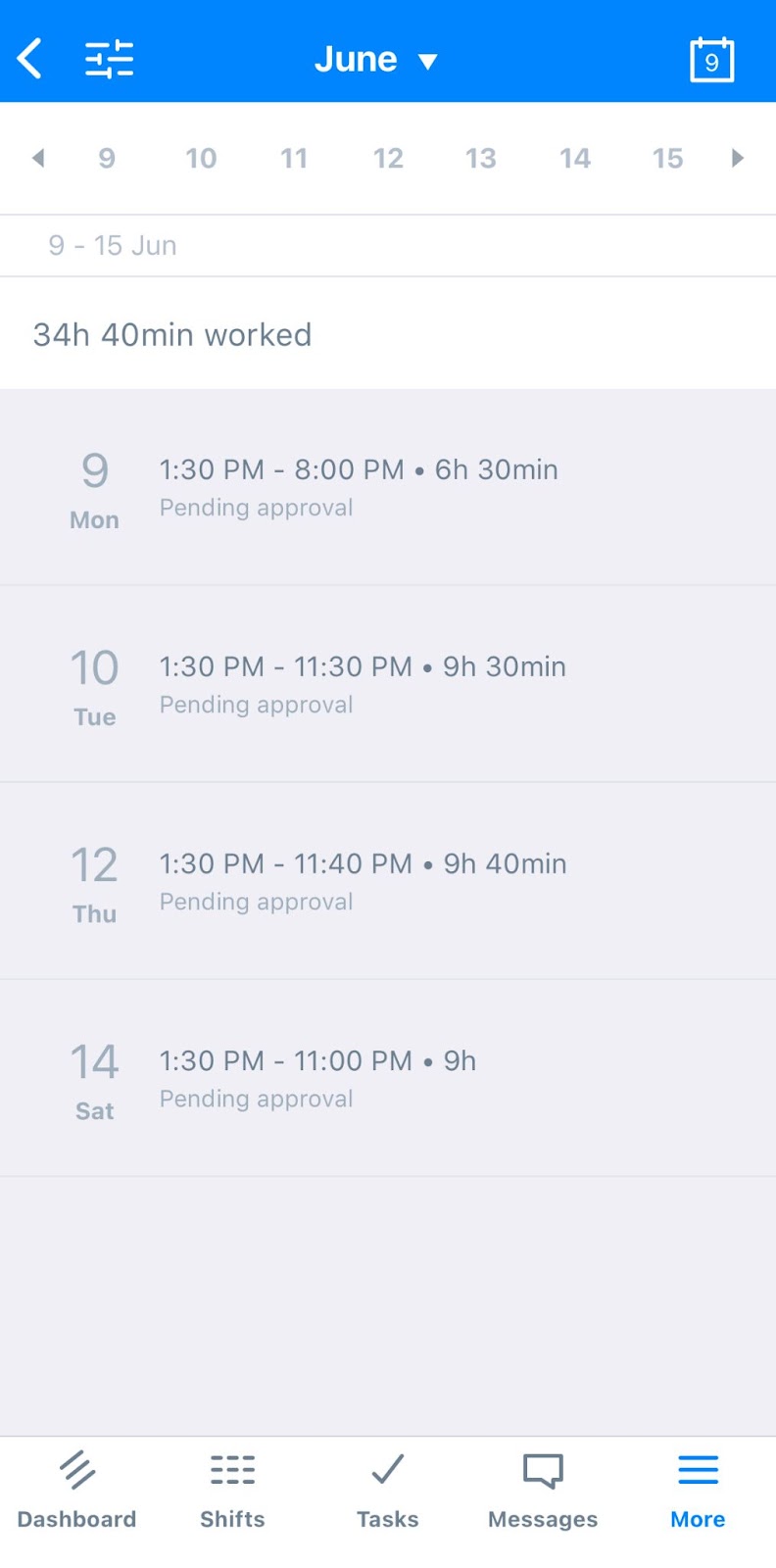
Time Sheets allows you to review recorded hours based on scheduled time and clock-in and clock-out activity. Time Sheets display one week at a time. Select a shift to view its details. From the shift details, select the 3-dot option to edit the entry, add a note, or delete it if your company allows employees to make those changes. Contact your manager if you have questions about your time sheet.
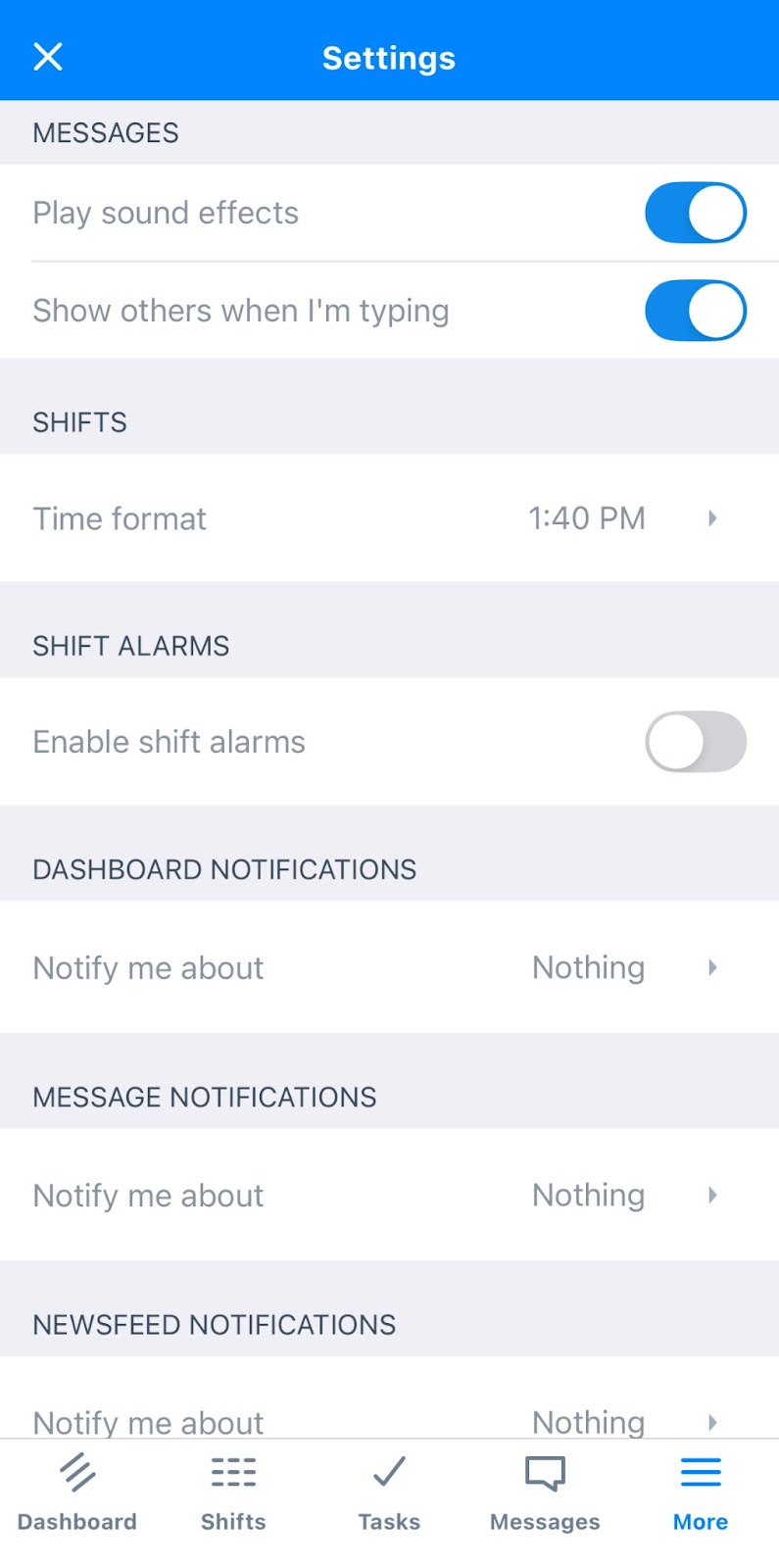
In Settings, you can adjust sound effects, typing visibility, time format, shift alarms, and notification settings for Dashboard, Messages, Newsfeed, and Time Clock.
Use Help & Support in the More tab to search Help Center articles or contact Customer Support.