Sling by Toast: Employee Web Guide
Last updated: Sep 17, 2026, 12:26 PM
Learn how to use the web version of Sling as an employee.
In this Article:
Once you’ve joined your company’s Sling account, you’ll be able to log in to Sling using the email address you used to join Sling and the password you created.
This guide will provide an overview of the tabs and functions in the web version of Sling.
You may notice that you do not have access to certain functions detailed in this guide. This is due to the different settings and subscription types, which determine what details users have access to.
Dashboard
Dashboard
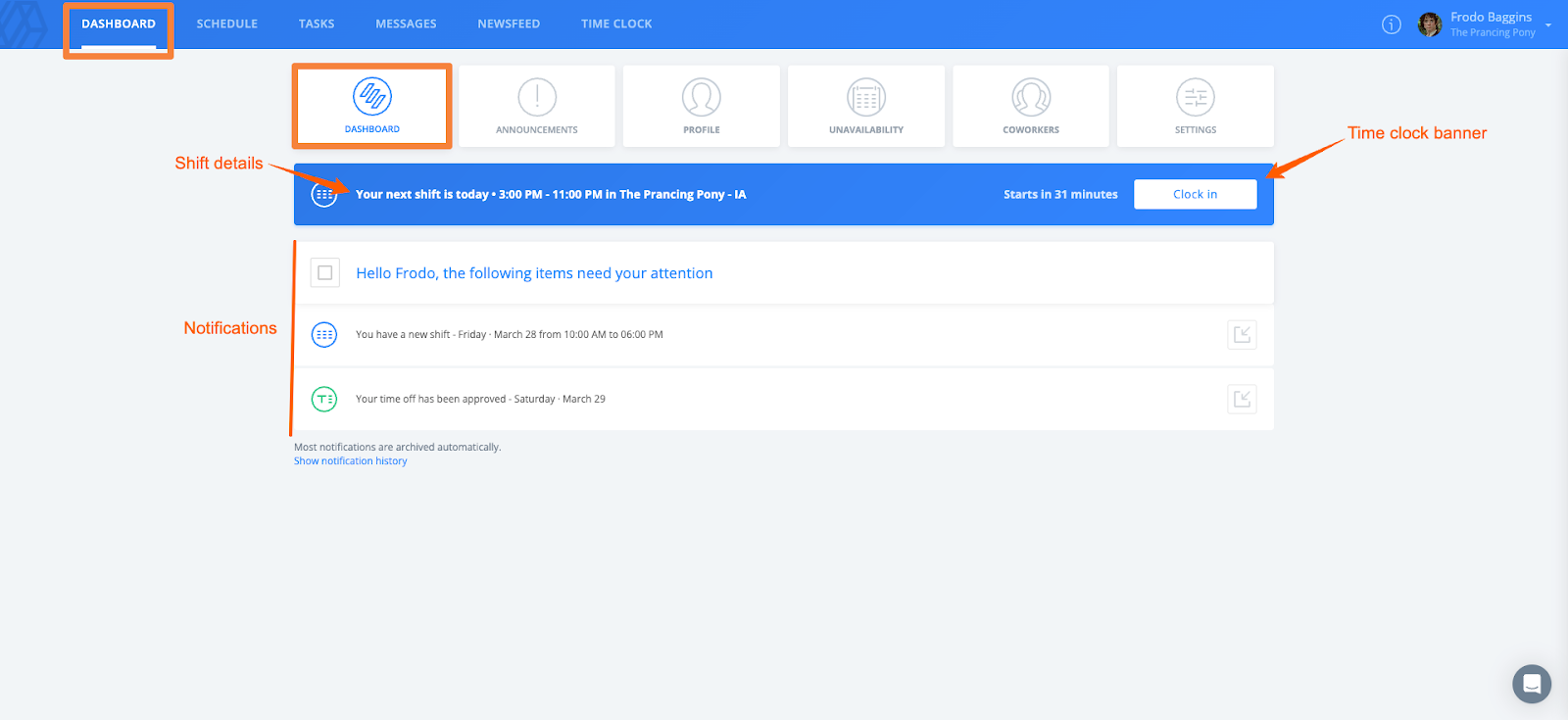
The dashboard is where you will be able to clock in and out of shifts, view any notifications, and start or end your breaks.
Announcements
Admins and managers can send out announcements to get important information, often time-sensitive, out to staff. To view an announcement, select the title of the announcement.
Profile
Personal tab:
You can add your preferred first name, birthday, phone number, address, and emergency contact. You can also reset your password within this tab.
Work tab:
You can view your hire date as well as assigned managers, locations, positions, and groups. Here, you can also find your PIN for the time clock kiosk.
Documents tab:
You can view the documents your manager has uploaded to your profile.
Wages tab:
You can view your assigned wages, depending on your company’s settings.
Unavailability
Within the Unavailability tile, you can view and add your unavailability sets.
Coworkers
You can view a list of your coworkers within the coworkers tile.
Settings
Here, you can adjust your preferences and notifications settings.
Schedule
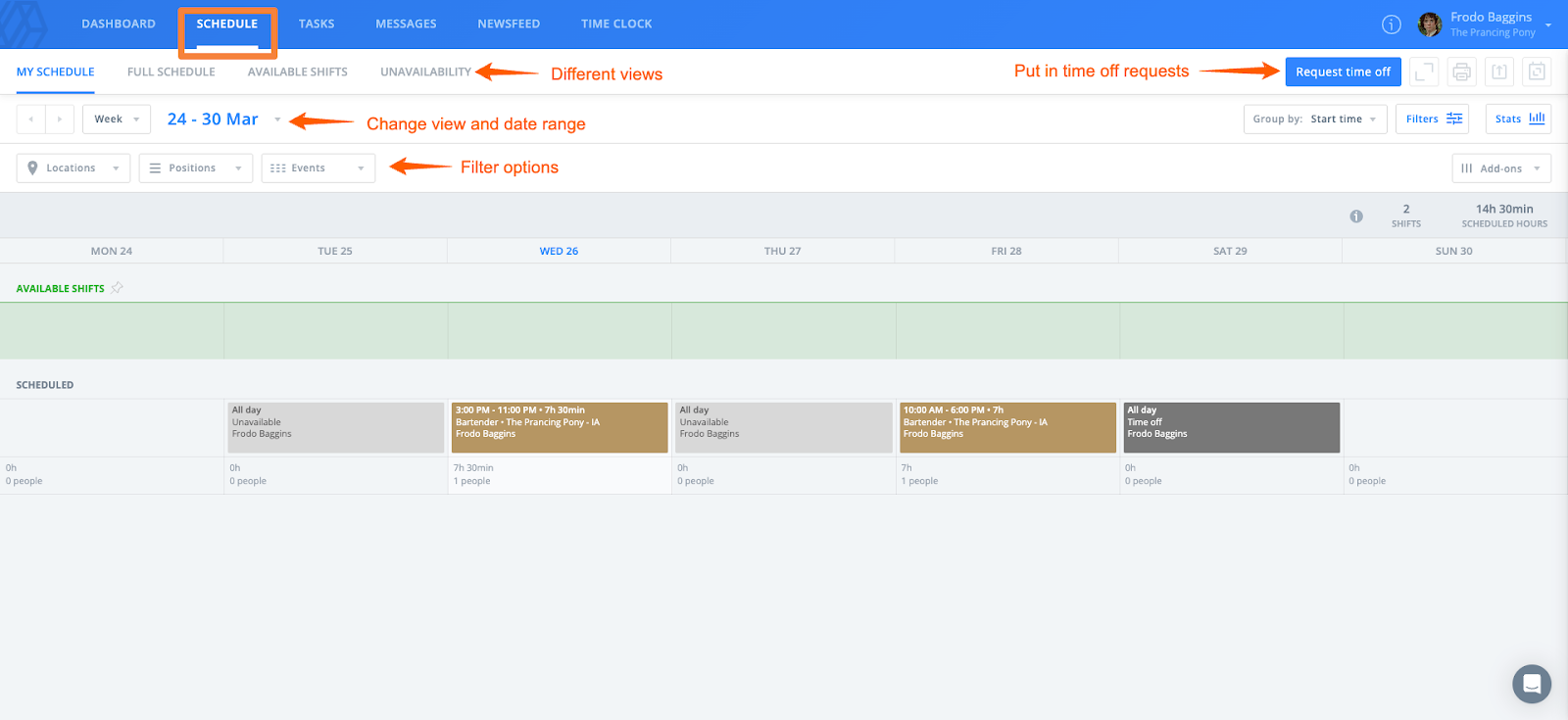
The schedule tab is where you can view your schedule, the full schedule, available shifts, and your unavailability. You can choose the view and date range of the schedule. You can also use filters to only show certain shifts. You can also put in time off requests from the schedule.
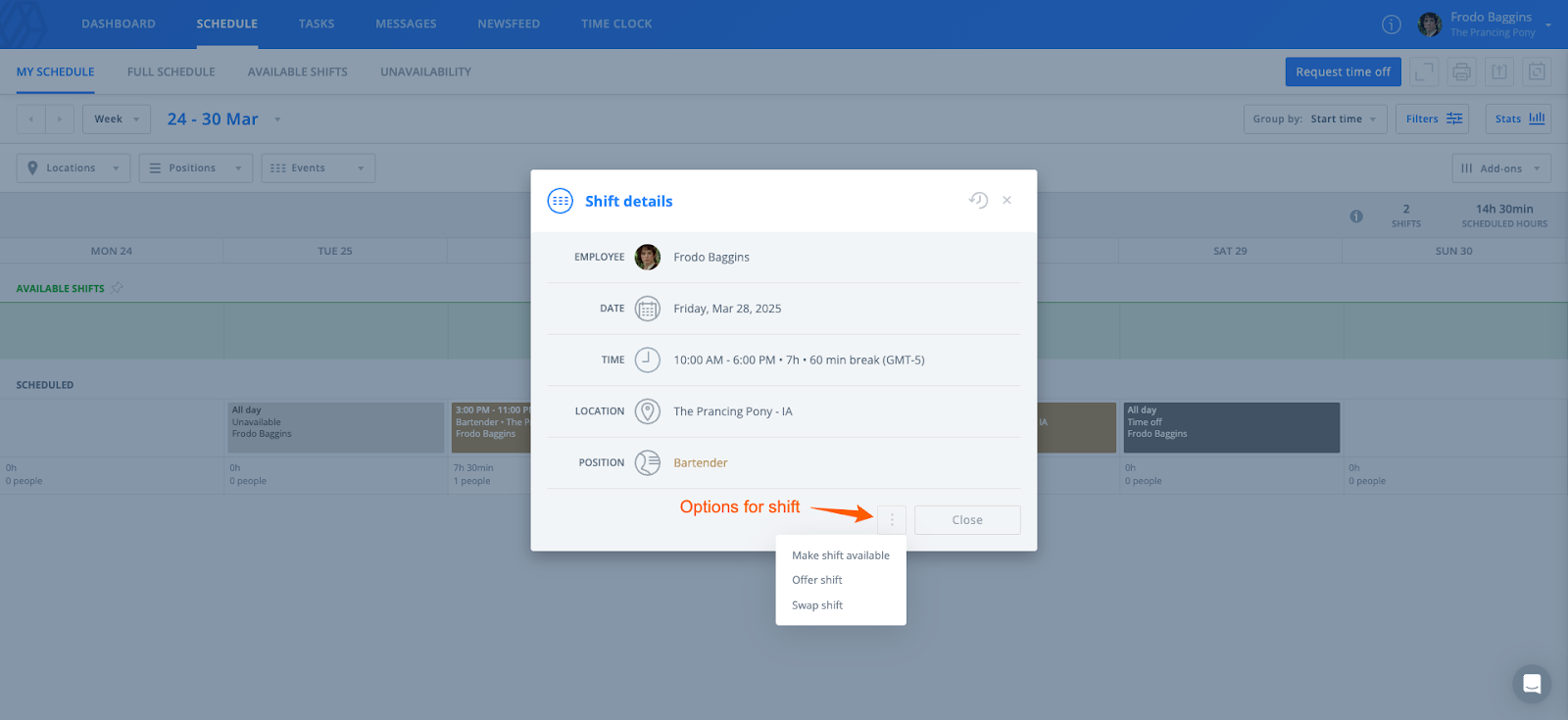
When you select a shift to view the shift details, you’ll see a 3-dot option. When you select the 3-dot option, you’ll see the option to make the shift available, offer the shift to a coworker, or swap a shift with a coworker. Your options may be different depending on your company’s settings. A shift you attempt to give up will still appear on your schedule until someone else has taken responsibility for it. Always contact the appropriate manager to notify them when you are unable to work.
Tasks
In the tasks tab, you can view any tasks that have been assigned to you or review completed assigned tasks.
Messages
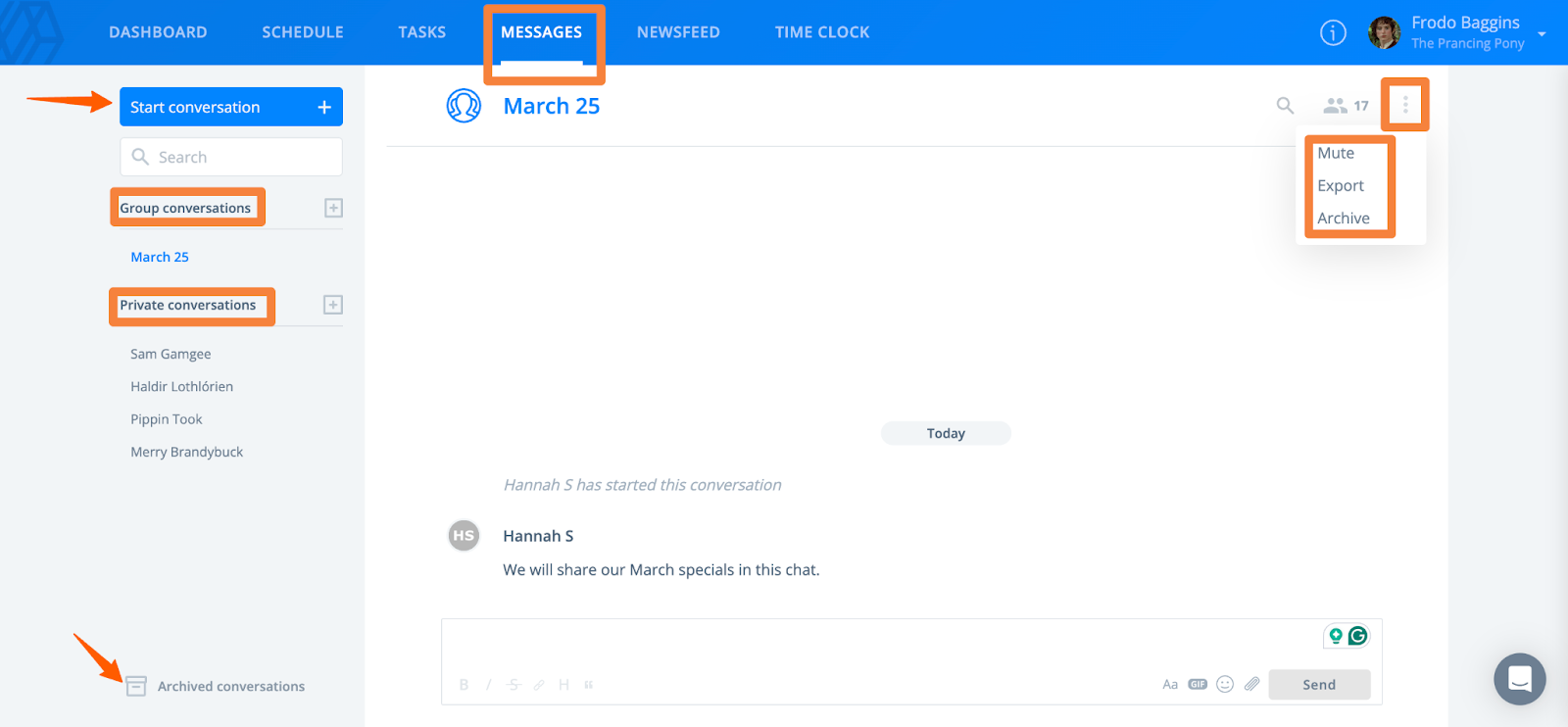
You can communicate with your coworkers within the messages tab. Depending on your company’s settings, you may have the ability to start both group and private conversations. By selecting the 3-dot option near the upper right corner of any conversation, you can choose to Mute, Export, or Archive the conversation.
Newsfeed
The Newsfeed takes you to a collection of posts similar to what you see on social media sites. Your company might post articles, company information, or other communications here.
Time Clock
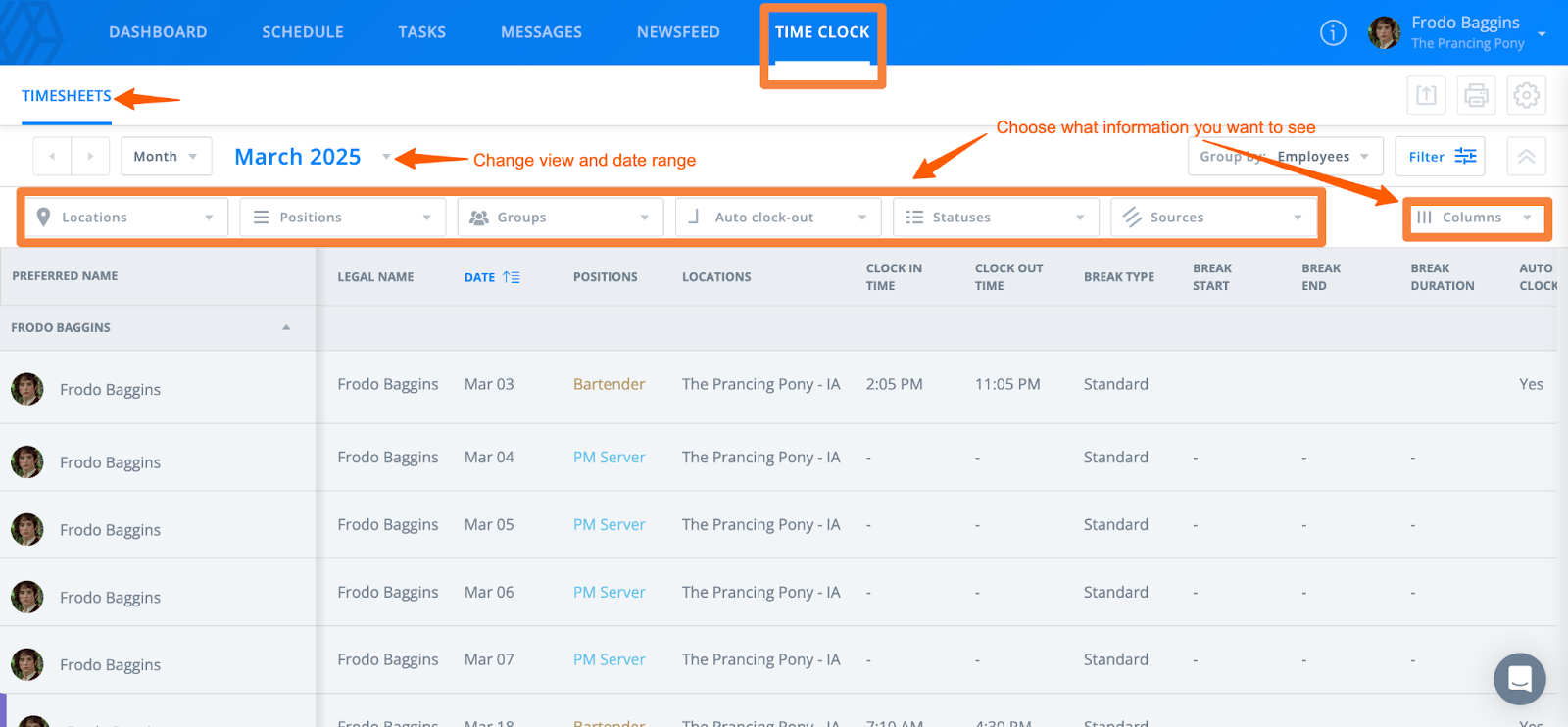
You can view your timesheets in the time clock tab. This is where you can review your current recorded hours based on the time you have been scheduled and the times you have clocked in and out of your shifts. Just like on the schedule page, you can use filters to view certain timesheets.