Sling by Toast: Unavailability and Time Off
Last updated: Jun 1, 2026, 3:22 PM
Learn how to use the unavailability and time off features within Sling.
- Unavailability vs Time Off
- Enter Unavailability
- Edit Unavailability
- Unavailability for Admins and Managers
- Request Time Off
- Request Partial Day Off
- Review Time Off Requests
- Cancel Time Off
- View Remaining PTO
- Time Off for Admins and Managers
- Frequently Asked Questions
Unavailability vs Time Off
- Unavailability: Use for recurring or long-term schedule conflicts.
- This could be a school schedule, a second job, or even when you don't have child care available.
- Time Off Requests: Use for one-time events such as vacations or appointments.
-
This can be used for full or partial days. You can enter a request that spans multiple days as well.
-
Note: Availability of these features depends on employer settings.
Enter Unavailability
Sling's Unavailability feature is available with Premium and Business subscriptions.
Unavailability shows when you cannot work and repeats based on your schedule needs.
Unavailability will always show as a week's time frame when viewing the list of sets, even if only one day is set as unavailable.
For Employees
From the mobile app:
- Go to More > Unavailability.
- Select the + icon in the upper right corner.
- Enter a name for the set.
- Set dates and repeat options.
- Select applicable days and times.
- Select Save or Request.
From the web:
- Select your name, then select Unavailability. You can also access this page from your Dashboard by selecting the Unavailability tile.
- Select Add new set + and complete all required fields, including name, dates, and schedule grid.
- Select Save or Request.
For Admins and Managers
From the web:
-
Access an employee profile and select the Unavailability tab.
- Select Add new set + and complete all required fields, including name, dates, and schedule grid.
- Select Save.
From the mobile app:
-
Go to More > Employees
- Select the employee's name > Unavailability.
- Select the + icon in the upper right corner.
- Enter a name for the set.
- Set dates and repeat options.
- Select Save.
Edit Unavailability
For Employees
From the web:
- Select your name at the top right corner and choose Unavailability. You can also access this page from your Dashboard by selecting the Unavailability tile.
- To edit an unavailability set, select the 3-dot option > Edit on the set you want to update.
- Note: Expired unavailability sets appear in historical sets.
- Make the necessary changes, then select Save.
Managers or admins will be notified of updates.
If you do not see the option to edit, you must create a new set for approval.
If editing is disabled, contact your manager for assistance.
From the mobile app:
- Go to the More tab and select Unavailability.
- Select the unavailability set you want to edit.
- Select the 3-dot option in the upper right corner, then select Edit.
- After making changes, select Save.
Managers or admins will be notified of updates.
If you do not see the option to edit, you must create a new set for approval.
If editing is disabled, contact your manager for assistance.
For Admins and Managers
From the web:
- Access an employee profile and select the Unavailability tab.
- Select the 3-dot option > Edit on the set you want to edit.
- Make changes and select Save.
- Note: If the Save button is unavailable, required fields are missing.
From the mobile app:
- Select More > Employees.
- Select the employee's name > Unavailability.
- Select the unavailability set you want to edit.
- Select the 3-dot option in the upper right corner, then select Edit.
- After making changes, select Save.
Unavailability for Admins and Managers
View Employee Unavailability
From the web:
One way to view unavailability is from the employee list. Open the employee list, then select the name of the employee whose unavailability you want to review. Once you are in the employee profile, select the Unavailability tab. This page is also where you can add a new unavailability set if needed.
Another way to review unavailability is from the Schedule tab, where there is a tab dedicated to unavailability. This view provides an overview of employees' unavailable times during the date range currently in view. From this view, selecting any of the gray blocks takes you directly to that set in the employee’s profile.
From the mobile app:
- Select More at the bottom of the screen, then select Employees.
- Select the name of the employee you want to review.
- Scroll until you see Unavailability in the list, then open it.
- On the next screen, you will see any current sets. Select the set you want to review.
- You can also select a set to edit it, or select the + icon in the upper right corner to create a new set.
Note: Admins must have the Employee activity notifications setting enabled to receive notifications for changes made to employee unavailability.
Require Approval for Unavailability Changes
If you want employee changes to unavailability to go through management for review, an admin can enable the unavailability approval setting included with Premium and Business subscriptions.
To enable approval for unavailability:
- Access the web version of Sling.
- Go to Dashboard > Settings > Schedule.
- Scroll to the Unavailability section and enable Approval.
- Select Save.
Any future changes employees make to their unavailability will appear on your Dashboard as requests. You can approve or deny a request directly from the main view, or you can select the notification to review the details of the requested changes. Pending changes are highlighted, and the dates and times appear in yellow on the grid. If the set is approved, Sling confirms the action and notifies the employee. The grid then changes to display the standard gray blocks.
On the employee side, a notification confirms the approval. Approved sets can no longer be edited by the employee. Changes to an existing set must be submitted again as a new request. Employees can copy a set to make changes without recreating the entire set.
Admins and managers can still make changes to an employee’s unavailability on the employee’s behalf at any time, so small edits can be completed without the employee having to recreate a set.
Request Time Off
From the web:
- Go to Schedule and select Request time off.
- Enter details and select Send request.
You will receive a pop-up notification confirming that the request has been submitted.
Once your manager reviews the request, you will receive a notification of their decision, whether approved or denied.
From the mobile app:
- Select Shifts, then select the 3-dot option in the upper right corner.
- Select Request time off.
- Enter details and select Save.
You will receive a pop-up notification confirming that the request has been submitted.
Once your manager reviews the request, you will receive a notification of their decision, whether approved or denied.
Request Partial Day Off
From the web:
- Go to Schedule and select Request time off.
- Select Partial Day.
- Enter details and select Send Request.
You will receive a pop-up notification confirming that the request has been submitted.
Once your manager reviews the request, you will receive a notification of their decision, whether approved or denied.
From the mobile app:
- Go to Shifts.
- Select the 3-dot option in the upper right corner.
- Select Request time off.
- Disable All day.
- Set start and end times.
- Select a time off type.
- Select Save.
You will receive a pop-up notification confirming that the request has been submitted.
Once your manager reviews the request, you will receive a notification of their decision, whether approved or denied.
Review Time Off Requests
- View requests in the Schedule on the web or the Shifts tab on the mobile app.
- Pending requests appear with status indicators.
- You can edit or delete pending requests.
- Approved requests cannot be edited, but they can be deleted.
Cancel Time Off
From the web:
- Select a time off request and choose the delete option.
From the mobile app:
- Select a time off request, select the 3-dot option in the upper right corner, then select Delete.
View Remaining PTO
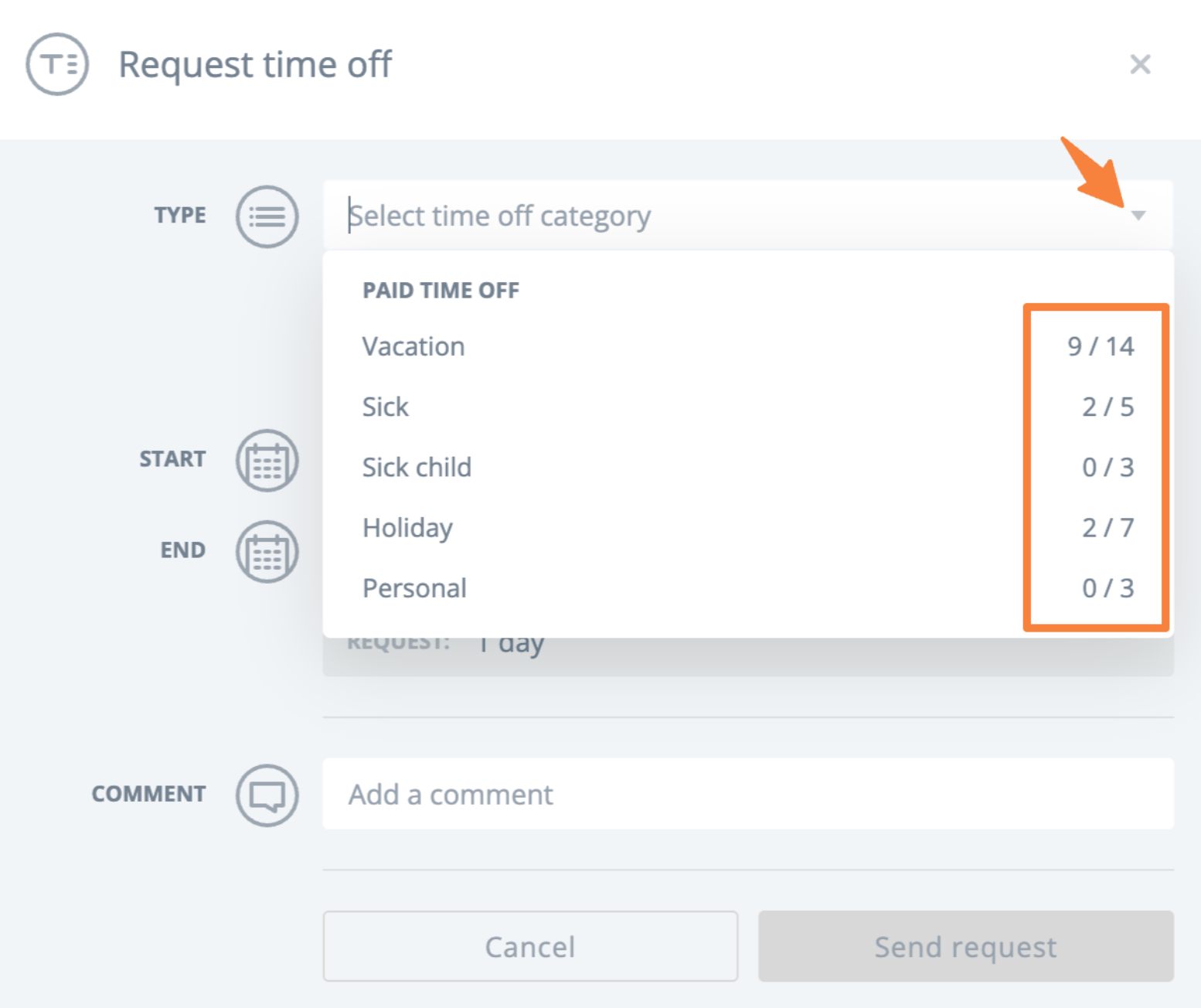
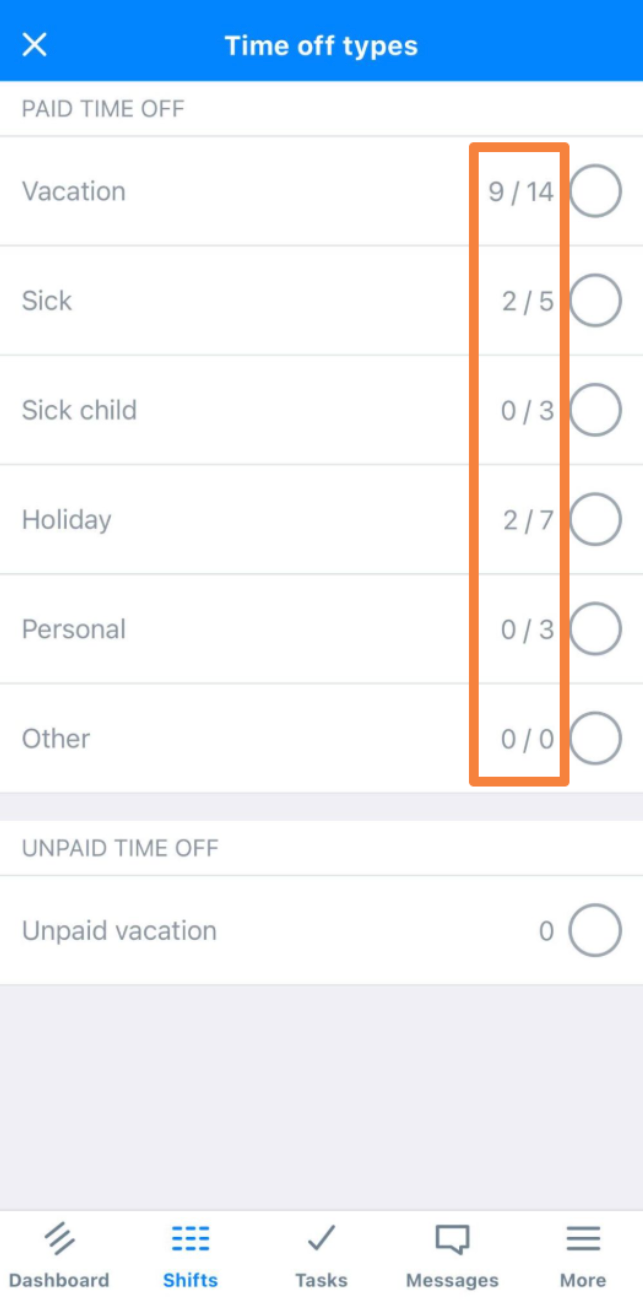
View PTO balances when selecting a time off type during request creation. If PTO is not visible, your employer may have disabled it.
From the web:
- Go to Schedule and select Request time off.
- Select Type.
From the mobile app:
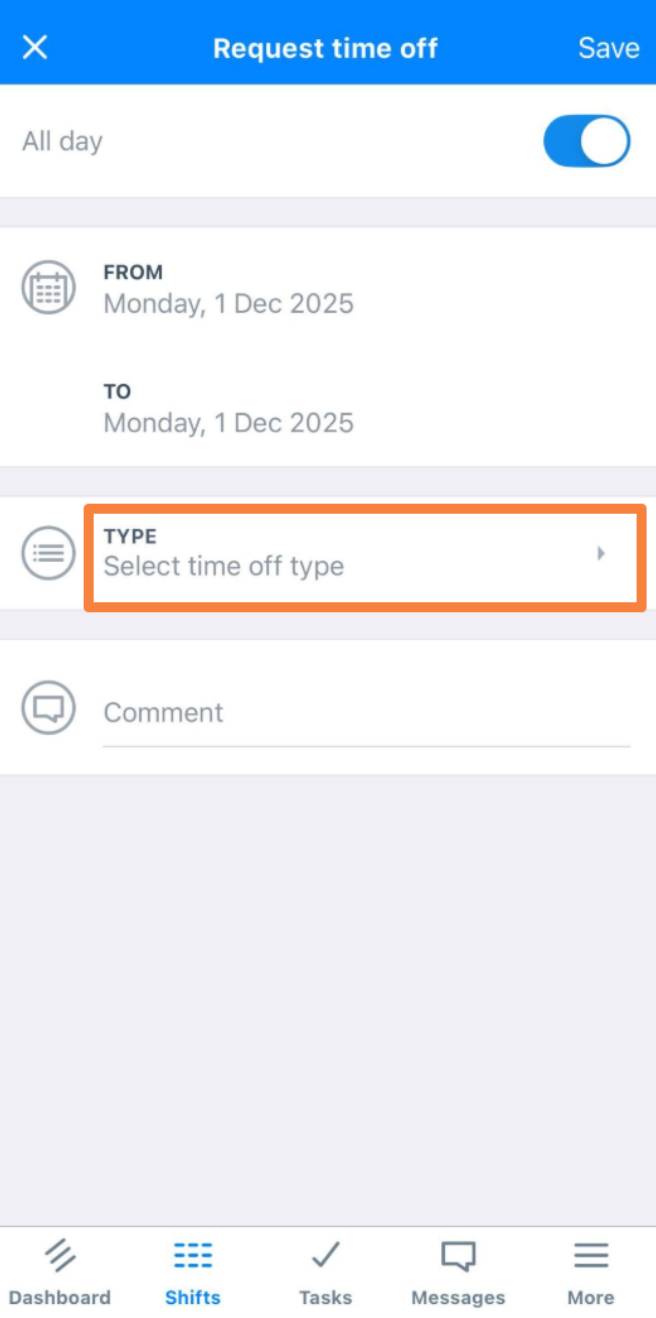
- Select Shifts, then select the 3-dot option in the upper right corner.
- Select Request time off.
- Select Type.
Time Off for Admins and Managers
Block Time Off Requests
Admins and managers can use the day notes feature to block time off requests for certain dates. These can be added from both the web and the mobile app.
From the web:
- Select the Day or Week view on the schedule page.
- Select the + icon near Today in the day view. Select the + icon near the day of the week in the week view.
- Select Time off requests not allowed.
- Select Save.
From the mobile app:
- Go to the Shifts tab.
- Select the date, then select Day options.
- Enable Time off requests are not allowed.
Review Time Off Request Submission History
If you need to check when a time off request was submitted, you can find this information in two places.
Admins and managers can review the web Dashboard. The notification includes a timestamp that is visible when you hover over the notification. If the request was submitted some time ago or has been pushed down by newer notifications, you can go to the schedule to see the history. Employees can also use this view to see details about their own time off.
To view the time off history from the schedule page:
- Find the time off entry on the calendar and select it to open the details.
- In the details view, select the history icon in the upper right corner.
- This shows the time and date when the request was submitted. This view also records any changes to the request, when it was approved, and by whom.
Set Paid Time Off
These steps set the main PTO rules for the account. Once the account-level settings are in place, you can also set individual PTO caps in employee profiles.
To set up paid time off:
- On the web version of Sling, admins can go to Dashboard > Settings > Time Off.
- Enabling the Paid time off setting opens additional options so the feature can match your company’s setup.
- One enabled, choose the reset date format.
- Common date means all employees’ caps reset on one shared date, such as January 1.
- Hire date means each employee’s caps reset based on the hire date saved in the employee profile.
- Choose how to cap time off.
- Cap by leave type allows you to set the maximum hours for a full day of PTO and choose whether the cap is based on days or hours. You then select which PTO types are covered and set the allowed number of days or hours for each type per year. You also see the option to allow unpaid leave.
- Cap in aggregate allows you to set a total number of days or hours for the year as one overall cap, then choose which types are covered. All covered PTO types draw from the same total. For example, if you allow 31 days of PTO, an employee can use all of it as vacation or split it among vacation, sick, personal, and other included types.
- Enable or disable any of the time off types you want to allow your employees to use.
- Once the settings are in place, the caps appear in the time off window whenever you or an employee adds or requests time off. Any PTO already used is also shown so you can see exactly how much leave remains available.
The main cap settings are also reflected in each employee’s profile and can be adjusted individually for employees who are not yet eligible or who have earned more based on length of service.
Note: Sling does not allow custom PTO categories. There is an Other option that you can use if you need a category that is not included in the standard list.
Set Individual PTO Caps
If employees are allowed different PTO amounts per year, you can set individual time off caps within each employee profile.
To set up individual PTO caps:
- Select an employee’s name anywhere in Sling, then go to the Time off tab.
- Set an individual allowance for each leave type. By default, Sling fills in the caps defined in your main Time Off settings.
- If an employee is not entitled to PTO for all or some categories, you can set a cap of 0 for those categories.
- There is also a link in the profile’s Time Off tab if you need to edit the main account settings.
- Select Save, and the new totals appear for the employee whenever time off is requested or added by management.
Review PTO Hours by Pay Period
If you are using the paid time off feature, you can track paid leave along with related hours and costs on the Payroll report.
The approved hours for the selected date range appear under the PTO column. PTO costs are calculated using employees’ base wages. These PTO costs are then added to the Total wage column along with regular hours, overtime hours, and holiday hours, if any.
Note: PTO hours are not included in the Hours column. The Hours column reflects worked hours only, including regular, overtime, and holiday hours.
Frequently Asked Questions
Why can't I edit my unavailability?
If editing is disabled, your employer requires approval for changes. Contact your manager to update your unavailability.
Why can't I enter my time off?
If you are unable to request time off, your employer does not have this feature enabled on the account. Contact your manager to update your time off.
How do I request time off as an admin or manager?
Admins and managers add time off directly to the schedule.
If you are a manager and you have a manager assigned to your profile, your time off request will be sent to them for approval.