Sling by Toast: Wages and Labor Cost
Last updated: Jun 4, 2026, 3:03 PM
Learn how to set up the labor cost feature and wages in Sling.
Set Up the Labor Cost Function in Sling
There are multiple parts to this feature: estimated wages, overtime, budgeting, and labor as a percentage of sales. You can use all or parts of it, as needed. The combined settings will help you see accurate labor cost summaries on the schedule and in reports.
Set Wages in Sling
- Access the Labor Cost tile > Employees tab.
- Select the 3-dot option in an employee's row, then select Edit wages.
- This will take you to the Wages tab on the employee's profile. Here, you can set the pay type as hourly or annual salary, then add wage amounts.
Set Projected Sales and Labor Budget in Sling
- Access the Labor Cost tile > Locations tab
- Select the name of a location from the list, then select the Budget tab.
- Here you can set the default sales projections for each day of the week.
- You can also add the maximum labor budget per week and maximum labor hours per week from this page.
Configure Labor Cost Settings in Sling
Go to Dashboard > Settings > Labor Cost to configure the labor cost settings for the account.
Here, you can set:
- The currency used
- Payroll periods
- If employees are allowed to see their own wages
- Overtime settings
- Holiday pay rate
- Spread of hours
- The labor percent goal
- Give managers access to the labor cost details
Wages in Sling
Set Base Wage for Position in Sling
Setting a base wage for a position allows Sling to calculate labor costs for any employee who might be assigned to the position.
To set a base wage for a position:
- Go to the Positions tile and select a position.
- Select the Wages tab.
- Add a wage in the Base Wage field, then select an Effective From date.
- Select Save.
Set Individual Position Wages for Employees in Sling
Setting an individual position wage for an employee overrides the base wage set for that position.
To set an individual position wage for an employee:
- Go to the employee's profile and select the Wages tab.
- Select the 3-dot option for the position, then select Add rate, Edit rate, or Delete Rate depending on which option you need.
- Adding a rate allows you to account for wage history.
- Editing a rate will not keep the history of wage changes.
- Deleting a rate removes all data.
- Select Save.
Note: Salaried employees cannot have individual wages for different positions.
Set Base Employee Wage in Sling
Setting a base wage for an employee allows you to pay the employee the same wage for multiple positions.
Note: This wage will apply to all assigned positions unless a base position wage or individual position wage has already been set.
To set a base wage for an employee:
- Go to the employee's profile and select the Wages tab.
- Select the 3-dot option in the Employee base row, then select Add rate.
- Type in the rate, then select Save.
Note: Employee base wages must be set to calculate the cost for paid time off.
Edit Employee Base Wage in Sling
To edit a base wage for an employee:
- Go to the employee's profile and select the Wages tab.
- Select the 3-dot option in the Employee base row, then select Add rate or Delete rate.
- If adding a rate, type in the rate, then select Save.
Set Up Salaries in Sling
To set a salary for an employee:
- Go to the employee's profile and select the Wages tab.
- Select the drop-down menu in the Pay Type row, then select Annual salary.
- Select the 3-dot option, then select Add rate.
- Select the location, position, and effective from date.
- Type in the rate, then select Save.
Note: Sling applies the salary amount equally over the days of the year from the effective date.
Note: Employees can only have one salary set at a time.
Set Projected Sales in Sling
Set Default Sales Projections by Day in Sling
- Access the Labor Cost tile > Locations tab
- Select the name of a location from the list, then select the Budget tab.
- Here you can set the default sales projections for each day of the week.
These set sales projections will populate onto the schedule.
Add Projected Sales by Date in Sling
- Access the Schedule page.
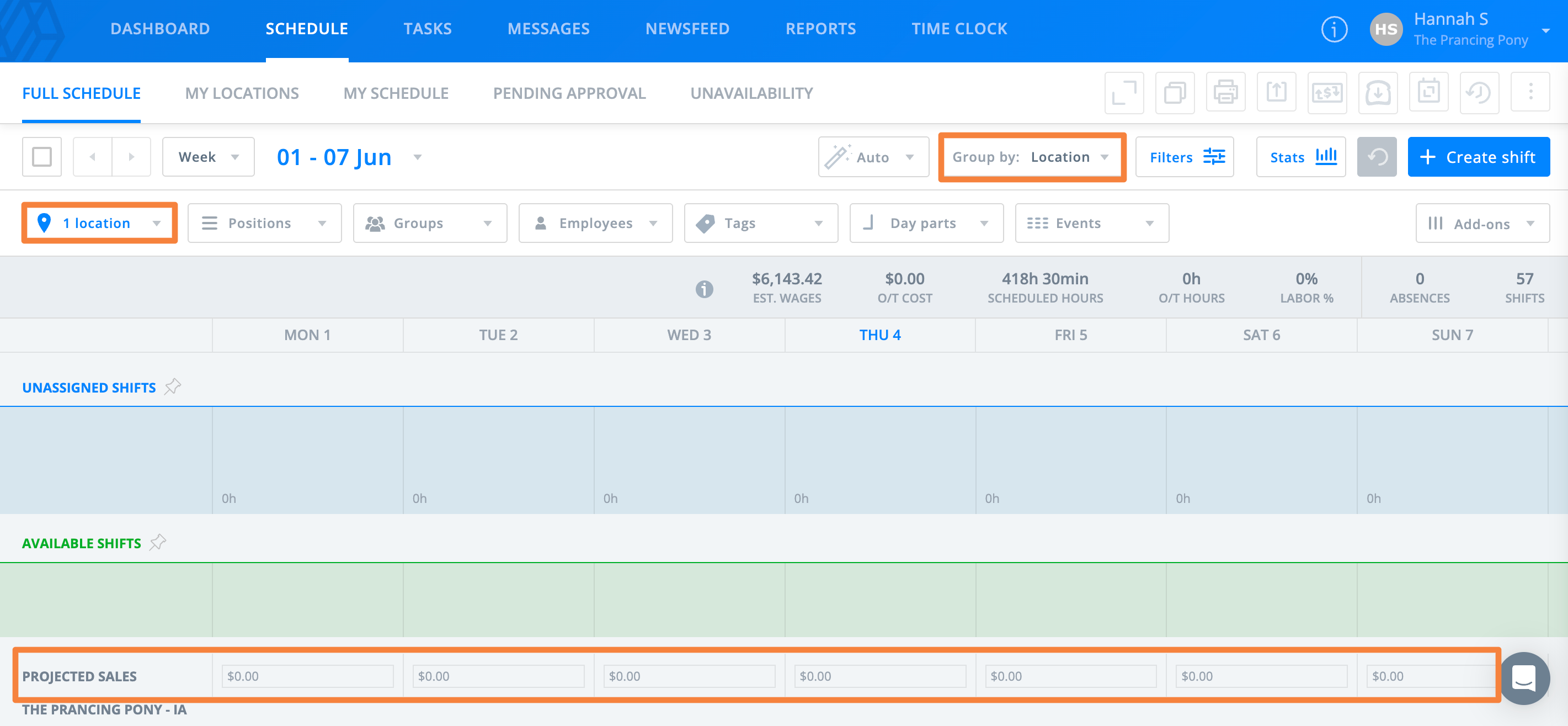
- Sort the schedule by location or filter to only show one location, and the projected sales row will appear.
- To edit, hover your cursor over the dollar amounts, then select the pencil icon.
- Type in the number, then select the checkmark icon to save.
Upload Projected Sales in Sling
You can upload projected sales from the Schedule page or from the Sales Report.
To upload projected sales from the Schedule page:
- Go to the Schedule page.
- Select the 3-dot option near the top right of the page, then select Import projected sales.
- In the pop-up window, choose the file from your computer and select whether the data is aligned horizontally or vertically.
- Next, label the rows or columns and select which rows or columns to import.
- Select Next, then select Import Sales.
To upload projected sales from the Sales Report:
- Go to Reports > Sales.
- Select the import button near the top right of the page, then select Import projected sales.
- In the pop-up window, choose the file from your computer and select whether the data is aligned horizontally or vertically.
- Next, label the rows or columns and select which rows or columns to import.
- Select Next, then select Import Sales.
Edit Sales Figures by Date in Sales Report in Sling
To edit sales from the Sales Report:
- Go to Reports > Sales.
- Hover your cursor over the dollar amounts, then select the pencil icon.
- Type in the number, then select the checkmark icon to save.
Remove Labor Cost Info from the Schedule in Sling
Admins and managers with labor cost access can see hours and labor cost totals under each employee's name to assist with scheduling and budgeting.
To remove this before printing the schedule:
- Select Filters, then select Add-ons.
- Deselect Labor % and Labor cost.