Optimize Tip Withholding
Last updated: Oct 2, 2026, 11:32 AM
- Configure Tip Withholding
- Tip Withholding on Shift Review
- Tip Withholding on Close Out Day
- View Tip Withholding in Reports
- Tip Withholding and Toast Payroll
Configure Tip Withholding
The Tip Withholding feature depends on shifts being closed in Shift Review. A shift must be closed in order for the Tip Withholding amount to be accounted for. If online orders are being assigned to an employee who doesn't actually work in the restaurant (for example, Online Ordering as an employee name), then you must clock that employee in and complete a shift review for tip withholding to take place for tips coming in from online orders.
- To enable Tip Withholding in Toast Web, navigate to Team > Settings > Tip withholding.
- Begin by selecting Enable house tip withholding.
- Once enabled, the Tip Withholding Percentage will appear. You can now enter a percentage, up to three digits, that will be reclaimed from your employees' card tips.
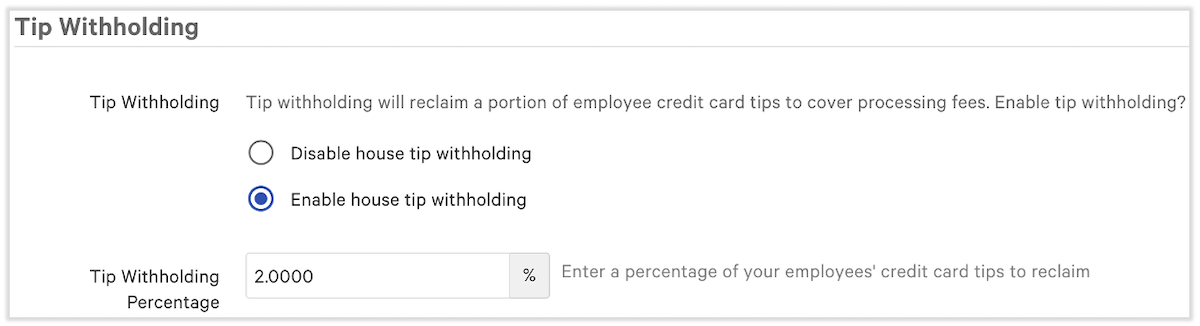
Note: Tip withholding applies to both credit and debit card payments as both cards have associated processing fees. Tip Withholding should not apply to other forms of payment.
Tip Withholding on Shift Review
When enabled, the configured tip withholding percentage will be included as part of the Shift Review. While the original tip amount will still be reported, the tip withholding amount will also be reported. The pay tips cash entry will equal the original tip amount less the tip withholding amount.
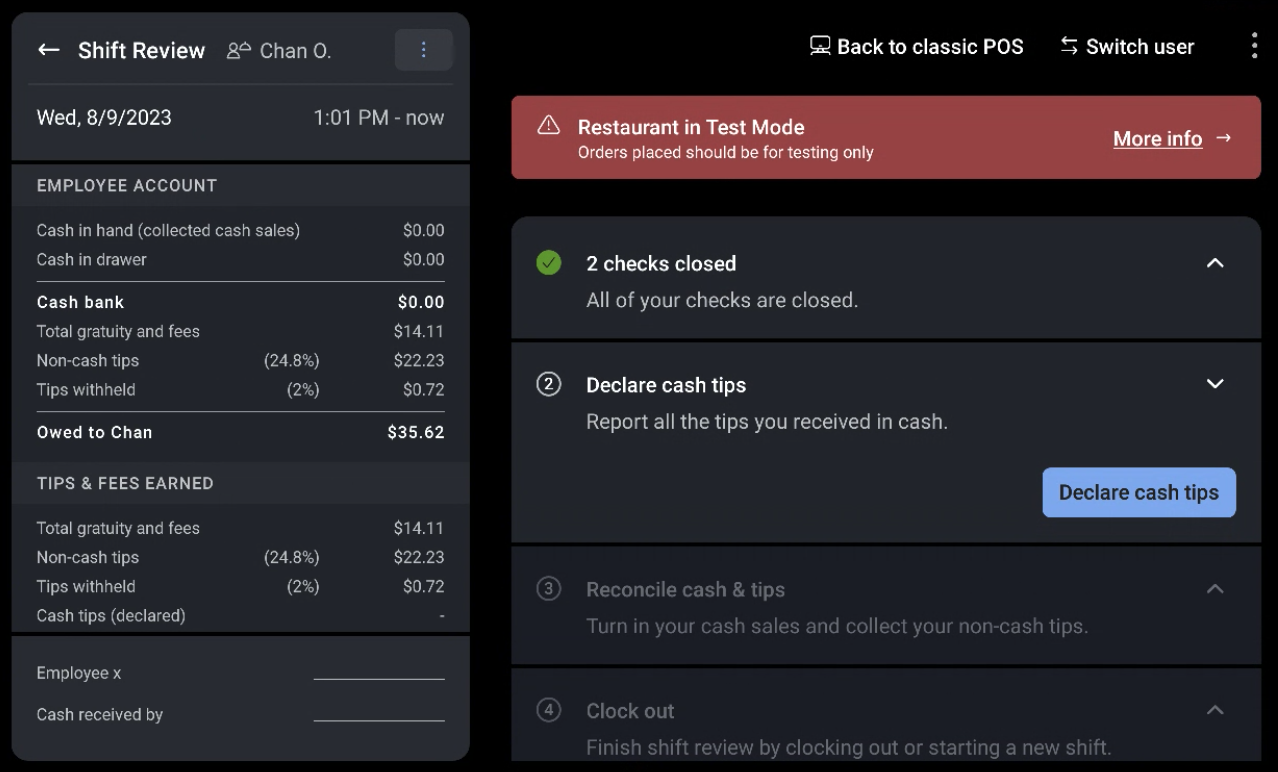
The Shift Review printout will reflect the same information as the Shift Review screen.
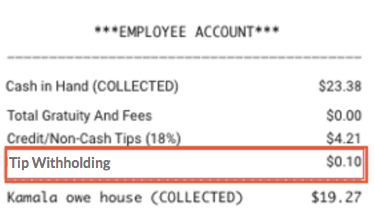
Once a shift is closed, the tip withholding amount is final.
Tip Withholding on Close Out Day
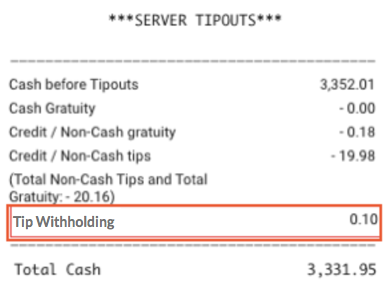
Tip Withholding is available in Close Out Day and the Z-Report printout found in the Close Out Day section of Manager Activities in the Toast app’s main menu.
The tip withholding amount includes all complete shift reviews for the business day. The amount will be reflected in the Server Tipouts section.
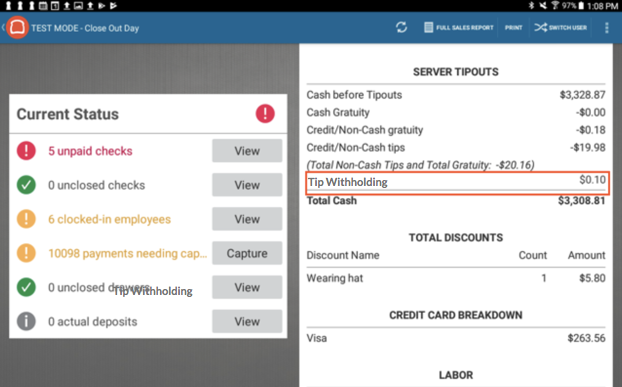
The Z-Report printout will reflect the same information shown on the Close Out Day screen.
View Tip Withholding in Reports
If you are not using Toast Payroll and you decide to download/export these reports, keep in mind that tip withholding will not be factored into any tip columns. Tip withholding will appear in its own separate column and will only be automatically factored into employee paychecks if your restaurant pays employees through Toast Payroll.
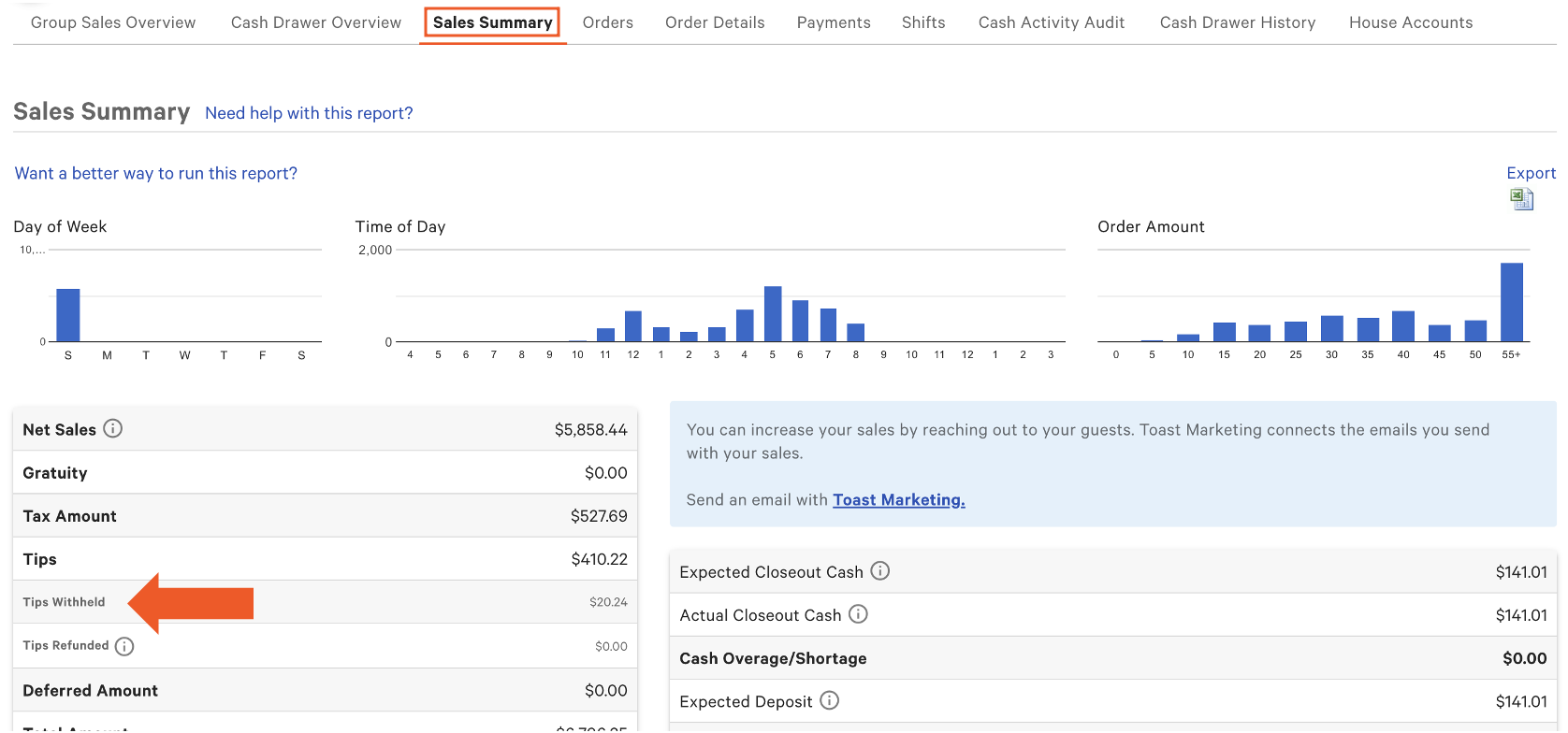
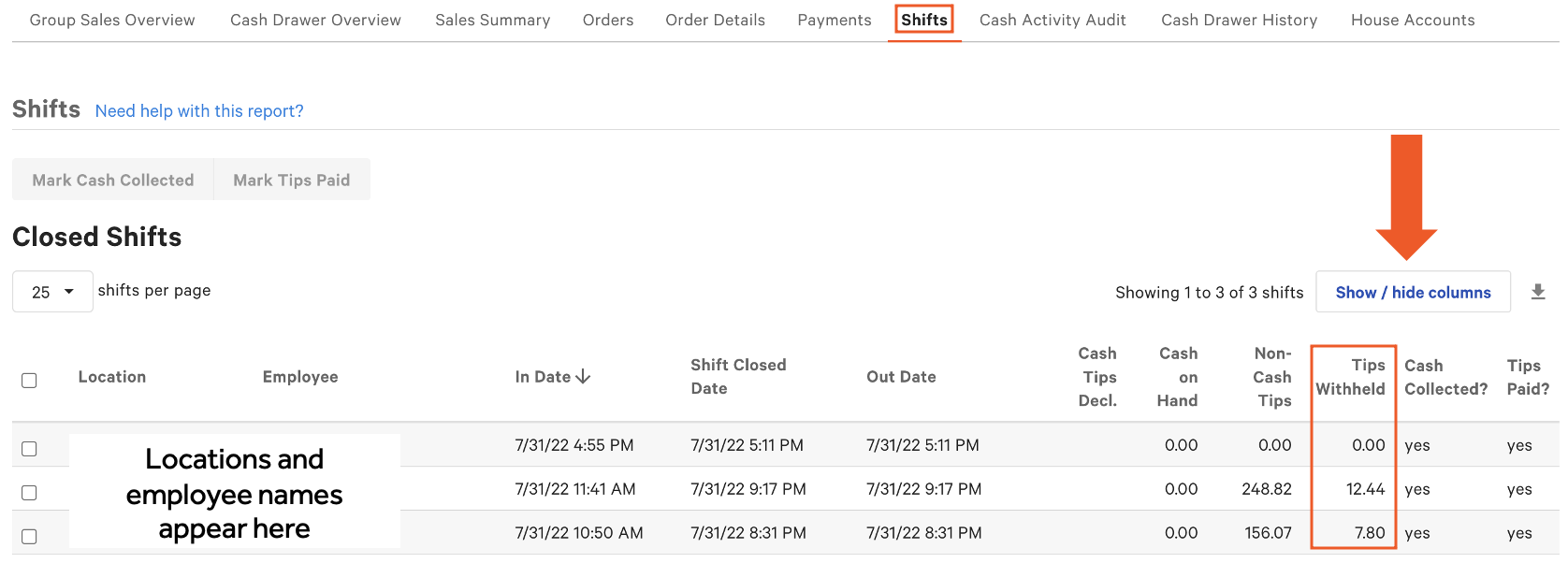
Tip withholding adjustments are best viewed on two different reports: the Sales Summary and the Shifts report. Both reports can be found in Toast Web by navigating to the Reports > Sales Summary.
The Sales Summary details the tip withholding amount for all employee shifts within the specified date range. This report provides the tip withholding amount as a subset of the total tips/gratuities earned.
The Shifts report breaks the tip withholding amounts up by employee and shift (if an employee worked a double shift in one day, they will appear on this report twice). You may access this report by navigating to the Sales Summary and selecting the Shifts tab. Once you arrive at this page, select the Show/hide columns button and check mark Tips Withheld. You may wish to do this for both the Closed Shifts and Open Shifts sections.
This report now shows the tip withholding amount for employees of both Open Shifts and/or Closed Shifts falling under the specified date range.
Tip Withholding and Toast Payroll
If you use the Toast Payroll product, enabling tip withholding will have no impact on Toast Payroll or GL setup, aside from employees receiving decreased tip amounts on payroll. Toast Payroll automatically factors in tip withholding amounts.
Back to top