Toast Device & Network Security FAQ
Last updated: Sep 17, 2026, 7:54 PM
Learn what device firmware and network changes Toast requires to keep your hardware and restaurant network secure, and how to prepare for them.
- What device and network changes does Toast require for security?
- How can I prepare before I'm prompted to update?
- What is the difference between a Toast-managed and a self-managed network?
- Where do I find my Toast Wi-Fi password?
- Can I install non-Toast apps on my Toast devices?
- I use a non-Toast tablet for third-party online orders with a Toast printer. Will this still work?
- My Toast device is on the wrong network. How do I reconnect it to the secure Wi-Fi?
- How do I keep my Toast devices on the right Wi-Fi network?
- Can I still process card payments if my devices have security issues?
What device and network changes does Toast require for security?
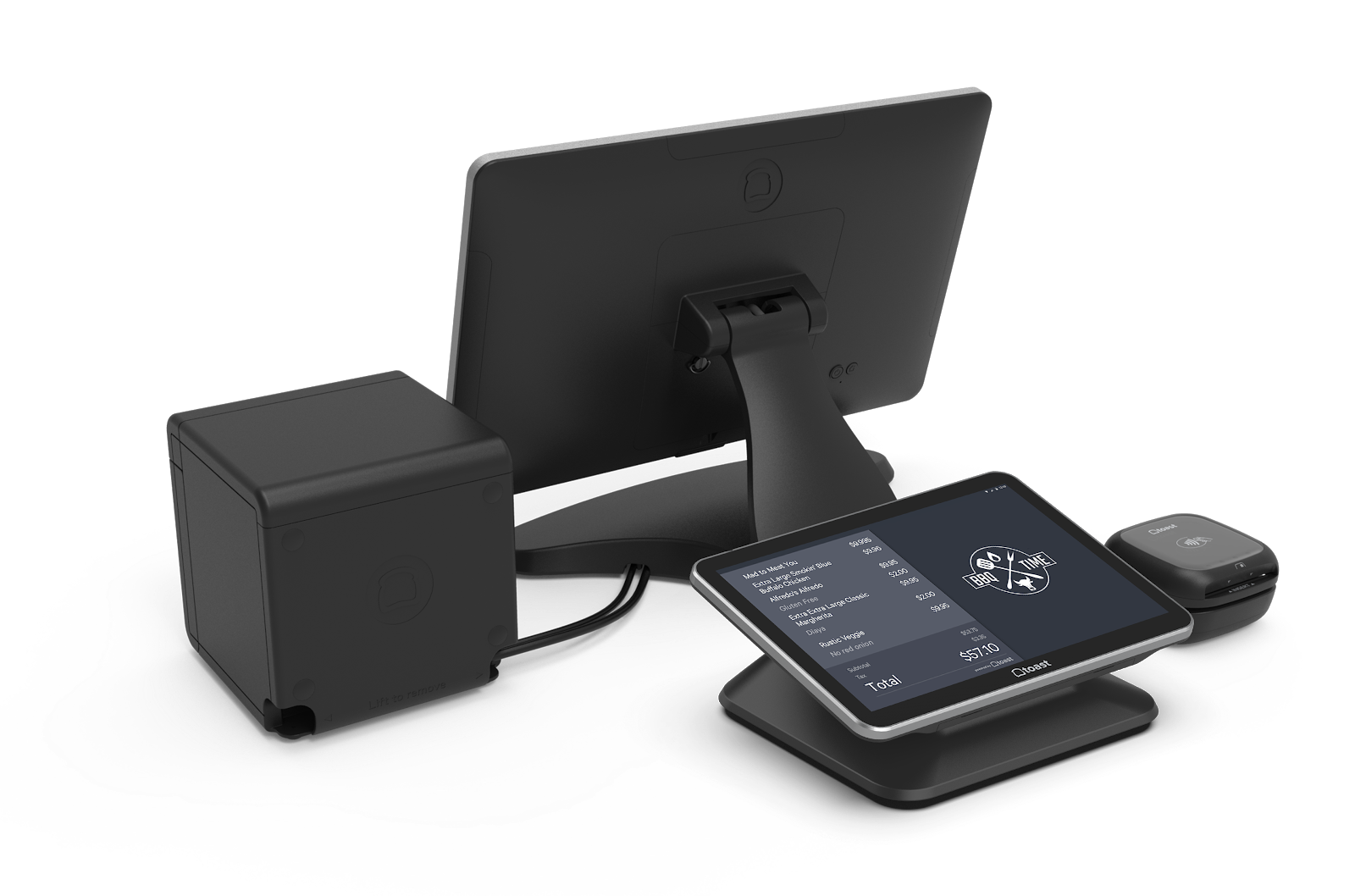
Toast requires firmware updates on your devices and, on Toast-managed networks, the removal of non-Toast devices to keep your hardware and restaurant network secure. These changes roll out over time, and you'll be guided through them on your Toast devices as needed. The table below shows what each device needs.
| Toast device | Required steps |
| All Toast devices | Remove non-Toast-approved applications, including music, email, and social media apps. Accept and download the latest firmware updates when prompted on the device. |
| Toast Go® 2 and Toast Go® 3 | When prompted on the device, accept firmware updates and complete the brief device setup workflow. |
| Toast Go® 1 | When prompted on the device, accept firmware updates. These install automatically. |
| Toast Flex | When prompted on the device, accept firmware updates and complete the brief device setup workflow. This happens automatically. |
| Elo V2 terminal | When prompted on the device, accept firmware updates and complete the brief device setup workflow. This happens automatically. The setup workflow requires a factory reset and erases all non-Toast apps on the device automatically. |
| Elo Kiosk terminal | Do not download any new firmware versions to the device if prompted. |
| Elo V1 terminal | When prompted on the device, accept firmware updates. These install automatically. |
| Auxiliary Toast devices (for example, barcode scanners, scales, and pole displays) | No auxiliary devices require firmware updates at this time. |
To remove non-Toast applications, see Remove Non-Toast Apps From a Toast Device.
Note: After your devices migrate to the Toast secure network, they can only run toasttab.com traffic and will no longer reach other websites, including social media and personal websites.
How can I prepare before I'm prompted to update?
You can prepare before you're prompted by removing non-Toast applications from your Toast devices and removing any non-Toast devices from your Toast secure network. Once you're prompted, your devices migrate to a Toast network with enhanced security that only allows toasttab.com traffic. For help removing apps, see Remove Non-Toast Apps From a Toast Device.
What is the difference between a Toast-managed and a self-managed network?
The difference between a Toast-managed and a self-managed network is who manages the network and which devices are allowed on it.
On a Toast-managed network, only Toast-approved devices belong on the network. Remove non-Toast devices such as personal cell phones, laptops, TVs, and speakers. To keep those devices online, you may need to purchase an additional router or access point to run them separately. The router that came with your Toast hardware is intended for Toast hardware only.
On a self-managed network, you manage your own network and no action is required for this security update.
Where do I find my Toast Wi-Fi password?
To find your Toast Wi-Fi password, sign in to Toast Web and navigate to Toast account > Wi-Fi configuration, then select the eye icon to reveal your Toast-managed Wi-Fi password. The password is stored in Toast Web, not on the device itself. For full details, see Locate Your Toast Wi-Fi Password.
Note: If you use a self-managed network, contact your network manager or internet service provider for the password. Toast does not store passwords for networks it does not manage.
Also asked as:
-
- How do I find my Toast Wi-Fi password to set up a handheld?
- What is the password for my Toast secure Wi-Fi?
- Where is the Wi-Fi password for my Toast devices?
Can I install non-Toast apps on my Toast devices?
You cannot install or run third-party apps on Toast devices. This restriction protects the security of your network and devices. For related guidance, see Can I hide the browser on my POS device?.
I use a non-Toast tablet for third-party online orders with a Toast printer. Will this still work?
A non-Toast tablet sending orders to a Toast printer will no longer work, because the non-Toast tablet cannot connect to the dedicated Toast Wi-Fi and therefore cannot send information to the Toast printer. To streamline third-party online ordering, review the online ordering integrations available through Toast.
My Toast device is on the wrong network. How do I reconnect it to the secure Wi-Fi?
If your Toast device is on the wrong network, reconnect it to your secure Toast Wi-Fi by forgetting other networks and signing back in:
-
- Power cycle the device.
- Forget all networks saved on the device. For steps specific to your device model, see Forget a Network on a Toast Device.
- Sign out of the Toast app completely, so the app prompts you for your email address and password.
- Open Wi-Fi settings and connect to the network ending in "_SECURE." In some cases you may only see the "_TOAST" network. If you need the password, see Locate Your Toast Wi-Fi Password.
- Open the Toast app, log in with your email address and password, and enter your passcode to clock in.
Expected outcome: The device automatically connects to the network ending in "_TOAST" and clears the offline banner.
Note: Not every Toast network includes a "_SECURE" network. Some locations only have a "_TOAST" network available. If the device still won't connect after these steps, see Handhelds Not Connecting to Secure Network or contact Toast Customer Care.
How do I keep my Toast devices on the right Wi-Fi network?
To keep your Toast devices on the right Wi-Fi network, forget every network except the secure Toast network on each device:
-
- Open Wi-Fi settings.
- Forget all networks on the device except those with names ending in "_TOAST."
Repeat this on every Toast device that connects over Wi-Fi. For steps specific to your device model, see Forget a Network on a Toast Device. If you need your password, see Locate Your Toast Wi-Fi Password.
Expected outcome: Each device stays connected to the network ending in "_TOAST" throughout service.
Can I still process card payments if my devices have security issues?
You can still process card payments for online orders even if one device is blocked from taking in-person card payments because it hasn't finished a required firmware or security update. A device is blocked this way when it prompts you to update and that update hasn't been accepted or fully installed yet. While that device is being updated, you can still process card payments for orders placed through Toast online ordering or a third-party online ordering integration, and for mobile payments and Toast Order & Pay™ orders. To restore in-person payments, follow the update prompts shown in the Toast app on that device. If the device still won't take card payments after the update finishes, contact Toast Customer Care.
Related articles
- Remove Non-Toast Apps From a Toast Device
- Forget a Network on a Toast Device
- Handhelds Not Connecting to Secure Network
- Locate Your Toast Wi-Fi Password
- Can I hide the browser on my POS device?