Toast Payroll: Add Company Holidays
Last updated: Oct 9, 2026, 4:46 PM
- Federal Holidays
- Add Company Holidays and Events
- Add Holiday Timekeeping Rules
- Add a Company Holiday Retroactively
Federal Holidays
As a reference for adding your own company holidays, find a list of federal holidays on the Federal Reserve's website. Additionally, see Toast Payroll: Manage Federal Bank Holidays for more information on federal holidays as it concerns Toast Payroll.
Add Company Holidays and Events
Depending on security access, certain users can add company holidays and events to the system. Follow these steps to set up company holidays and events in the system:
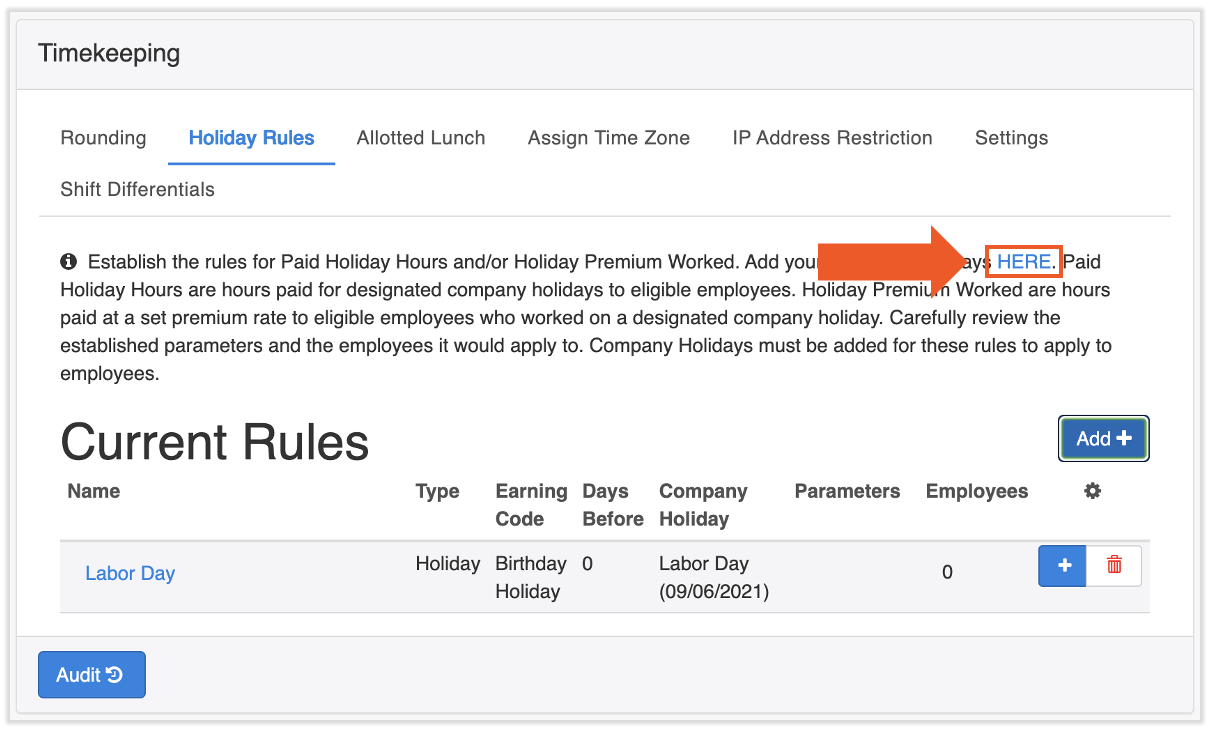
- Add events or company holidays in Toast Payroll by navigating to Settings > Timekeeping > Holiday Rules > HERE.
- The HERE link is embedded within the paragraph on this page.
- Events must be added before rules are added.
- If you do not see Settings on the left side of the screen, select Payroll from the Toast Web navigation rail on the left to make the Toast Payroll navigation rail appear.
- Select Create New Event.
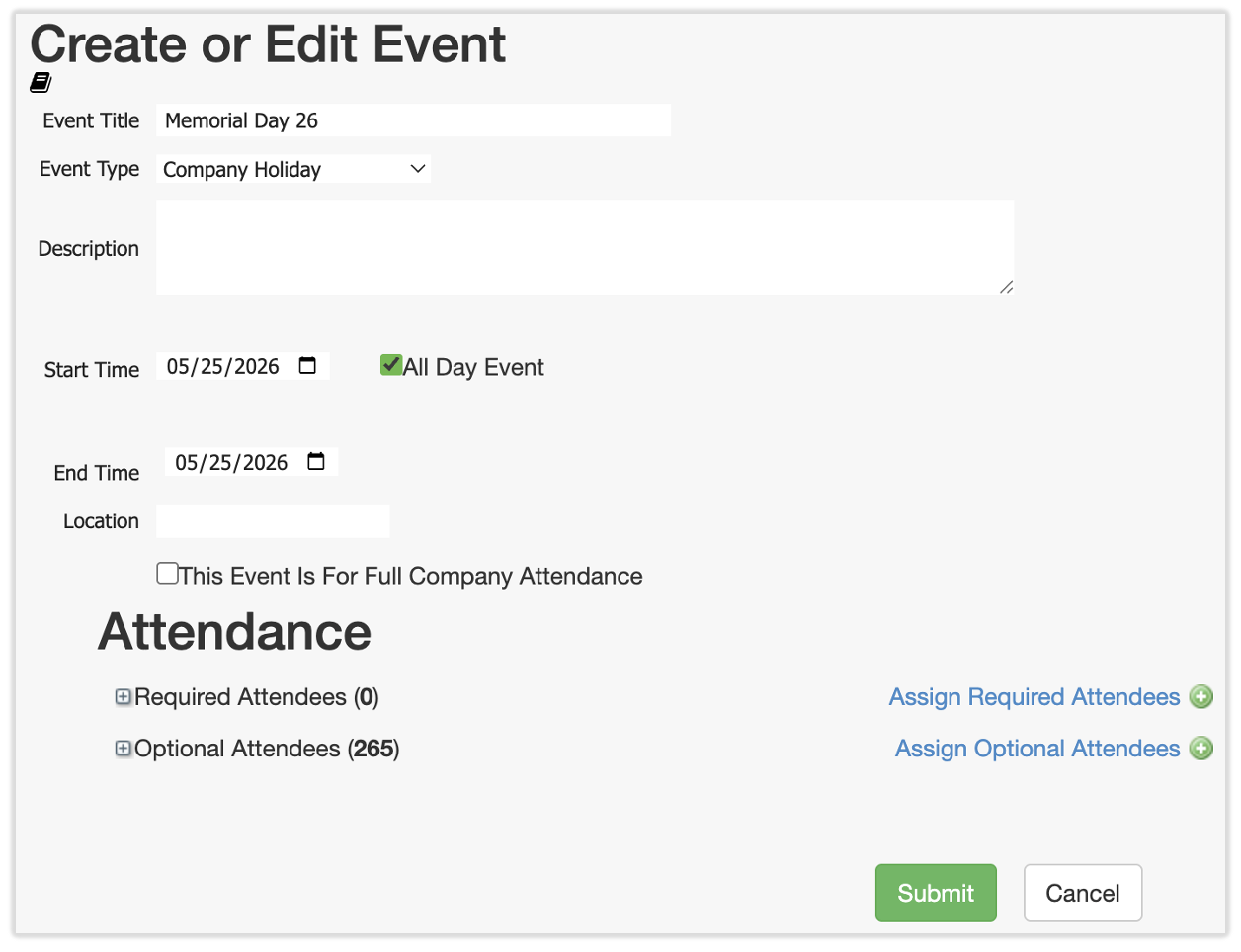
- Enter details of the company holiday or event.
- If the holiday or event is only one day, ensure the Start and End Time are the same day as well as the same year.
- Select All Day Event if the event does not require times (e.g. for a holiday).
- Location is optional.
- The checkbox for This Event Is For Full Company Attendance will send out an employee to-do to all individuals in this database to confirm or deny their attendance. This is not commonly used.
- Lastly, you must assign Attendees for an event.
- Assign Required Attendees should be used when certain employees should be included in this holiday or event, even if the parameters you set above (dates and location) do not include them. Think of it as an override that applies to only the employees you selected who should have this holiday or event included in their timesheet.
- Assign Optional Attendees is used when any employee who meets the parameters set above (dates and location) is eligible for this holiday or event. If this is the case, select Select All in the pop-up before saving.
- Select Submit to save this event or holiday. Keep in mind that company holidays are set up for individual years only. To add a holiday such as Labor Day to multiple years, repeat steps 1-3.

Add Holiday Timekeeping Rules
Once you have added company holidays/events to the calendar, rules must be added in order for holiday hours to record on timesheets. The way they are set up will dictate how these hours appear on timesheets. Toast Payroll can handle holiday pay in two ways:
- Add a "holiday paid" rule, called Paid Holiday Hours in Toast, which allows a flat rate amount of hours to be included on all employee timesheets, regardless of whether they worked on that day or not.
- Add a "holiday worked" rule, known in Toast as a Holiday Premium Worked, which allows employee punches entered on a holiday to be calculated at a separate rate of pay.
Paid Holiday Hours Setup
To set up Paid Holiday Hours, log into payroll.toasttab.com, navigate to Settings > Timekeeping > Holiday Rules, and follow the steps below. (If you do not see Settings on the left side of the screen, select Payroll from the Toast Web navigation rail on the left to make the Toast Payroll navigation rail appear.)
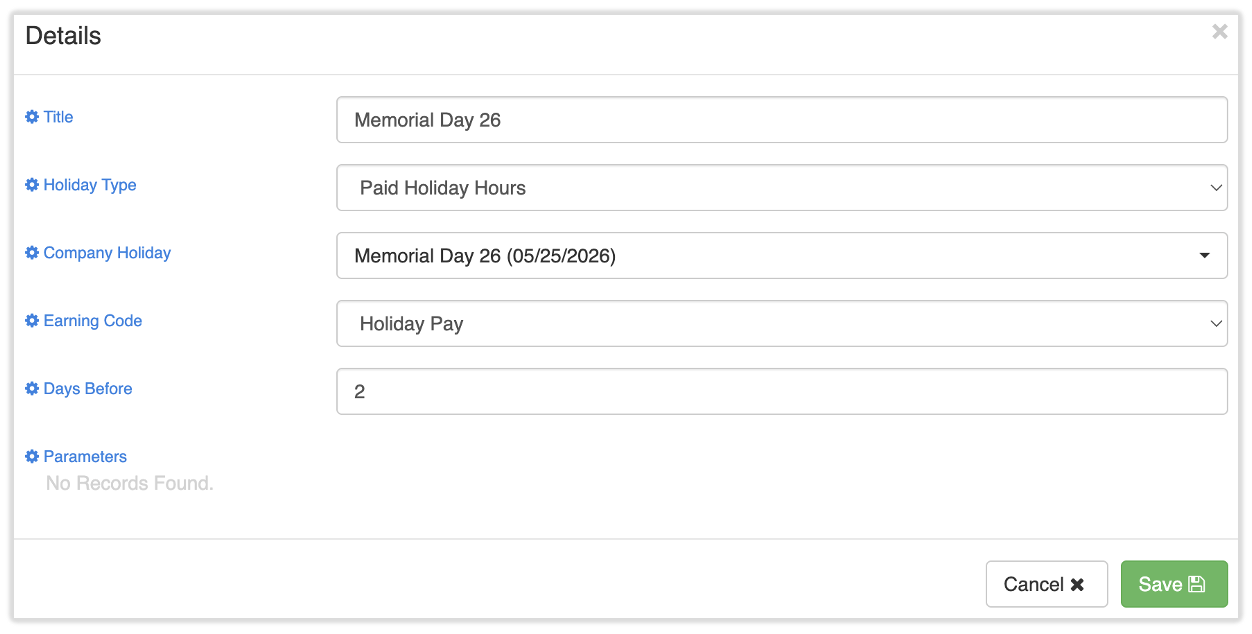
- Select Add +.
- Enter a title describing the rule.
- Select Paid Holiday Hours as the Holiday Type.
- Use the Company Holiday field to indicate which holiday(s) should be included as part of the rule set. All holidays will be included by default.
- Choose the associated Earning Code. If you need a new earning code set up, fill out this form and submit it to us via the blue chat button in the lower-right corner of any Toast Payroll page. Note: Toast Payroll is currently unavailable in Quebec. A French version of this form will be made available when the product launches in your region.
- Enter the number of Days Before the holiday in which the employees should receive these hours. For example, enter 2 if employees should receive the hours on their timesheets two days in advance.
- Select Save.
- Next, select the blue + button for this new rule.
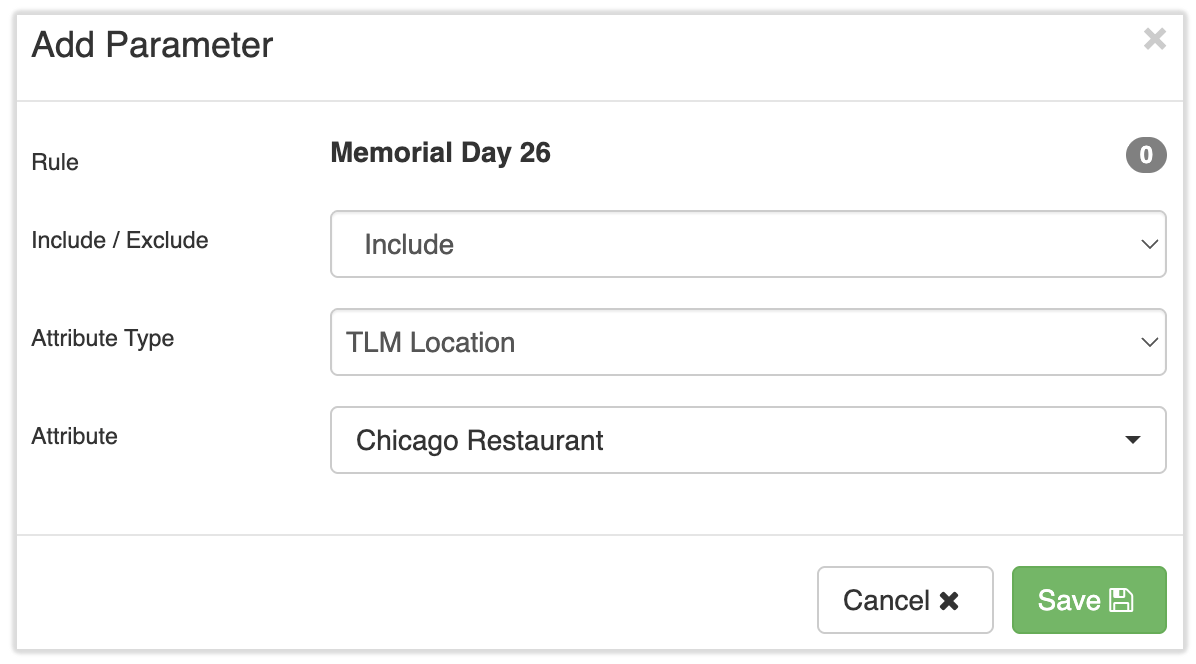
- Indicate which employees are eligible for this pay in the Add Parameter pop-up.
- Select either Include or Exclude.
- Then choose an Attribute Type. This can help you narrow down a certain group of employees.
- Lastly, select the Attribute this parameter should apply to.
- Select Save.
- Repeat this process as necessary. The system will follow each parameter in sequential order to determine who is eligible. Attributes do not need to be added for each type; the rules should only include attributes that factor into the eligibility.
- See the following examples:
- Example 1: If only full-time employees should receive the holiday pay, then simply select Include, Employment Type, and then Full-Time.
- Example B: If only employees located in Chicago who have worked more than 180 days should receive the holiday rules, then add a first parameter that selects Include, TLM Location, and Chicago. Next, select the blue + button add a second parameter that selects Exclude, Date of Hire Less Than X Days, and 180.
- Every parameter that is added will dynamically update the Employees column with the number of employees who will receive that pay, given the parameters. Select the number in the Employees column to view the individual employees eligible for this holiday pay.
Holiday Premium Worked Setup
To setup a Holiday Premium Worked, log into payroll.toasttab.com, navigate to Settings > Timekeeping > Holiday Rules, and follow the steps below. (If you do not see Settings on the left side of the screen, select Payroll from the Toast Web navigation rail on the left to make the Toast Payroll navigation rail appear.)
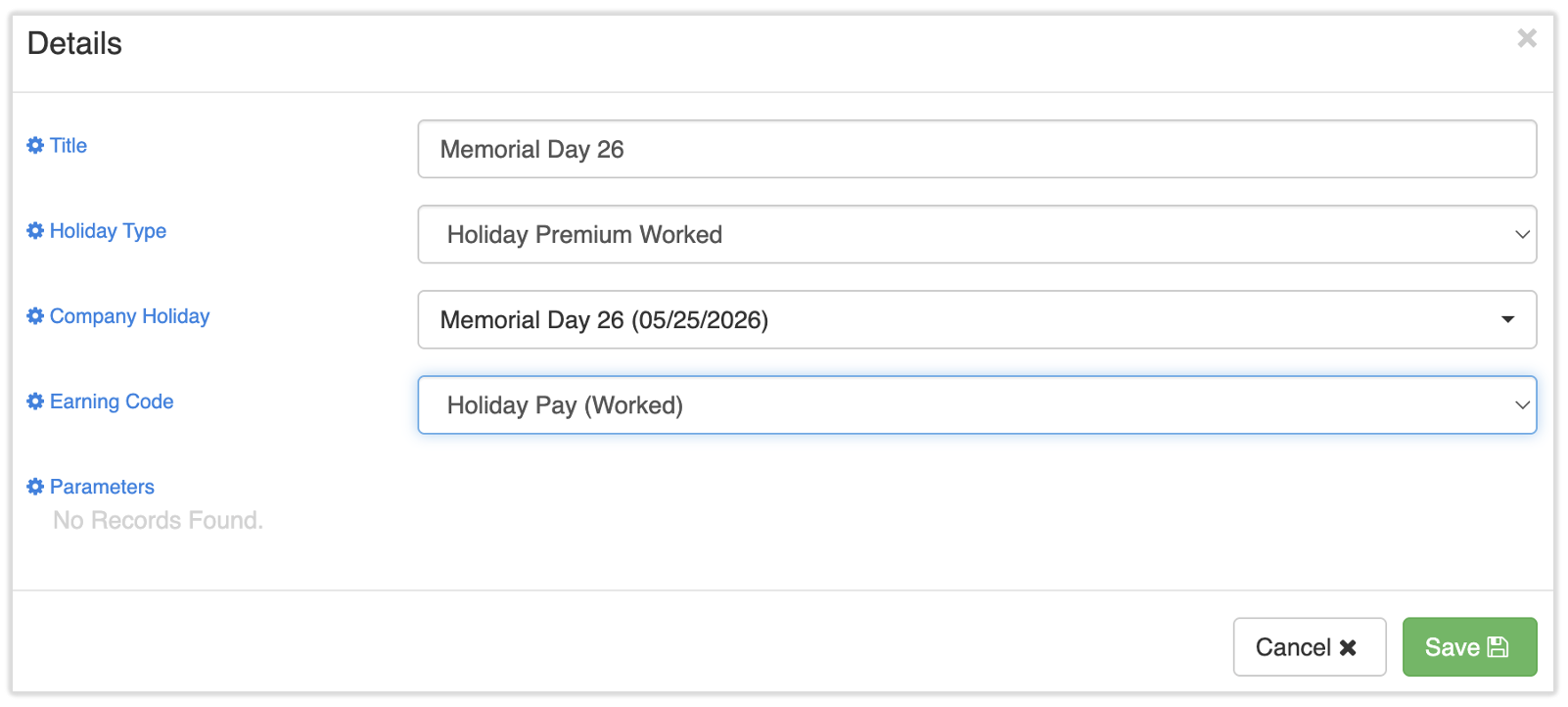
- Select Add +.
- Enter a title describing the rule.
- Select Holiday Premium Worked as the Holiday Type.
- Use the Company Holiday field to indicate which holiday(s) should be included as part of the rule set. All holidays will be included by default.
- Choose the associated Earning Code. If you need a new earning code set up, fill out this form and submit it to us via the blue chat button in the lower-right corner of any Toast Payroll page. Note: Toast Payroll is currently unavailable in Quebec. A French version of this form will be made available when the product launches in your region.
- Select Save.
- Next, select the blue + button for this new rule.
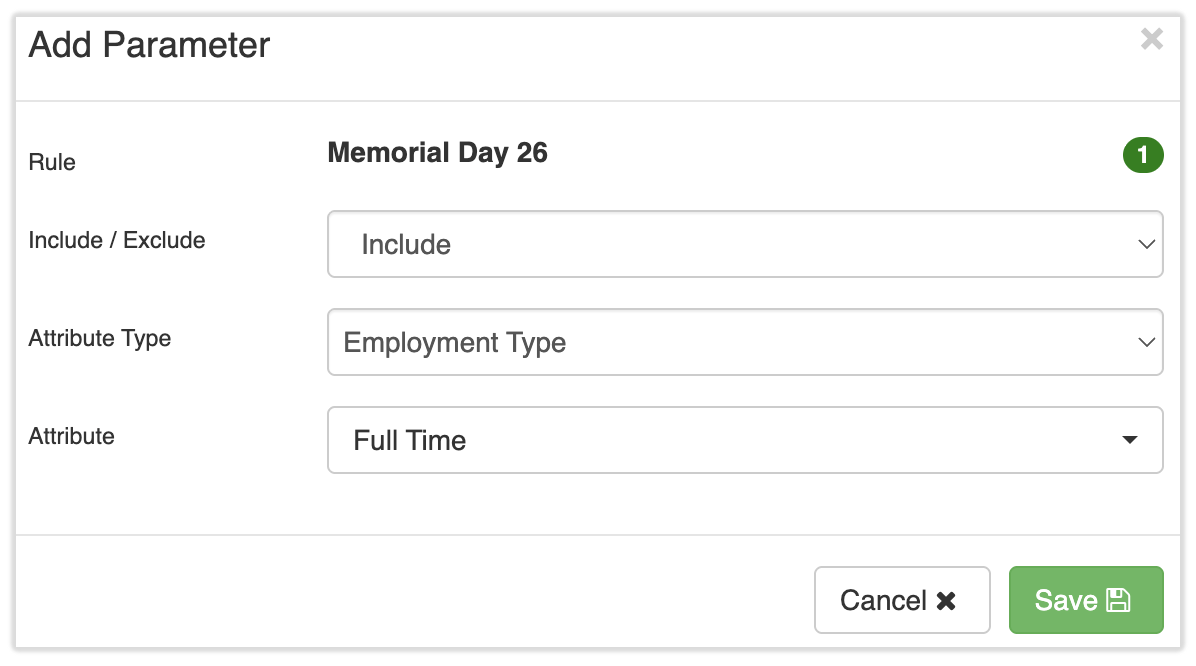
- Indicate which employees are eligible for this pay in the Add Parameter pop-up.
- Select either Include or Exclude.
- Then choose an Attribute Type. This can help you narrow down a certain group of employees.
- Lastly, select the Attribute this parameter should apply to.
- Select Save.
- Repeat this process as necessary. The system will follow each parameter in sequential order to determine who is eligible. Attributes do not need to be added for each type; the rules should only include attributes that factor into the eligibility.
- See the following examples:
- Example 1: If only full-time employees should receive the holiday pay, then simply select Include, Employment Type, and then Full-Time.
- Example B: If only employees located in Chicago who have worked more than 180 days should receive the holiday rules, then add a first parameter that selects Include, TLM Location, and Chicago. Next, select the blue + button add a second parameter that selects Exclude, Date of Hire Less Than X Days, and 180.
Add a Company Holiday Retroactively
If you didn't previously set up a company holiday and/or holiday rules, manual adjustments to employee timesheets are necessary:
- First, confirm automatic approval of timesheets is disabled on the Time page of Toast Payroll.
- If you do not see Time on the left side of the screen, select Payroll from the Toast Web navigation rail on the left to make the Toast Payroll navigation rail appear.
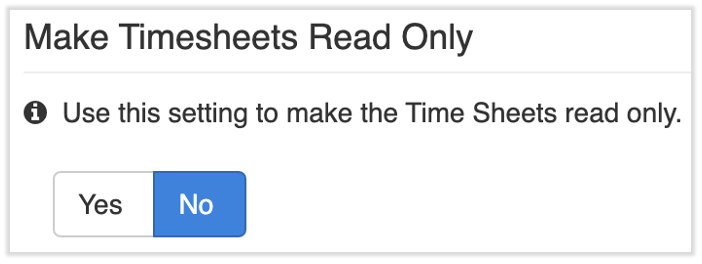
- Navigate to Settings > Timekeeping > Settings and set the Make Timesheets Read Only setting to No. This will allow you to edit the timesheet within Toast Payroll.
- For each employee who needs a holiday added or updated, you'll want to make a manual adjustment to their timesheet
- Navigate to Time and open an unapproved timesheet by selecting the link in the Timesheet column. Proceed to either step 4 or 5 next.
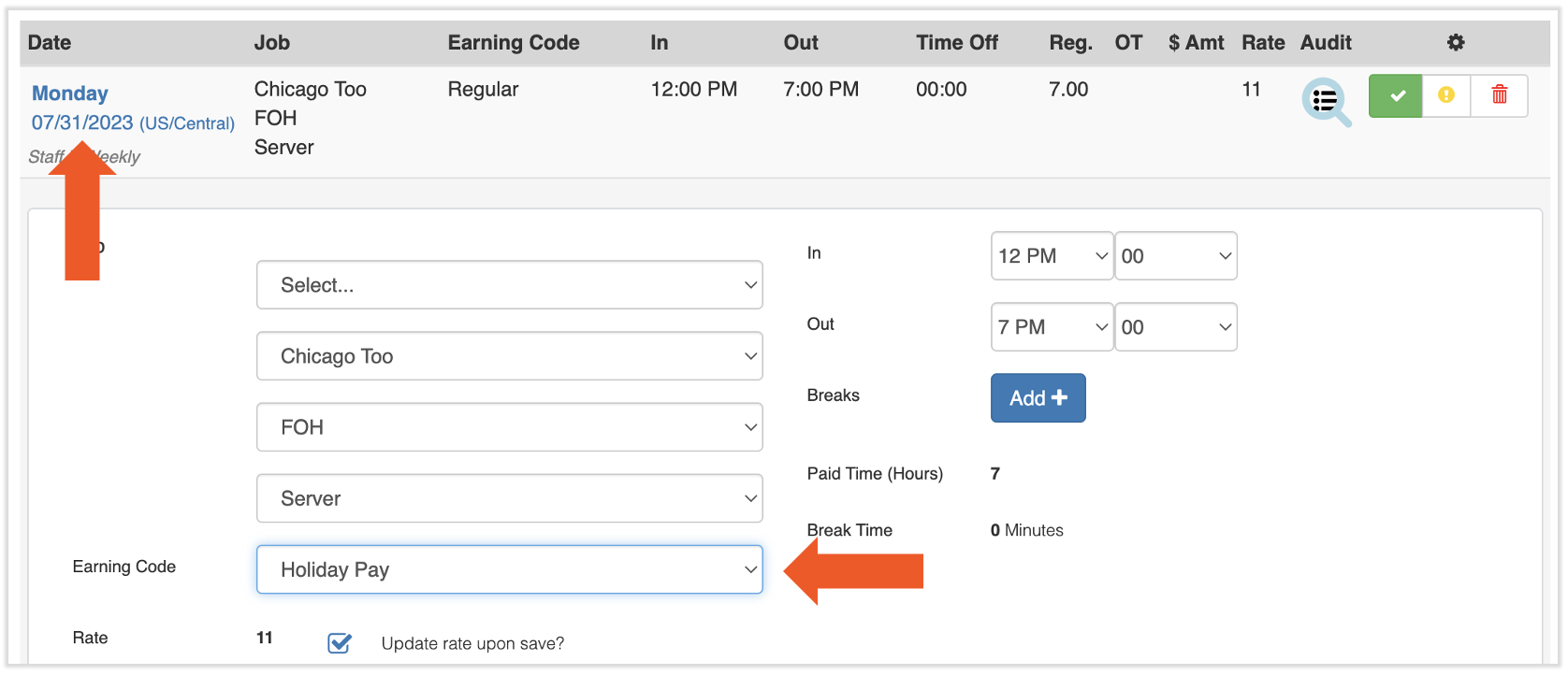
- For employees who clocked in and out on a company holiday but need their earning code updated, select the date and toggle the Earning Code drop-down to select an appropriate earning code. Select Update to finalize.
- If you do not have an appropriate earning code set up, fill out this form and submit it to us via the blue chat button in the lower-right corner of any Toast Payroll page. Note: Toast Payroll is currently unavailable in Quebec. A French version of this form will be made available when the product launches in your region.
- If you do not have an appropriate earning code set up, fill out this form and submit it to us via the blue chat button in the lower-right corner of any Toast Payroll page. Note: Toast Payroll is currently unavailable in Quebec. A French version of this form will be made available when the product launches in your region.
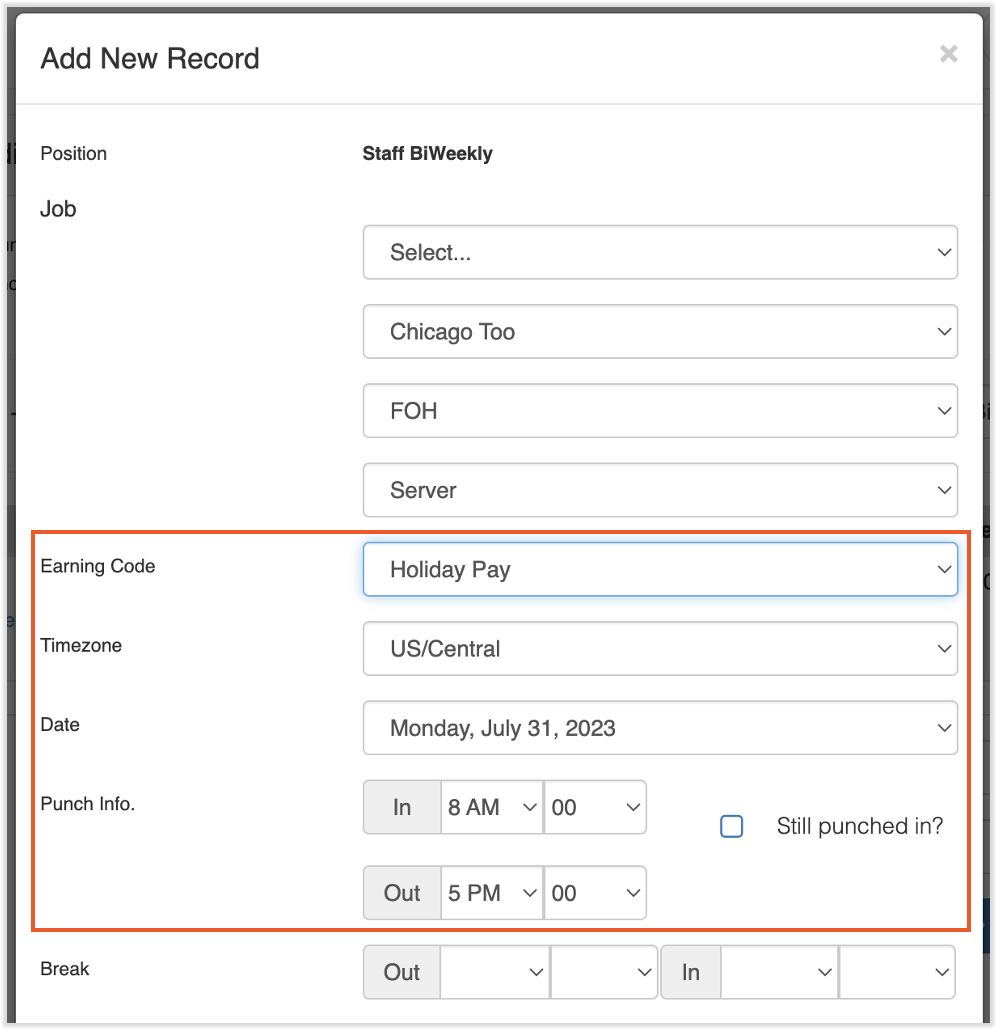
- For employees who need an entirely new entry added, select Add + in the upper-right corner and select the Earning Code, Date, and Punch Info. The rest of the fields can be left as is. Select Save to finalize.
- Repeat this action for each employee who needs a timesheet adjustment.
- If you disabled automatic approval of timesheets in the first step of this process, don't forget to re-enable it.
This content is for informational purposes and is not intended as legal, tax, HR, or any other professional advice. Please contact an attorney or other professional for advice.