Toast Payroll: Get Started With the QuickBooks Online Integration
Last updated: Jan 14, 2026, 3:14 PM
If you'd like to automatically import your Toast Payroll data into QuickBooks Online, check out this article for more details.
| This product is currently in beta and will only be available to select customers with Toast Payroll. Toast plans to open up this release to more customers in the near future. |
- Toast and QuickBooks
- Set Up the Toast Payroll and QuickBooks Online Integration
- Sync Your Payroll Data to QuickBooks Online
- Toast Payroll and QuickBooks Online Sync Errors
Toast and QuickBooks
Historically, xtraCHEF is the Toast product which syncs sales and payroll information between Toast and QuickBooks. Now, an xtraCHEF subscription won't be required to sync your accounting information and Toast Payroll Essential and Toast Payroll Pro customers will be able to use this integration seamlessly.
Note: At this time, Toast Payroll users must have a single location only and must be users of QuickBooks Online. QuickBooks Desktop and other accounting software programs are not currently supported, but this may change in the future.
This 5 minute video gives you a visual walkthrough of the setup steps for Toast Payroll and QuickBooks Online.
Set Up the Toast Payroll and QuickBooks Online Integration
- In order to complete this setup, make sure you have your QuickBooks Online login credentials (email/user ID and password) ready. Toast will use this information to sync with QuickBooks. This process will take around 10-30 minutes with the most time typically spent on the last step.
- Begin by running and submitting a payroll, as usual.
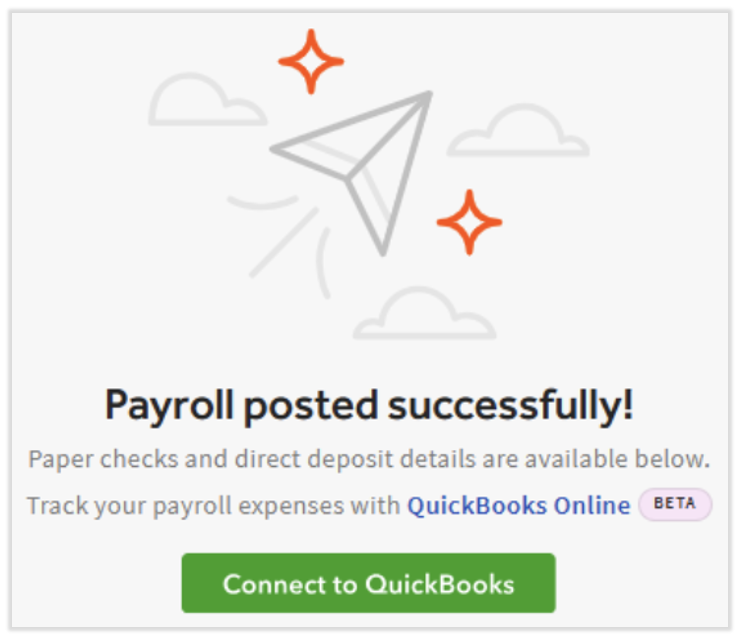
- After selecting Submit payroll, you'll land on the Confirmation page. Here, select the Connect to QuickBooks button.
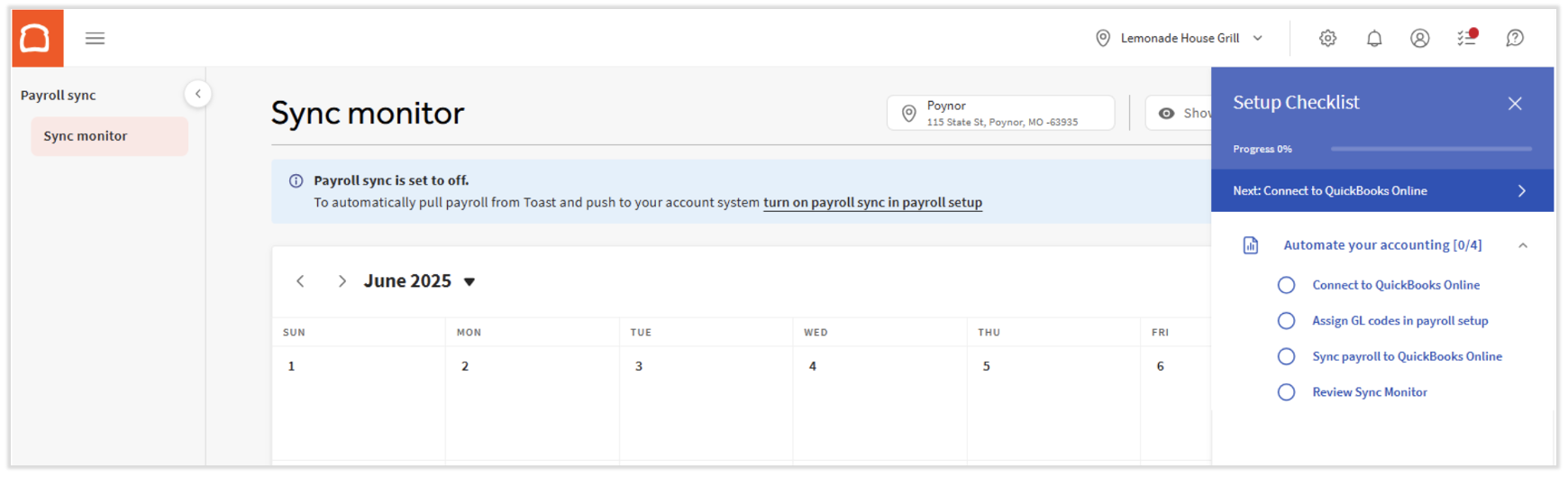
- You'll now see a feature in xtraCHEF called the Sync Monitor. This feature allows users to reconcile payroll exports that sync with QuickBooks Online. Toast Payroll restaurants who use this QuickBooks integration will have access to this single page in xtraCHEF. But before it can be used, notice the blue Setup Checklist on the right side of the screen. Perform the tasks in order, so select Connect to QuickBooks Online first.
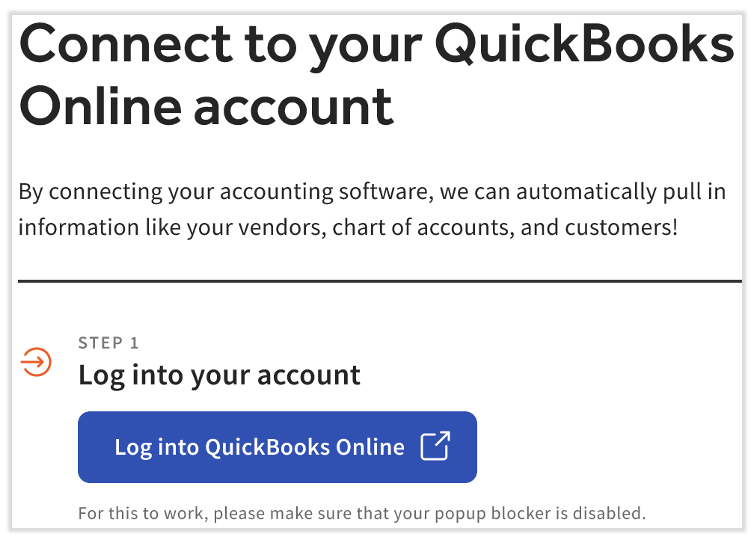
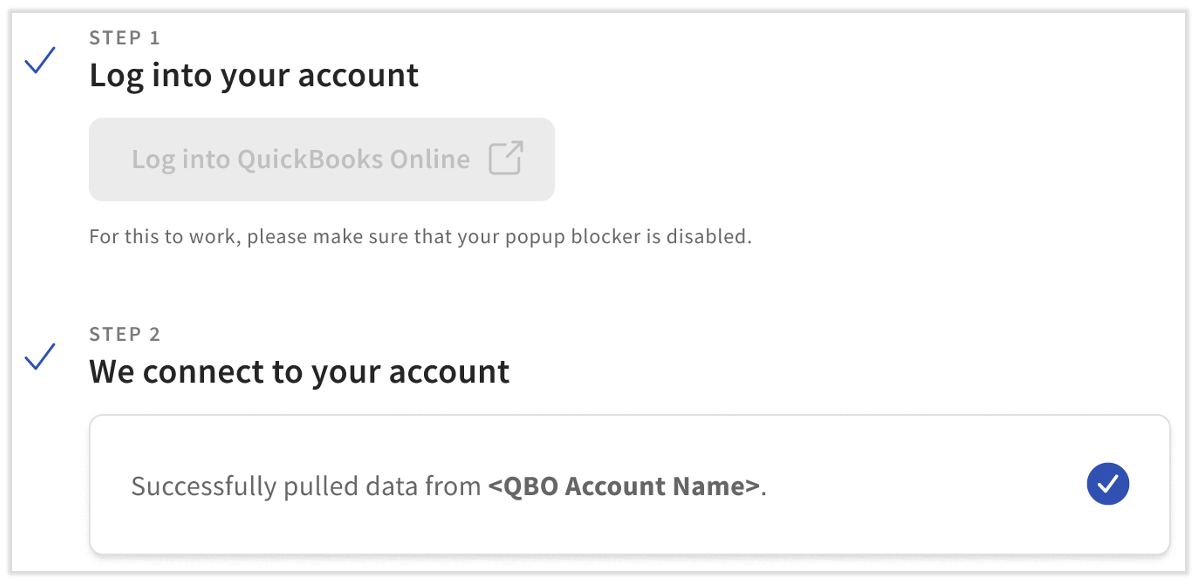
- You'll be asked to login to your QuickBooks Online account so Toast can directly link the two systems. This will open a pop-up, so make sure any pop-up blockers are disabled.
- Once you've entered your email address/User ID and password, select Sign In. The pop-up will disappear and you'll return to the integration wizard. Toast may load for a moment while the connection is established, but you'll get a confirmation once you're ready to proceed. Select Continue.
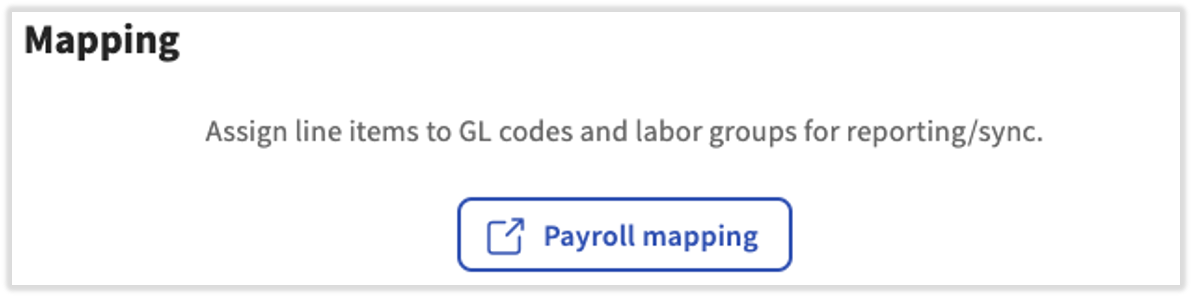
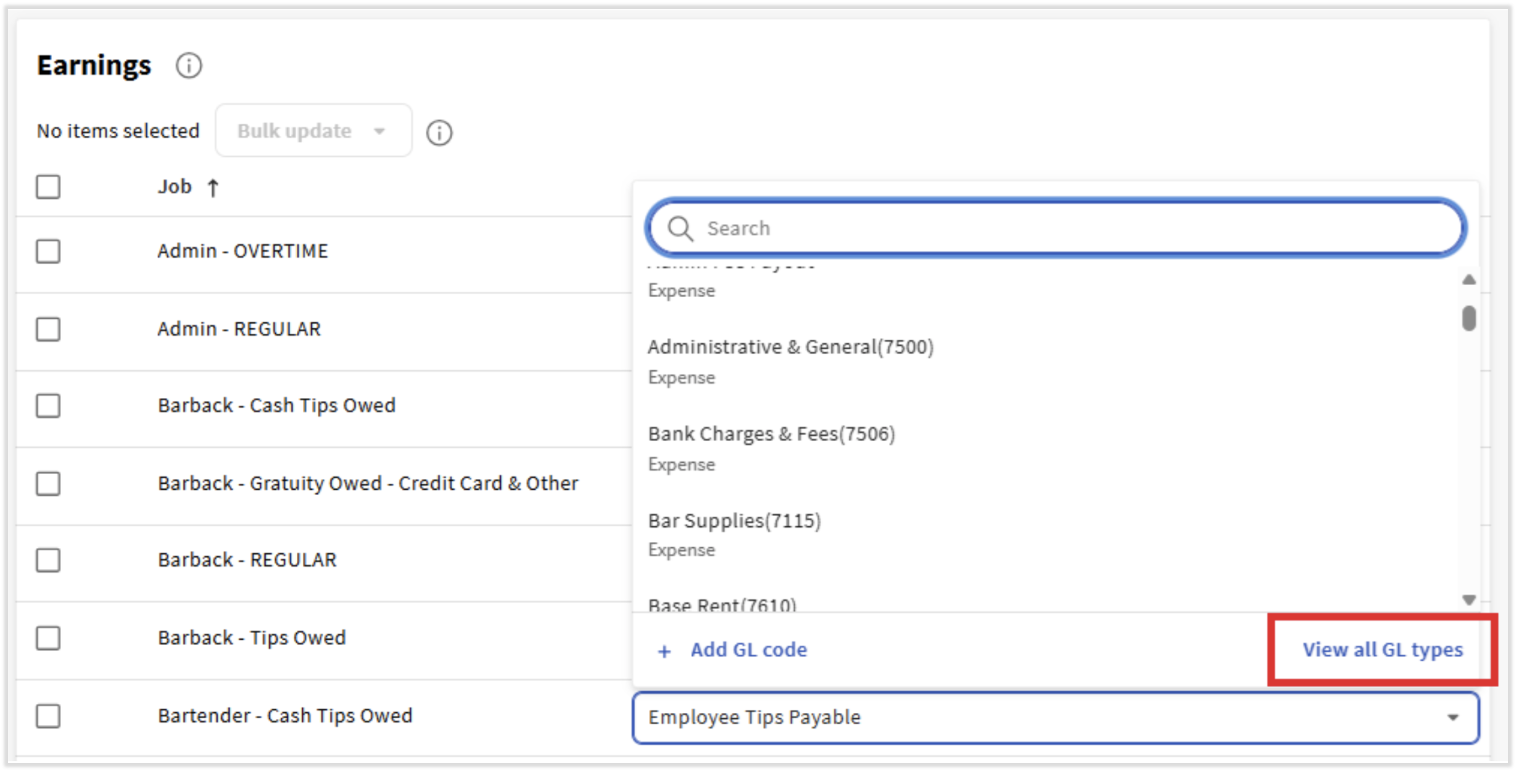
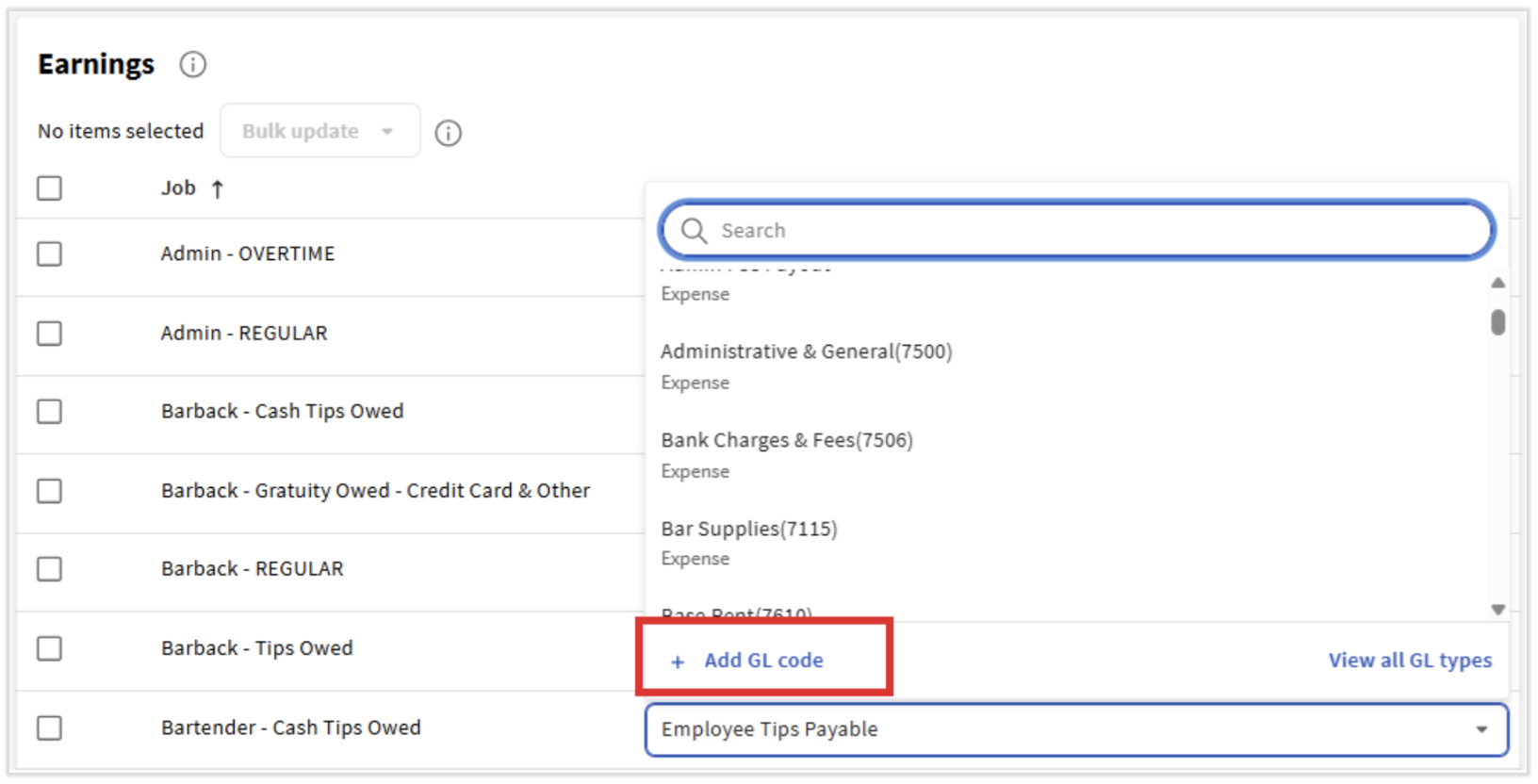
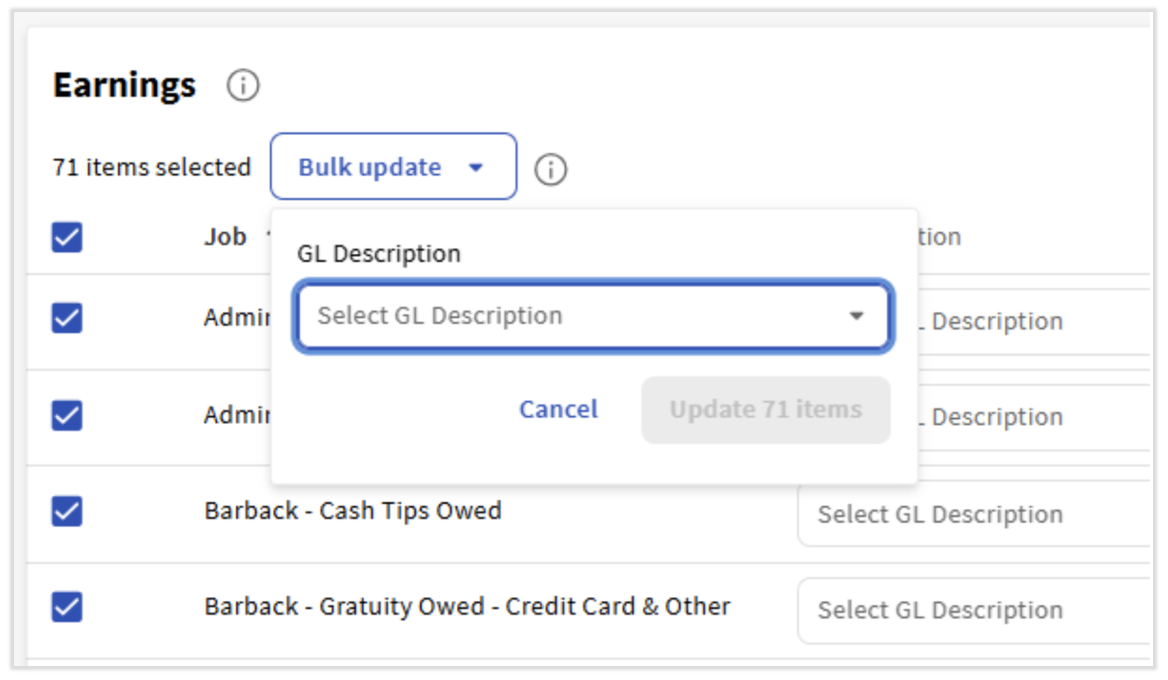
- Select Assign GL codes in payroll setup, the second step in the Setup Checklist.
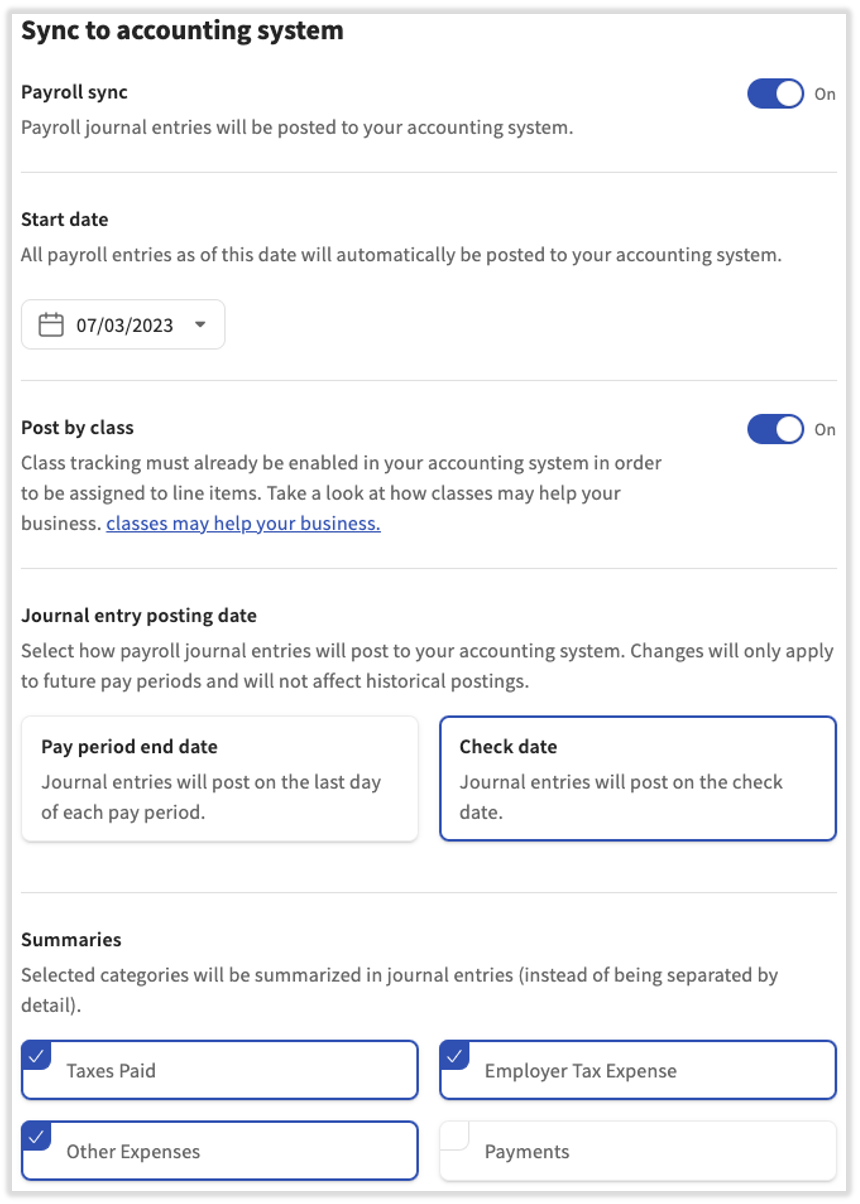
- There are a few settings to choose here:
- Payroll sync: When the toggle is set to On, Toast can post journal entries to QuickBooks Online. If you ever want to stop the entries from automatically posting, you can turn that off here.
- Start date: You may have already posted previous Toast payrolls to your accounting system and you only need us to begin posting journal entries to your accounting system on a specific date. Select that date here.
Sync Your Payroll Data to QuickBooks Online
Once each step above is complete, the Setup Checklist will no longer appear on this page and Toast Payroll will automatically create payroll journal entries according to the framework you established. To return to the Sync Monitor when using the Toast Payroll and QuickBooks Online integration, select Connect to QuickBooks after each submitted payroll. Otherwise, navigate to Payroll > Past Payrolls > View > Connect to QuickBooks.
Toast Payroll and QuickBooks Online Sync Errors
Each time a payroll journal entry is posted to QuickBooks Online, the user who set up this integration will receive an email of the status of the journal entry posting (successful or unsuccessful). If a sync/journal entry posting is unsuccessful, the email will offer details and a path to correcting the issue. For instance, a new line item may not have a GL code assigned, so the email will direct you to the GL mapping page.
This content is for informational purposes and is not intended as legal, tax, HR, or any other professional advice. Please contact an attorney or other professional for advice.