Toast Payroll: Update Employee Profile Information
Last updated: Jun 12, 2026, 12:13 PM
Edit an employee's contact info, emergency contacts, status, and SSN from the Toast Payroll Profile tab.
- Before You Begin
- Open an Employee's Profile
- Update Contact Information, Address, and Demographics
- Update Emergency Contacts
- Change an Employee's Status (Terminate, Rehire, or Leave of Absence)
- Retrieve or Update an Employee's SSN
- Sync Profile Changes to Toast Web
- Frequently Asked Questions
- Related Articles
Before You Begin
Applies to: Toast Payroll
Permissions needed:
- HR+ access, or another security role with employee management permissions
What you'll accomplish: Make edits to an employee's personal information, emergency contacts, employment status, and SSN directly from their Toast Payroll Profile tab.
Note: Some fields are owned by the employee and cannot be edited by an employer or manager. An employee's name, their Form W-4, and (once a unified login exists) their email and phone number are updated by the employee from their own account. These cases are covered in the Frequently Asked Questions below.
Open an Employee's Profile
To open an employee's profile in Toast Payroll, navigate to Team, or use the Search employees bar at the top of the page to find the person by name. Select the employee, then select the Profile tab at the top of their record.
Expected outcome: You will see the employee's Profile tab with separate sections for personal information, emergency contacts, employment status, and SSN, each with its own Edit control.
Update Contact Information, Address, and Demographics
You can view or update an employee's contact information, address, and demographic information from the Profile tab.
- Open the employee's profile and select the Profile tab.
- Find the section you want to change, then select the Edit button for that section.
- Update the fields, then save your changes.
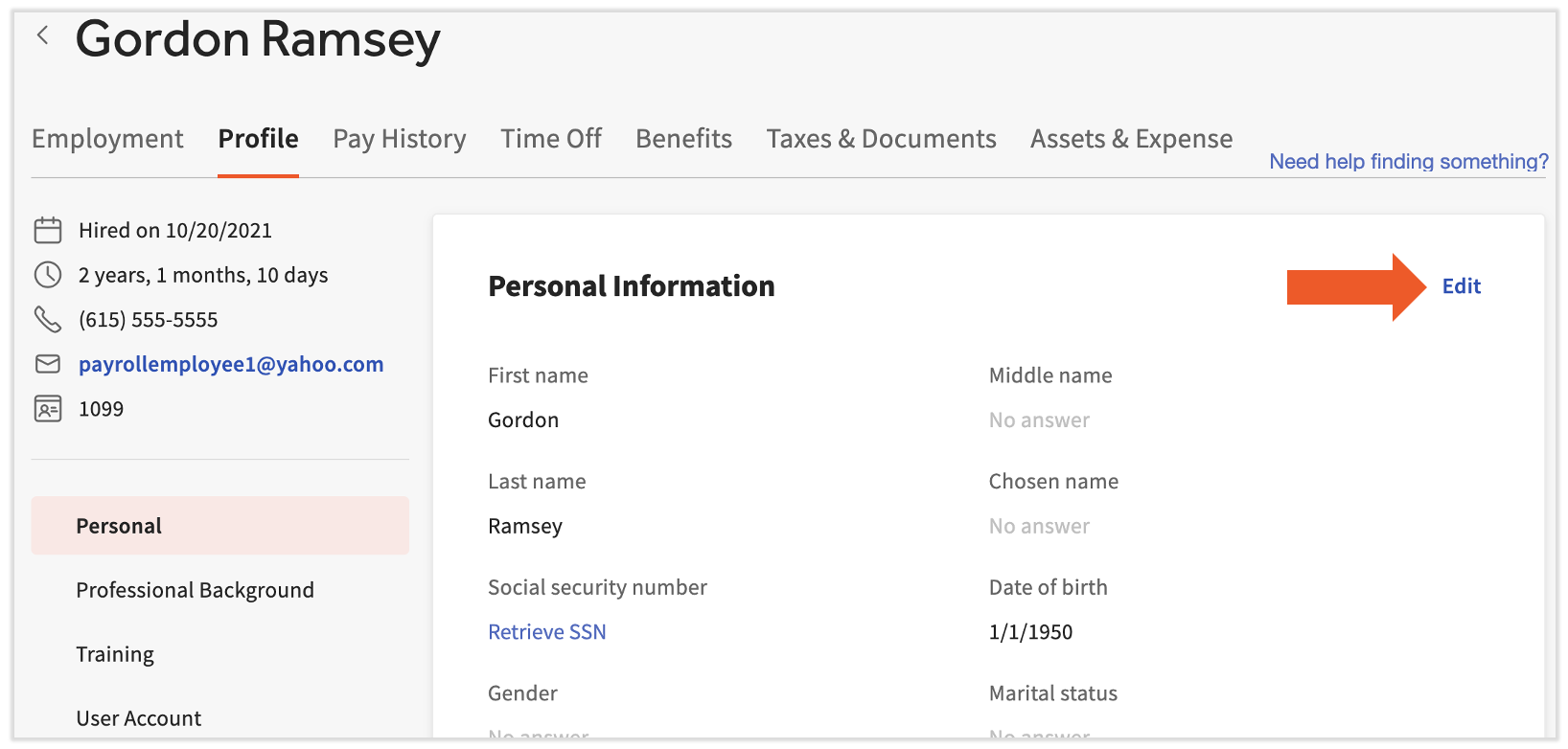
Expected outcome: The updated information appears in that section of the profile right away.
Note: Updating an employee's address on the profile does not automatically change the address on their tax forms. The employee must update their state Form W-4 directly for the address on that form to change.
Update Emergency Contacts
To view or update an employee's emergency contacts, open the employee's profile, select the Profile tab, select the Edit button on the emergency contacts section, update the fields, and save your changes.
Expected outcome: The emergency contact details you entered appear in the emergency contacts section of the profile.
Change an Employee's Status (Terminate, Rehire, or Leave of Absence)
Use the Status tile to terminate an employee, rehire a former employee, or place someone on a leave of absence.
- Open the employee's profile and select the Employment tab.
- In the Status tile, select the > icon to open the Status Change wizard.
- Follow the wizard to record the status change.
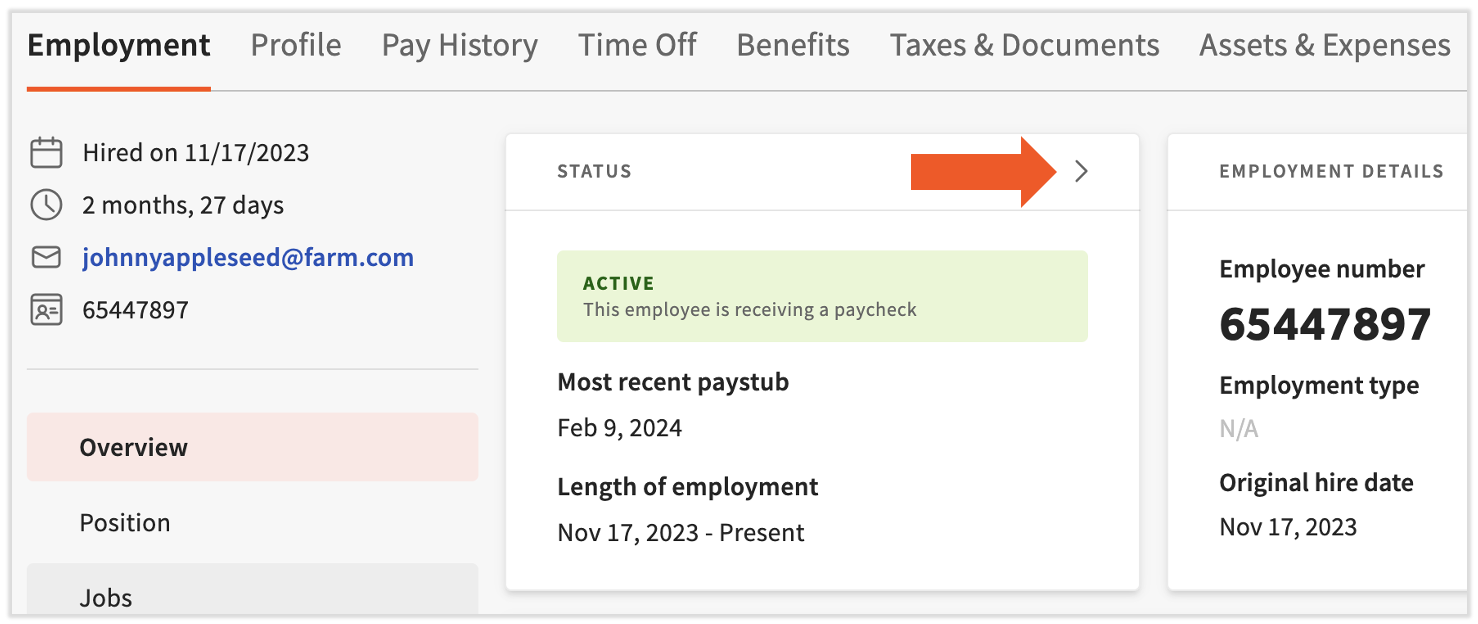
Expected outcome: The employee's status updates in the Status tile, and the change is reflected on their record.
For full instructions on each status change, see the dedicated guides:
- To end employment, see Terminate or Archive an Employee in Toast Web or Toast Payroll.
- To bring a former employee back, see Toast Payroll: Rehire Guide.
- To record a leave of absence, see Toast Payroll: Make an LOA Status Change.
Note: Customers cannot delete an employee profile. Ending employment is done by terminating or archiving the employee, which removes their access while keeping their pay stubs and year-end documents. For details, see Toast Payroll: Delete an Employee Profile.
Retrieve or Update an Employee's SSN
The Profile tab is where you retrieve or update an employee's Social Security number (SSN). For security, anyone who views or edits an SSN is tracked and listed on the Retrieve SSN pop-up, so you can also use this link to audit SSN activity for an employee.
- Open the employee's profile and select the Profile tab.
- Select the Retrieve SSN link.
- Confirm the action is for business purposes.
- Select the view (eyeball) icon to display the SSN.
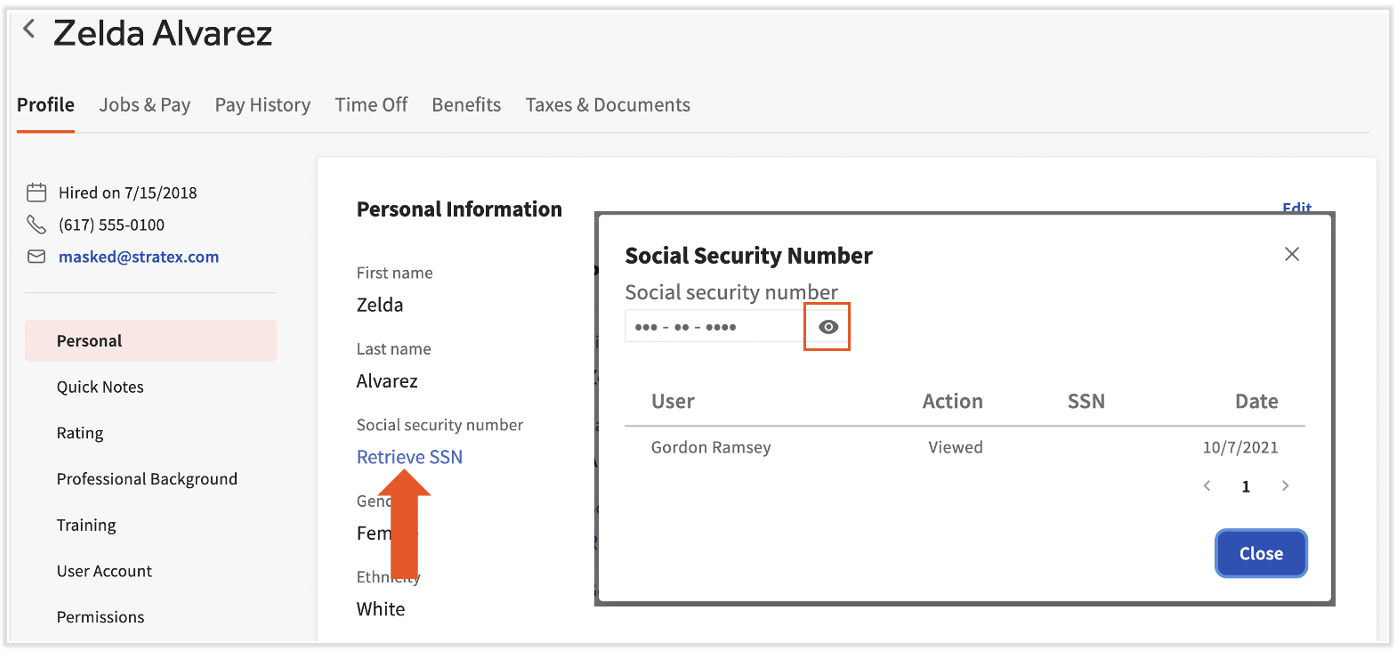
Expected outcome: The SSN displays, and your view is recorded on the Retrieve SSN pop-up.
Note: A valid SSN is required for accurate tax filings. An SSN is treated as invalid if it starts with 9, 000, or 666, has middle digits of 00, ends in 0000, or is a sequence such as 123-45-6789. For how Toast Payroll handles missing or invalid SSNs, see Toast Payroll: Social Security Number (SSN) Information Policy.
Sync Profile Changes to Toast Web
Provided the employee is mapped between systems, updates made to a Toast Payroll profile sync to the employee's Toast Web profile right away.
If you are looking to make a change and are not sure where it belongs, review Toast Payroll: Sync Information With Toast Web to check whether the edit should be made in Toast Web instead. If a change is not appearing in both systems, the profiles may not be mapped — see Toast Payroll: Manage Employee Mapping.
Expected outcome: A change saved on a mapped profile appears in both Toast Payroll and Toast Web.
Frequently Asked Questions
How do I change an employee's name on their profile?
To change an employee's name, the employee updates it themselves from their own account, because the name field is tied to identity verification rather than employer editing. Ask the employee to log in and update their name; if they have trouble, see Verify Your Identity in Toast Web.
Also asked as:
- Can't change my name on my profile?
- How do I fix an employee's name?
- We have two employees with the same name, how do I tell them apart?
How do I update an employee's email or phone number?
To update an employee's email or phone number, where you make the change depends on whether the employee has a unified login. Before a unified login exists, an HR+ user can edit these fields on the profile; once the employee has a unified login, the employee updates their own email and phone number from their account. For help managing email addresses, see Toast Payroll: Sync Information With Toast Web.
Also asked as:
- How do I add a phone number to a profile?
- How do I fix an email that was entered wrong?
- How do I change an employee's email?
Why can't I edit a field on the profile?
If you cannot edit a field on the profile, it is usually because the field is owned by the employee or because your security role does not include employee management permissions. Names, the Form W-4, and (after a unified login) email and phone are updated by the employee. If you believe you should have access and do not, confirm your role with an HR+ user at your business.
Also asked as:
- I am unable to edit her profile?
- Why is the Edit button missing?
- How do I get permission to edit an employee?
Can an employer edit an employee's Form W-4?
An employer cannot edit an employee's Form W-4 entries; the employee must update their own W-4 from their account. Ask the employee to log in and update their tax withholding directly.
Also asked as:
- How do I change an employee's tax withholding?
- Can I update a W-4 for my employee?
- Why won't my W-4 changes save for an employee?
Why won't a new SSN save on the profile?
A new SSN will not save on the profile when the same SSN is already attached to another profile, including a duplicate or terminated one. Remove the SSN from the incorrect profile first, then add it to the correct profile. If the duplicate profile needs to be removed, contact Toast Customer Care using the blue chat button in the lower-right corner of any Toast Payroll page. For more, see Toast Payroll: Resolve Duplicate Social Security Numbers (SSNs).
Also asked as:
- SSN belongs to existing profile?
- Employee's SSN was taken by another profile?
- Please enter a valid SSN error?
I updated an employee's SSN — will their W-2 update automatically?
Updating an employee's SSN does not automatically correct a Form W-2 that was already filed. If the SSN was incorrect or added after the quarterly deadline, a tax filing amendment is needed to report wages accurately, and amendment fees apply. To start the process, contact Toast Customer Care using the blue chat button in the lower-right corner of any Toast Payroll page. For details, see Toast Payroll: Social Security Number (SSN) Information Policy.
Also asked as:
- I need a corrected W-2 for an SSN fix?
- How do I get a W-2C?
- My employee entered the wrong SSN, how do I fix the W-2?
How do I find an employee's SSN that is already on file?
To find an SSN that is already on file, open the employee's profile, select the Profile tab, and use the Retrieve SSN link to view it. Confirm the action is for business purposes, then select the view (eyeball) icon. Your view is recorded for security.
Also asked as:
- Where can I see an employee's SSN?
- How do I check an employee's SSN?
- How do I view an SSN in payroll?
Related Articles
- Toast Payroll: Employee Management Center
- Toast Payroll: Sync Information With Toast Web
- Terminate or Archive an Employee in Toast Web or Toast Payroll
- Toast Payroll: Rehire Guide
- Toast Payroll: Social Security Number (SSN) Information Policy
This content is for informational purposes and is not intended as legal, tax, HR, or any other professional advice. Please contact an attorney or other professional for advice.