Toast Payroll: Get Help With Direct Deposit Accounts
Last updated: Aug 13, 2026, 2:38 PM
Add, update, or remove a Toast Payroll direct deposit account and resolve the most common Plaid errors.
- Before You Begin
- Quick Fix
- Identity Verification (Six-Digit Code)
- What HR+, Manager, and Employee Security Roles Can Do
- Add a Direct Deposit Account With Plaid
- Add a Second Direct Deposit Account (Split Deposit)
- Add a Direct Deposit Account Manually (HR+ Only, Without Plaid)
- Remove a Direct Deposit Account
- Audit Direct Deposit Account History
- Send a Nudge Email to Employees Missing Direct Deposit
- Troubleshoot Plaid
- Substitute (Tokenized) Account Numbers — Chase, US Bank, PNC
- Plaid Doesn't List My Bank (Chime, Cash App, Venmo, Smaller Banks)
- Before You Contact Customer Care
- Frequently Asked Questions
- Related Articles
Before You Begin
Applies to: Toast Payroll
Permissions needed:
- Employee, Manager, or HR+ security role in Toast Payroll (capabilities differ — see What HR+, Manager, and Employee Security Roles Can Do)
What you'll accomplish: Add, update, or remove a direct deposit account in Toast Payroll, and resolve the most common Plaid errors.
Important: A direct deposit account on an employee profile in Toast Payroll is different from a company bank account in Toast Web. To add or change the company bank account that Toast uses to fund payroll, see Toast Payroll: Change Company Bank Account on File instead.
Quick Fix
Use this table to jump to the right fix. Each row is independently meaningful.
| Symptom | Most Common Cause | Quick Fix | Self-Service? |
| Plaid doesn't list my bank, or shows "unsupported" | Bank is not in Plaid's supported list (commonly Chime, Cash App, Venmo, smaller credit unions) | Ask an HR+ user at your business to enter your direct deposit information manually. Employees and Managers cannot enter routing and account numbers themselves. | Yes (with HR+ help) |
| Plaid window doesn't open, loads forever, or crashes | Ad blocker or pop-up blocker is on; the pop-up was blocked or unable to render | Disable your ad blocker and retry. You can re-enable it once you're done. | Yes |
| "No available accounts" error in Plaid | Plaid could not retrieve any open accounts for the login you entered, or the connected account has been closed | Verify the credentials and try again. If the account is closed, log in with a different account. | Yes |
| "Too many attempts" error in Plaid | You entered the wrong online banking credentials three times | Contact your financial institution to unlock your online banking. If you can't unlock it, ask an HR+ user to enter the account manually. | Partial (bank action required) |
| The routing or account number shown in Toast Payroll doesn't match my records | Your bank (commonly Chase, US Bank, or PNC) returned a tokenized "substitute" number to Plaid | Expected behavior. The substitute number works for direct deposit. | Yes (no action needed) |
| Plaid says "successfully connected" but Toast shows "we couldn't connect your account" | Intermittent linkage issue between Plaid and Toast Payroll | Try again. If the error persists, contact Customer Care. | Partial (escalation if persistent) |
| I'm an HR+ user and the employee doesn't want Plaid | Employees default to the Plaid flow, but HR+ users can enter manually on the employee's behalf | Follow Add a Direct Deposit Account Manually. | Yes |
| The six-digit verification text was not received, or the phone number is wrong | Phone number on file in Toast is out of date or incorrect | Update the phone number on the Toast profile, then retry. See Toast Payroll: Update Name, Address, or Phone Number for steps. | Yes |
| I changed from paper check to direct deposit but the MyToast app still shows paper check | Display sync between Toast Payroll and the MyToast app | Allow the next sync cycle. If the discrepancy persists after the next payroll run, contact Customer Care. | No (agent-only) |
Identity Verification (Six-Digit Code)
All add, update, or delete actions on the Payment Method page trigger an identity verification step.
- Select Verify when you're asked to confirm your identity.
- Toast Payroll texts a six-digit code to the phone number on file in your Toast account.
- Enter the six-digit code into the pop-up in Toast Payroll to continue.
Important: Toast representatives will never ask you for this code. Do not provide this code to anyone.
If the pop-up does not appear in Toast Payrol, your ad blocker or pop-up blocker may be hiding it. Disable your ad blocker, retry the action, and re-enable the ad blocker once you're done.
If the phone number on file is wrong, the six-digit code goes to the wrong place. Update your phone number on your Toast profile before retrying. See Toast Payroll: Update Name, Address, or Phone Number for steps.
Expected outcome: The pop-up closes and you can continue with your action.
What HR+, Manager, and Employee Security Roles Can Do
Use this table to confirm what your security role allows.
| Security Role | What They Can Do | What They Cannot Do |
| HR+ | Update or delete their own direct deposit account with Plaid only. Manually update any other user's direct deposit account. Delete another user's direct deposit account. Send nudge emails to users who do not have a direct deposit account entered in Toast Payroll. | Manually update their own direct deposit account without Plaid. (Another HR+ user can manually update this HR+ user's direct deposit information.) |
| Manager | View, add, and delete their own direct deposit account through Plaid. View an employee's payment method selection (but not their account information) as long as the employee reports to them. | View or delete direct deposit account information for anyone besides themselves. Update bank account information for anyone besides themselves (either manually or through Plaid). |
| Employee | Use Plaid to add or update their own direct deposit account. Delete their own direct deposit account. | Manually add their direct deposit account. View, add, or update a direct deposit account for anyone besides themselves. |
For the full list of capabilities per security role, see Toast Payroll: Manage Security Roles.
Add a Direct Deposit Account With Plaid
Plaid is a third-party service that validates bank account information to reduce errors and a Return of Funds (ROF) caused by incorrect routing or account numbers.
Who can use Plaid: All Employee, Manager, and HR+ users can use Plaid to add or update their own direct deposit account.
HR+ users adding a direct deposit account on behalf of another employee: Use the manual entry workflow instead.
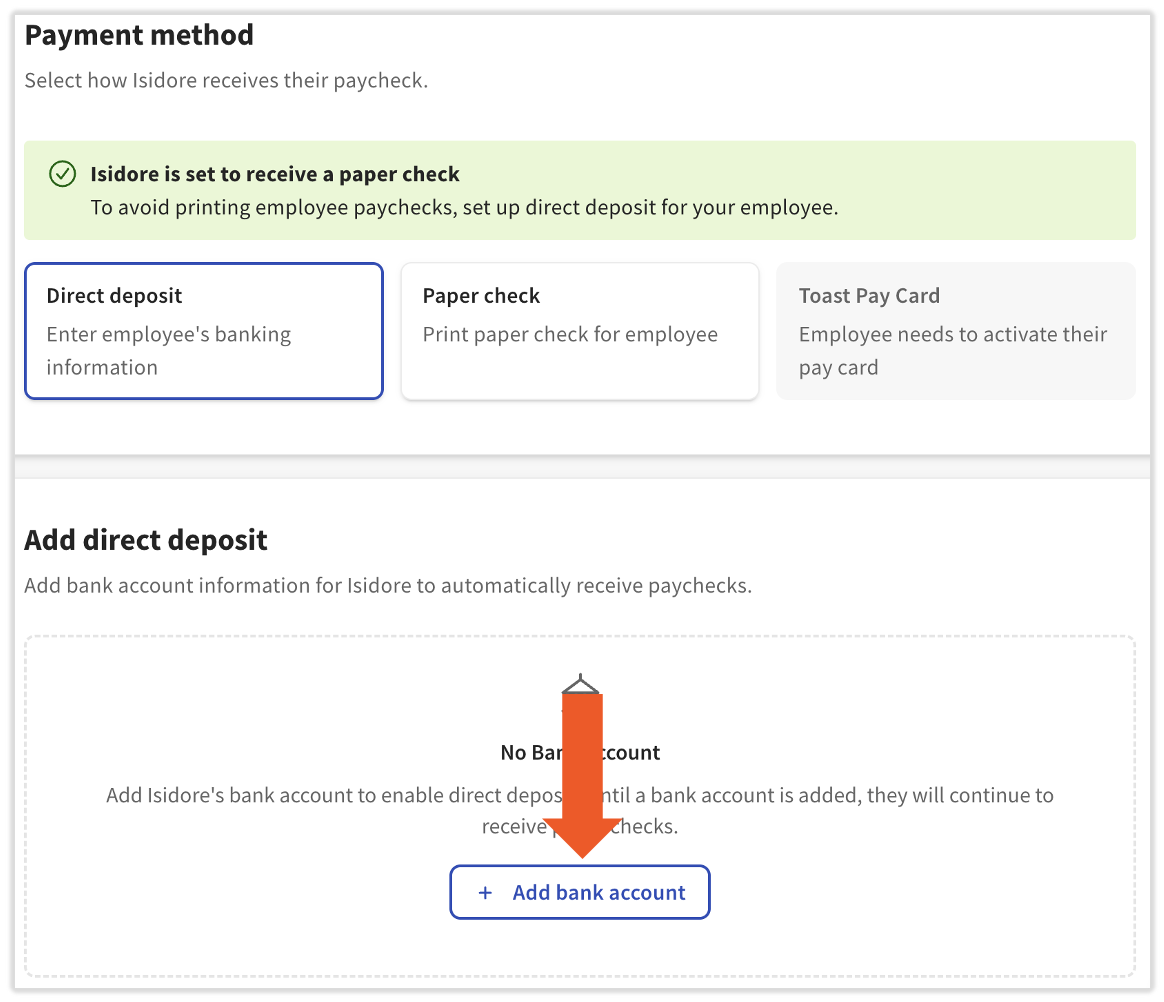
- As an employee, navigate to My Profile > Employment > Payment Method.
- Select Direct deposit, then + Add bank account to begin the Plaid direct deposit setup.
- Complete the identity verification step (six-digit code).
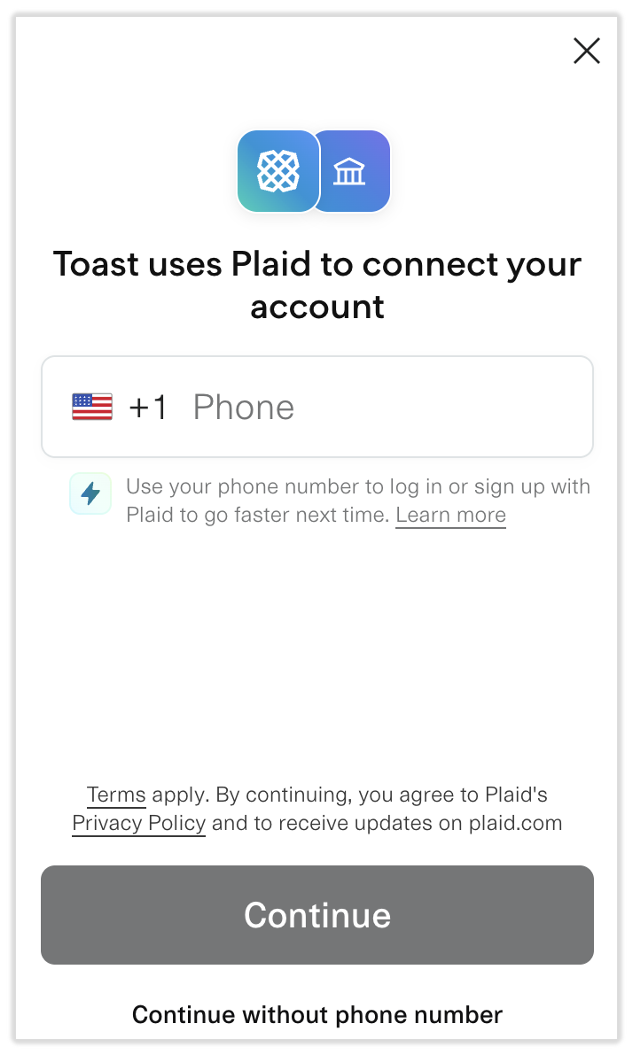
- In the Plaid window, enter your phone number and select Continue.
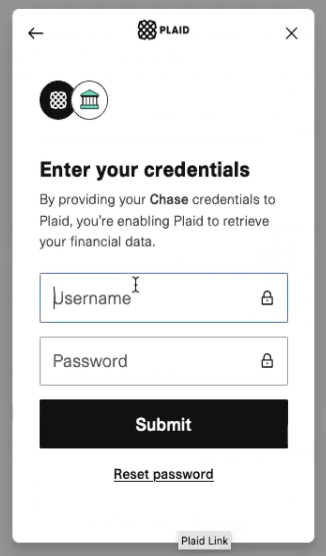
- Locate and select your banking institution. Use the search bar to find the correct bank. Plaid will ask you to enter the login credentials for your online banking account in the Plaid pop-up or a separate pop-up.
- If your bank does not appear in the list, your employer (an HR+ user) can add your direct deposit information manually. For security purposes, employees and managers cannot enter direct deposit bank accounts manually.
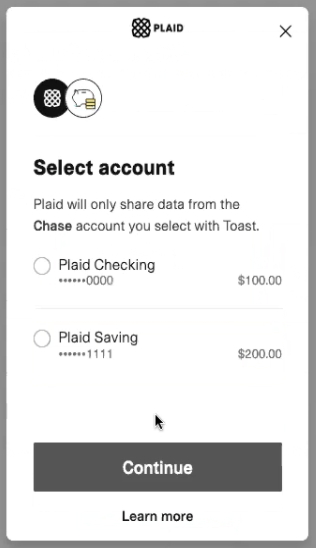
- Plaid lists the accounts associated with the login information you entered. Select the account you would like to be your primary direct deposit account and choose Continue.
- Some banks use substitute account numbers — see Substitute (Tokenized) Account Numbers for more details.
- The Plaid Success message confirms your account is linked. Select Continue to save your work.
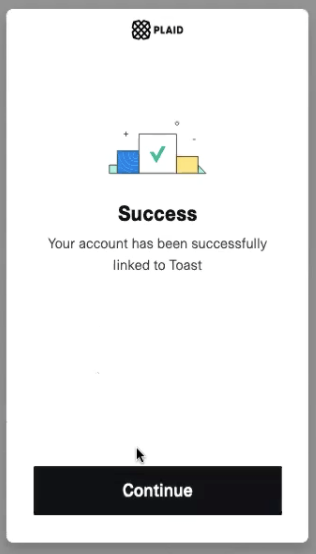
Expected outcome: A green confirmation banner appears at the top of the Payment Method page, and your saved bank account appears at the bottom.
Add a Second Direct Deposit Account (Split Deposit)
Note: Toast Payroll does not allow more than two direct deposit bank accounts per employee.
- Navigate to My Profile > Employment > Payment Method and select Add split deposit. If this button does not appear, you must first enter a primary direct deposit account.
- Complete the identity verification step (six-digit code).
- Enter your phone number into the Plaid pop-up and select Continue. If you do not see the Plaid pop-up, disable your ad blocker and retry.
- Plaid texts you a six-digit code. Enter the code into the Plaid pop-up to continue.
- Note: This is a Plaid-issued code, separate from the Toast Payroll six-digit code in step 2.
- You will now see a list of all banks you have connected to with Plaid. Select a bank from this list if your new account is part of that institution, or select + Add new account.
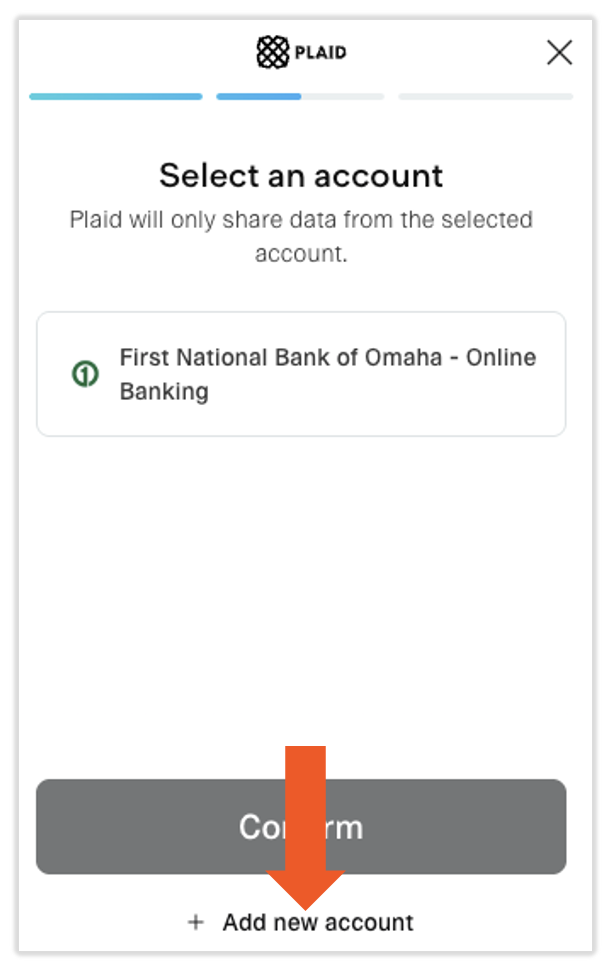
- Enter your banking login information (if necessary) and select the account you'd like to use for your second direct deposit account.
- With two bank accounts added, the Split deposit settings button becomes available. Select it to adjust each account's portion of your deposits.
- Select the %/$ toggle at the top to pick how you want to split your deposits.
- Enter an amount or percentage.
- If you choose %, both fields must add up to 100%.
- If you choose $, enter the amount you want deposited into the first account. The rest will be deposited into the second account. To switch the order, select and hold the six dots to the left of the account name and drag it above or below the other account.
- Select Save to finalize your work.
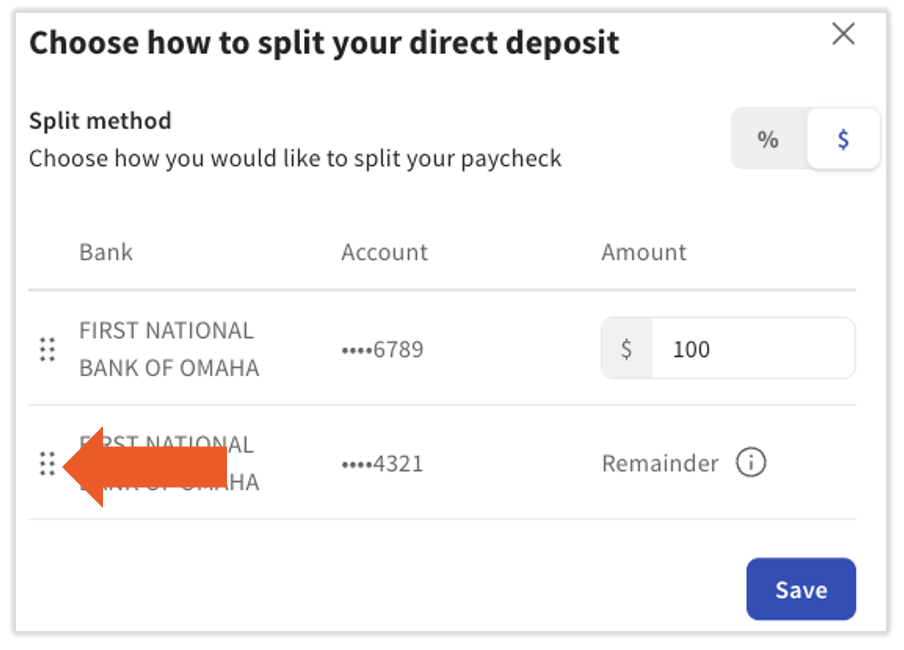
Expected outcome: Both accounts appear under the Payment Method page with the split percentage or amount you configured.
Add a Direct Deposit Account Manually (HR+ Only, Without Plaid)
Important: Adding a direct deposit account manually in Toast Payroll (without using Plaid) is available to HR+ users only, and only when adding or updating another user's account information. HR+ users cannot manually update their own direct deposit account; another HR+ user must do it for them. The Customer Care team cannot perform this process on a restaurant's behalf.
Use this workflow when the employee's bank is not supported by Plaid (for example, some smaller credit unions, Chime, Cash App, Venmo, or after a "Too many attempts" lockout). See Plaid Doesn't List My Bank for the full list of common scenarios.
- As an HR+ user, navigate to the applicable employee's profile and select Payment Method.
- Select the Direct deposit option if necessary. Then select + Add bank account.
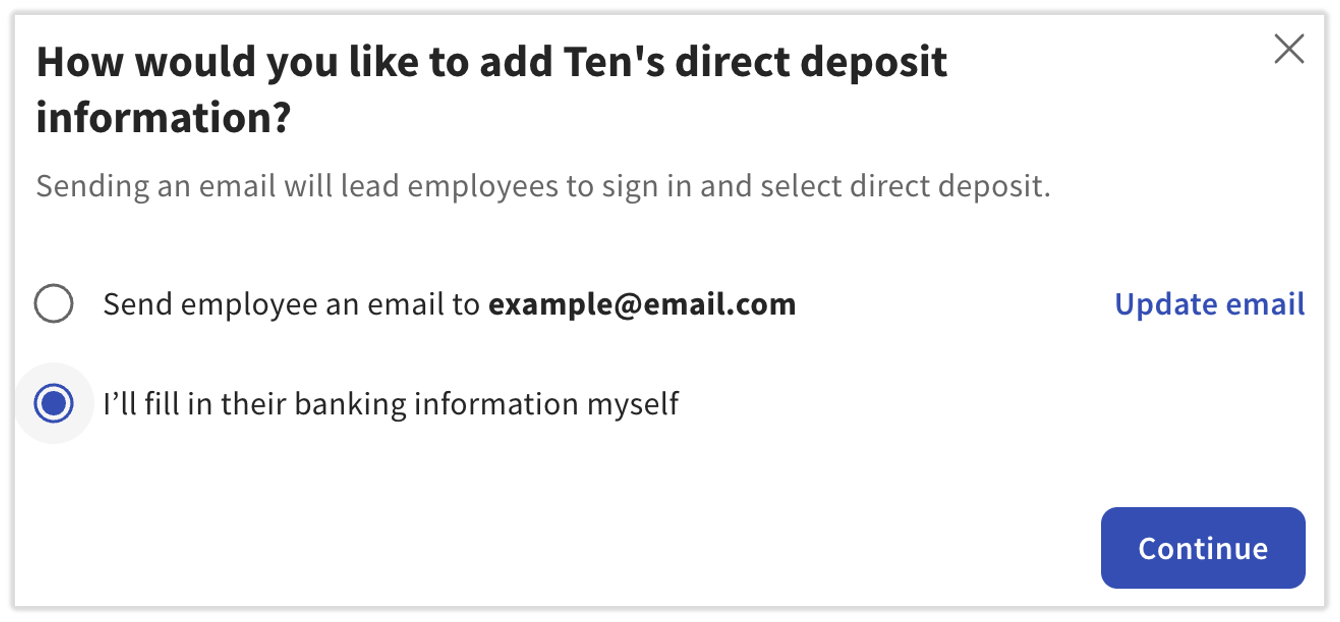
- You have two options at this point. To enter the account information yourself, select I'll fill in their banking information myself, then select Continue.
- Note: The other option emails the employee a nudge to add their own direct deposit account. This option only works for employees who have a Toast account (different from a profile). To check if an employee has an account, log into Toast Web, navigate to Employees > Employee management > Employees, locate their name, and confirm the Account Created column shows a check mark.
- Complete the identity verification step (six-digit code).
- Choose Checking or Savings and add an account nickname (for identification purposes).
- Enter the routing and account numbers for the intended direct deposit account. Use the help info on the right side of the page if you need assistance locating these numbers.
- An end date is optional. If one is entered, direct deposits will only take place up to this end date. Select Save.
Expected outcome: The employee's Payment Method page shows the added direct deposit account at the bottom.
Remove a Direct Deposit Account
Employees can remove their own direct deposit account. HR+ users can remove another user's direct deposit account. Managers cannot remove a direct deposit account for anyone besides themselves.
- From an employee's profile, select the Payment Method tab.
- Select the Trash icon next to the designated account. Confirm your choice on the pop-up by selecting Yes, delete account.
- Complete the identity verification step (six-digit code).
Expected outcome: The account is removed from the Payment Method page. If no other direct deposit account remains, the employee's payment method automatically reverts to paper check.
Audit Direct Deposit Account History
Auditing an employee's direct deposit account(s) may help determine why an employee did not receive electronic pay. If payroll was started before a direct deposit account was added, the system will not see the account, and the employee will be paid via paper check.
- As an employee, navigate to My Profile > Employment > Payment Method. Managers and HR+ users navigate to the employee's profile and select Payment Method.
- Select History toward the bottom of the page.
- The History page lists all the additions and changes made to this employee's direct deposit account(s).
- Note: The names of the users who made changes are not visible to customers. HR+ users can contact Customer Care to identify who made a change.
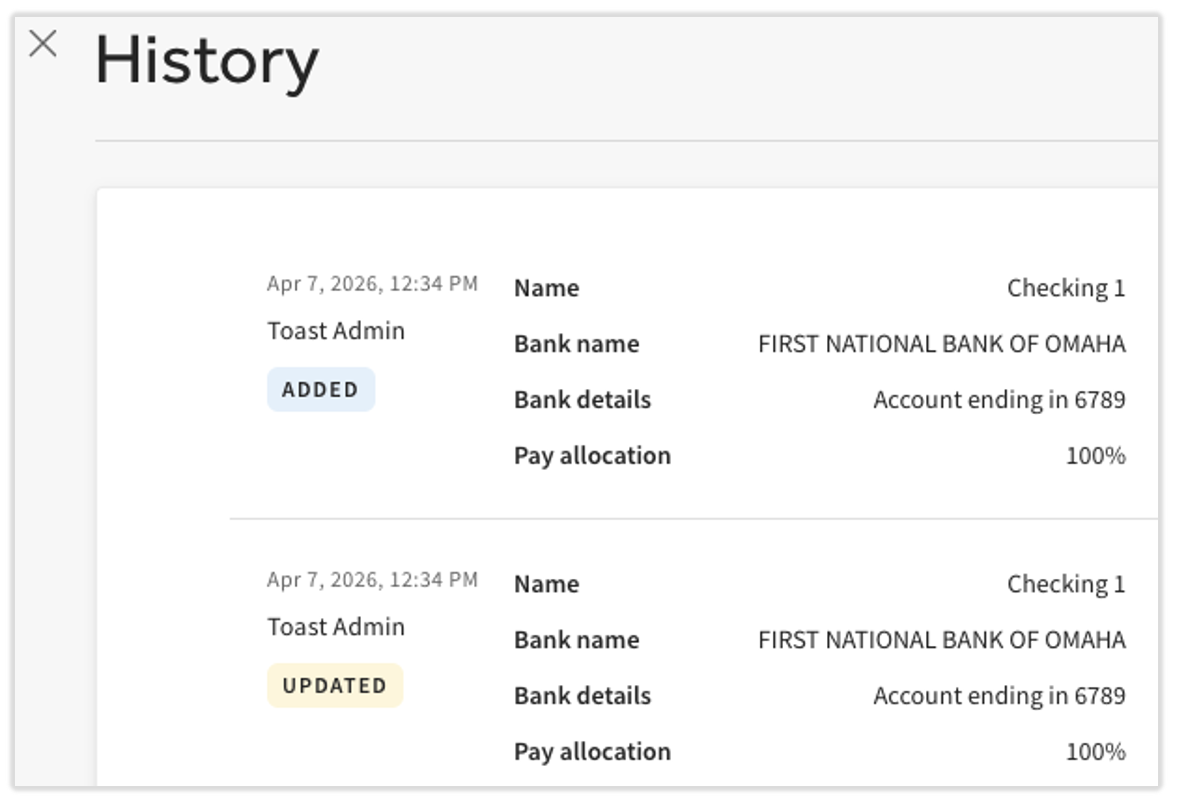
Expected outcome: You can see the timeline of additions, updates, and deletions for the employee's direct deposit accounts.
Send a Nudge Email to Employees Missing Direct Deposit
HR+ users can send automated nudge emails to employees who have not entered direct deposit information.
- In Toast Payroll, navigate to Settings > Payroll > Direct Deposit.
- In the Employees with incomplete direct deposit information section of the page, locate the employee.
- To the right of an employee's email address, select the three dots > Email employee. This sends an automated email to the email address in the report. The email cannot be customized, but you can view the template by selecting View email details at the top of this section.
- To quickly email all the visible employees in this section, select the topmost checkbox to the left of the Name column and then select Email selected employees. Scroll down to the View field and select View all to send to all employees in this section.
- Only employees with a Toast account will be sent the automated email. To check if an employee has an account, log into Toast Web, navigate to Employees > Employee management > Employees, and look for a check mark in the Account Created column.
- The Last emailed column shows when the automated email was last sent. Once an employee successfully updates or adds direct deposit information, they move from this section to the Completed direct deposit section below.
- Within the three dots, you'll also see Fill out direct deposit manually. This brings you to the employee's Payment Method page to follow the Add a Direct Deposit Account Manually workflow.
Expected outcome: The Last emailed column updates with the current date for the employees you nudged. Once they complete their direct deposit setup, they move to the Completed direct deposit section.
Troubleshoot Plaid
Use these subsections to resolve the most common Plaid issues seen in Toast Payroll conversations.
"No Available Accounts" Error
This error commonly appears in two scenarios:
- Plaid was unable to retrieve open or connected accounts after a successful login.
- The user has closed the account connected to the credentials they entered.
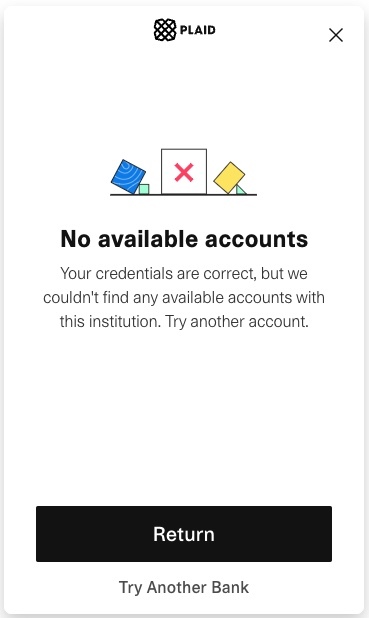
What to do:
- Verify you logged in with the correct online banking credentials.
- If the connected account has been closed, log in with credentials for an account that is still open.
- If Plaid still cannot retrieve any accounts, ask an HR+ user at your business to add your direct deposit information manually.
"Too Many Attempts" Error
When you enter your online bank account credentials, you are allowed three tries before Plaid and your banking institution lock you out. If you are locked out, you'll see a Too many attempts error screen.
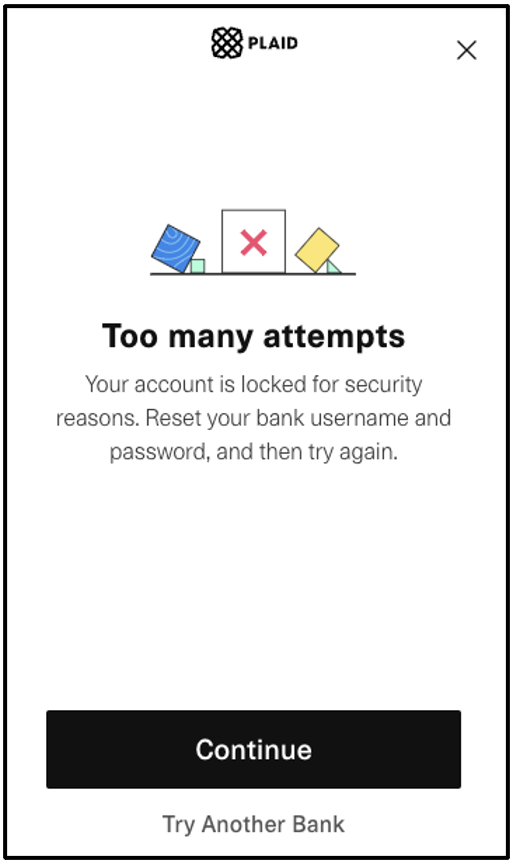
What to do:
- Contact your financial institution to unlock your online banking account. You might not need to reset your online username or password — this depends on the policies of your institution.
- If you cannot unlock your account, ask an HR+ user at your business to add your direct deposit information manually.
Plaid Window Doesn't Open, Loads Forever, or Crashes
If the Plaid window never opens, gets stuck on a loading screen, or crashes mid-setup, the most common cause is an ad blocker or pop-up blocker hiding or interrupting the Plaid pop-up.
What to do:
- Disable your ad blocker and pop-up blocker for the Toast Payroll site.
- Retry the Add a Direct Deposit Account With Plaid workflow.
- Re-enable your ad blocker once you're done.
- If the Plaid window still does not open or crashes after disabling the ad blocker, try a different supported browser. See Get Help With Browser Issues in Toast Web for browser troubleshooting steps.
Plaid Succeeds but Toast Says It Couldn't Connect
In some cases, Plaid shows a Success message, but Toast Payroll immediately displays an error such as "we couldn't connect your account."
What to do:
- Retry the Add a Direct Deposit Account With Plaid workflow once.
- If the error persists, ask an HR+ user at your business to add your direct deposit information manually using the routing and account numbers from your bank.
- If neither approach works, contact Customer Care with a screenshot of the error.
Substitute (Tokenized) Account Numbers — Chase, US Bank, PNC
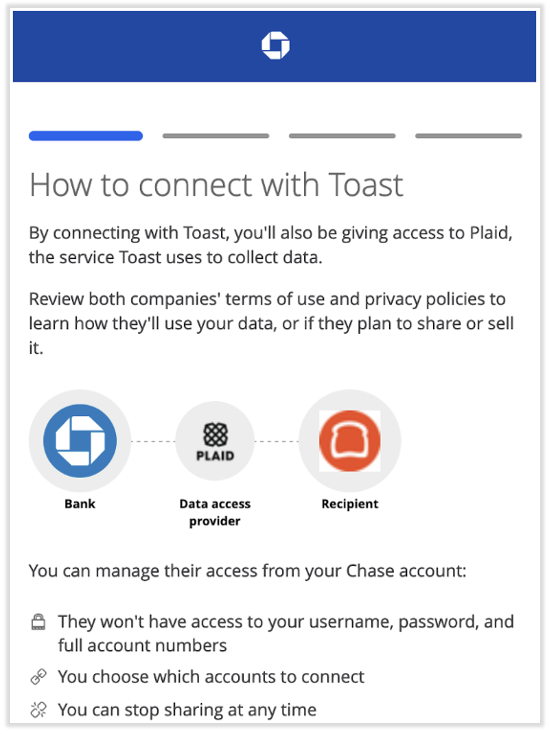
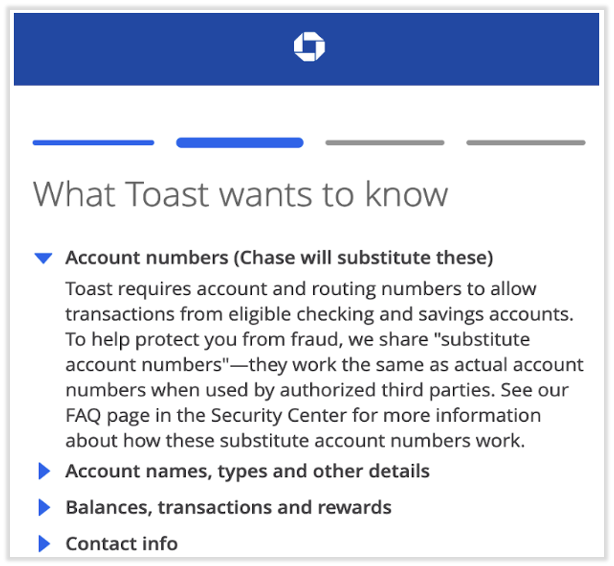
To help protect their members from fraud, some financial institutions (including but not limited to Chase Bank, US Bank, and PNC Bank) use substitute account numbers when providing your bank account information to authorized third parties such as Plaid. These substitute account numbers only work with a single designated third party.
When linking with Plaid, these banks will return tokenized or encrypted routing and account numbers (also known as tokenized account numbers or TANs). These TANs can be used for ACH transactions but are not your actual account and routing numbers. The mask shown in Plaid will continue to be based on the actual account number.
Important: It is expected that your routing and account numbers on the Payment Method page may not match what you have on record with your bank. This is not an error — the TAN is what Toast Payroll uses to deposit your wages.
Plaid Doesn't List My Bank (Chime, Cash App, Venmo, Smaller Banks)
If your bank or financial institution does not appear in Plaid (for example: Chime, Cash App, Venmo, or some smaller credit unions), you cannot complete the Plaid workflow.
Note: Employees and Managers cannot enter direct deposit bank accounts manually. For security reasons, only HR+ users can enter routing and account numbers manually, and only on behalf of another user. The Customer Care team cannot enter this information on a restaurant's behalf.
What to do:
- Contact an HR+ user at your business (usually the owner or another HR contact). Provide them with your routing and account numbers for the account you want to use for direct deposit.
- The HR+ user follows the Add a Direct Deposit Account Manually (HR+ Only, Without Plaid) workflow on your behalf.
- If you are the owner or sole HR+ user at your business, another HR+ user (such as your business partner) must enter your direct deposit account for you, since HR+ users cannot manually update their own direct deposit information.
Before You Contact Customer Care
If you've worked through the relevant fix above and the issue persists, gather the following before you start a chat with Customer Care. This shortens the handoff and prevents a back-and-forth.
- Your security role (Employee, Manager, or HR+)
- Which workflow you were trying to complete: add, update, remove, split deposit, or manual entry
- The bank or financial institution you were trying to connect (especially if it's Chase, US Bank, PNC, Chime, Cash App, or Venmo)
- The exact error message you saw — a screenshot is best
- The phone number on file in your Toast account (only if the six-digit code is the issue)
- The affected employee's name and email address (if you're an HR+ user troubleshooting on someone else's behalf)
- Whether payroll has already been opened for the current cycle
To start a chat, select the blue chat dot in the lower-right corner of any Toast Payroll page.
Important: Toast representatives will never ask you for the six-digit verification code that Toast Payroll texts to you. Do not provide this code to anyone, including Customer Care.
Frequently Asked Questions
Can I add direct deposit without using Plaid?
You can add direct deposit without Plaid only if you are an HR+ user adding the account on behalf of another user. Employees and Managers cannot enter routing and account numbers manually for any user (including themselves) — for security reasons, Plaid is the only path. HR+ users also cannot enter their own direct deposit information manually; another HR+ user must do it for them. See Add a Direct Deposit Account Manually (HR+ Only, Without Plaid).
Also asked as:
-
- How do I bypass Plaid?
- How do I add direct deposit manually?
- Can I enter my routing and account numbers manually?
Why don't my routing and account numbers match what my bank shows?
Your routing and account numbers may not match what you have on record because some banks — commonly Chase, US Bank, and PNC — provide tokenized "substitute" account numbers to Plaid for fraud prevention. The tokenized numbers work for direct deposit but differ from the numbers printed on your checks or shown in your bank app. See Substitute (Tokenized) Account Numbers.
Also asked as:
-
- The account number in Toast doesn't match my bank statement?
Can I add direct deposit through the MyToast app?
Yes. Direct deposit accounts can now be added in the MyToast app. Navigate to Pay > Change payment method to begin. See The MyToast App: Pay for more steps.
Also asked as:
-
- How do I add direct deposit in the app?
How do I switch from paper check to direct deposit?
To switch from paper check to direct deposit, navigate to My Profile > Employment > Payment Method in Toast Payroll, select the Direct deposit tile, and follow the Add a Direct Deposit Account With Plaid workflow. The system will not switch your payment method until you complete the bank account setup.
Why is Toast Payroll asking me to connect my bank with Plaid?
As of 2026, Plaid is the primary way employees and Managers add or update direct deposit accounts. Plaid validates the bank account in real time, which reduces the chance of a Return of Funds caused by incorrect routing or account numbers. If your bank is not in Plaid's list, see Plaid Doesn't List My Bank.
Also asked as:
-
- Why am I being prompted to connect my bank?
Is it safe to enter my online banking username and password in Plaid when adding direct deposit?
Yes. When you connect a bank through Plaid, you enter your online banking credentials directly into Plaid's own pop-up window — not into a field on the Toast Payroll page. Plaid is the third-party service that validates your account with your bank; see Plaid's own security and privacy documentation for details on how they handle your login information.
Can my Manager add direct deposit for me?
No. Managers can only add, update, or delete their own direct deposit account through Plaid. To have a direct deposit account added on your behalf, ask an HR+ user at your business — typically the owner or HR contact — to follow Add a Direct Deposit Account Manually.
How do I remove a terminated employee's direct deposit account?
To remove a terminated employee's direct deposit account, an HR+ user navigates to the employee's profile, selects Payment Method, selects the Trash icon next to the designated account, and confirms by selecting Yes, delete account. The deletion triggers an identity verification step. See Remove a Direct Deposit Account.
If I don't use Toast Payroll, how can I set up or add direct deposit accounts for my employees?
The standalone version of Toast does not have options for your employees to receive wages through paychecks, direct deposit, or the Toast Pay Card. To pay your employees through Toast, you will need to purchase Toast Payroll. For restaurants outside of the US, Toast Payroll is not available at this time.
Related Articles
- Toast Payroll: Set a Payment Method
- Toast Payroll: Unsuccessful Direct Deposits
- Toast Payroll: Manage Security Roles
- The MyToast App: Pay
- Toast Payroll: Get Help With Employee Resources
This content is for informational purposes and is not intended as legal, tax, HR, or any other professional advice. Please contact an attorney or other professional for advice.