Toast Payroll: Update Multiple Employee's Information Via Import
Last updated: Jun 24, 2026, 10:41 AM
HR+ users have access to update existing employee demographic information in bulk leveraging the Employee Import.
| Important note: Be very careful when importing employees in this way. Review and confirm all employee information you import to Toast Payroll. You are responsible for the outcome of any data you import. |
Update Employee Information Via Imports
If you would like to change multiple employees' information, Toast Payroll allows you to do this in bulk. To bulk update employee information, follow these steps:
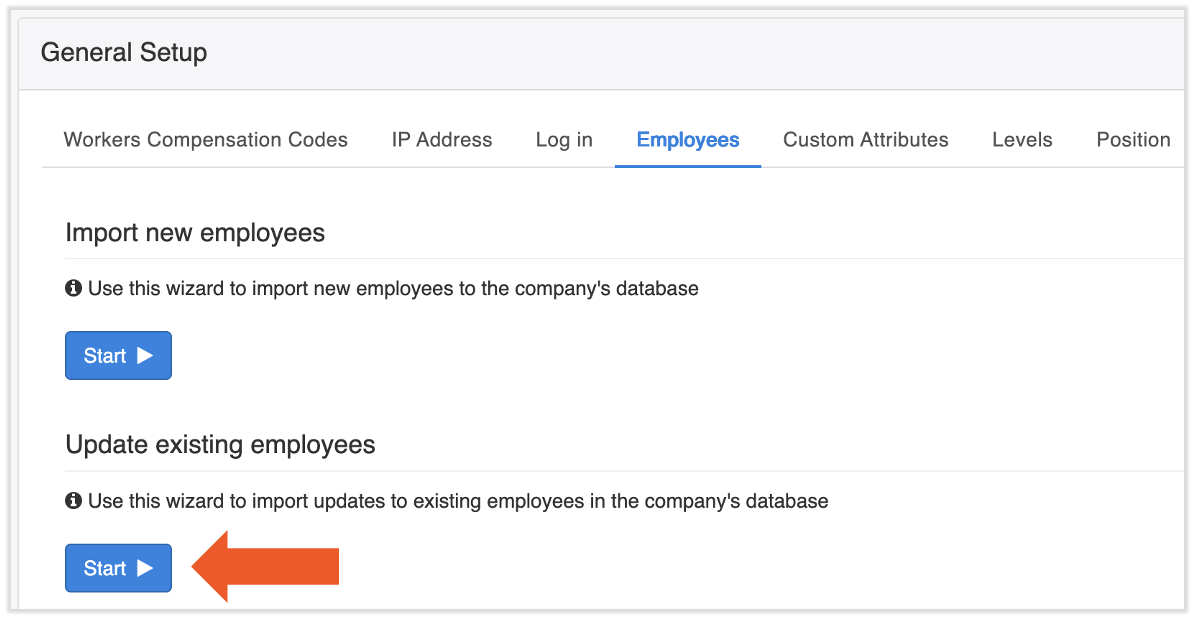
- Navigate to Settings > General Setup > Employees.
- Select Start in the Update existing employees section.
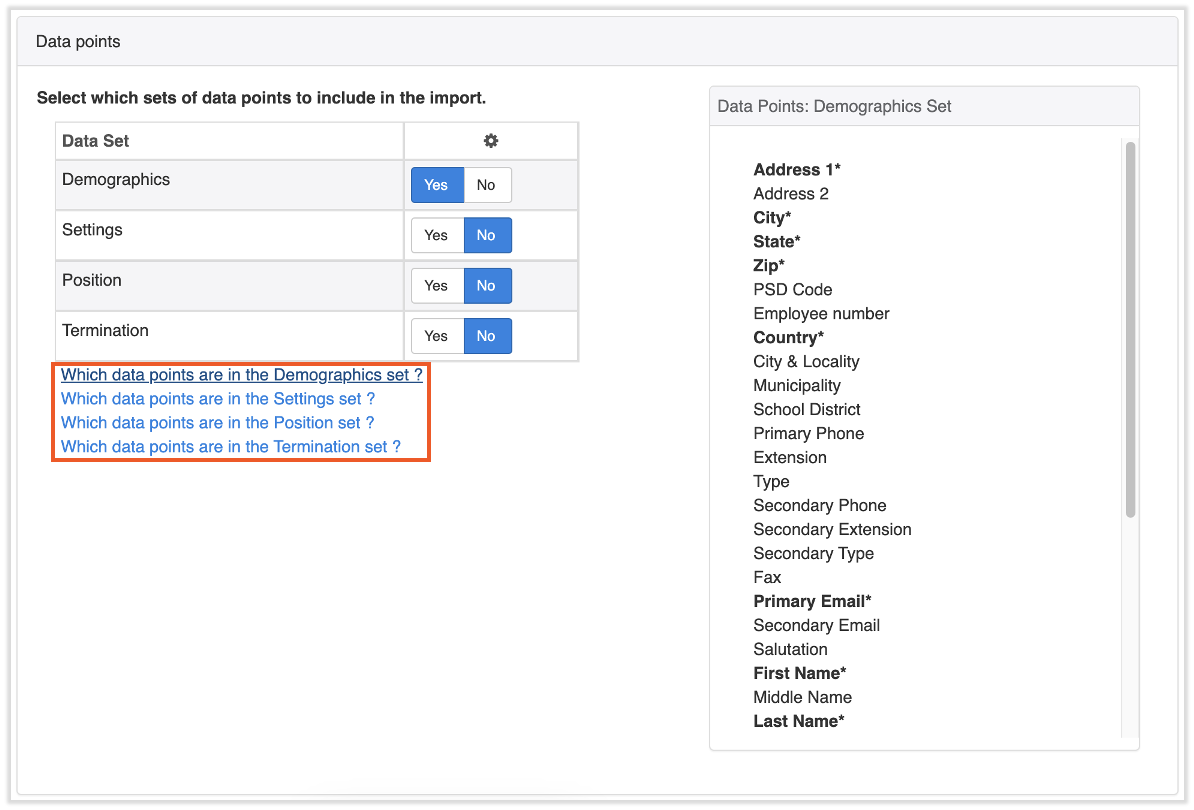
- Most users will select Yes for Demographics. If you also you need to update the EEO classification for employees, select Yes for Position in addition to Yes for Demographics. Use the hyperlinked questions under this table to discover the data points you can update with each set. Select Next when you're ready. Note: This report can take up to a minute or more to generate all the data you request.
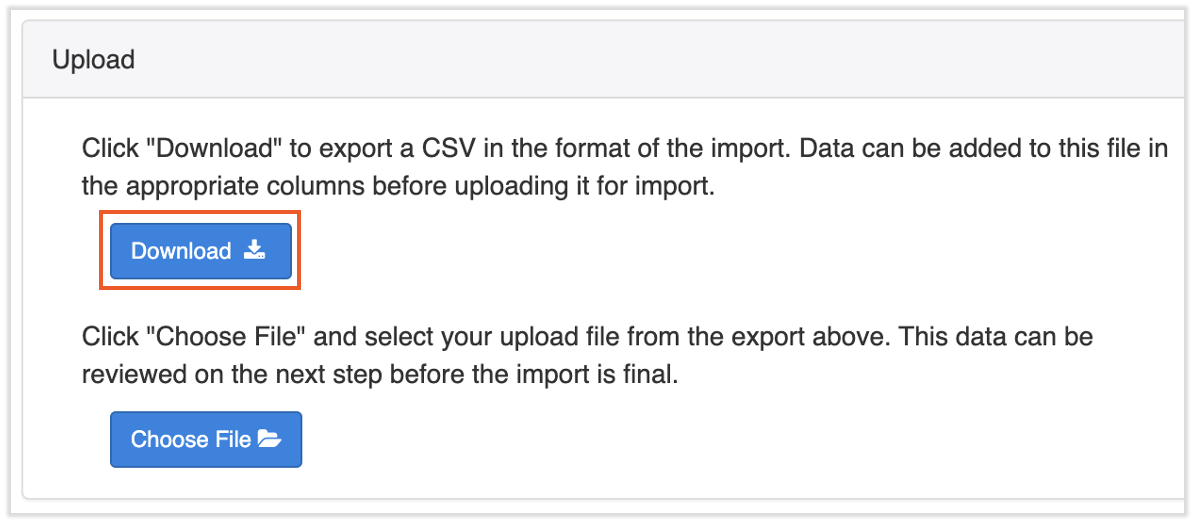
- Select Download to receive an editable spreadsheet. You will update this file in the next step, but Toast recommends saving a copy of the file for your records before making updates.
- We encourage removing any columns you aren't editing in order to make the update process faster and smoother. However, you must leave either the Employee Number or SSN column (and its data) in the document so Toast Payroll knows which employee to match the information to.
- Once you have made the changes to employee information on the spreadsheet, save the updated file on your computer in a CSV format. If you are making EEO classification updates, follow these steps below.
- To format social security numbers, Toast Payroll uses the xxx-xxx-xxxx format. Make sure any social security numbers you've added follow this format.
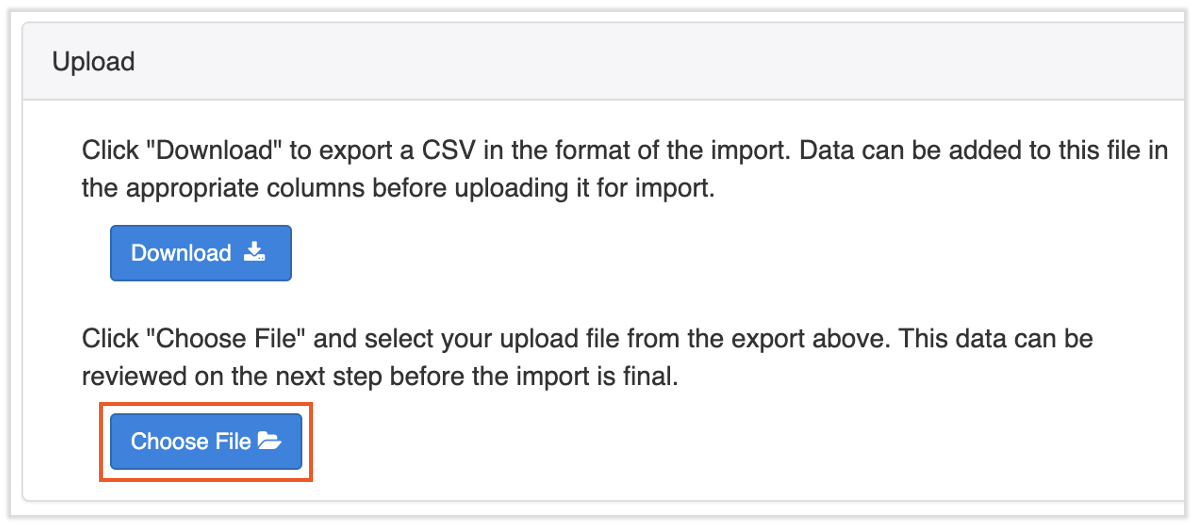
- Next, select Choose File to import the updated employee information. Select Next.
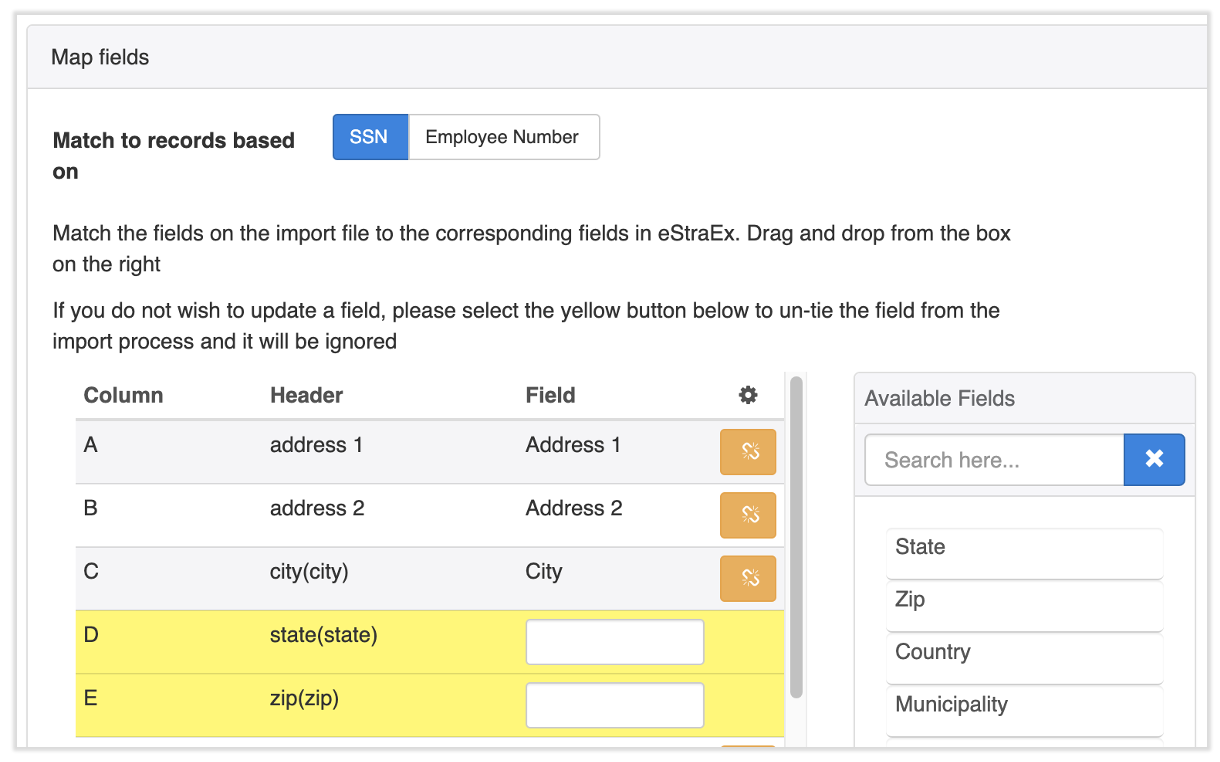
- On the Map Fields step, the goal is to fix all relevant fields fields highlighted in yellow. The Header column indicates the fields in your Excel spreadsheet and the Field column indicates the fields in Toast Payroll. Click and hold on a field from the Available Fields tile on the right and drag-and-drop it into the empty area in the Fields column. This tells Toast Payroll where to look for that data in your spreadsheet. If you didn't edit any of the headers in your download file from step 4, this should be relatively straightforward. Select Next to continue.
- You can leave a field unmapped if you don't want Toast Payroll to import any information from it. For instance, if you didn't update any birthdates in step 5, you can leave it unmapped.
- There's a toggle at the top of the page to Match to record based on SSN or Employee Number. Toast Payroll will look at this toggle to determine which employee should be assigned specific information from your spreadsheet. Thinking back to step 5, leave the toggle on a column that you did not remove.
- The orange broken chainlink button lets you unmap a field from a header if you made a mistake.
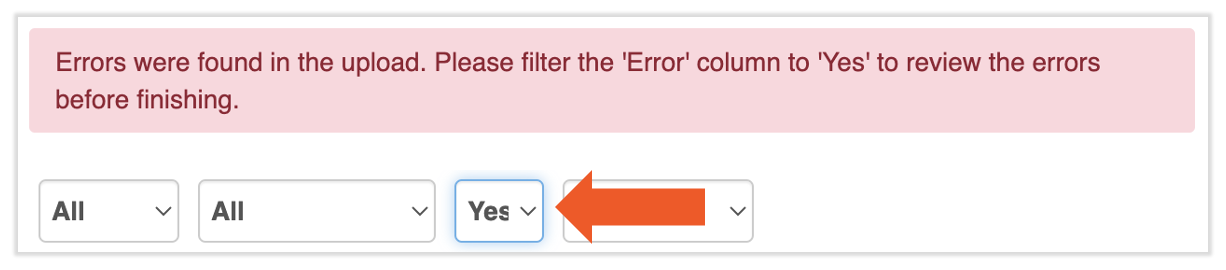
- On the final step called Review, you're able to fix any errors we found during the information sync. To easily identify and fix any errors, begin by selecting the Error drop-down menu and choosing Yes.
- Again, you'll see any items needing your attention in yellow. You can directly edit on this page to quickly fix any fields with missing or duplicate information. Select the green save icon after each edit. Any bolded data points are necessary to import your information.
- Once the import is complete, you will be directed back to the Employees page under General Setup. The report will be stored in the Uploaded File section for future reference.
EEO Classification Updates
- Once you've downloaded the employee report (from step 5 above), on a copy of the report, update the designated fields for the EEO-1 Report. Start by removing any employees from the file that you do not need to be included in the report.
- Remove any non-applicable fields from the file EXCEPT for employee number or SSN. For mapping, a unique employee identifier is required for import.
- Once you have your updated report ready, which includes either the employee number or SSN for employees to be updated, save your file in a CSV format.
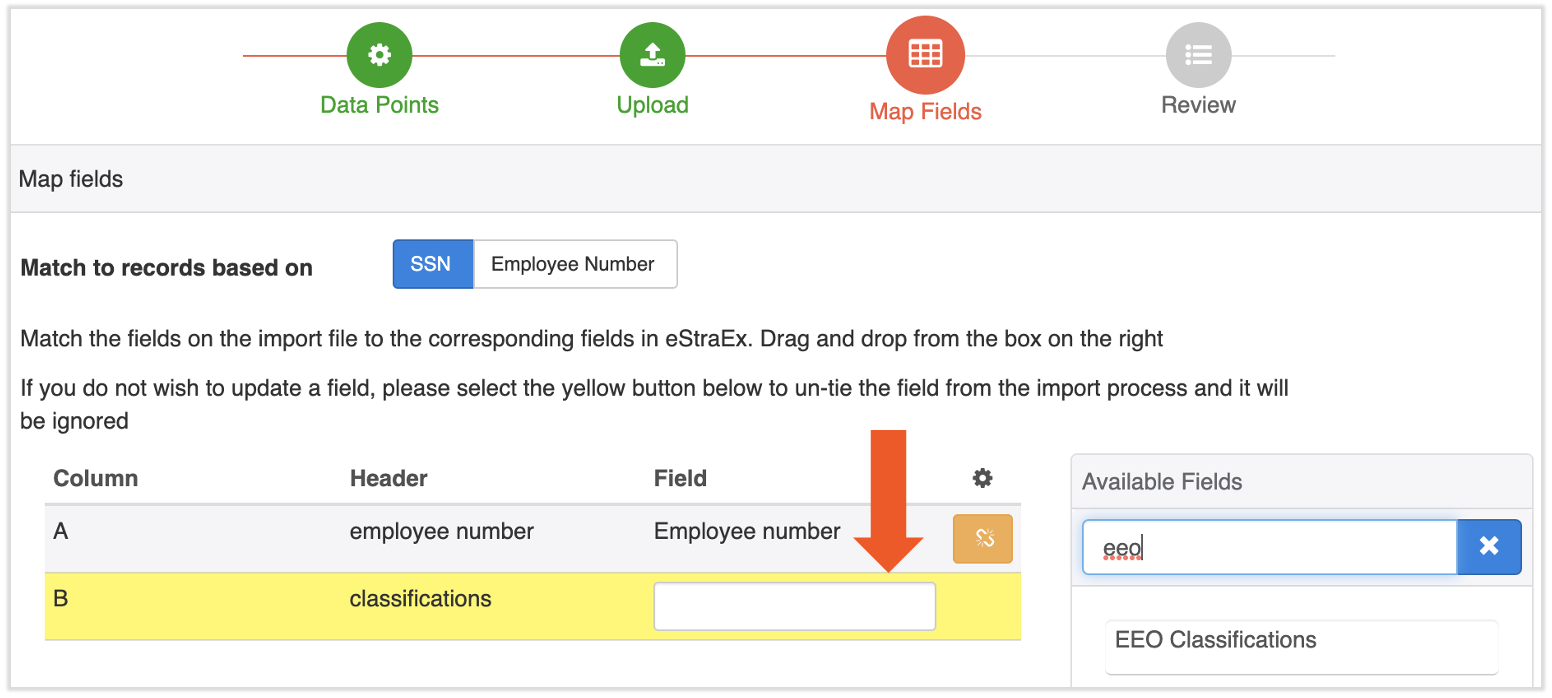
- You are now ready to import your updated file via the blue Choose File button on the upload page. Once your file is uploaded, select Next. The headers on your report need to match the fields in the system or they will be flagged in yellow. To fix this, follow one of these two steps:
- Adjust your report headers to match the fields in Toast Payroll and re-upload for correct mapping.
- Locate the correct Toast Payroll field from the Available Fields box on the right. Drag and drop it into the blank spot within the yellow mismatched header.
Headers mismatched:
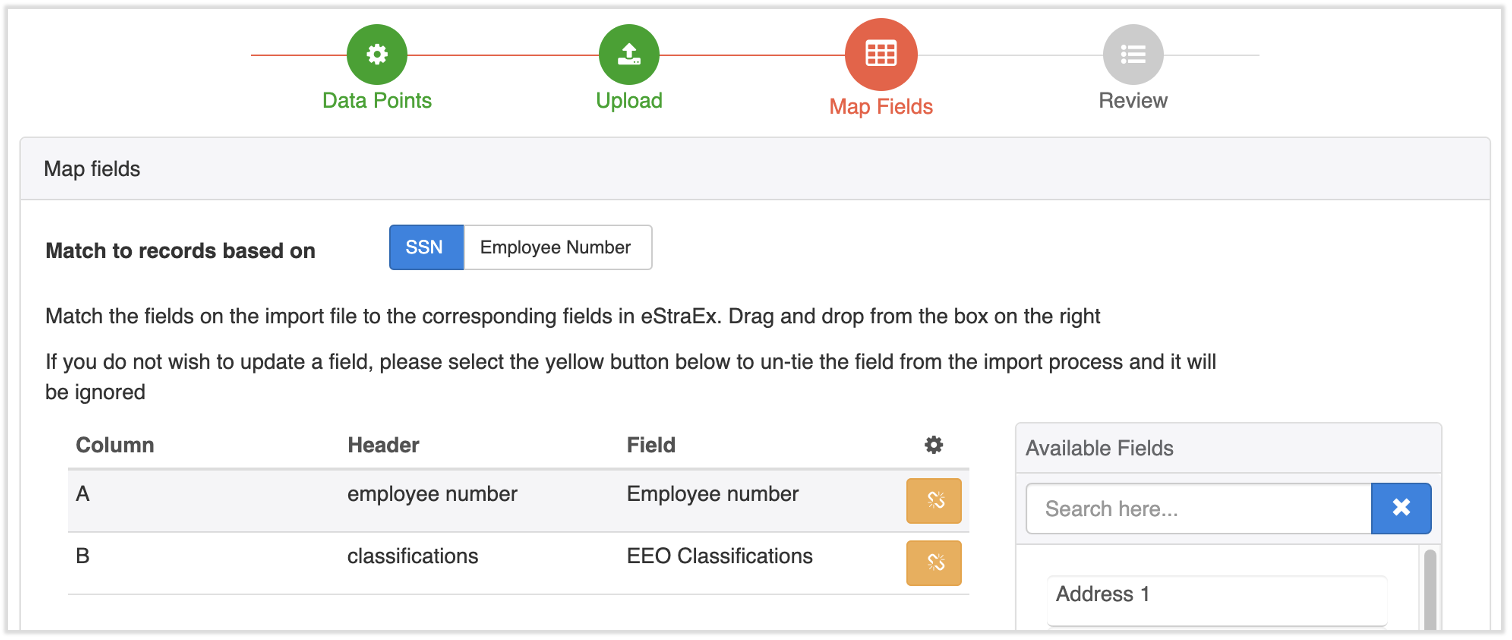
Headers matched/mapped:
- Once all headers are mapped, review employee data by selecting Next. Make changes by selecting the pencil icon.
- Select Finish to finalize the import. Once the import is complete, you will be directed back to the Employees page under General Setup. The report will be stored in the Uploaded File section for future reference.
This content is for informational purposes and is not intended as legal, tax, HR, or any other professional advice. Please contact an attorney or other professional for advice.