Toast Tips Manager Onboarding Wizard
Last updated: Jun 18, 2026, 1:57 PM
Build and save your first tip rule with the Toast Tips Manager onboarding wizard.
- Before You Begin
- Tips Pooling and Tip Sharing: Key Terms
- Open the Tips Manager Wizard
- Step 1: Choose How Tips Are Grouped (Pooling Interval)
- Step 2: Choose How Tips Are Collected (Contributors)
- Step 3: Choose How Tips Are Distributed (Recipients)
- Step 4: Review and Create Your Rule
- Why Tips Are Not Distributing the Way You Expect
- Frequently Asked Questions
- Related Articles
Before You Begin
Applies to: Toast Tips Manager (paid subscription, US Toast customers only), set up in Toast Web.
Permissions needed:
- Toast Web admin access for your restaurant
- 6.6 Restaurant Operations Setup permission — required to edit the tip pooling policy
What you'll accomplish: Build and save your first tip rule using the onboarding wizard, so Tips Manager can start calculating tip pools for your restaurant.
Note: The onboarding wizard is available only to restaurants that have purchased the Tips Manager module but have not yet saved a tip rule on the tip pooling page. Once you save any rule — in the wizard or directly on the tip pooling page — the wizard is no longer available. Take your time on each step, because each choice shapes the rule you create. If you would rather build a rule manually, or you want the full first-time setup checklist, see Get Started With Toast Tips Manager.
Tips Pooling and Tip Sharing: Key Terms
Tips Manager handles both tip pooling and tip sharing, and the wizard uses a few terms that may mean something specific at Toast. Here is how to read them.
Tip sharing is when a tipped job gives some of its tips to jobs that are not usually tipped. For example, a server might tip out a food runner two percent of their food sales. The act of tip sharing is sometimes called tipping out.
Tip pooling is when a job collects a portion of its tips — often 100 percent — into one pool, then redistributes the pool either equally or based on hours worked. For example, the bartenders on a shift may pool their tips and split them by hours worked.
In the wizard, the job that puts tips into the pool is the contributor, and the job that takes tips out of the pool is the recipient. In a tip pool, the contributor and recipient are the same job. In a tip share, they are different jobs.
Open the Tips Manager Wizard
To open the wizard, navigate to Reports > Labor > Tip management and either select Get started in the pop-up or select Visit policy onboarding in the banner at the top of the page.
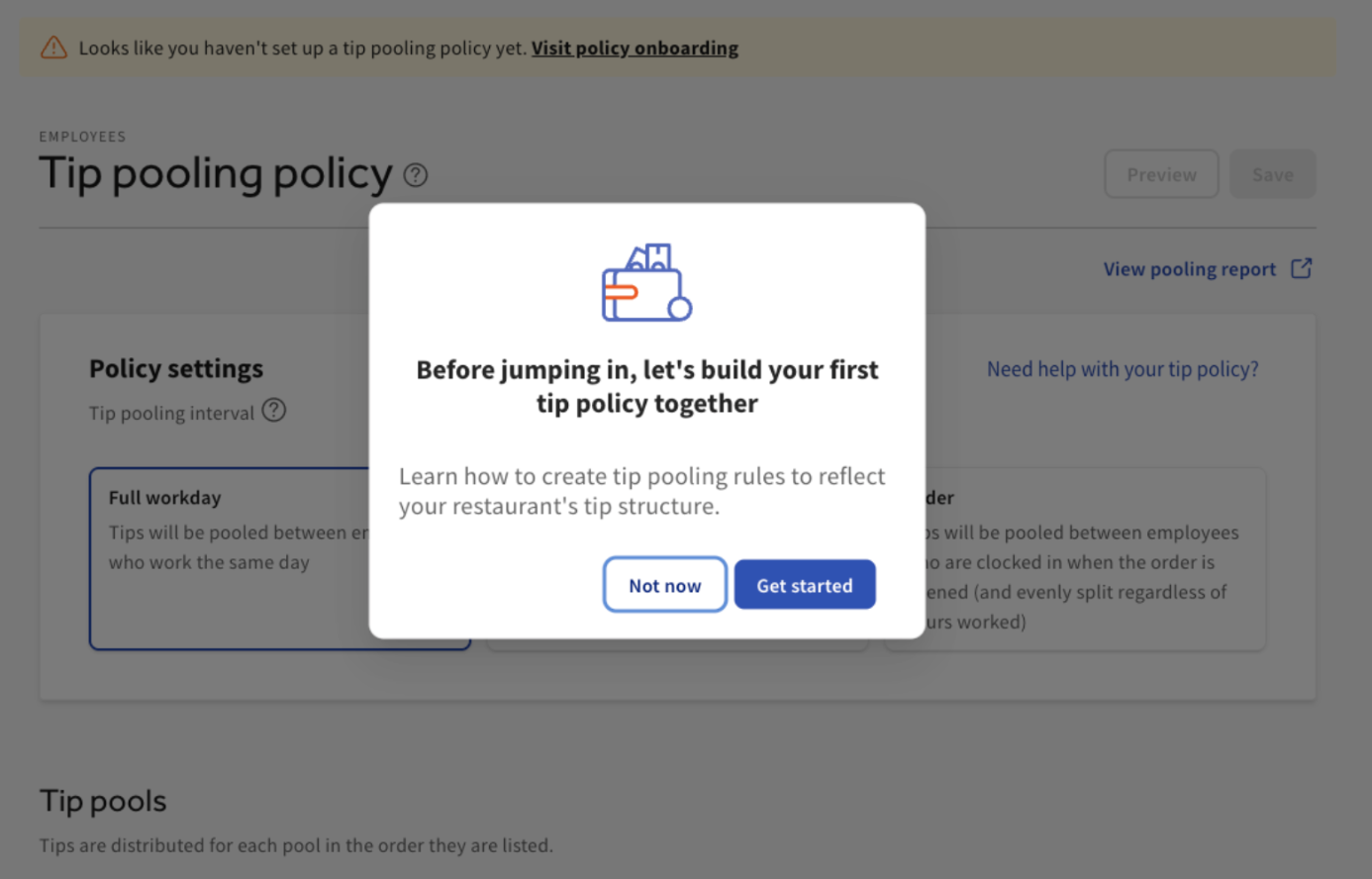
Read the intro screen and select Get Started to begin.
Step 1: Choose How Tips Are Grouped (Pooling Interval)
On Step 1, you choose a tip pool interval. This setting applies to your entire policy — every tip rule you create — and it is hard to change after rules are in effect, so choose carefully. There are three intervals:
- Full Workday groups all applicable employees who worked in a single business day into the same tip pool, using their tips, sales, and time entries for that day.
- Service Period (Shift) separates employees and their tips based on the shift or day-part they worked. Service periods are based on the services and hours set on your Hours/Services page.
- Order distributes tips based on who is clocked in when a check is opened. The check must be opened while an employee is clocked in for that employee to be part of the rule. Cash tips cannot be pooled under the Order interval, because cash tips are reconciled during shift review rather than on each order.
Note: If you plan to pool by Service Period, your hours and services must be set up first on the Hours/Services page. If the "by service" option is grayed out, your Hours/Services are most likely not configured yet. To set them up, see Set Up Restaurant Hours and Services.
Review the FAQ on the right side of the page, then select Next when you are ready.
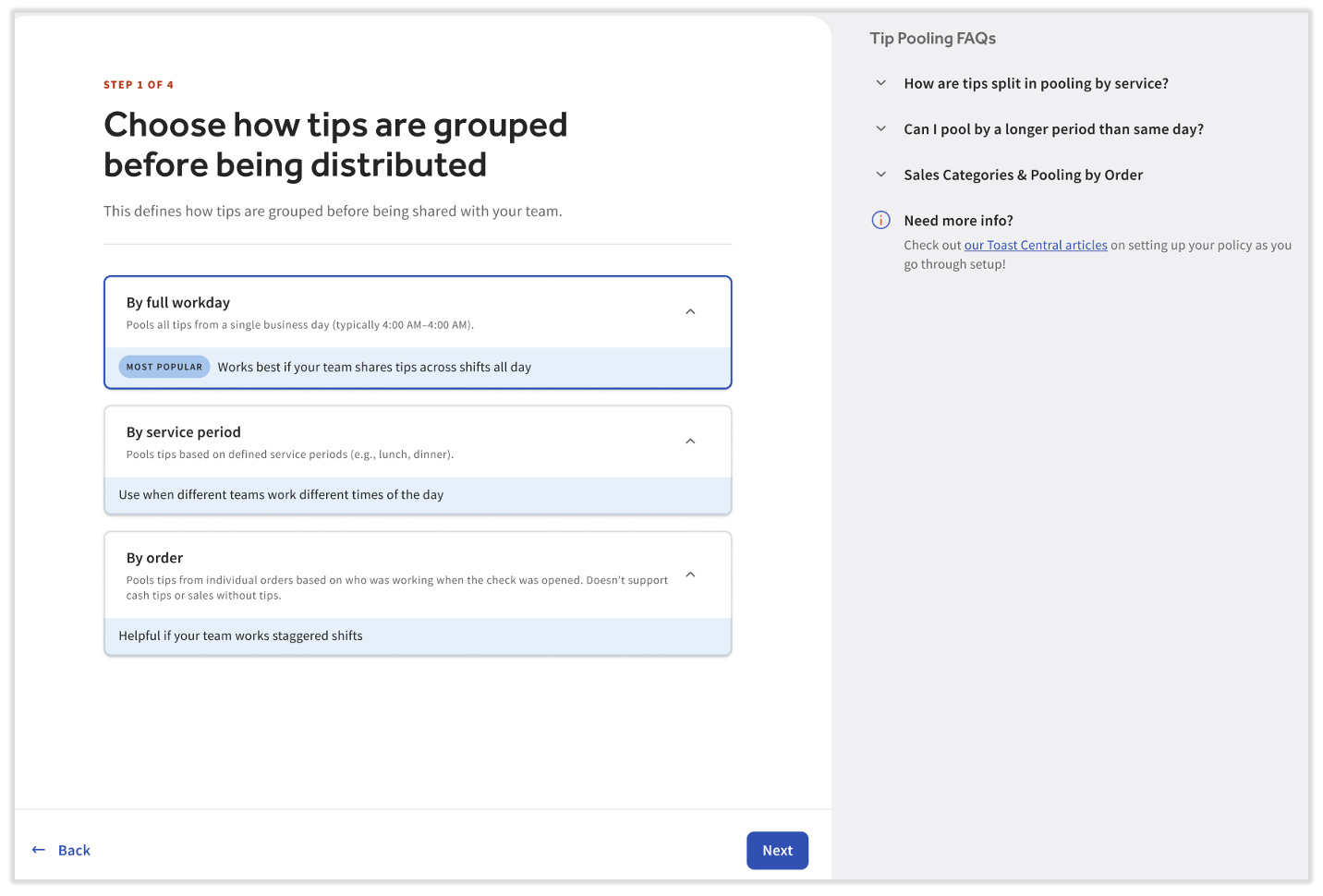
Expected outcome: Your pooling interval is selected and shown in the upper-right corner of the wizard as you continue.
Step 2: Choose How Tips Are Collected (Contributors)
Step 2 is where the tips come from. Tips Manager collects and distributes tips by job, not by individual employee, so you select the jobs that collect tips from guests. These jobs are the contributors — often server, bartender, and counter jobs, but they can be any job marked as Tipped in Toast Web.
- Select one or more contributor jobs for this rule.
- Enter the percentage of each contributor's tips or sales that goes into the pool.
- Choose whether this rule pools by tips or by sales:
- If you choose Sales, you will see your sales categories listed. For example, a server might contribute five percent of their food sales.
- If you choose Tips, you will see the four tip sources: cash tips, non-cash tips, cash gratuity, and non-cash gratuity. For example, a server might contribute 100 percent of their tips.
- Select the source or sources the percentage comes from.
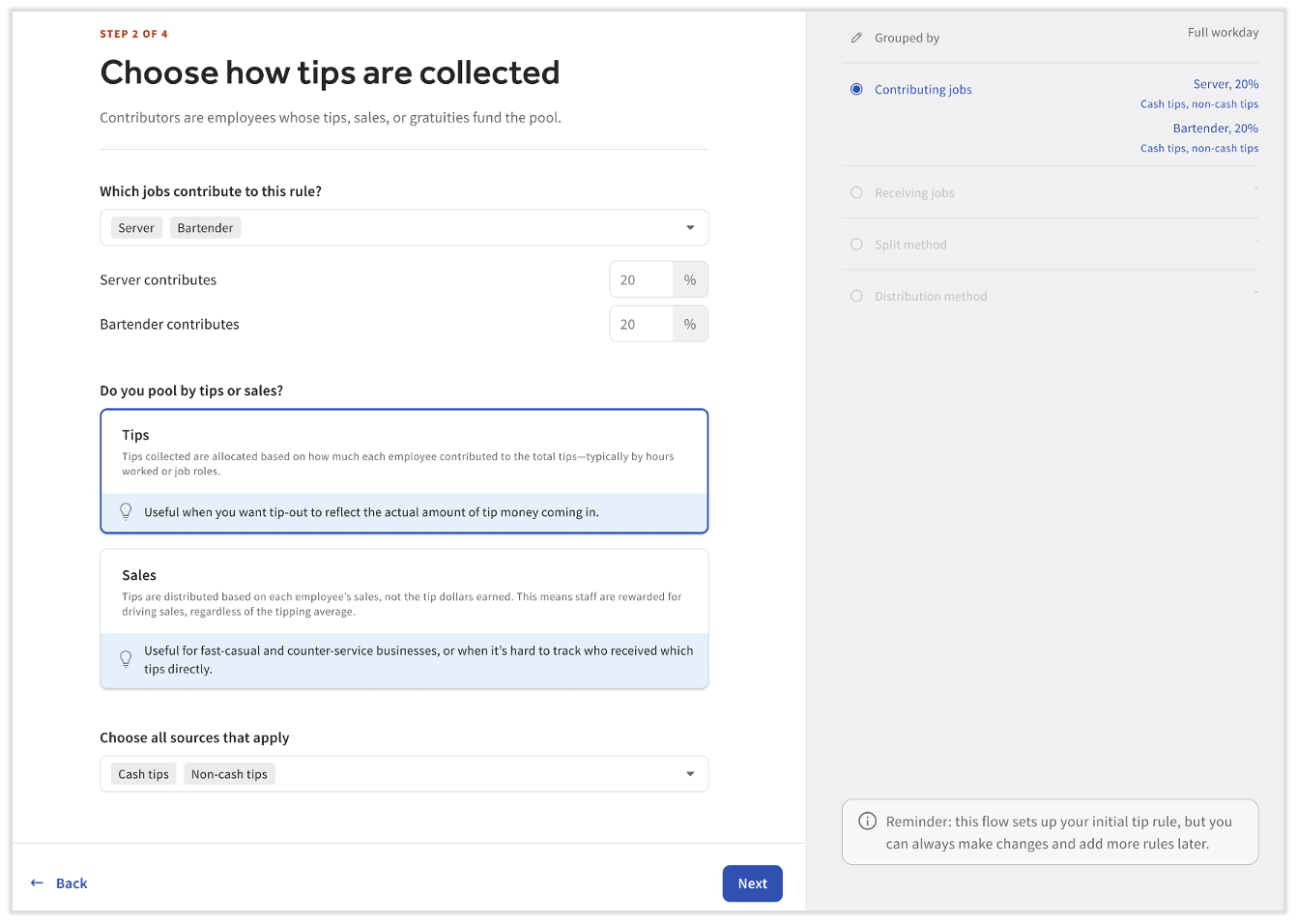
For example, Servers and Bartenders might each contribute 20 percent of their cash tips and non-cash tips earned in the Full Workday interval selected in Step 1. Select Next to continue.
Note: Tips Manager pools based on the tips tied to sales, not on raw sales totals. When you choose a sales category as the source, the rule uses a percentage of the tips earned on those sales, not a percentage of the sales themselves. Do not select both tips/gratuities and sales categories in the same rule.
Expected outcome: Each contributor job, its contribution percentage, and its source appear in the rule.
Step 3: Choose How Tips Are Distributed (Recipients)
Step 3 is where the tips go. Select the recipient jobs that receive tips from the pool. The recipients may be the same jobs you chose as contributors (common in tip pooling) or different jobs, even jobs not marked as Tipped in Toast Web (common in tip sharing).
After you select a recipient job, choose how tip shares are calculated — by points or by percentages. Points is the default and is the recommended method for nearly all tip policies at Toast. For details and worked examples, see Points and Percentages With Toast Tips Manager.
- Points split tips based on shares assigned to each recipient job and can optionally account for hours worked, which adds flexibility when schedules change. If a recipient job has no one clocked in, points still assign all the tips to the recipient jobs that are present.
- Percentages assign a fixed share of the pool to each recipient job. If a recipient job has no one clocked in, that job's share returns to the contributor instead of being redistributed. When you use percentages, all the percentage boxes must add up to 100 percent.
Then choose how shares are divided among the employees in a recipient job:
- Equally does not account for hours worked. Employees in a job with equal points or percentages receive the same amount.
- Proportionally based on hours worked gives employees who worked more hours a larger share.
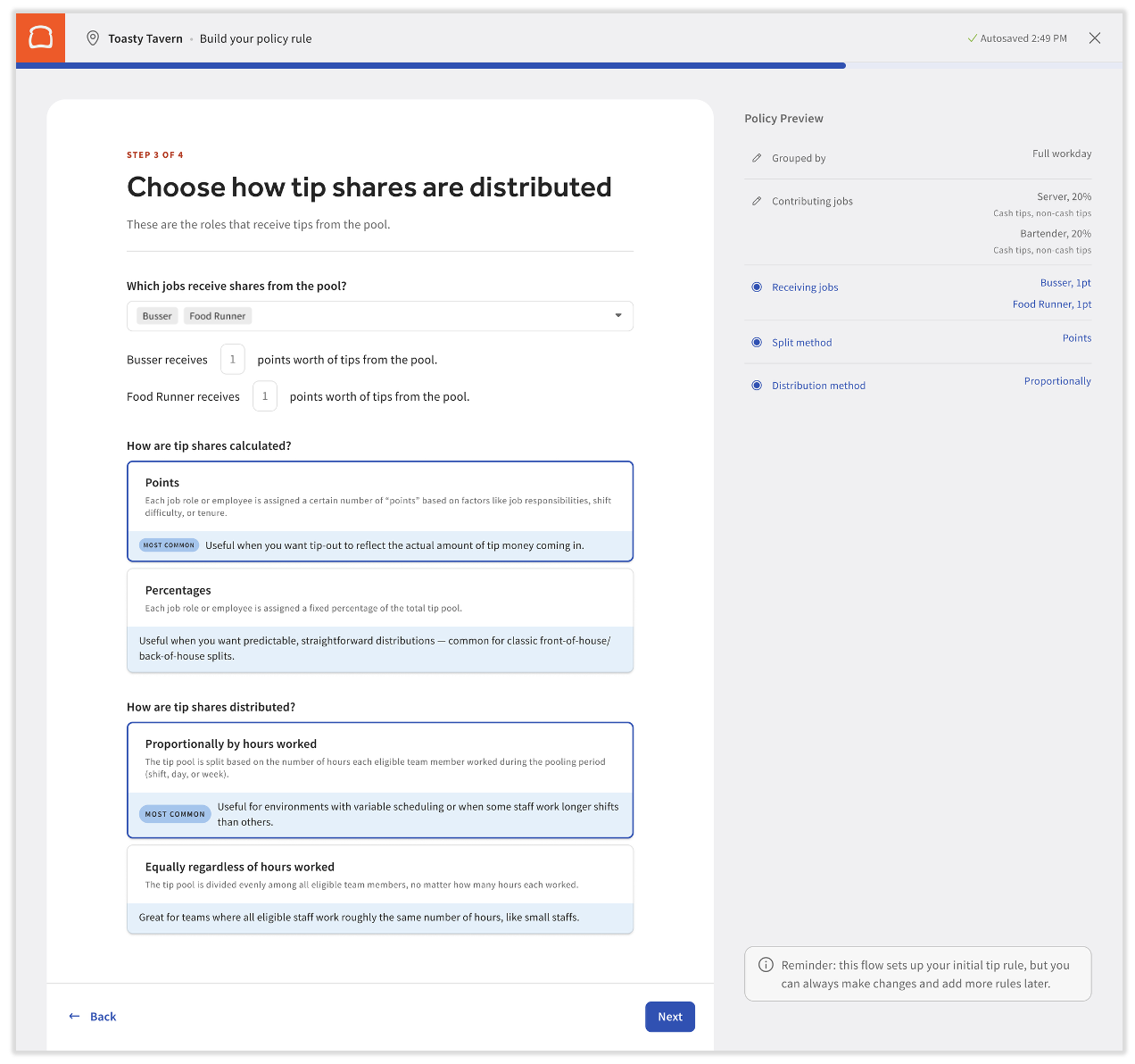
Continuing the example, Servers and Bartenders each contribute 20 percent of their cash and non-cash tips in the Full Workday interval, and Bussers and Food Runners each receive one point, distributed proportionally by hours worked. Select Next to advance.
Expected outcome: Each recipient job, its points or percentage, and the distribution method appear in the rule.
Step 4: Review and Create Your Rule
On the final review step, you can see every choice you made for this rule. To change a step, select the edit pencil next to it and update the rule. When everything looks right, select Create rule to add it to your Tip pooling policy page.
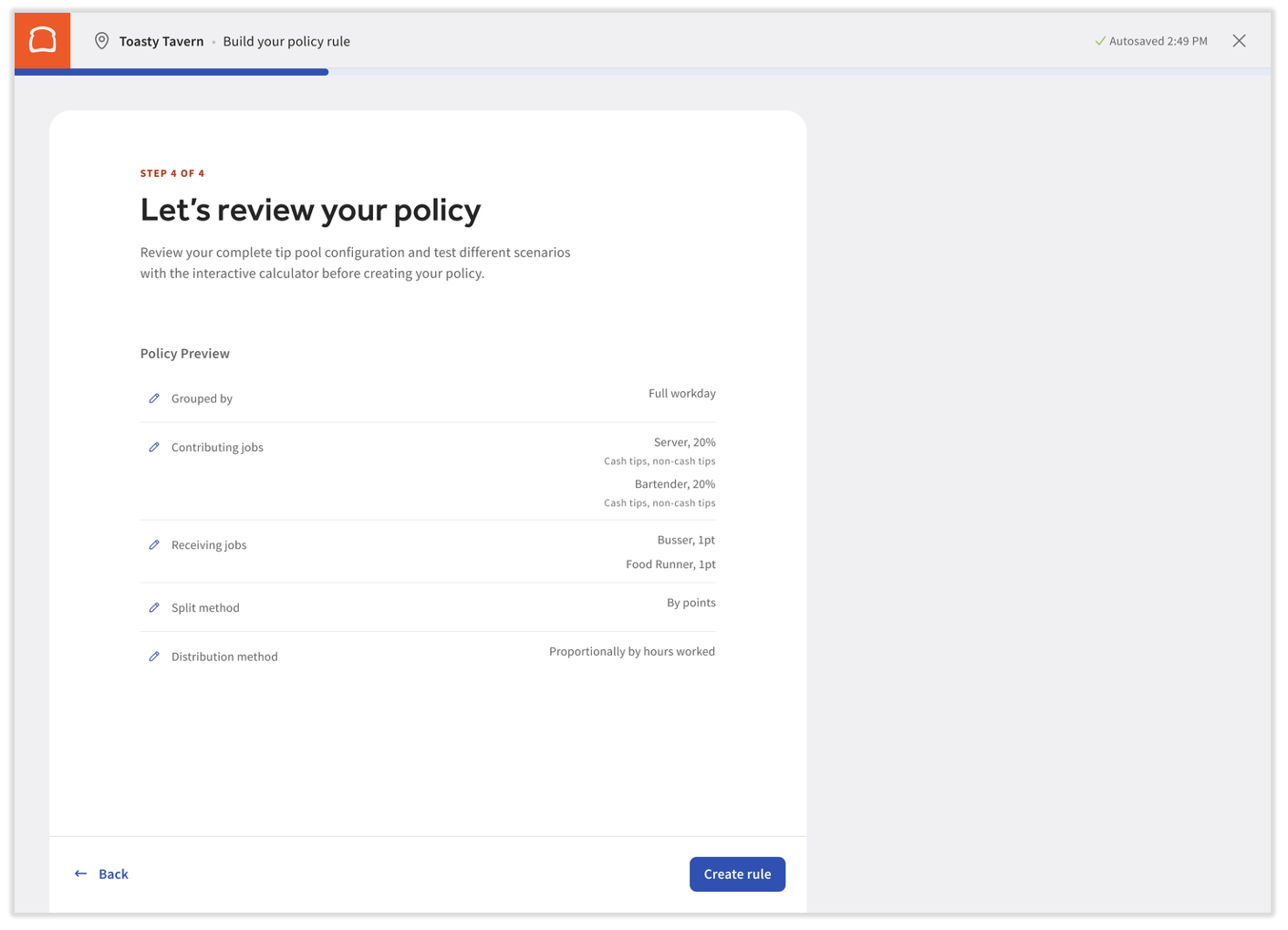
You can still edit the rule after you select Create rule. Once you exit the wizard, it is no longer available at this location, and you continue managing your policy from the Tip pooling policy page.
Note: A policy change applies only to new days, shifts, and orders going forward. To change tip distributions for a date that has already passed, unapprove that date first, edit your policy or time entries, then reapprove. If a day has not yet been approved or sent to payroll, edits to the policy recalculate that day automatically.
Expected outcome: Your first tip rule appears on the Tip pooling policy page, and Tips Manager begins calculating tip pools for new days.
Why Tips Are Not Distributing the Way You Expect
If a pool does not distribute the way you expected after you create your rule, the most common causes are below.
| Symptom | Most Common Cause | Quick Fix |
| Tips are not reaching a recipient job | No one is clocked into that recipient job for the interval | Confirm an employee is clocked in under the recipient job for that day, shift, or order |
| A whole day's pool does not distribute | An employee has a clock-in with no job assigned | In Reports > Labor > Time entry management, assign the correct job to that time entry; if it still does not take, delete and re-add the time entry |
| Cash tips are not included in the pool | The pooling interval is set to Order, which cannot pool cash tips | Choose Full Workday or Service Period if you need to pool cash tips |
| Tips return to the contributor instead of going to a recipient | The rule uses percentages and a recipient job had no one clocked in | Switch the receiving side to points so tips distribute to whoever is clocked in |
| A gratuity is not pooling | That gratuity source is not enabled to pool for the contributing job | On the Tip pooling policy page, confirm each tip type — including non-cash gratuity — is set to pool for that job |
Note: Tip pooling is calculated per day. It cannot be calculated across weeks or other timeframes.
If your numbers still do not match what you expect, or you need help confirming your own setup, see Get Help With Toast Tips Manager or contact Toast Customer Care.
Frequently Asked Questions
What is the Tips Manager onboarding wizard?
The Tips Manager onboarding wizard is a guided, four-step tool that helps you build and save your first tip rule. It is available only to restaurants that have purchased the Tips Manager module but have not yet saved a tip rule, and it disappears once you save any rule.
Also asked as:
- What's the tips wizard?
- How do I do the tips wizard setup?
- Can you walk me through the tip pooling wizard?
How do I set up my tip pooling policy?
To set up your tip pooling policy, open the onboarding wizard from Reports > Labor > Tip management, then work through the four steps: choose your pooling interval, choose the contributor jobs and percentages, choose the recipient jobs and distribution method, and review and create your rule. For the full first-time setup checklist that covers settings outside the wizard, see Get Started With Toast Tips Manager.
Also asked as:
- How do I build a tip pooling policy?
- How do I add tip pooling rules?
- How do I start tip pooling?
What is the difference between points and percentages?
The difference between points and percentages is what happens when a recipient job has no one clocked in. With points, tips are split by the shares you assign and are always distributed to the recipient jobs that are present. With percentages, each recipient job gets a fixed share of the pool, and if a job has no one clocked in, that share returns to the contributor. Points is the default and recommended method. For worked examples, see Points and Percentages With Toast Tips Manager.
Also asked as:
- Should I use points or percentages?
- What do points mean in tip pooling?
- Why did tips go back to the server?
Can I include cash tips in the pool?
You can include cash tips in the pool under the Full Workday and Service Period intervals, but not under the Order interval. Cash tips cannot be pooled by Order because they are reconciled during shift review rather than on each order. If you need to pool cash tips, choose Full Workday or Service Period in Step 1.
Also asked as:
- Why can't I include cash tips with the Order policy?
- Are cash tips part of tip pooling?
Can I change my rule after I create it?
You can change your rule after you create it, both before and after you exit the wizard. Once you exit the wizard, you edit the rule from the Tip pooling policy page instead. Policy changes apply only to new days going forward; to change a past date, unapprove it, edit your policy, then reapprove. If a day has not yet been approved, policy edits recalculate it automatically.
Also asked as:
- Can I edit a tip pooling rule?
- Can I fix a past day's tip pool?
- How do I undo tip pooling?
Why is the "by service" pooling option grayed out?
The "by service" pooling option is grayed out when your Hours/Services are not yet configured. Service Period pooling depends on the services and hours set on your Hours/Services page, so set those up first. For instructions, see Set Up Restaurant Hours and Services.
Also asked as:
- Why can't I choose Service Period?
- Why is the shift interval disabled?
Related Articles
- Get Started With Toast Tips Manager
- Plan Your Tip Pooling Policy
- Points and Percentages With Toast Tips Manager
- Get Help With Toast Tips Manager
- Tips Manager With Toast Payroll
This content is for informational purposes and is not intended as legal, tax, HR, or any other professional advice. Please contact an attorney or other professional for advice.