Understand Tax Rate Discrepancies
Last updated: Jun 25, 2026, 11:34 AM
Understand Tax Discrepancies
In some cases, you may notice that the tax amount does not match your expected amount when applying the tax rate for your restaurant. Generally, these discrepancies are small and result from the Tax Rounding Options you've set on the tax rate itself. You can choose how pennies will be rounded for a specific tax rate in Toast Web by navigating to the Menus > Settings > Manage tax rates page, selecting the desired tax rate, and scrolling down in the Advanced Settings section. The tax will default to Half Even Rounding.
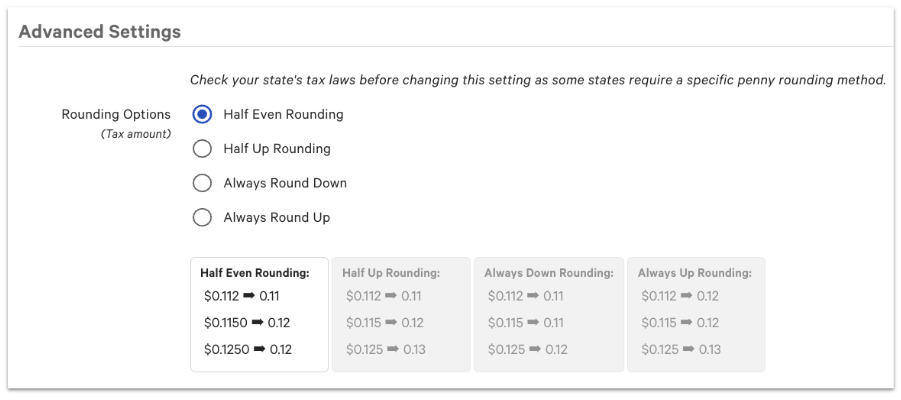
Note: The tax is rounded at the item level. At this time there is no way to prevent taxes from being applied to each individual item and instead be applied to the check subtotal. Toast recommends you consult with your state laws and tax professional to choose the correct penny-rounding method.
Half Even Rounding: This rounding method rounds up to the next whole only number only when the next whole number is an even number. If the next whole number is an odd number, you round down. For example, both 3.5 and 4.5 round to the number 4. In this case, 3.5 rounds up because the next whole number is even, while 4.5 rounds down because the next whole number is odd.
Half Up Rounding: This is typically the common method of rounding, which is to make 0.5 go up, so 7.5 rounds up to 8, and 7.4 rounds down to 7.
Additionally, a discrepancy might be due to a new menu or group not getting assigned a corresponding tax rate. A new menu or group will inherit a default tax rate if marked as default in the Tax Rates page. To review how to apply a tax rate to the menu group or item level, check out this Support Center article: Set Up Tax Rates and Adjust Tax Options.
Identify Tax Discrepancies
If you believe there may be a discrepancy with your taxes, the Sales Summary report will provide a broken-down overview of your taxes.
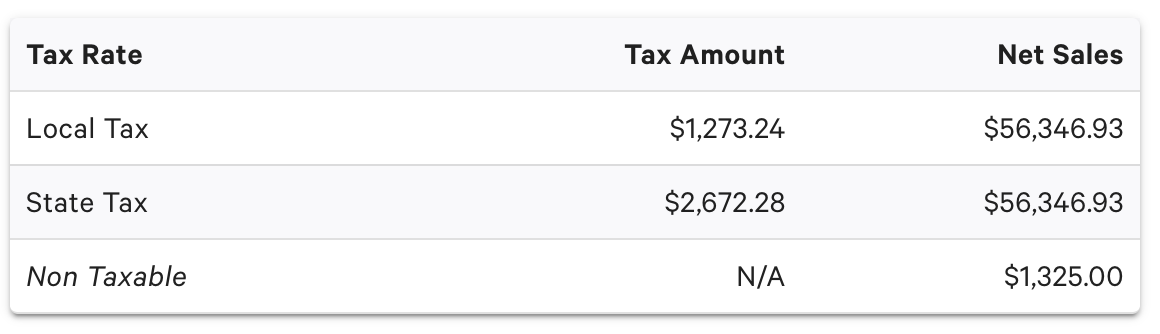
This is the quickest way to determine if you have set up your taxes correctly and assigned the taxes to the correct menus, groups, and/or items. If you have different tax rates based on the type of item being sold, the box above breaks down the sales with each corresponding tax. For example, all liquor will have a corresponding liquor tax attached to those items.
Note: Non-Taxable indicates sales that no tax was applied. This amount is generated from items that are tax-exempt.