Use Glance to Help Troubleshoot Issues Remotely
Last updated: Sep 17, 2026, 4:53 PM
Glance is a browser-based screen-sharing tool that allows your support teams to view the ToastMobile experience.
| Glance is currently in limited release with select customers. |
- Glance Overview
- Set Up Glance
- First-Time Login
- Start a Glance Session
- Frequently Asked Questions
- Escalate an Issue
- Additional Support
Glance Overview
Glance is a browser-based screen-sharing tool that allows your support teams to view the ToastMobile experience. Its primary goal is to reduce troubleshooting time and improve system uptime by allowing Toast Customer Care and your own support teams to see exactly what’s happening on a device running ToastMobile.
Glance Cost
As a third-party licensed service, Glance pricing/seat details are coordinated with your Toast account team; discuss seat counts and licensing during onboarding or with your Customer Success Manager after onboarding.
Glance Multi-User Functionality
Multiple users can join a session simultaneously, depending on your organization’s Glance setup and permissions. If you need multiple viewers (for example, Toast support plus your internal support lead), coordinate through Toast Enterprise Customer Care to confirm what’s supported for your account.
Set Up Glance
Purchase Glance License and Request a New Group ID
To purchase Glance user licenses (seats), contact your Sales, Onboarding, or Customer Success Manager (CSM) representative—depending on where you are in your journey with Toast. When you purchase Glance user licenses, Toast will create your customer subgroup (Group ID) under the global Toast Group ID and link it to your Management Group IDs/GUIDs so your users only see sessions for your locations.
A Group ID is how Toast scopes Glance user access for the right restaurants and devices.
- Toast has one global Group ID used by Toast support teams to provide support across all Toast customers.
- Customer Group IDs are created as subgroups under Toast’s global Group ID. This structure ensures:
- Users in a customer subgroup can only view and support their own locations/devices (based on the Management Group IDs/GUIDs that Toast links to that subgroup).
- Toast support can still access Glance to help any customer, when needed, through Toast’s global access.
If you already know the Management Group IDs/GUIDs that should have access to Glance, share them up front so Toast can enable all intended locations during initial setup.
Request New User Accounts for Glance
Today, all user management activities run through Toast. To request new users, provide the following information in .csv format to your Sales, Onboarding, or CSM:
- FirstName - first name as the employee will appear in Glance
- LastName - last name as the employee will appear in Glance
- Email - email as the employee will appear in Glance
- Phone - phone number as the employee will appear in Glance
- GlanceAddress (required) - the Glance username. This must follow the Toast convention: firstname.lastname.company.glance.net
- Password - can be left blank in the .csv; users will set this during first login (see below)
- PartnerUID - If your organization uses Single Sign-On (SSO), please ensure your login email matches your SSO identifier. Because SSO requires specialized setup, our Customer Care team is here to help! Reach out to us to confirm provider compatibility and get this feature enabled for your account.
After you provide this information to Toast, a Toast admin will:
- Upload your user list to Glance under your organization’s Group ID.
- Request Glance to affiliate those users to the Toast account (so Toast Customer Care can support you when needed).
- Confirm when you’re ready for first-time login.
First-Time Glance Login
- Request your Glance Address from the person who submitted your initial user creation request to Toast.
- Navigate to the Glance Agent Join page and select Forgot your password? (yes, even for first-time use).
- Enter your Glance Address and Email Address, ensuring you match exactly what was provided in your user request.
- Check your email for a password reset message and select Reset Password.
- Create a new password and select Reset Password.
- Select Login Now.
- Sign in using your Glance Address (not an email address) and your new password.
Start a Glance Session
Start a Glance Session via Agent Join
Use the Agent Join page when you need to view a location’s screen while troubleshooting on ToastMobile by following these steps:
- Navigate to the Glance Agent Join page.
- Sign in using your Glance Address and Glance password.
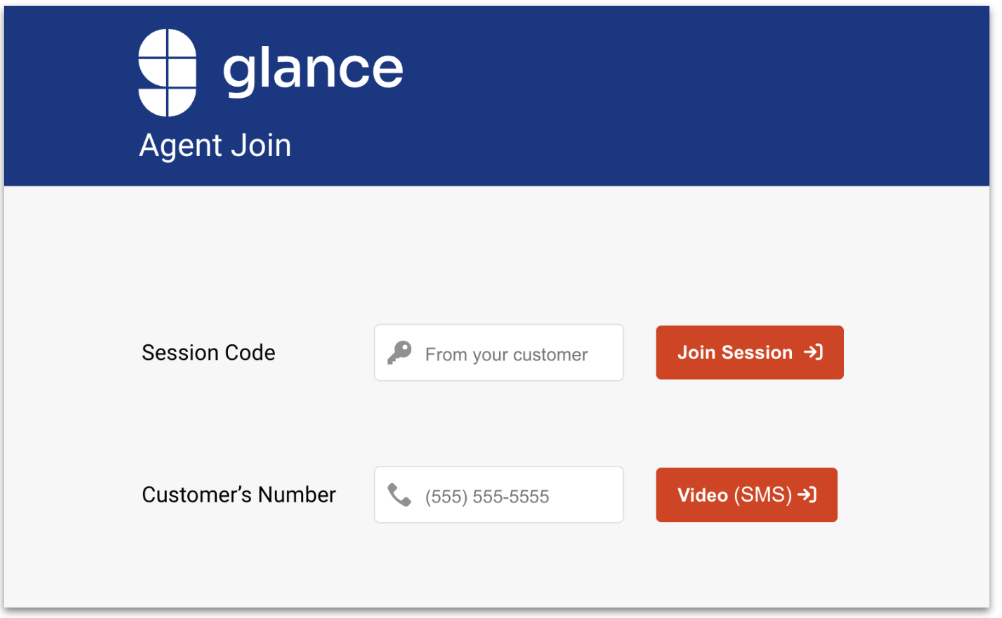
- Once logged in, you’ll see the Agent Join page. Ask the user at the device to generate a 4-digit session code.
Note: If you are on a Toast POS device, see ToastMobile: Request a Glance Session Code on a Toast POS Device. - After the user shares their 4-digit code, enter it into the Session Code field and select Join Session ->]. If the user wants to share their phone camera (instead of an app screen), enter their number in the Customer’s Number field and use the Video (SMS) ->] option.
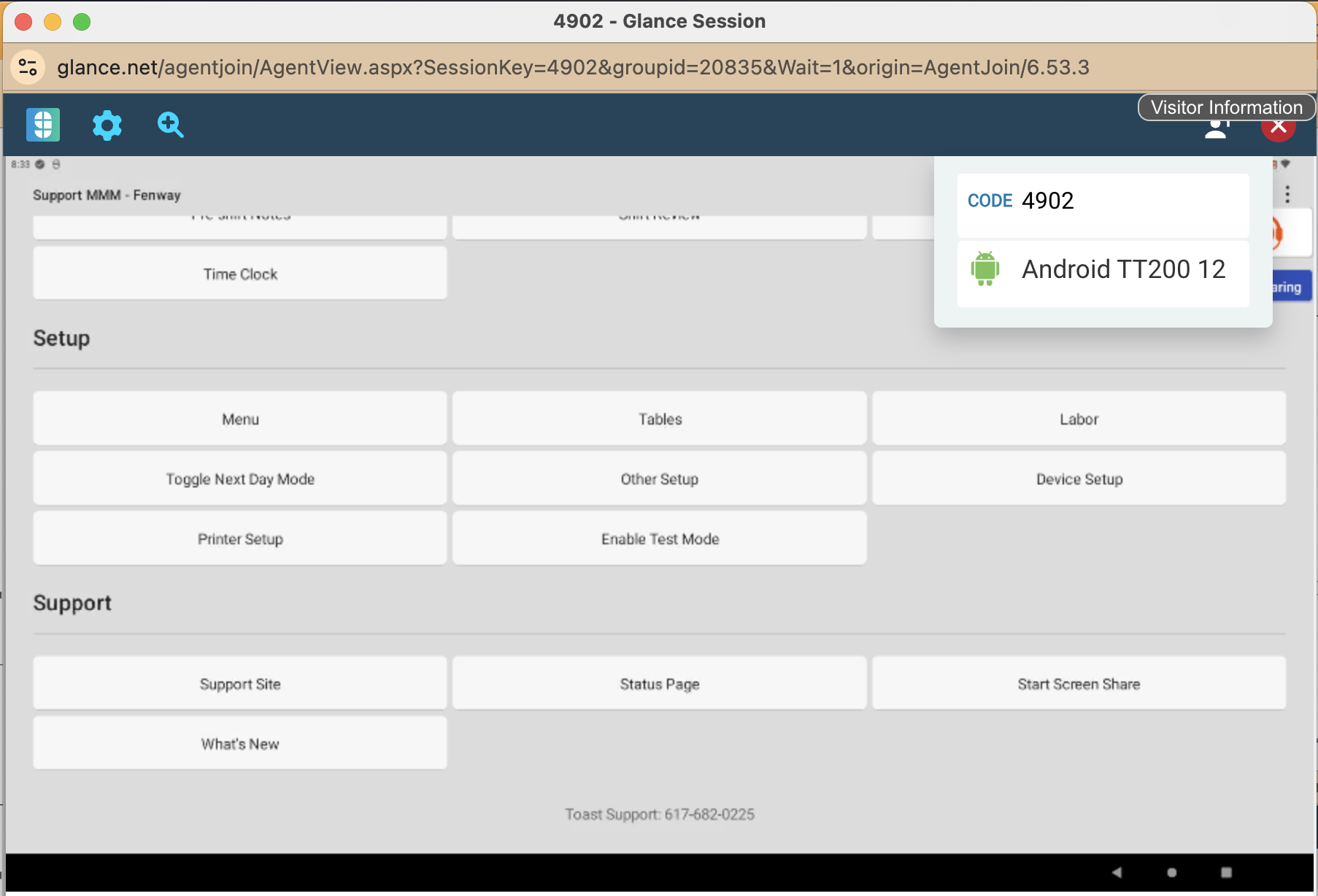
- A new window will open with the live Glance session.
- During the session, you can use the on-screen pointer tools (visible to the user) to guide them (i.e., point/hover, click, and draw temporary boxes). These controls are for the viewer only and do not appear on the end user’s device:
- Visitor information: Shows basic session details, such as the device model and the session code
- Zoom: Lets you zoom in or out for your view only (it does not change what the end user sees).
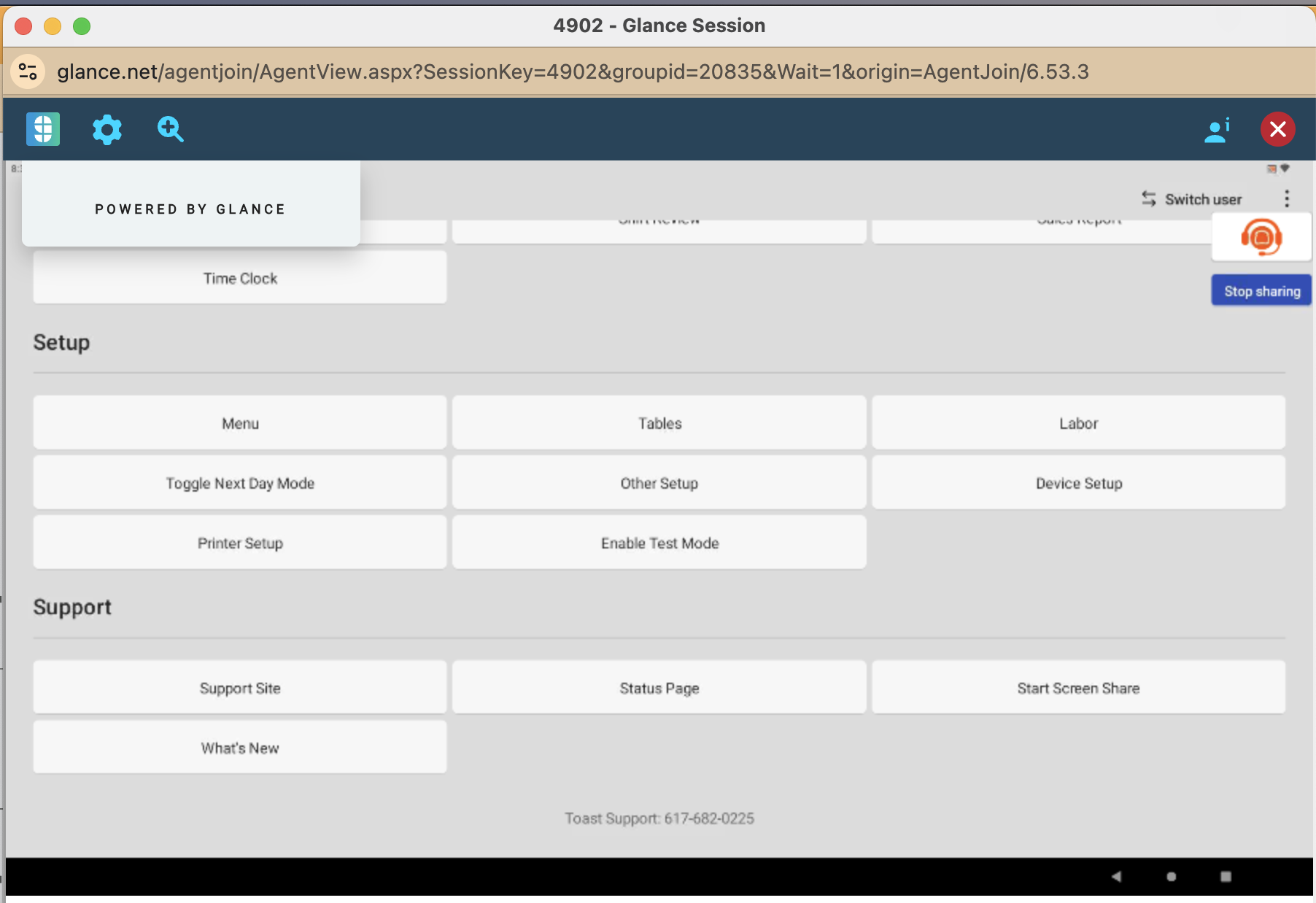
- Settings: Displays “POWERED BY GLANCE” and the Glance logo. (The logo is informational and does not perform an action.)
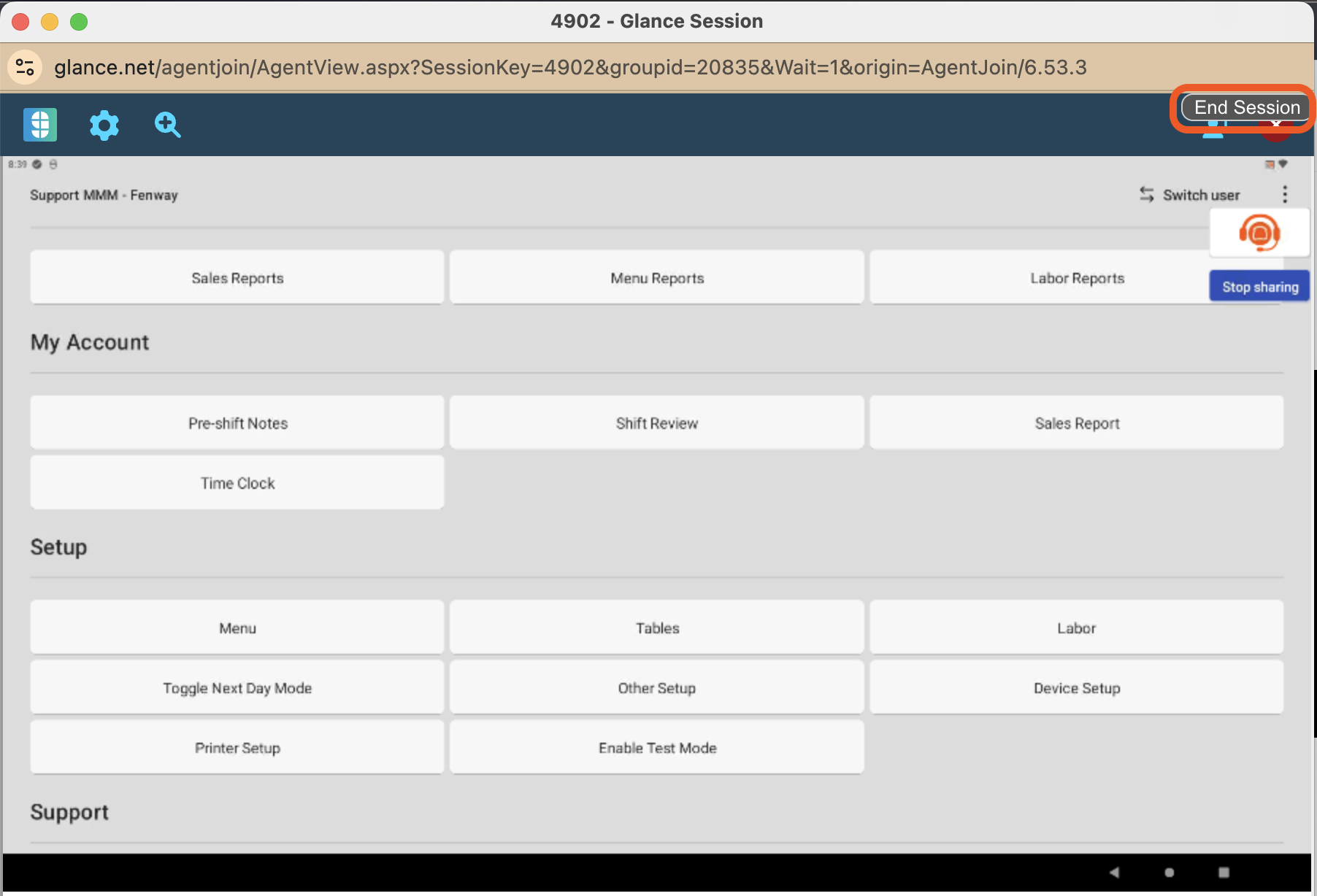
- To end the session, select the red End Session button. This ends the session and closes the session window.
ToastMobile: Request a Glance Session Code on a Toast POS Device
- In the Toast POS application, have the user confirm they are pinned into the app.
- If the user is not pinned, have them open the Recent Apps view > select the app icon > select Pin.
- Have the user open the overflow menu by selecting the arrow in the upper-left corner of the Toast POS application.
- In the overflow menu, scroll to the Support section (bottom of the page) and select Start Screen Share.
- The user will be prompted through a few steps (including acknowledging the Terms of Service) until they receive a 4-digit code. Note: If you’d like to review the Terms of Service, select the Terms of Use link on the screen. A page will open with the Toast Guest Terms of Service details.
- Ask the user to read the 4-digit code to you. You will enter it into Agent Join to connect.
- Once connected, the user will know screen sharing is active when they see:
- a Glance icon near the top-right of the screen
- a larger Toast support icon
- If the Toast support icon is blocking something, the user can press and drag it to move it out of the way.
- To stop sharing, the user can select Stop sharing, then confirm when prompted. After stopping, both the Glance icon and the Toast support icon will disappear.
Frequently Asked Questions
Why did my Glance session end unexpectedly?
Sessions can end if the app is force-quit, if the device switches apps, or when certain app lifecycle events occur. If a session ends accidentally, reopen the Toast app and restart the Glance join flow with a new session code.
Can Glance show screens outside of the ToastMobile app (for example, Android Settings)?
Yes. Android Settings is just one example—during a ToastMobile Glance session, you can typically view what’s happening both inside and outside of the ToastMobile app. If the session ends and you need to start a new one, the device user should re-open ToastMobile and repeat the steps to generate a new session code (see ToastMobile: Request a Glance Session Code on a Toast POS Device), then you’ll join again from Agent Join using the new code.
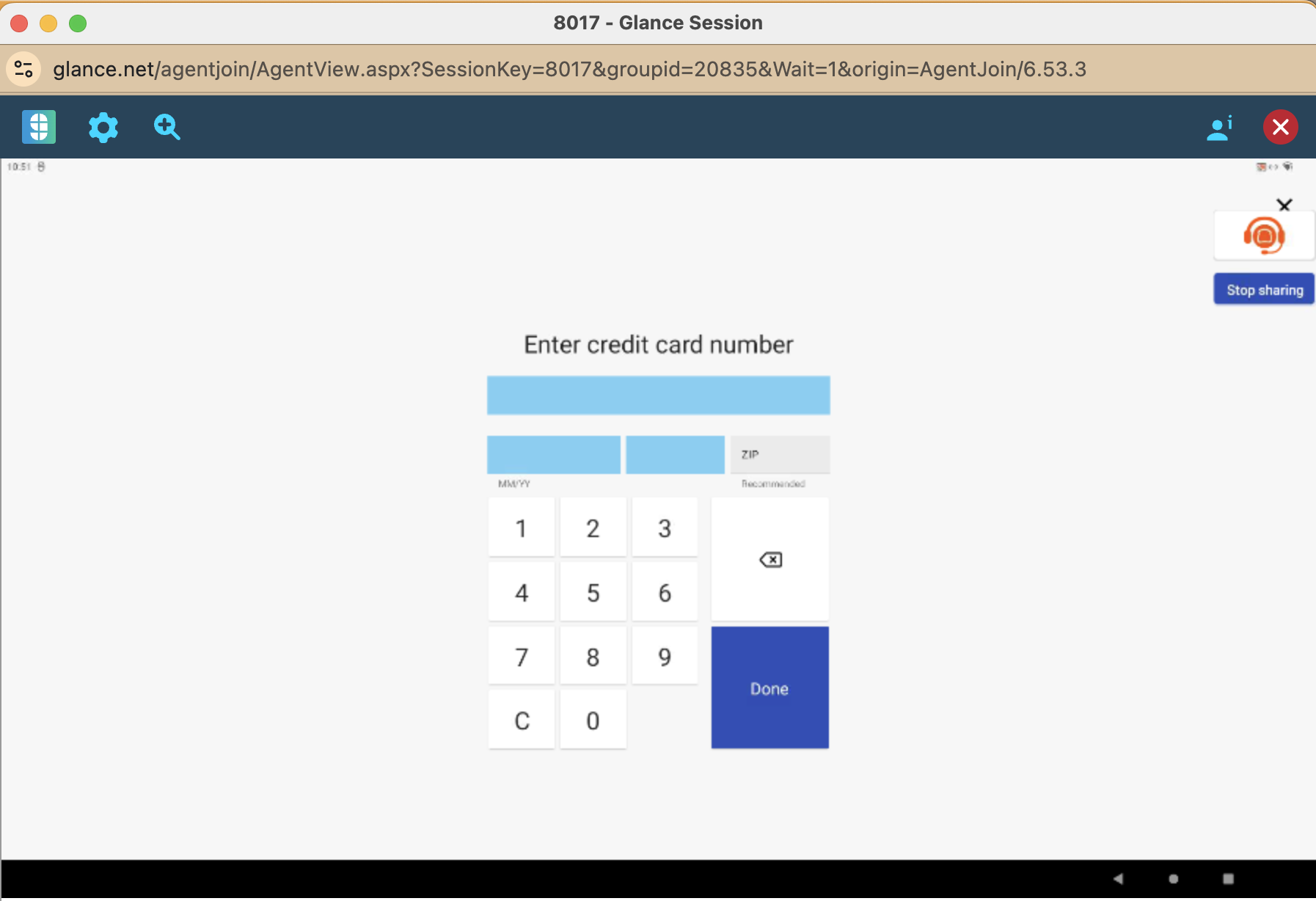
Why is some information hidden during a Glance session?
To help protect sensitive data, Toast uses field-level masking during screen sharing to hide certain information in specific parts of the product. Common examples include:
-
- Payment card data (e.g., card number, CVV, expiration date)
- Customer contact details (e.g., email, phone number, address)
- Employee credentials (e.g., password entry)
For instance, a credit card number will be censored like so:
Escalate an Issue with Glance
If you believe you’ve hit a Glance issue (for example, repeated session failures, unexpected disconnects, or screen-sharing not working as expected), contact Toast Enterprise Customer Care.
Additional Support for Glance
If something isn’t covered in this guide, visit Glance’s Help Center. Note that some features described there may not be available depending on your permissions and how Glance is configured for your organization as part of Toast’s Glance integration.