Use Text to Pay
Last updated: Aug 18, 2026, 4:18 PM
Easily accept payments off-premises for smooth transactions for both you and your guests.
|
Text to Pay Overview
Text to Pay allows you to accept payment from guests through SMS instead of having to take card details from the guest over the phone.
Text to Pay now supports all order states. In addition to an open check, you can send a payment link for a future order (placed in advance) or a past order (already fulfilled). The guest flow is the same regardless of order state.
Text to Pay Benefits
- Eliminates the need for manual card entry, significantly reducing the risks associated with phone orders and catering orders.
- Automates the payment process, freeing up staff to focus on other tasks, such as taking orders and preparing food.
- Less abandoned/unpaid orders if payment is not taken over the phone.
Complete a Text to Pay Transaction
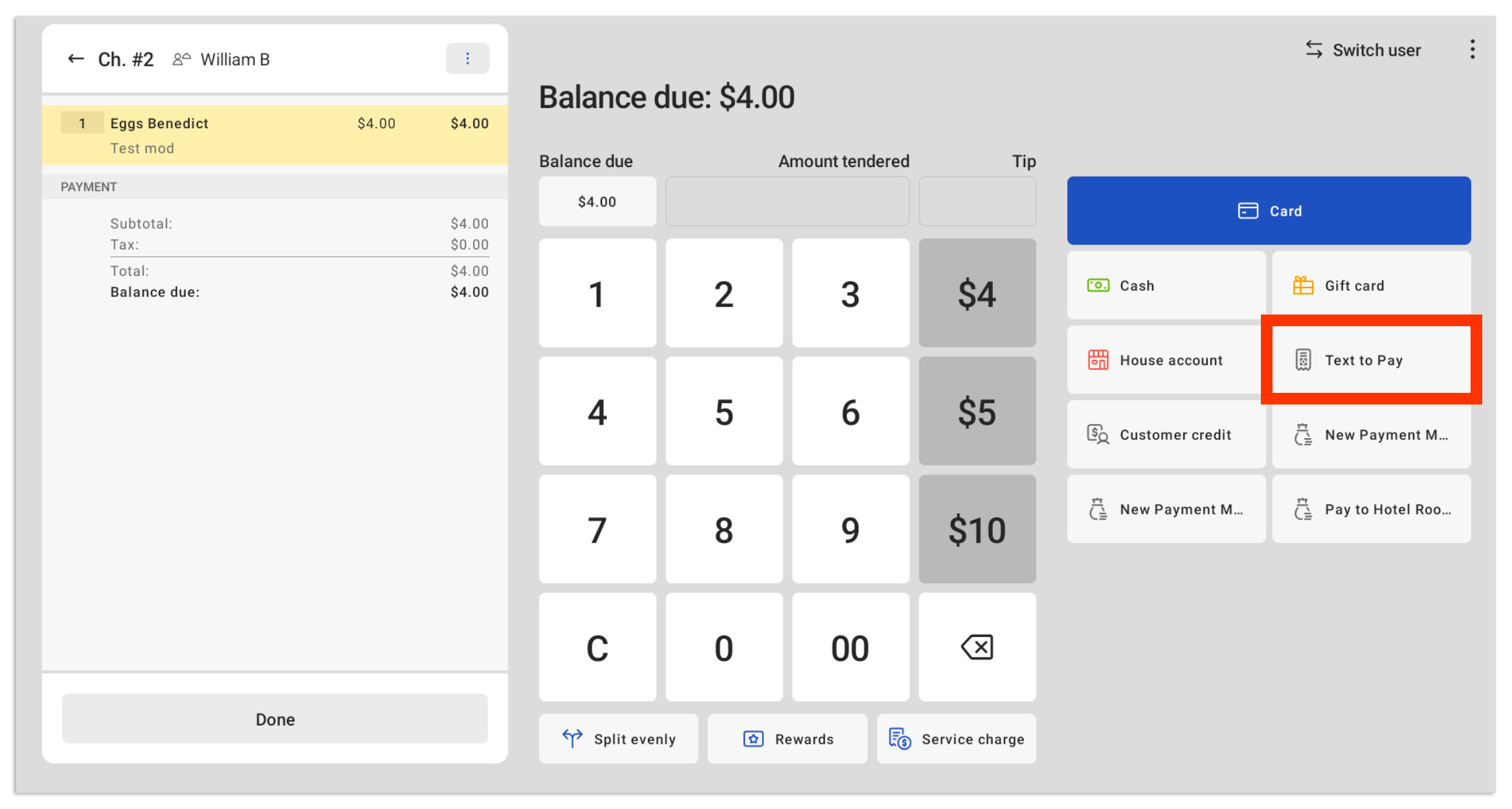
Once you've taken the guest's order, transition to the payment screen. Follow these steps to complete the transaction:
- Select Text to Pay in the Payment Screen.
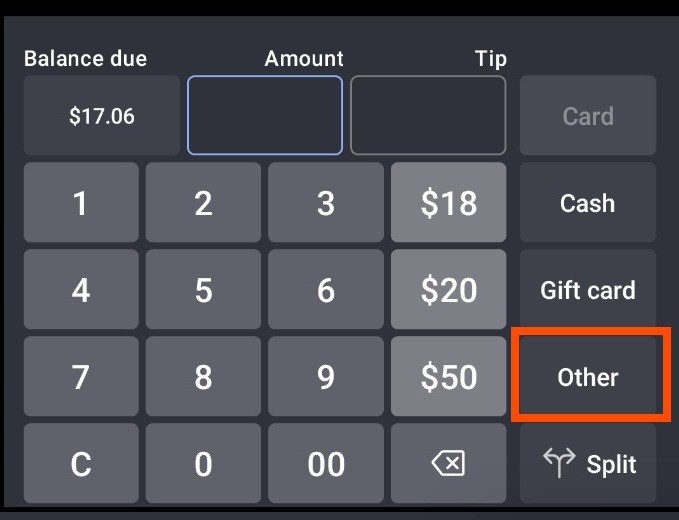
- If you are unable to see the Text to Pay tab in the Payment screen, select "Other" in order for the Text to Pay payment option to appear.
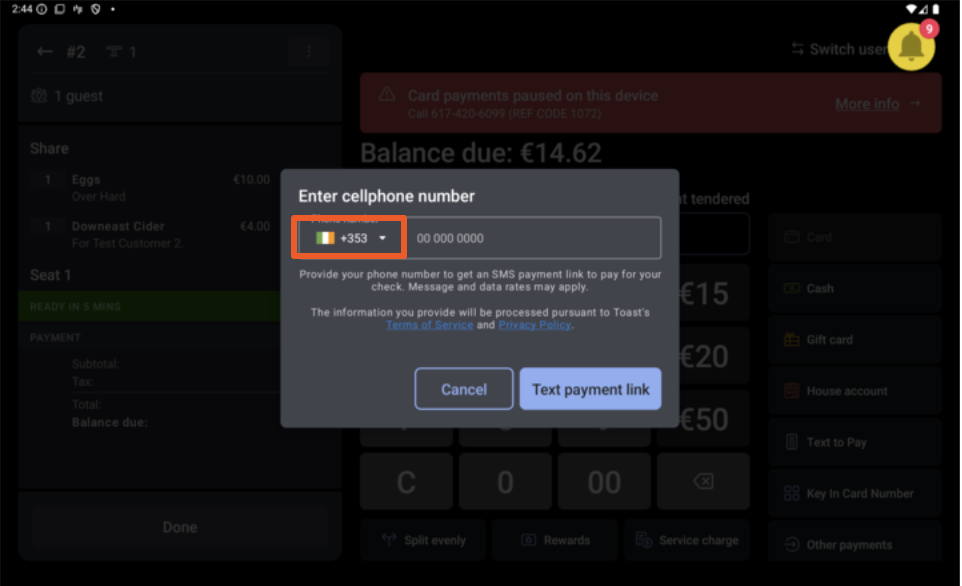
- A pop-up screen will appear prompting you to enter the guest's cell phone number.
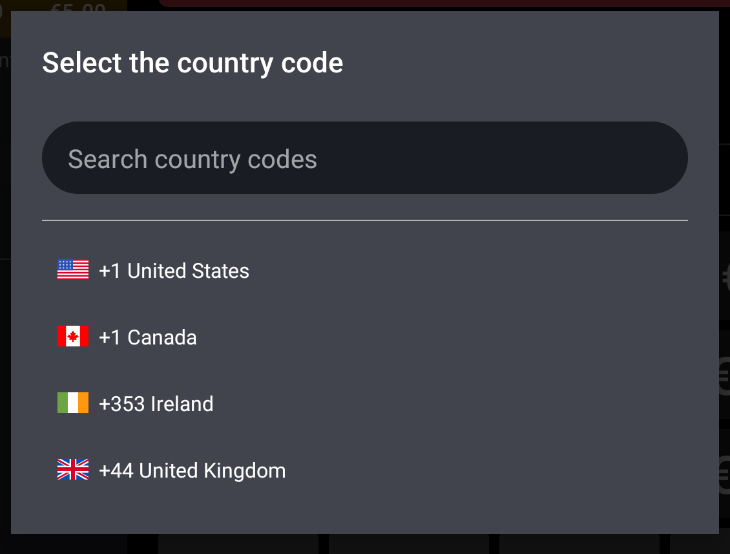
- From the "country code" drop-down option, select the desired country code.
- Enter the guest's cell phone number and select the Text payment link.
- The guest will receive a link via text message with their check. The guest will select the link and be directed to either the mobile version of the Toast Local and Toast Local App.
- The guest can pay by entering their card information (credit or debit) or pay by mobile wallet for example, Apple Pay or Google Pay.
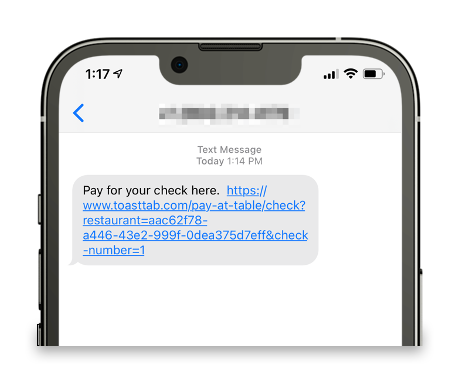
Once the transaction is complete, the order will be directly routed according to your printer settings. If you have Send Order After Check Is Paid enabled, Text to Pay orders will be immediately sent to the kitchen once payment is complete unless they are for Takeout/Delivery dining behaviors. To learn more, see Start and Send an Order on the POS.
Note: For Takeout and Delivery dining behaviors, Send Order After Check Is Paid does not delay the kitchen ticket — the order fires to the kitchen according to your normal dining-behavior and auto-firing settings regardless of whether the guest has completed the Text to Pay transaction yet. If you need the kitchen to wait until the guest pays for a takeout or delivery order, contact Customer Care to confirm which dining-behavior settings support that.
Back to top
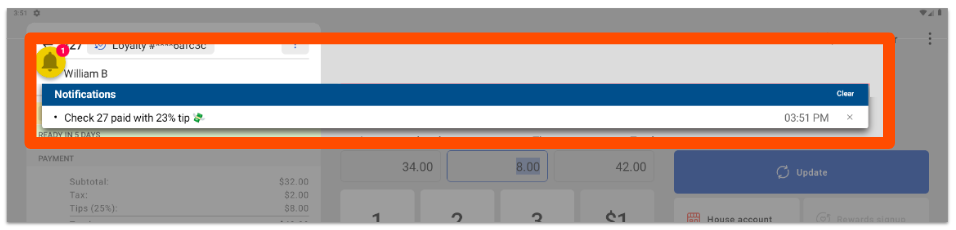
Payment Confirmation Notification for Text to Pay
Back to top