Use Server Item Firing at Your Restaurant
Last updated: Sep 17, 2026, 4:18 PM
Set Up Server Item Firing in Toast Web
To enable server item firing behavior, follow the instructions below:
- In Toast Web, navigate to Front of house > Order screen setup.
- Locate the Individually Hold and Send Items setting, and toggle it to the On position.
Do not enable this setting if course pacing is turned on.
Course pacing settings will override the behavior of the Individually Hold and Send Items setting. If you’d like to set up course pacing instead, make sure to disable the Individually Hold and Send Items setting. It is possible to give servers control over course pacing by configuring the Course Firing option to Server fires courses individually
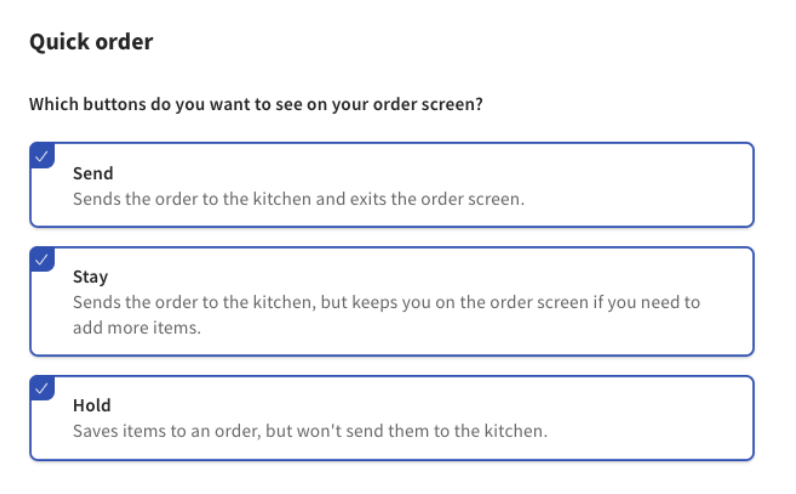
Learn more in this Support Center article, Manage Course Firing Options. - Additionally, if your restaurant primarily uses Quick Order mode, make sure to enable the Hold, Stay, and Send buttons on the Front of house page under the Quick order header. Note that these buttons will already be automatically enabled in Table Service mode.
- Save and publish your changes!
Use Server Item Firing on the POS
Server item firing gives servers full control over meal pacing on the POS, allowing them to:
- Individually hold and send items on a check
- Use the Hold button on the order screen as a true hold, meaning that once an item is held, it will not fire until it is selected and sent
- Add new items to the check and send those new items to the kitchen, without sending held items
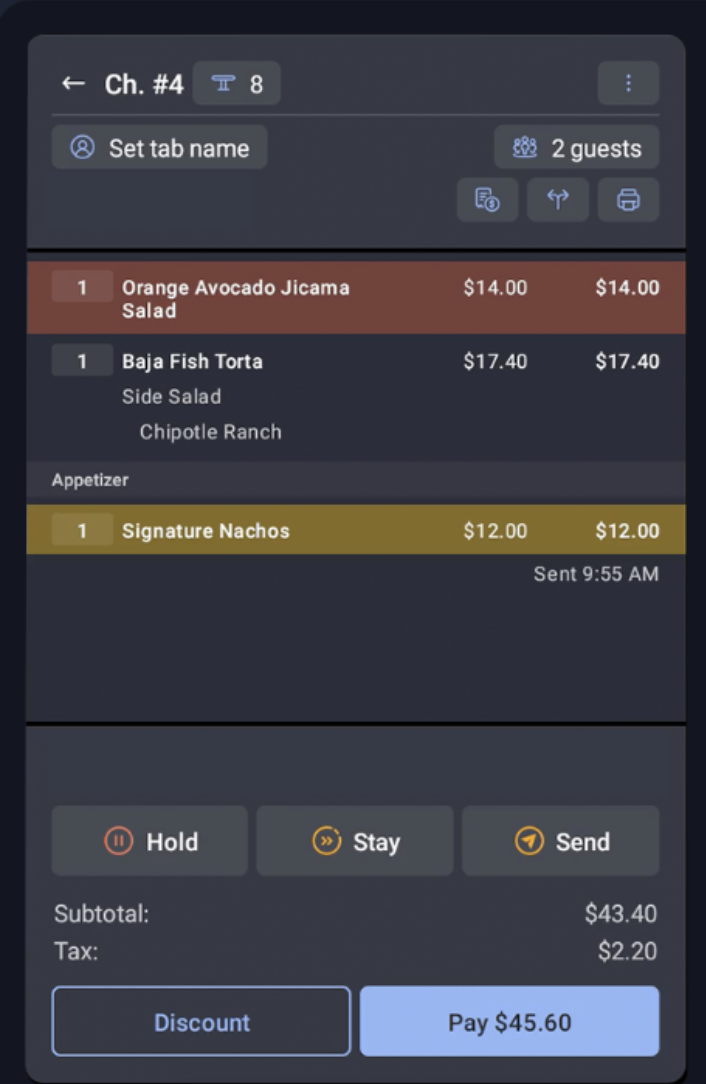
The item in red is on hold, and the item in yellow was sent to the kitchen.
There are two options for using server item firing on the POS. Note that in either case, held items will need to be individually selected and sent:
- Option #1: Holding items first - Begin by adding items to a check, select the item(s) to put on hold, and then select the Hold button. All items except for the ones kept on hold will automatically be sent.
- Option #2: Sending items first - Begin by adding items to a check, then select one or more item(s) to send by selecting the Send button. The items that were not sent to the kitchen will be held automatically.