Void Payments on Online Orders
Last updated: Dec 17, 2025, 11:01 AM
| The features and functionalities described in this article are currently not available to customers in Canada, Ireland, and the UK. |
Void an Online Credit Card Payment
Payments for online orders will need to be voided if:
- an error was made when paying for an order
- your guest wishes to use an alternative form of payment after placing an order online
- a Wi-Fi outage at your restaurant caused a payment to go through without an order being fulfilled
Depending on the form of payment used, it can either be voided on the Toast POS device or in Toast Web.
Credit card payments made online can be voided from your Toast POS device or online on Toast Web.
POS Workflow
- On the main menu of the Toast app on your POS terminal, navigate to Mode > Payment Terminal.
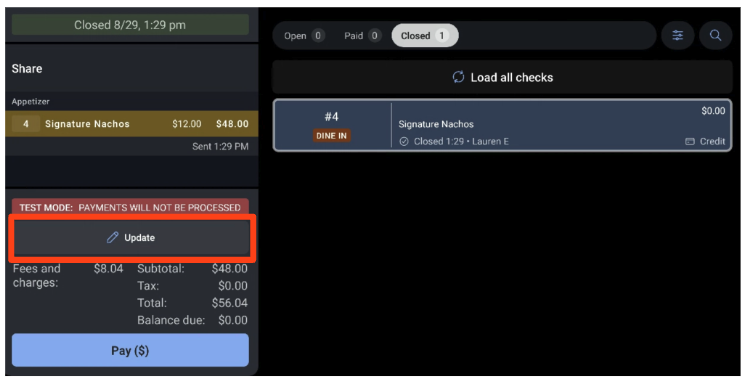
- Then, locate the check in the Paid checks or Closed checks tabs at the top of the screen.
- Select the check with the credit card payment and select Update on the check.
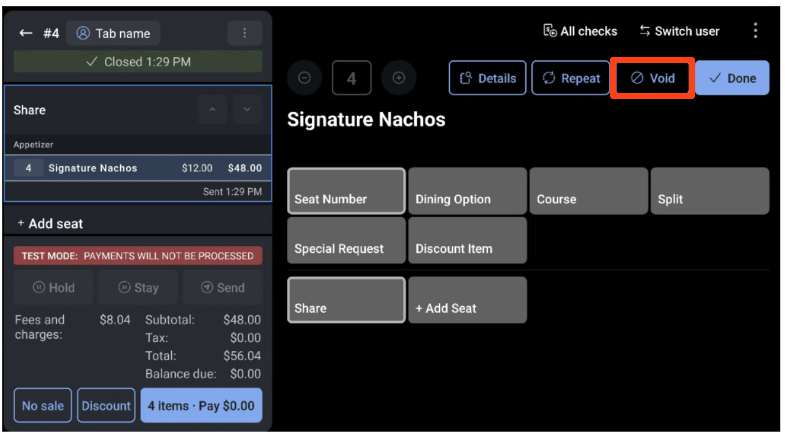
- Select the items on the order screen and select Void.
Note: If the guest requests to void their credit card payment and pay with cash in-store, skip to Step 6.
- Select Void Items to confirm. You may have to select a Void Reason if prompted.
- Confirm Void.
- Select Close when finished. If your guest requested to pay with cash in-store instead, select Done. This will keep the check open and accessible through the Open checks tab at the top of the screen.
Toast Web Workflow
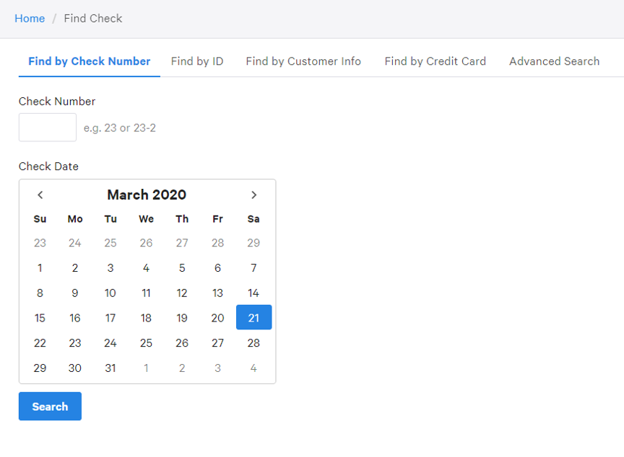
- In Toast Web, scroll down to the bottom of the homepage and navigate to Show me all links > Manager > Find Checks.
- Use the tabs at the top of the screen to locate the check with the credit card payment.
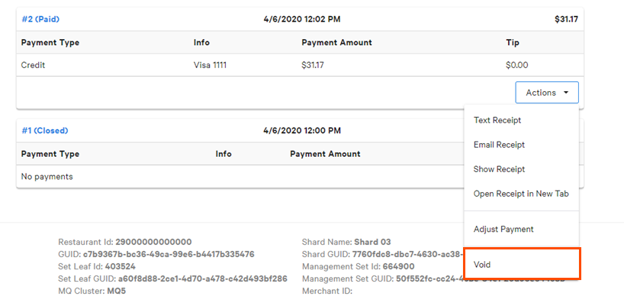
- In search results, locate the check and select the Actions dropdown.
- Select Void.
- Select OK when prompted to confirm the void.
- A success message will appear on the check indicating the payment has been voided.
Note: If a credit card payment isn't voided the same day it is placed, a refund is needed to return the value of the order to the guest. In addition, individual items cannot be voided from a check through Toast Web at this time.
Void a Cash Payment for Online Orders
Cash payments made in-store for online orders need to be voided on a Toast POS device.
- On the main menu of the Toast app on your POS terminal, navigate to Mode > Payment Terminal.
- From the Closed checks tab, select the check with the payment you wish to void.
- Select Update at the bottom of the screen.
- Select the items on the order screen and then select Void.
- When prompted, select Void Items to confirm.
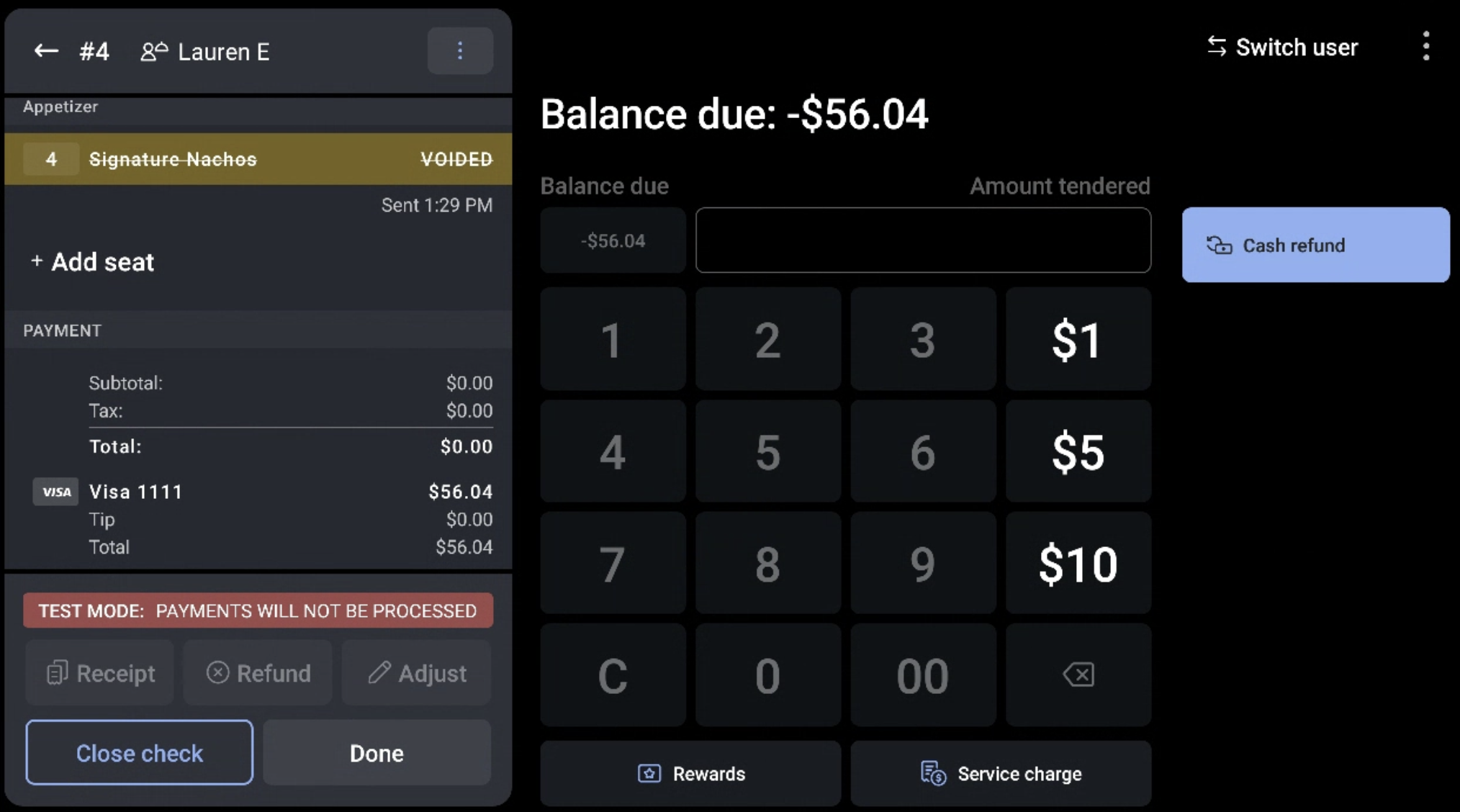
- If a negative balance is due, and if you owe a refund to the guest, it'll appear on the payment selection screen. In this case, $56.04 is due to the customer. Select Cash refund to give the money back to the guest.
- Select Done.
- If a cash drawer is associated with the POS device, it will open after confirming the void to return the cash payment to your guest.
- Select Close when finished.
Note: If your guest requested to pay with a credit card or Toast gift card instead, select Done. This will keep the check open and accessible through the Open tab at the top of the screen.