Configure Tax Tables
Last updated: Dec 17, 2025, 10:54 AM
| If you're not sure if you should be configuring tax tables, consult a tax expert in your state. |
- Step 1: Create a New Tax Table
- Step 2: Configure the $0.00 Tax Value
- Step 3: Fill Out Your Table
- Step 4: Find the Pattern
- Step 5: Clean Up Your Table
- Step 6: Test the Table and Save
- Additional Resources
Step 1: Create a New Tax Table
If you’re using tax tables to calculate your sales tax, follow these steps to get started:
- In Toast Web, navigate to Menus > Settings > Manage tax rates.
- Select + Add Tax Rate (or select an existing tax rate).
- In the Basic section, name your tax and change the Type setting to Tax Table.
Step 2: Configure the $0.00 Tax Value
| Have your state’s sales tax table on hand as a reference. |
Toast’s tax table requires you to configure an amount that is not taxed. In both examples below, you’ll see that the $0.00 tax amount is not listed.
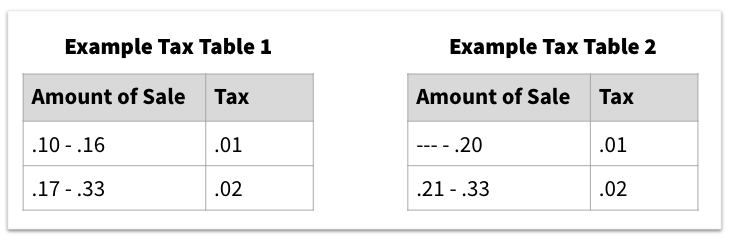
In the first example, the first sales bracket starts at $0.10. Because Toast requires you to include the $0.00 tax, you'd configure your tax table so the first bracket of $0.00-$0.09 has zero tax.
In the second example, the first sales bracket starts at $0, but it looks as though a $0 sale would be taxed $0.01. Because a zero-dollar sale cannot be taxed, your first sales bracket that you set up in Toast Web should say that a sale of $0.00-$0.00 has zero tax.
Step 3: Fill Out Your Table
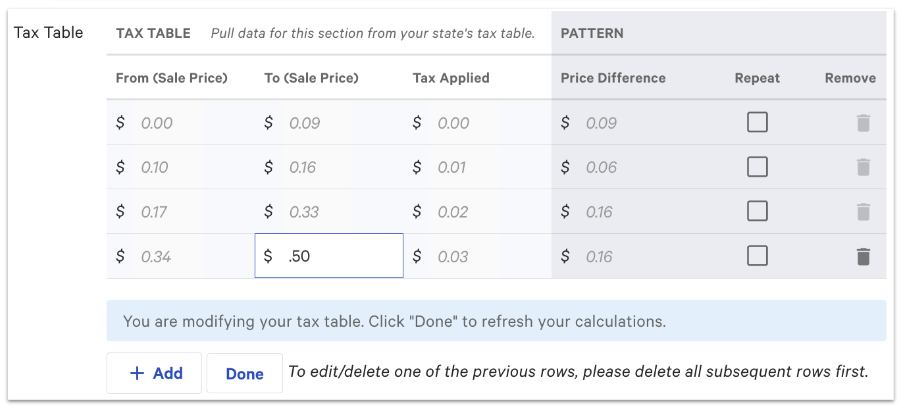
- Begin filling out the first bracket on your tax table by entering a value in the To (Sale Price) field.
- Select + Add to create the second row. You only need to enter the To (Sale Price) field -- the rest of the form will auto-fill.
- Continue this process for each cent of sales tax until a pattern emerges.
An example is shown below:
Step 4: Find the Pattern
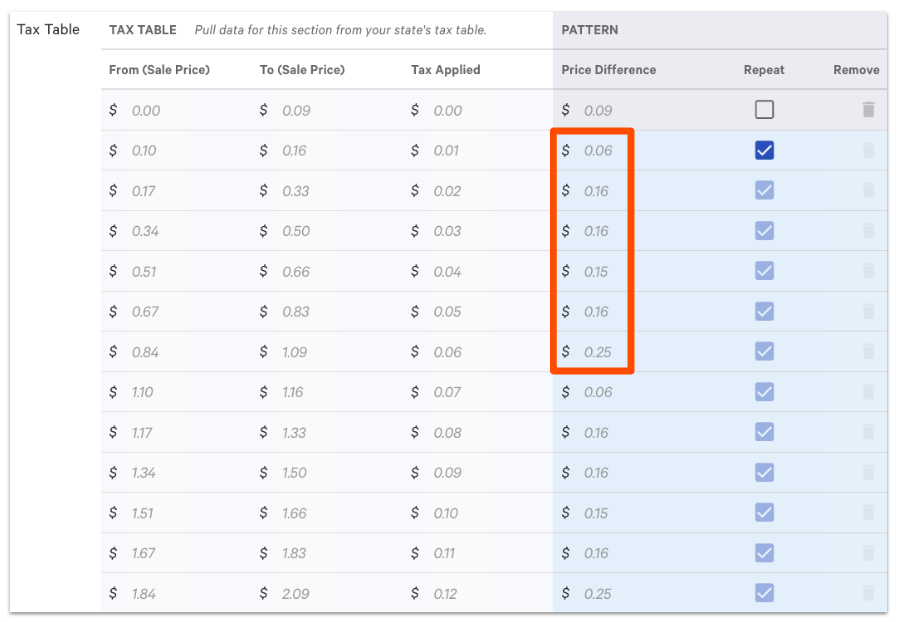
Tax tables need to be configured to calculate any possible price point. Instead of making a table with infinite possibilities, try to find the pattern using the Price Difference column.
For example, with this table, we can see that a 6-bracket pattern is visible. Select the checkbox in the Repeat column on the bracket that starts the pattern.
Tips for Identifying the Pattern
- Some of the first sales brackets may not match the overall pattern. Keep Repeat unchecked for these rows, but don't delete them from your tax table.
- The Repeat column only needs to be checked off one time. The pattern will continue indefinitely.
- Non-patterned parts only appear before the regular pattern begins. A pattern won't break and then resume.
If you're having trouble identifying a pattern, double-check that you've added the sales brackets correctly.
Step 5: Clean Up Your Table
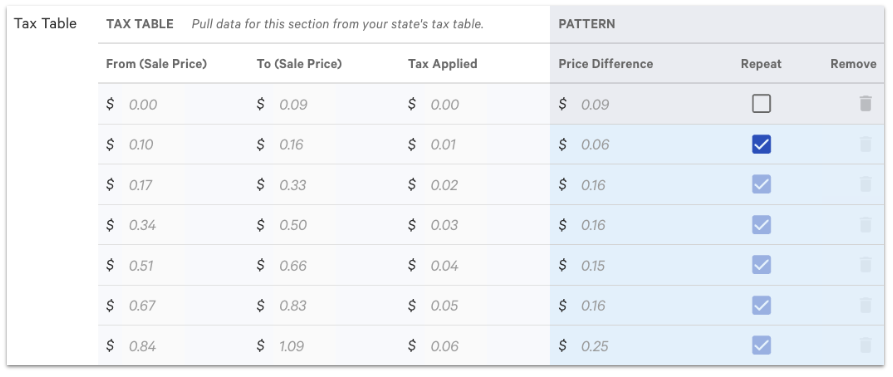
- Remove any rows (sales brackets) that occur after the first pattern set. You can do this by selecting the trash can icon on the right of each bracket. Below is what our example table will look like after it's been cleaned up:
- Select Done. You may have to click outside of the table to enable the Done button.
Step 6: Test the Table and Save
Once you've identified your pattern, it's time to test it.
Below the tax table, you'll see a calculator. Enter any dollar amount as a Menu Item Price and select Calculate.
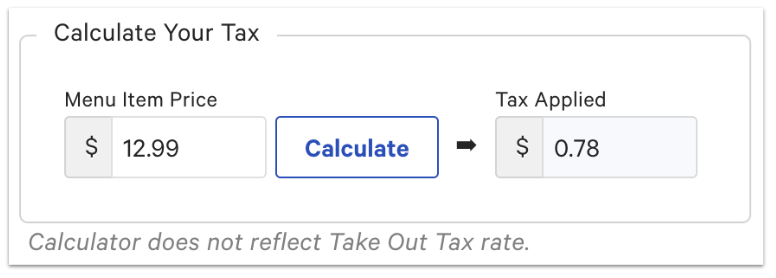
Ensure the Tax Applied field matches your state’s tax table. Save and publish to finalize your changes. Your table is complete!
Additional Resources