xtraCHEF: Get Started With Food Cost Weekly Analytics
Last updated: Apr 28, 2026, 4:19 PM
- Food Cost Weekly Summary
- Summary View
- Weekly View
- Invoice Item Details View
- Export Food Cost Weekly Reports
Food Cost Weekly Summary
Food Cost Weekly allows you to take a high-level look at your food costs and drill down into specific weeks, vendors, and menu items and explore how these variables affect your food costs and COGS groups. In order to accurately view this report, you should complete cost of goods (COGS) group mapping.
To locate your Food Cost Weekly page, navigate to Analytics > Food Cost Weekly.
Summary View
Upon selecting Food Cost Weekly, your page will default to the Summary view of the current month. To narrow down these results, select specific location(s) or month(s). Select Refresh to update the report to your new reporting criteria. You can also choose to view data by Month to Date or Period to Date. The data will automatically update when you toggle this selection.
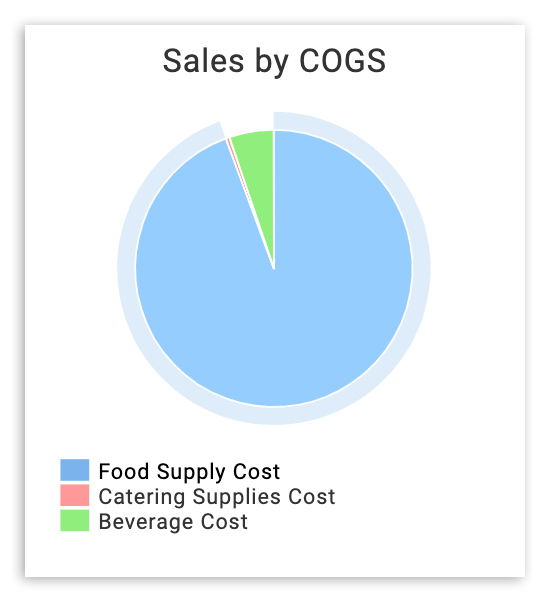
With these parameters set, you can dive into your Food Cost Weekly data. The three graphs here are Sales by COGS on the left, Cost Breakdown in the middle, and Purchase by COGS on the right. These graphs are interactive, and hovering over them with your cursor will offer more information, such as dollar amount or percent of the cost. You can select (and deselect) a COGS group from the report's key to further explore or narrow down on specific groups.
Lastly, selecting a bar from the Cost Breakdown graph will open a Weekly view for your chosen COGS group.
Weekly View
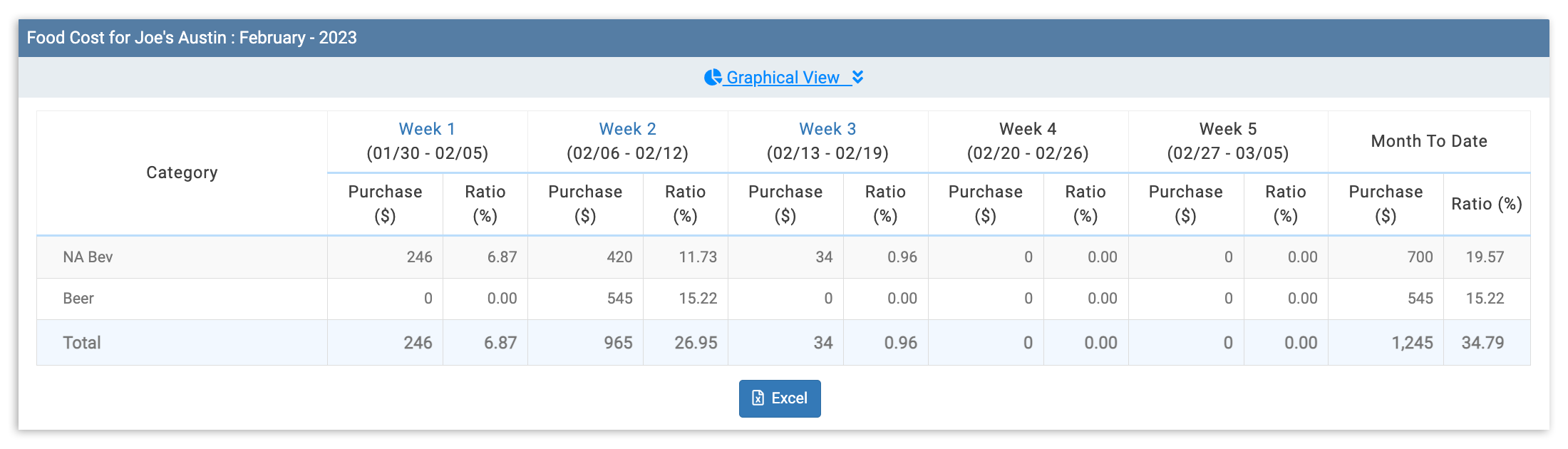
The Weekly view will break down each of your COGS groups by week and offers a Month to Date column as well. Here, you can see the amounts purchased during a specific time period and the ratio of overall cost percentage by COGS group
Should you need to dive even further into a specific week, select a specific week from your Weekly view table.
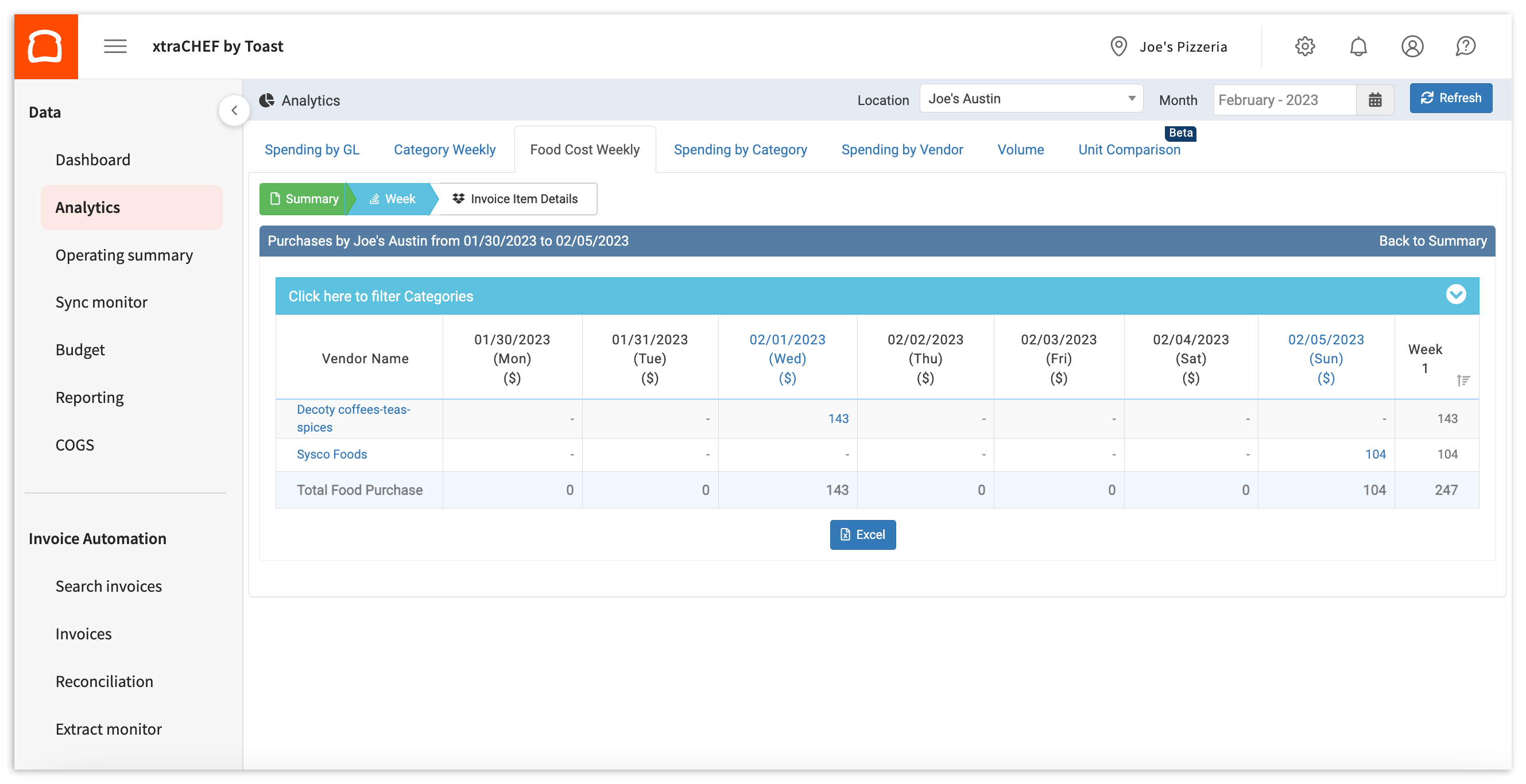
You will now see a list of the vendors you purchased goods from that week and your daily purchase amounts. All set with your Week view? Select Back to Summary to return to your Summary view.
Invoice Item Details View
Want to see how specific invoice items factor into your Food Cost Weekly? Selecting a vendor from the Weekly view table will show Invoice Item Details by vendor and date. Dive even deeper by opening the originally uploaded or scanned invoice using the + icon under the View column.
Export Food Cost Weekly Reports
You can easily export any of the previously mentioned reports and data sets in two ways:
- In your Summary view, you may select Download PDF. This button is located next to your Month to Date and Period to Date slider.
- From any of the tables in your Summary, Weekly, or Invoice Item Details views, select the Excel icon. Selecting Excel will export a spreadsheet of the corresponding data set.