xtraCHEF: Get Started With Reconciliation
Last updated: Aug 18, 2026, 8:51 AM
Reconciliation Overview
Looking for a streamlined way of monitoring your invoice uploads while ensuring no action items slip through the cracks? Your Reconciliation tab does just that by spotlighting where all of your invoices and receipts are by processing stage. Reconciliation is also where you can monitor invoices uploaded via your "xcinvoice" email address.
To access this feature, select Reconciliation from your xtraCHEF navigation bar.
Reconciliation Dashboard
Once selected, the status of all your invoices from the current week will populate in a bar graph. You're able to set specific parameters for reconciliation by selecting a different location, a new date range, or filtering by uploading source.
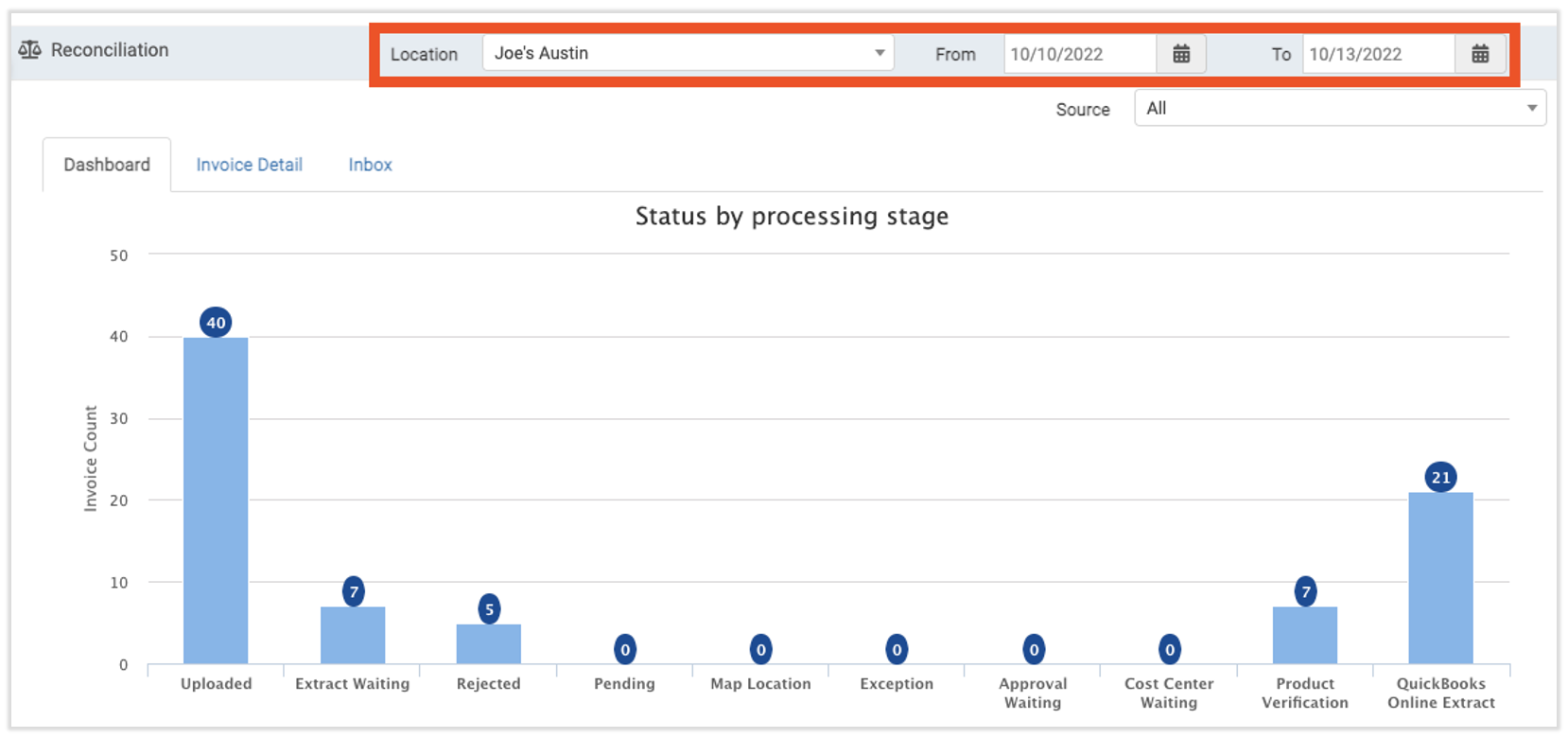
- All invoices from the chosen date range are in the furthest-left column titled Uploaded and subsequently divided further by their current status into the columns on the right. Select this column to be taken to the Invoice Detail tab.
- Select the Rejected, Info missing, or Extract failed: Missing vendor code column to open those invoices on the Invoices page. Here, you can address them as necessary.
- Select any other column to see the associated invoices in the Invoice Detail tab.
Your bookkeeper or accounting team can use this data to easily cross reference periodic vendor statements with individual invoices without needing to track down your head chef, general manager, or whoever else may be responsible for those invoices.
Invoice Detail
Your Reconciliation tab can be filtered even further by selecting any column with invoices in it or by selecting Invoice Detail.
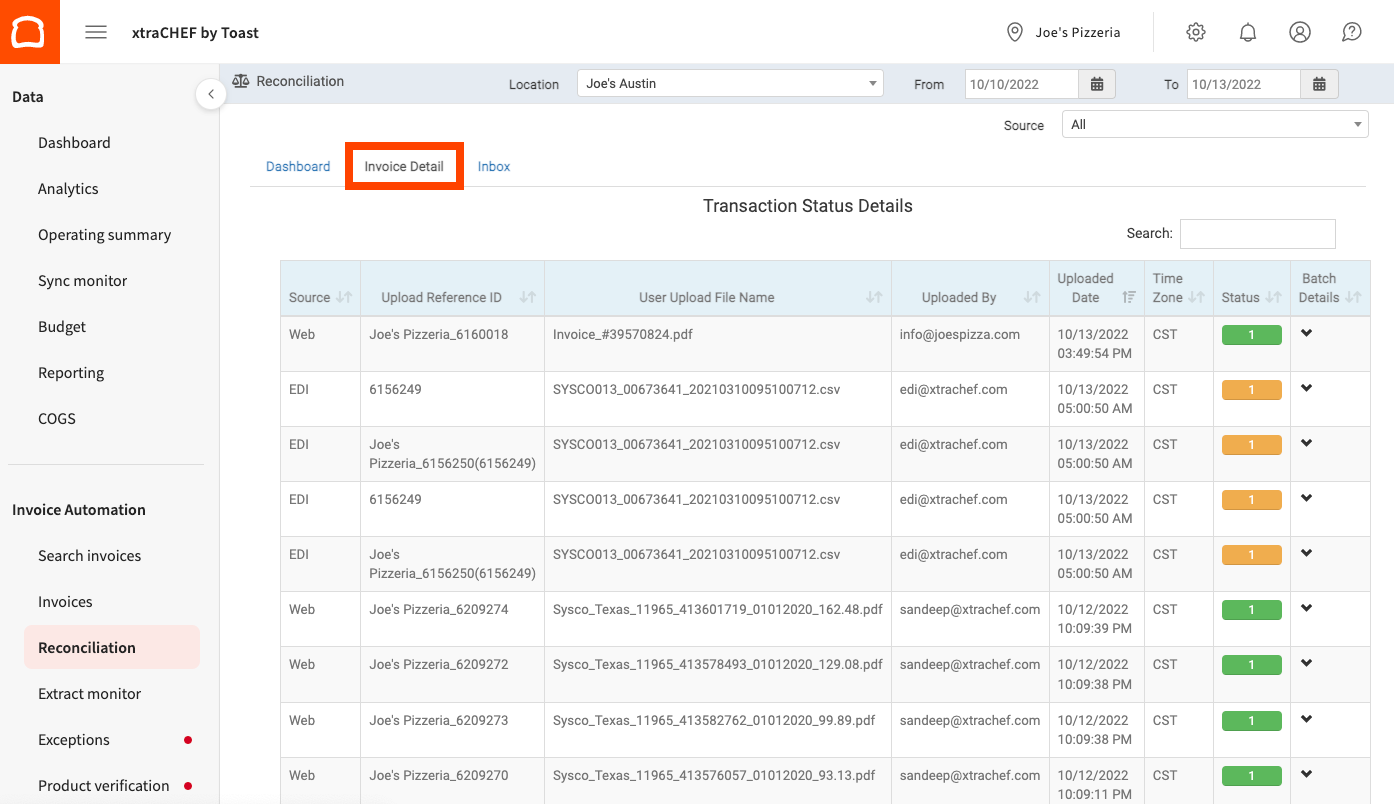
In the Invoice Detail tab, you'll see the invoices from all columns on the previous Reconciliation Dashboard listed by Uploaded Date. Want to narrow it down to a specific invoice? Use the Search function, located at the top right of your Transaction Status Details table.
Note: The Reconciliation and Invoice Detail tabs let you filter and search invoices by status (e.g., Rejected) and date range, but there isn’t currently a way to export that filtered list as a downloadable report from these tabs.
The Invoice Detail tab provides valuable data on when your invoice was uploaded, who uploaded it, and whether it has been processed (green) or is still in the processing stage (yellow). Even more, information can quickly be revealed by selecting the ^ icon under Batch Details.
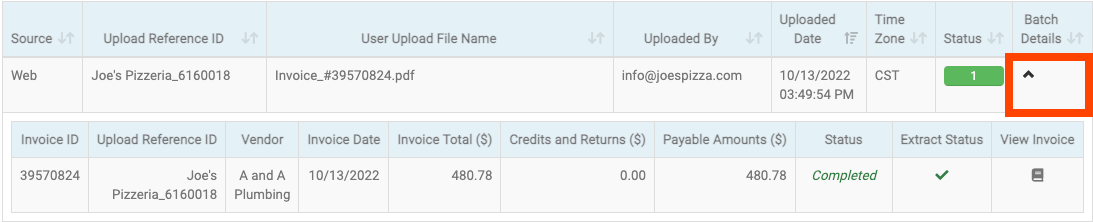
You can even view or verify invoice details and line items by selecting the invoice icon underneath View Invoice to pull up your originally scanned invoice for review.
Inbox
Your Inbox tab includes any invoices uploaded via your "xcinvoice" email address. Select Inbox from your reconciliation navigation to view these messages.
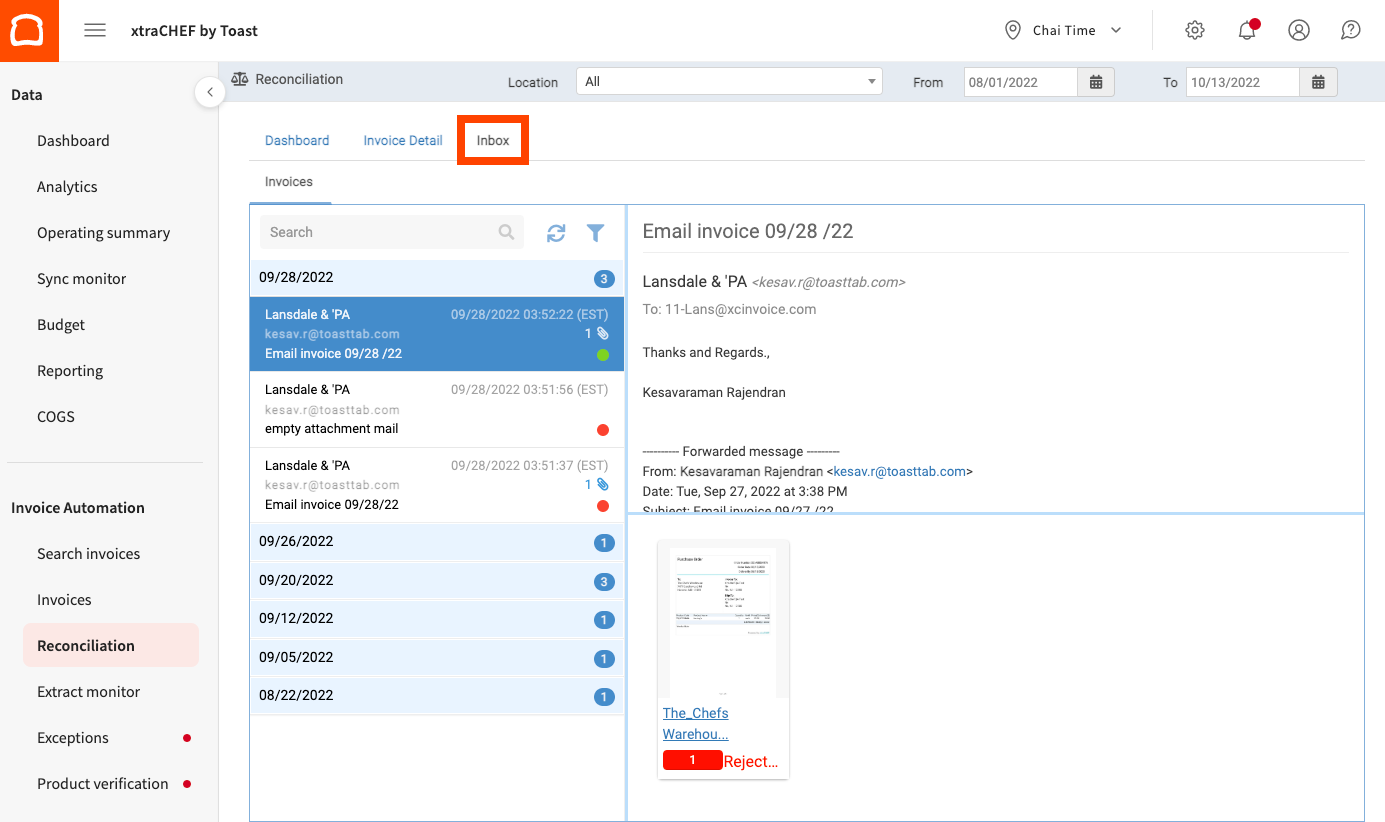
Here, emails received from registered users will display from the most recent received onward. Additionally, a green or red symbol will show to verify if it was accepted (green) or rejected (red).
Note: Only emails from a registered user in your xtraCHEF account with a PDF file invoice will be accepted.