xtraCHEF: Pay Vendor Bills With Toast Bill Pay
Last updated: Oct 7, 2026, 5:25 PM
Bill Pay allows customers to track and fulfill vendor bills. Once an invoice is approved, Bill Pay lets you pay the balance to the vendor.
| As of August 28, 2026, you can no longer submit payments in xtraCHEF Bill Pay, and the Dashboard and Bills tabs have been removed. You can still view submitted and pending payments under Payments and download a bills report. To pay vendors, use Bill Pay in Toast Web. See Use Bill Pay With Toast Checking. |
- Review Your Toast Bill Pay Dashboard
- Review Bills With Submitted Payments
- Download a Bills Report
- Additional Resources
Review Your Toast Bill Pay Dashboard
- In xtraCHEF, navigate to Dashboard under Bill Pay in the left-hand navigation.
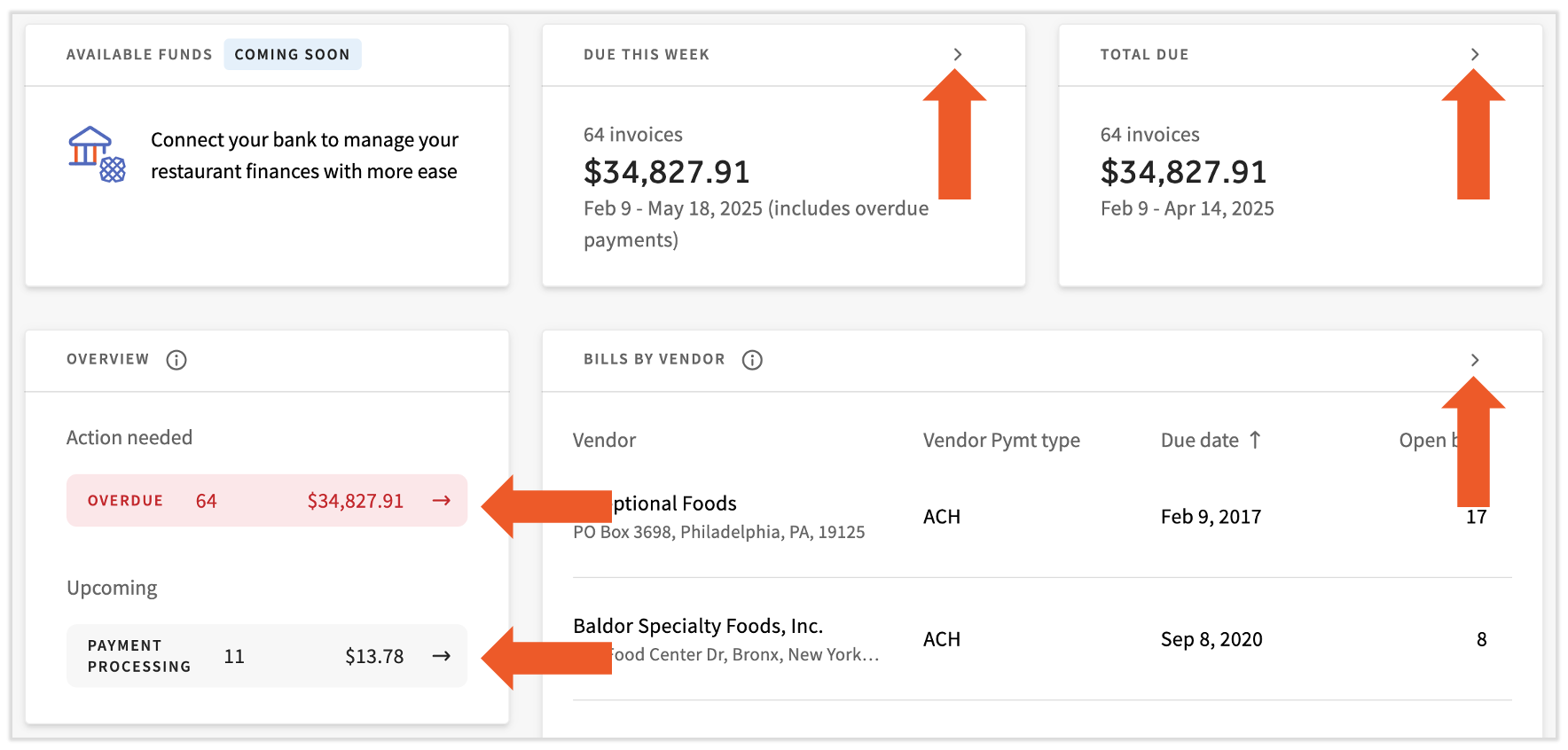
- The different tiles on this dashboard let you quickly identify the amount due to specific vendors, your total amount due, and any bill-paying errors that xtraCHEF identified.
- Select the > caret icon in any of these tiles to be brought to the Bills page. Filters will be pre-applied so this page only shows you the bills that are part of the tile you selected.
- For instance, selecting the > caret icon in Due This Week will take you to the Bills page with a pre-applied date and status filter so you can see bills with payment due this week. You can switch the By vendor and By bill toggle in the upper-left corner of this page for a different look at this data.
- Select the Overdue, Payment Processing, or Payment Failed (not shown) sections of the Overview tile to see which bills might need your attention urgently.
Review Bills With Submitted Payments
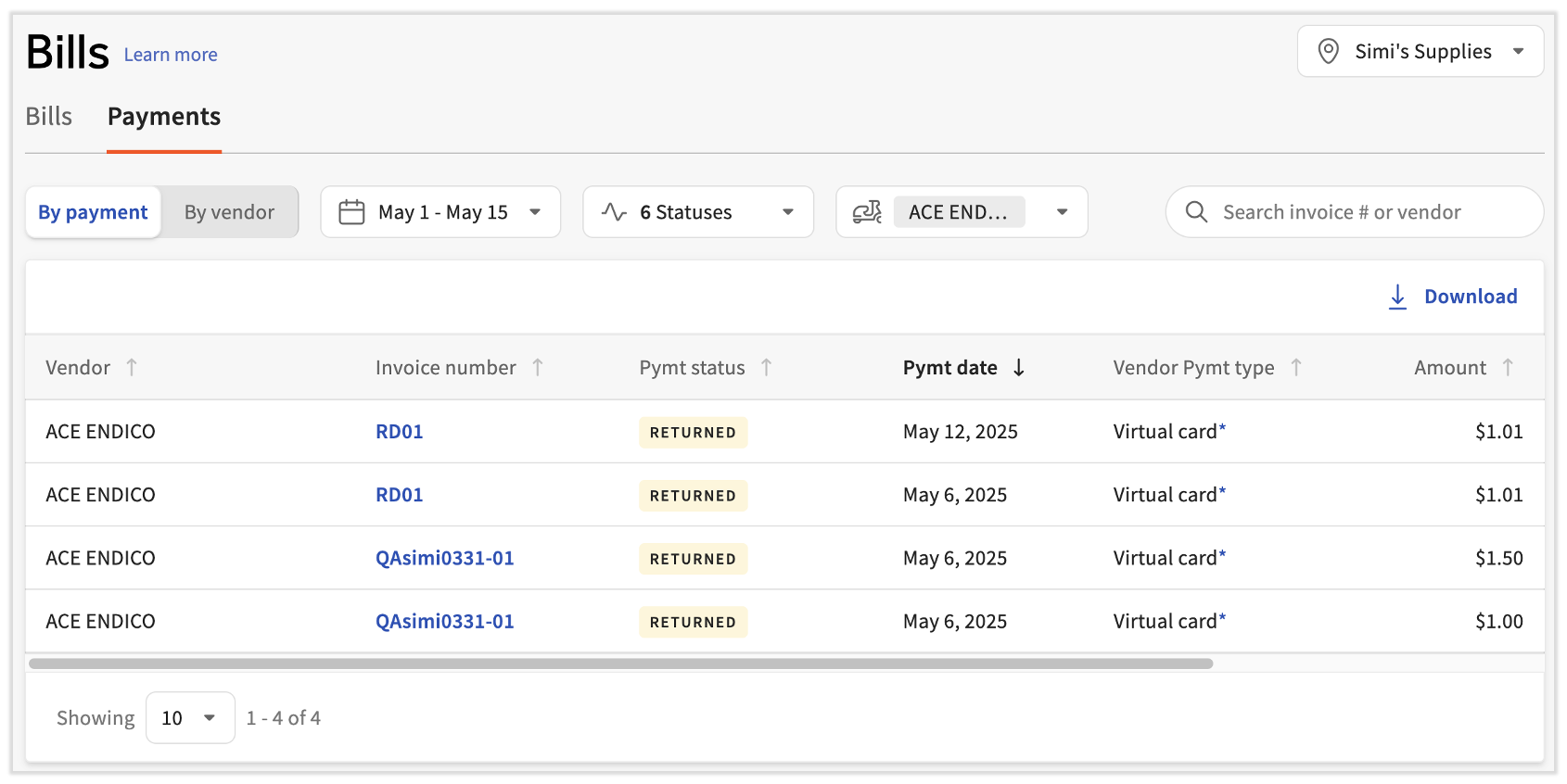
After paying your bills, you can find a record of these payments by navigating to Bills > Payment. The same filters appear on this tab, so filter your data if necessary. There are different payment statuses (Pymt status) that appear for each bill:
- Scheduled: This payment is scheduled to begin processing. A payment can only be cancelled if it is in this state. To cancel a payment, navigate to the bill, select the three dots icon next to your payment, then select Cancel payment.
- Processing: Your payment is on its way, but has not yet been fully processed. Select this bill to see an estimate of the payment processing timeline from xtraCHEF. This payment cannot be cancelled.
- Complete: Your bill’s payment was successfully processed and received by the vendor. Funds have been debited from your account or credit card.
- Returned: Your payment cannot be processed and has been returned to you. This bill will appear in the Payment Failed section of the Overview tile on the Bill Pay dashboard. Reach out to support@xtrachef.com if you need assistance.
- Cancelled: The scheduled payment has been canceled, or you have voided your credit card transaction. No funds have been moved.
Note: You can no longer cancel a scheduled payment. Any payment that needs to be reissued after August 28, 2026, is automatically refunded to you rather than resent to the vendor.
Download a Bills Report
- In xtraCHEF, navigate to Bills under Bill Pay in the left-hand navigation. From here, you can stay on the Bills tab to see unpaid bills, or you can select the Payments tab to see paid bills.
- There are a few filters on this page to help you locate bills quickly. You can toggle between By vendor or By bill or you can set a date range, a status, or a vendor. You can even search by vendor or invoice number by using the search bar in the upper-right corner.
- Note: Any filters you set will be applied to the data in your report. For instance, if you filter this page to two vendors, only those vendors and their associated bills will appear in the report.
- Select the Download button to receive a file with the data in the columns: Location name, vendor name, and payment type (ACH or check), bill status, invoice number, due date, outstanding amount, and vendor address.
Additional Resources