xtraCHEF: Product Verification
Last updated: Apr 28, 2026, 4:20 PM
 | The Product Verification function has been replaced with Item Review. In some cases, Product Verification may still be enabled for legacy customers or to accommodate specific third-party integrations. |
- Product Verification Overview
- Product Verification Process
- Product Verification Definitions
- Product Verification Examples
Product Verification Overview
Product Verification adds a touch of human knowledge to xtraCHEF's AI-led automation. More specifically, this function allows you to manually approve line items and ensure that any potential discrepancies don't impact your bottom line or skew Recipe and Inventory reporting. If enabled, It is also a required step for users to reconcile invoices and extract for certain third-party integrations.
Product Verification Process
To get started, navigate to the Product Verification tab from the left side of your account. There you'll find a list of all invoice items waiting to be verified. Note that invoice items waiting for verification will not be useable for recipe or inventory functions until the entire invoice is verified.
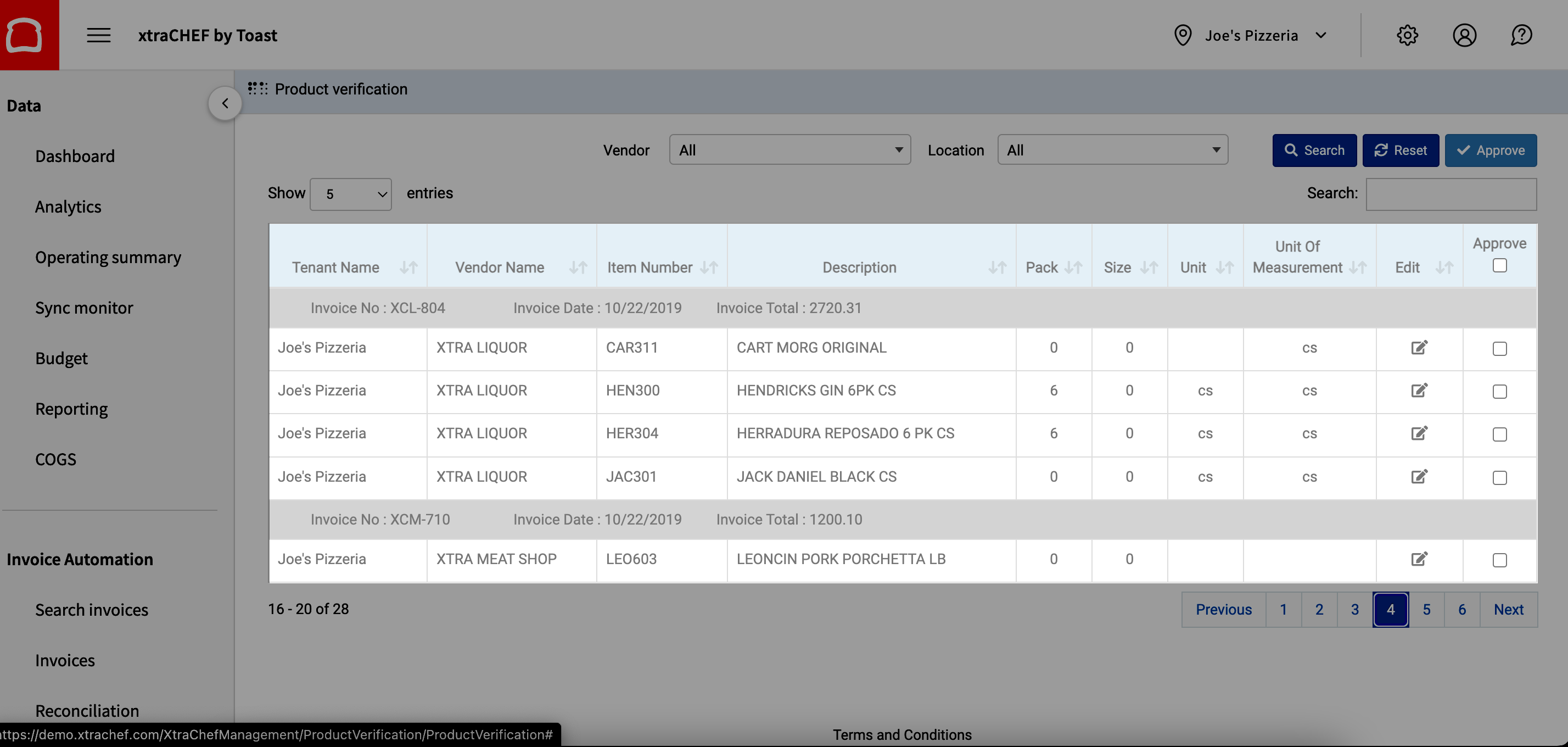
To begin the verification process, select the Edit button under the Edit column and next to every product.
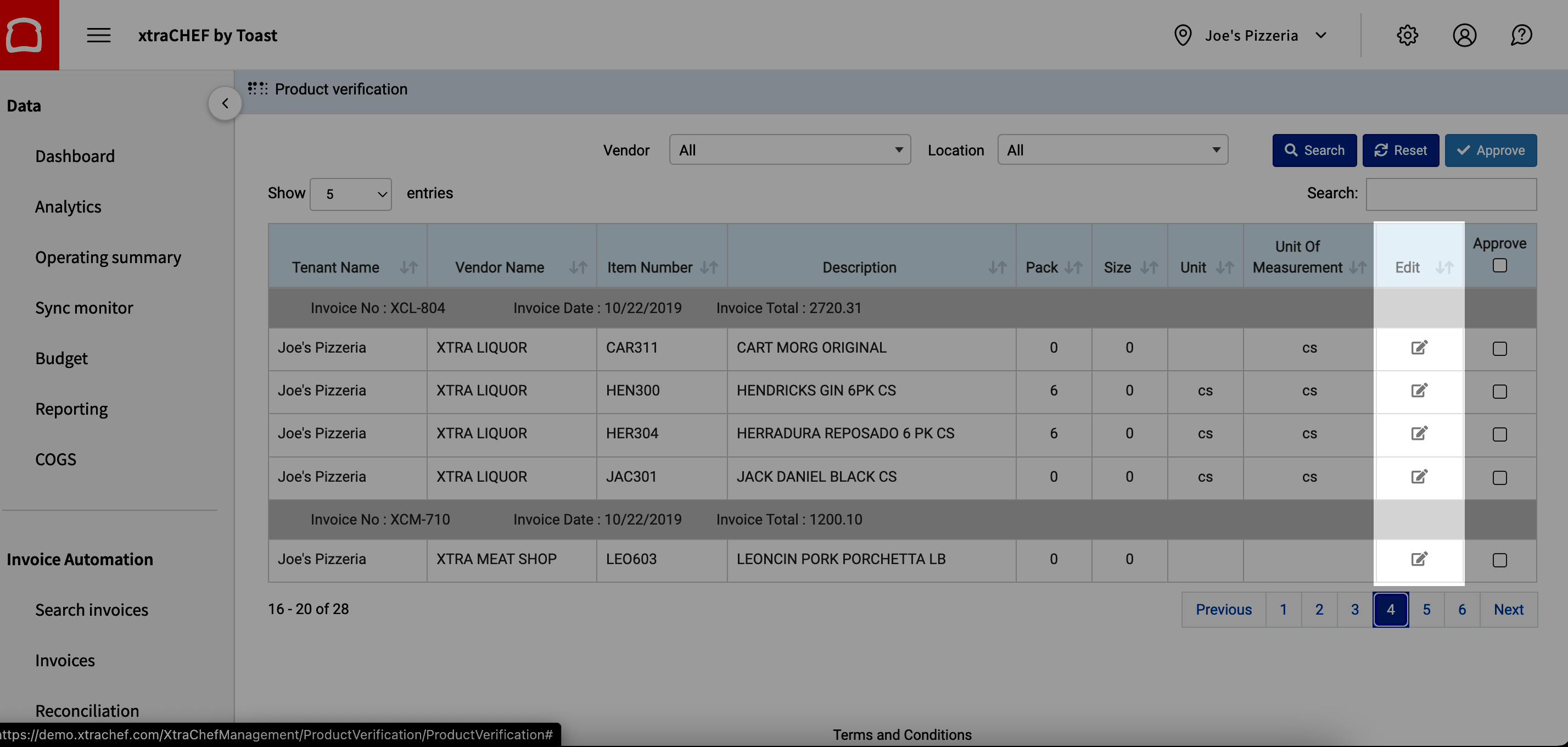
xtraCHEF will then prompt you to verify specific invoice item details. These details will be vital later on when xtraCHEF begins to calculate your prime costs and inventory values. For quick reference, the originally uploaded invoice will populate alongside the product detail fields. xtraCHEF will also indicate the line number it is prompting you to cross-reference on the invoice.
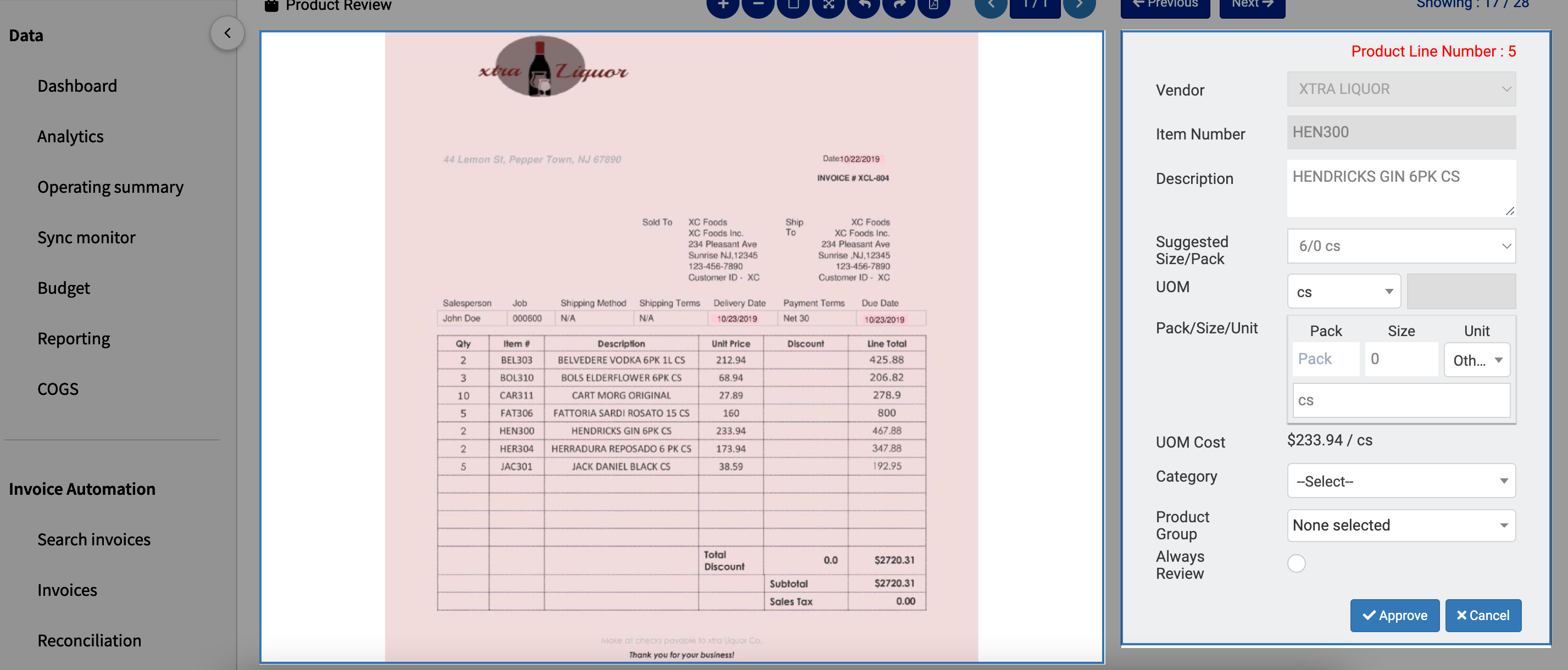
Using its AI, xtraCHEF may create a suggested Size/Pack for you. However, you're able to override or correct this suggestion by selecting a different preset option or typing directly into the Pack and Size fields. Each of the fields in Product Verification, specifically UOM, Pack, Size, and Unit, serves a different purpose.
Product Verification Definitions:
- UOM: This is the purchasing UOM displayed on the invoice.
- Pack: If there is more than one measurable unit within a case, this is where you’ll enter the quantity. For example, If there are 6 bottles in a case, the value here will be ‘6.’ If not defined, then the default value is 1.
- Size: This is where you’ll enter the number value of the units within each “pack.” For example, if there are six 750ml bottles in a case, the “size” is ‘750.’ If not defined, then the system will default to a value of
- Unit: This is the UOM of each pack. In the example above, this would be ‘ml.’
- Item UOM: This is only required when the pack value is more than 1. This is where you’ll name the packs in the case. Continuing the example from above, this would be ‘bottle.’ If Item UOM is not defined and a pack is more than 1, then the system will default a value to 'each.’
- Category: This serves the same function as Map Products and allows you to select a corresponding General Ledger Code or Custom Category for accounting extracts or reporting purposes. If you have synced your Chart of Accounts or created General Ledger Codes and Categories, those options will exist for you to choose from in the Category drop-down.
- Product: This field is essential for Recipe and Inventory functions. They should be considered ingredients for all intents and purposes and allow you to group multiple products together.
Product Verification Examples
Let's look at this gin example. Based on the invoice, we can see that this product was purchased by the case at $233.94. We can also see on the invoice that each case includes 6 bottles of 1 Liter. We could then safely assume that the breakdown is:
| UOM | Pack | Size | Unit | Item UOM |
| Case | 6 | 1 | Liter | Bottle |
By entering that same information into Product Verification, xtraCHEF can then break out that per case cost of $233.94 into a cost per bottle/cost per liter. Moving forward, xtraCHEF would then know how to calculate your costs for Inventory values and by volume for cocktail recipes. Next, we would want to select a Category and Product to further organize the product for reporting and recipe creation.
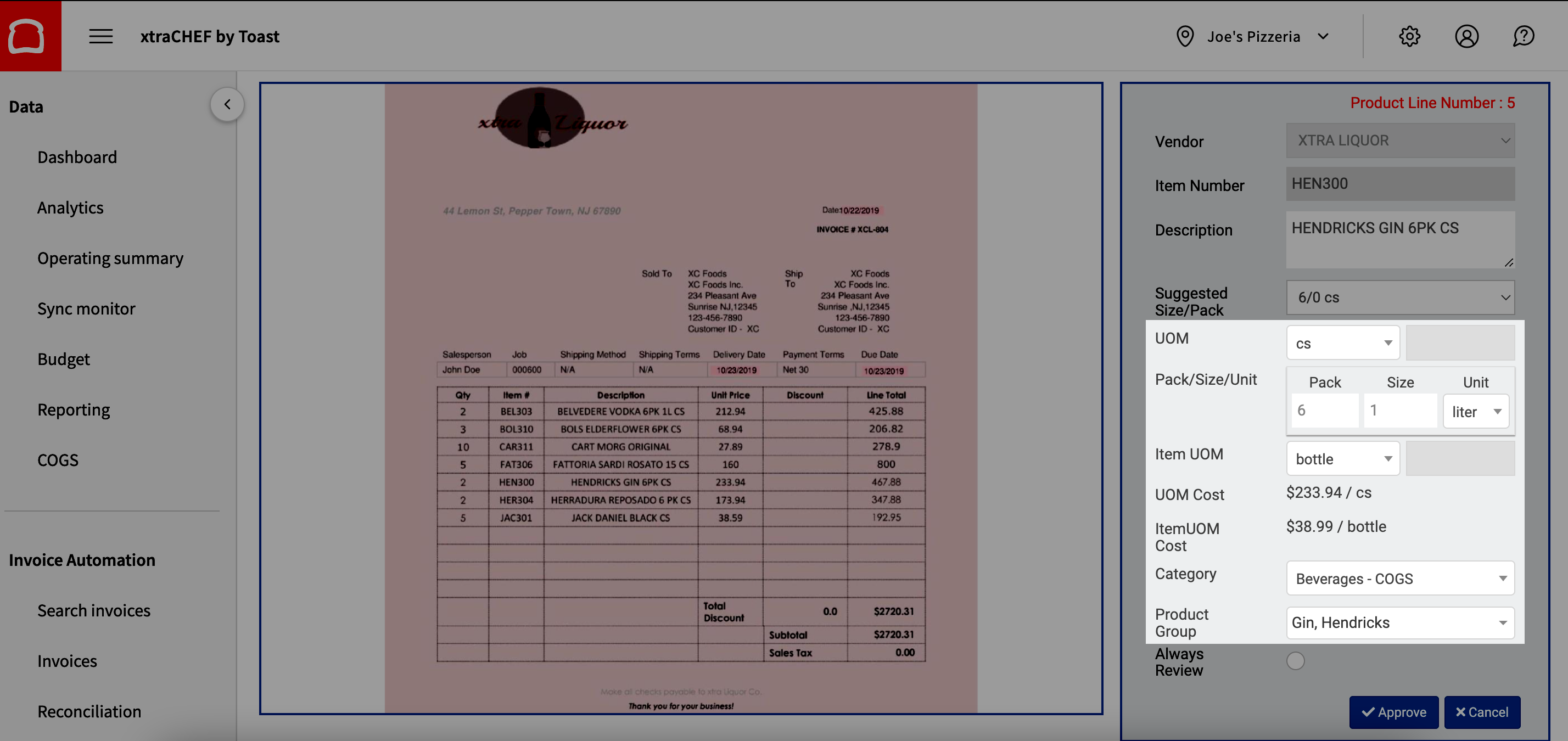
By entering that same information into Product Verification, xtraCHEF can then break out that per case cost of $233.94 into a cost per bottle/cost per liter, which is $38.99 for both bottle and liter. Moving forward, xtraCHEF would then know how to calculate your costs for Inventory values and by volume for cocktail recipes.
Next, we would want to select a category and product to organize the product further for reporting and recipe creation.
Please note that the exact configuration will vary from line item to line item. Additional examples and common item breakdowns are listed below.
A case of 10 bottles where each bottle size is 750 ml:
| UOM | Pack | Size | Unit | Item UOM |
| Case | 10 | 750 | Ml | Bottle |
A case of 10 lb apples. This product can be configured in two ways depending on how you want to take inventory:
| UOM | Pack | Size | Unit | Item UOM |
| Case | 10 | 1 | Lb | Lb |
| Case | 1 | 10 | Lb | N/A |
A bag of 5 lb sugar. This product can be configured in two ways depending on how you want to take inventory:
| UOM | Pack | Size | Unit | Item UOM |
| Bag | 5 | 1 | Lb | Lb |
| Bag | 1 | 5 | Lb | N/A |
A 1/5 Barrel Keg:
| UOM | Pack | Size | Unit | Item UOM |
| Keg | 1 | 15.5 | Gal | N/A |
Flank Steak purchased in by the pound (catch weight):
| UOM | Pack | Size | Unit | Item UOM |
| Lb | 1 | 1 | Lb | N/A |
A single bottle of 750 ml:
| UOM | Pack | Size | Unit | Item UOM |
| Bottle | 1 | 750 | Ml | N/A |