xtraCHEF: Recipe Yield and Density Calculator
Last updated: Apr 28, 2026, 4:22 PM
Are you interested in factoring in yields or usable yields in your xtraCHEF recipes? Learn more here.
Yield and Consumable Portion
In many cases, 100% of your ingredients don't end up on a plate or in a glass. Whether that byproduct is cast off as waste, reduced, or repurposed elsewhere, xtraCHEF's yield(s) function allows you to account for it in recipes and adjust costs where necessary.
In xtraCHEF, there are two types of yield for you to consider and edit: Yield and Consumable Portion.
Yield
Yield is the most common adjustment for portions in xtraCHEF and refers to the amount of a product (ingredient) remaining after it is processed and assumes that loss or reduction is waste. Your yield is calculated by percentage and indicates the amount of the ingredient used. By default, your yield is 100%. This implies that 100% of the ingredients are used during preparation.
However, a 100% yield may only be realistic for some ingredient use cases. You may adjust yield to account for trimming the fat off of a cut of meat, factoring in how an ingredient reduces in the pan, etc.
For example, to serve an 8 oz portion of steak, our kitchen staff needs to prepare 10oz of ribeye. After trimming any excess fat and reduction occurring during cooking, 80% of the original weight remains. In this case, an appropriate yield would be 80%.
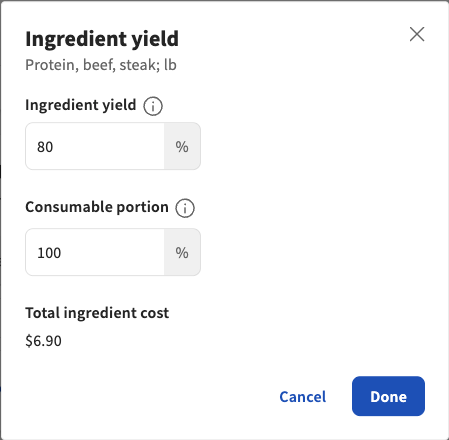
This adjustment will indicate that a) a yield exists and b) the true cost of the ingredient has been adjusted to factor in the waste occurring.
Consumable Portion
On the other hand, the Consumable Portion indicates that the amount being removed during processing is reused in another dish and that no actual waste occurs during preparation. Because of this, the true cost of the ingredient does not need to be adjusted since there is no actual loss.
An example may be when your kitchen staff separates egg yolk from egg white and later reuses the yield for pastries. Here, your usable yield can be 50% since the egg is split into two usable parts.
Or, perhaps your bar staff utilizes lemons and limes for zest and garnishes before juicing the fruit for house-made cocktail mixers. Here, your usable yield can be 85% since the fruit's rind is a smaller part of the ingredient.
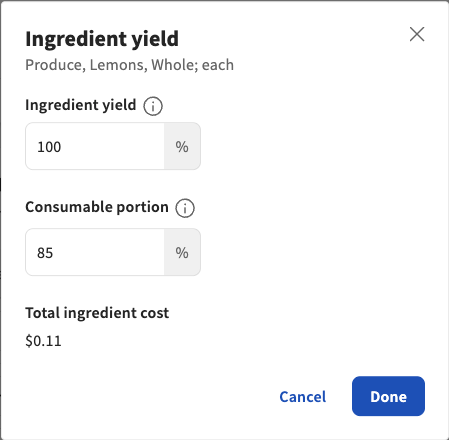
Edit Ingredient Yield and Consumable Portion
With the above use cases for yield and consumable portion being observed, you can edit these numbers while creating recipes. Navigate to Recipe and select a recipe. Once an ingredient is added to your recipe builder, you can edit several details, such as Quantity, UOM, and more. If you navigate to the three dots (overflow menu) > Ingredient yield, you'll be able to set the yield and consumable portion.
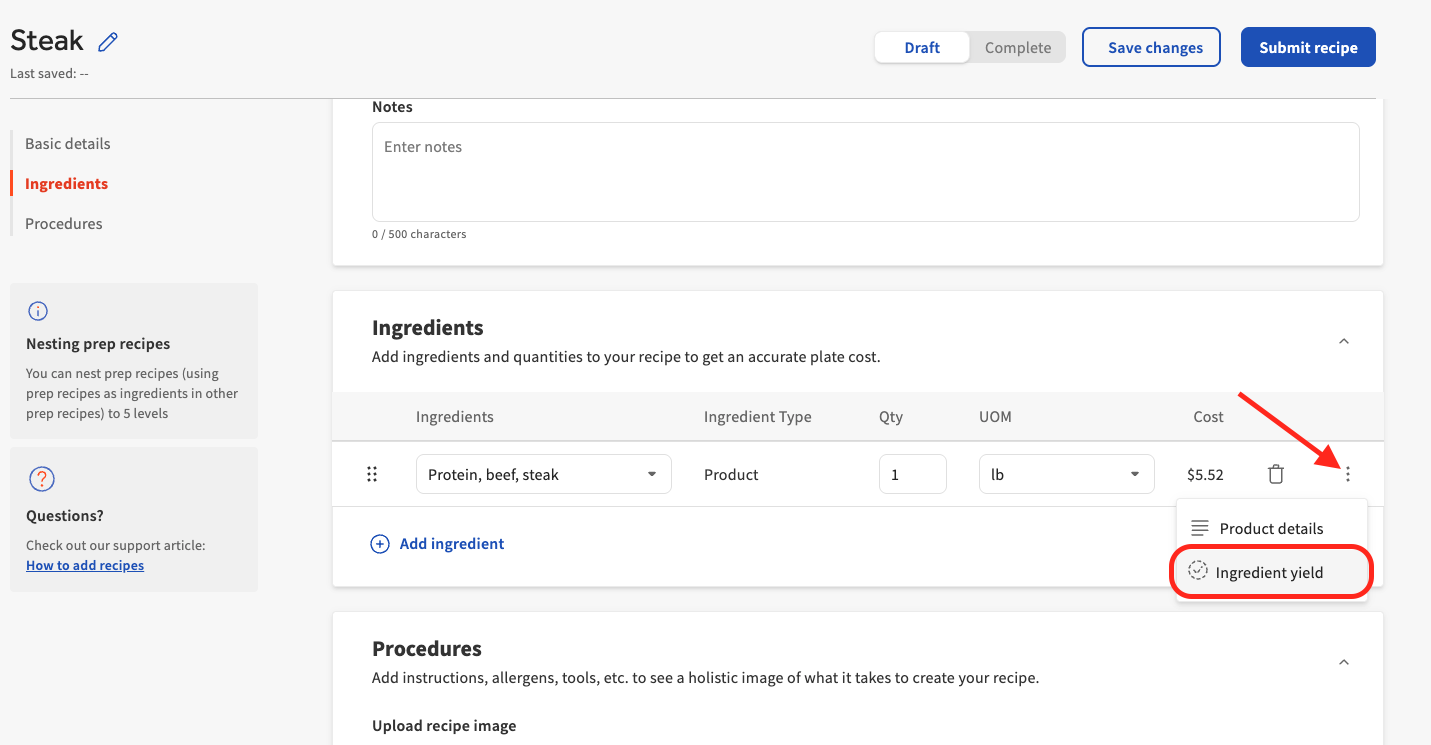
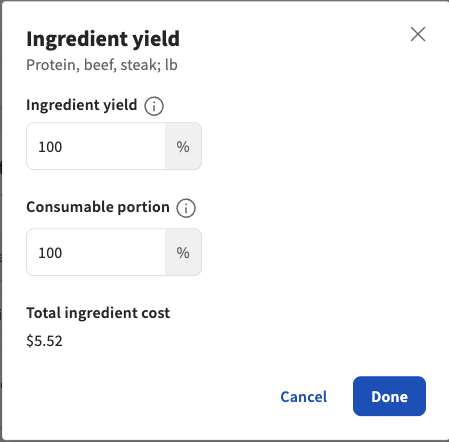
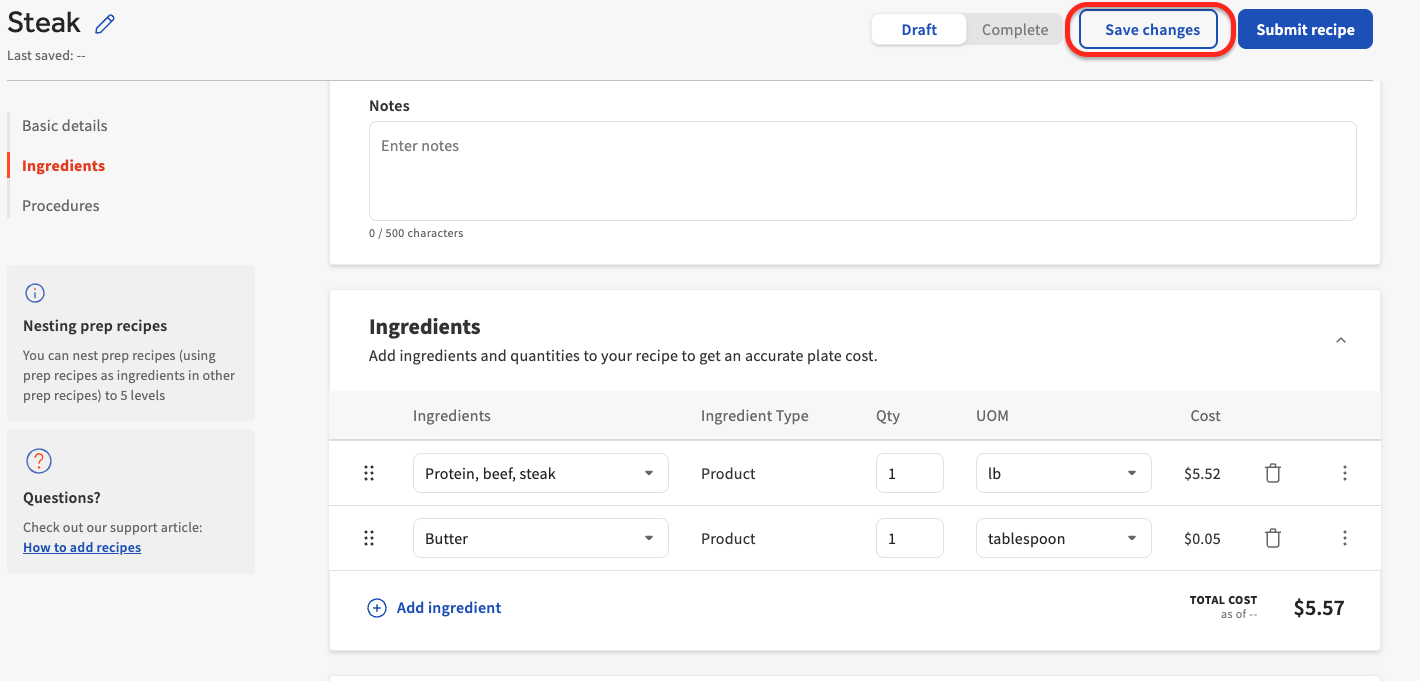
From here, you can continue to add ingredients or, if you are simply adjusting yields, you can finalize your selections by selecting Save. You must select Save to lock in your yield adjustments.
Assign Yield to Products
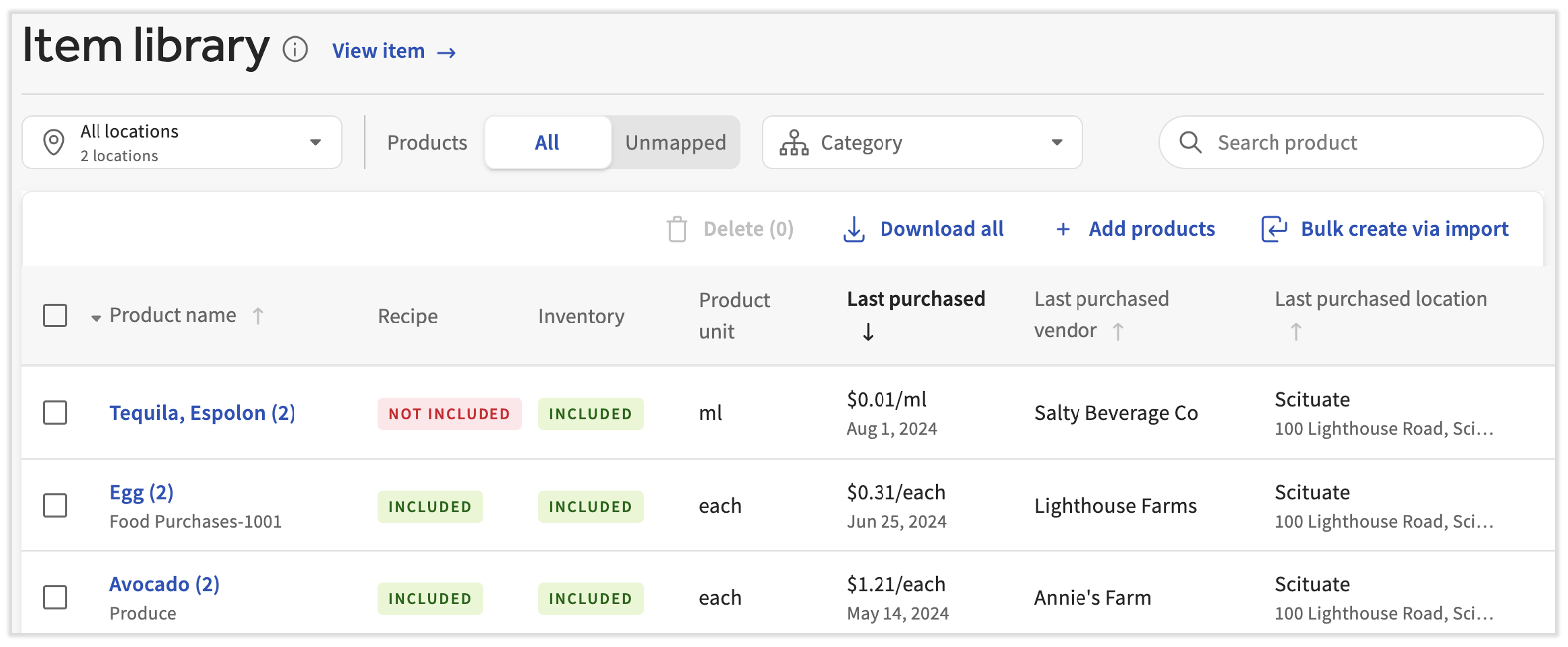
Do you have any ingredients with a consistent yield? For example, a ribeye steak may yield 85% of its original weight once trimmed. Rather than adjusting your yield every time it is used in recipes, you can apply a default yield to the product. Note: You can easily view the recipes a certain product is a part of. In your Item library, select the three dots to the right of the product and choose Product details. The middle tile contains each recipe.
To assign a yield to a product:
- Navigate to Item library > View products. Select the product you'd like to assign a yield to.
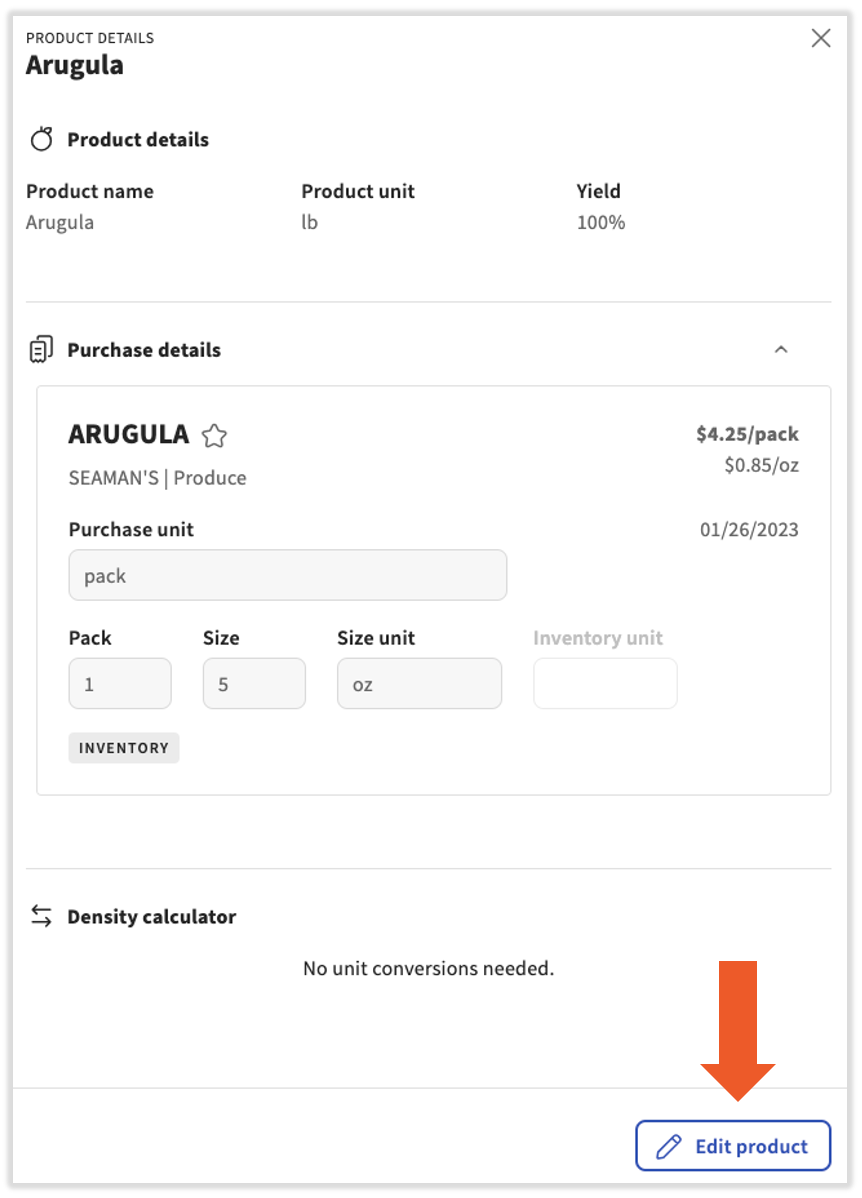
- You'll see the purchase details of the associated items which reflect the most recent invoice. To add a yield, select Edit product.
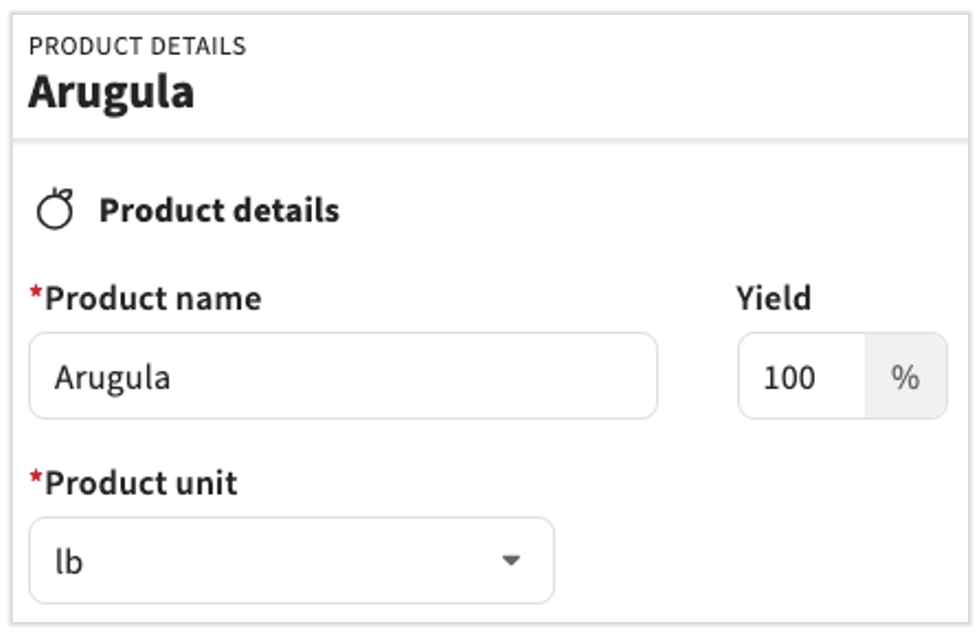
- Then apply the yield percent you wish to apply to the product globally in recipes. Select Save changes when you're finished.
- Once your yield has been applied, the percentage indicated will be applied by default to all recipes that include your product. However, you may still add an additional yield or usable yield during recipe creation (if needed).
Density Calculator Overview
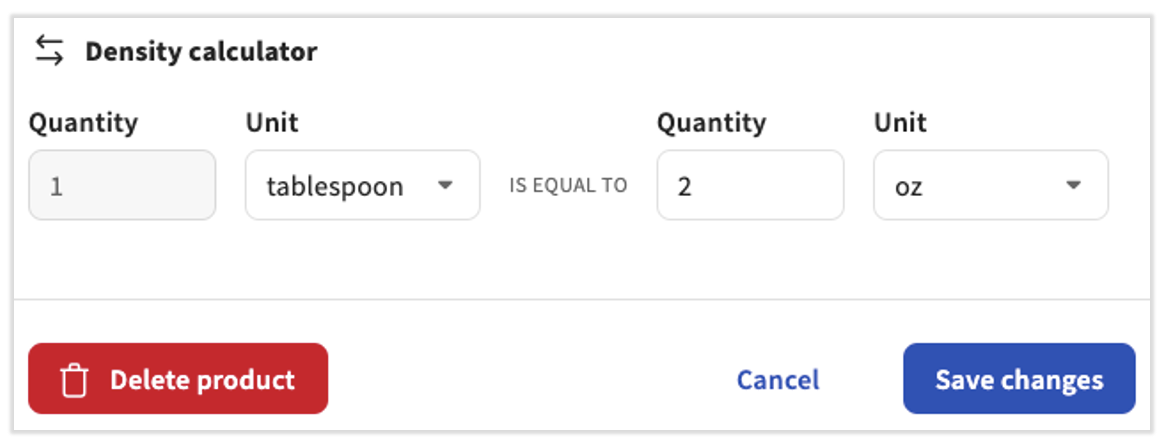
The Density Calculator is a tool that enables xtraCHEF to make an informed calculation of your product's costs between weight and volume or vice versa. The density calculator may populate automatically in xtraCHEF when attempting to use a weight-based product by volume or a volume-based product by weight. It can also be assigned at the product level to ensure all future uses of the product are automatically converted between weight and volume.
Use the Density Calculator in Recipes
NEW! Currently, recipe creation does not natively support a direct mass-to-each conversion. However, when you enter each as the consumption UOM in a recipe for a product within the mass or volume UOM family, the Density Calculator will automatically appear. This allows you to define a mass to each conversion. For instance, if you have a chicken breast product measured in pounds (e.g., $16.00 for 4lb, meaning $0.25/oz), you could set a conversion where 8oz equals 1 each, resulting in a cost of $2.00 for 1 each of chicken breast consumed in a recipe.
To populate a density calculator while creating recipes, simply attempt to use an alternate UOM while attributing a measurement.
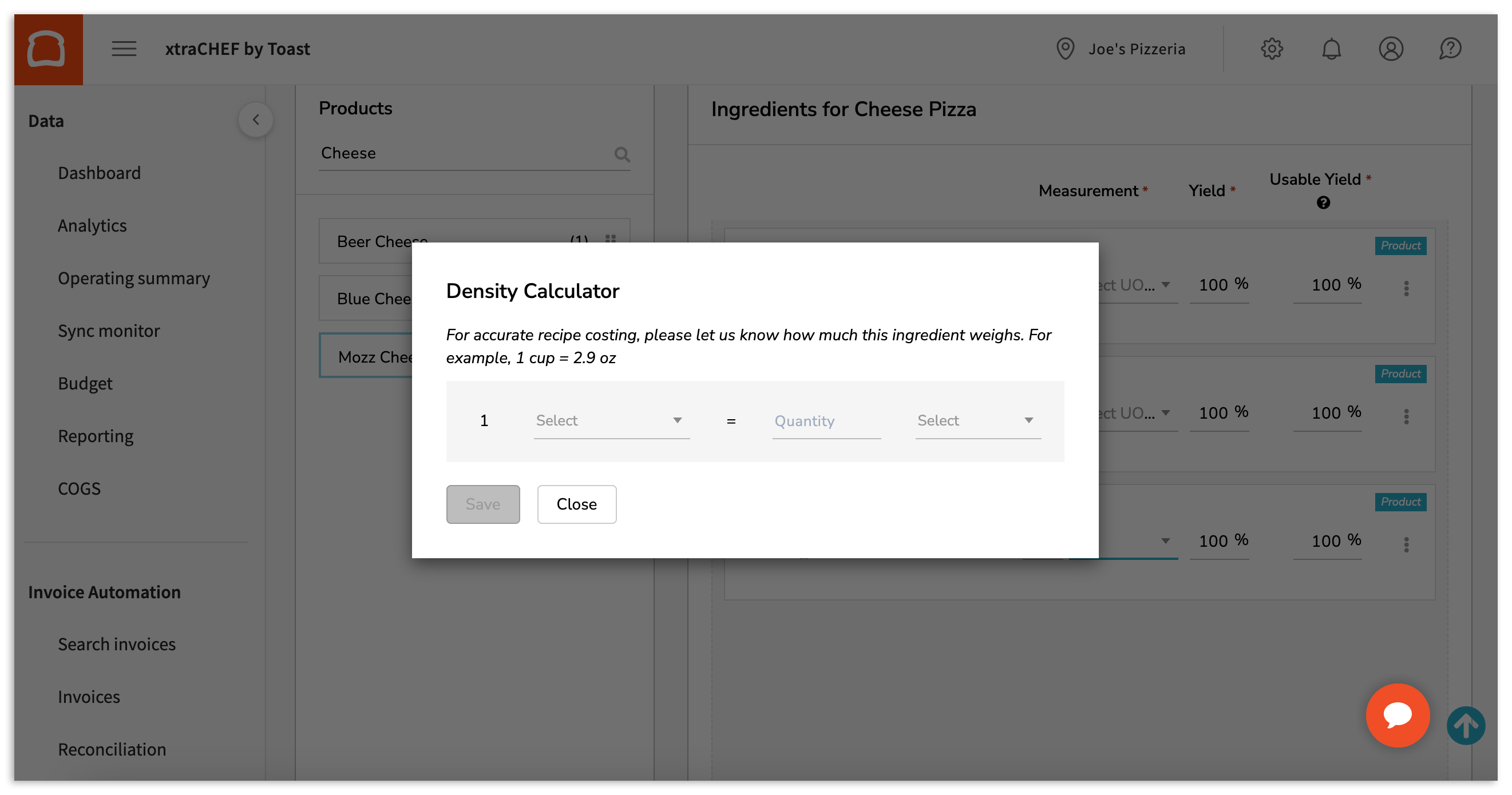
To continue, indicate what 1 weighted unit of measure equals by volume (or vice versa), or define a mass-to-each conversion. For example, 1 cup of mozzarella cheese may equal about 6 weighted ounces or 8oz of chicken breast may equal 1 each. To input these measurements and units, select the corresponding drop-down.
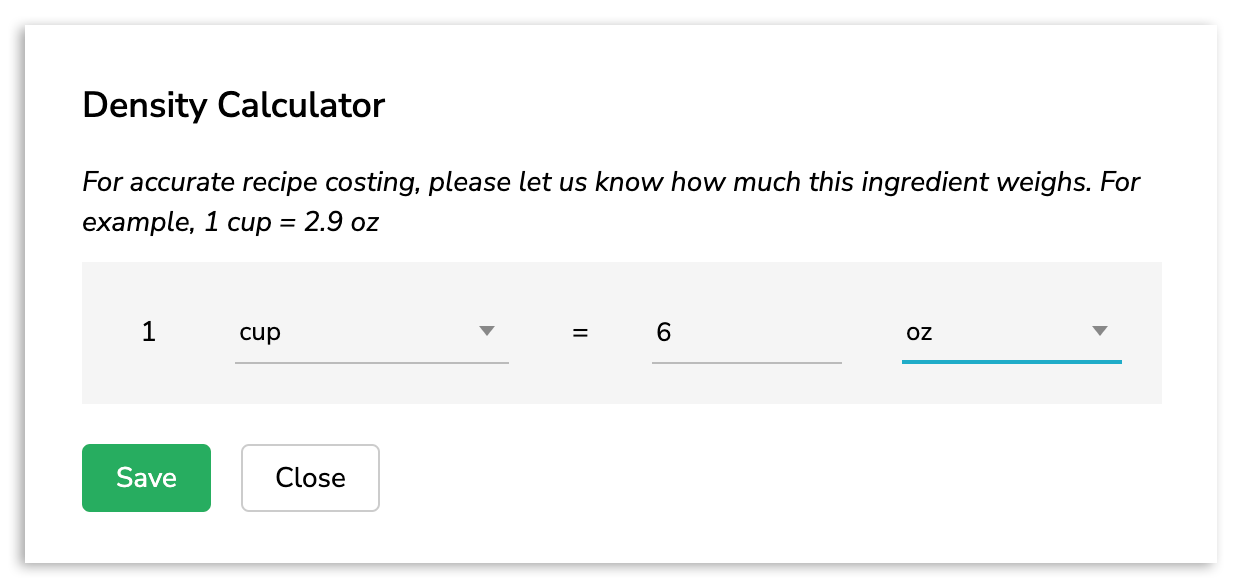
Once finished, select Save.
Assign Density Calculations to Products
You can assign (or edit previously assigned) density calculations to products prior to using them by an alternate unit of measure in recipe creation by selecting a product from your product catalog. To do this, select Item Library from your navigation menu and select View Products.
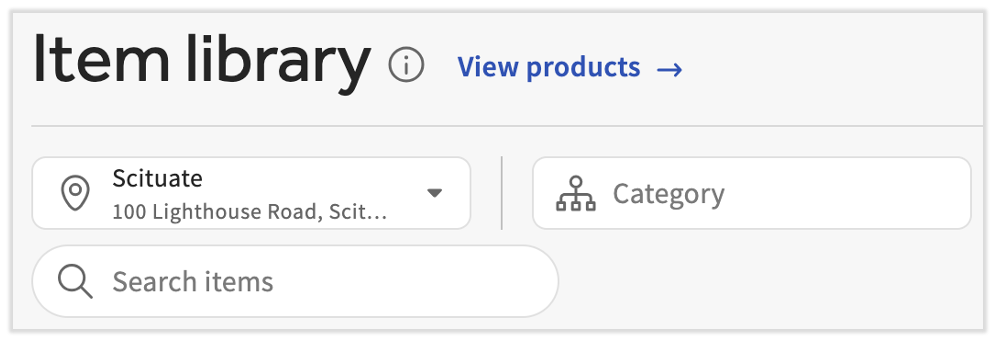
Selecting your product will allow you to edit configuration details such as the yield and density calculator. To establish a yield or conversion, select here Edit product.
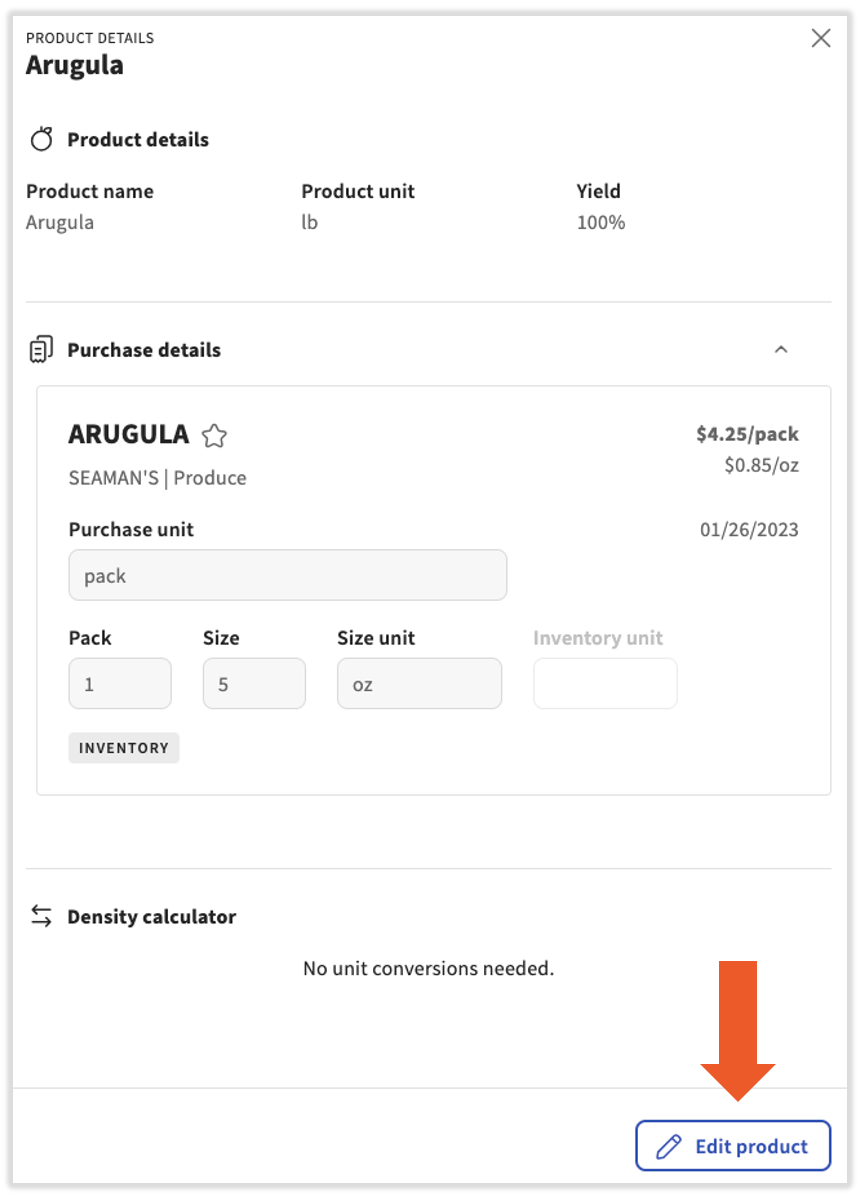
Scroll to the bottom of the sidebar. By attributing a conversion of 1 (unit) is equal to (number) (unit), xtraCHEF will have the ability to use the product by both weight and volume, or convert between mass/volume and each quantity, in recipe functions. To do this, select the fields and apply the conversion rules. Select Save changes to finish.