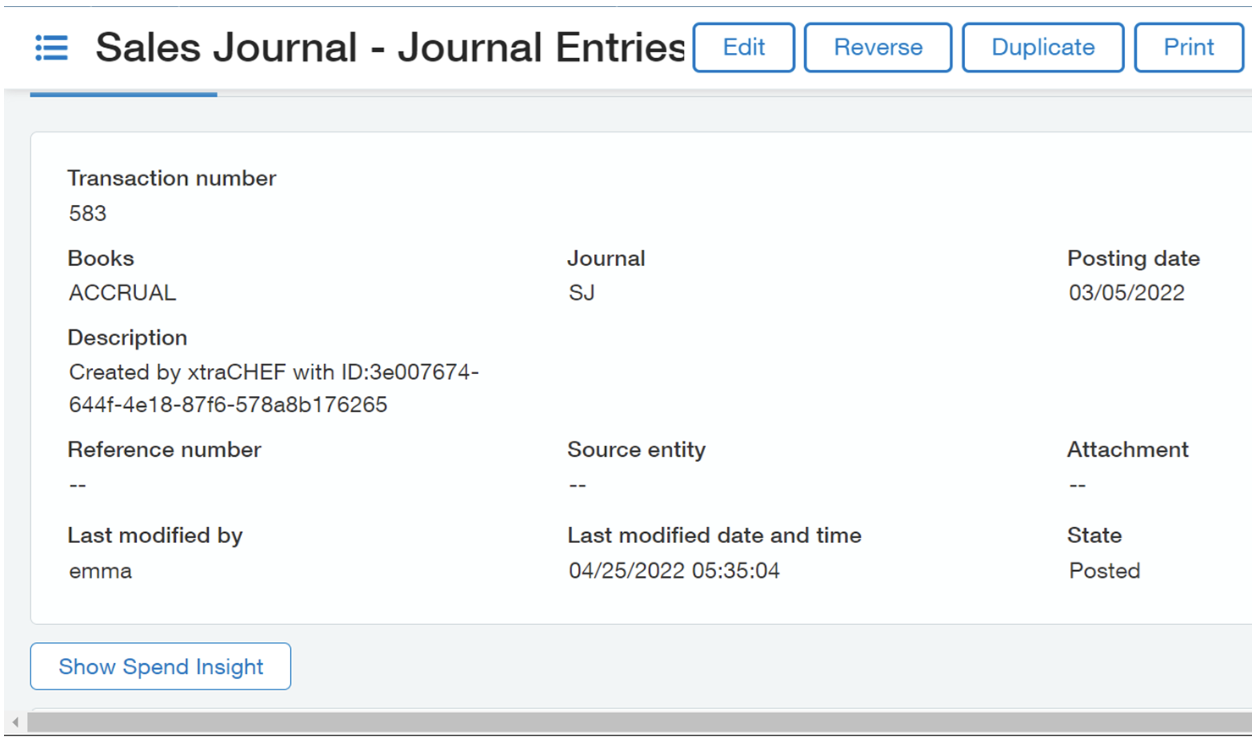
xtraCHEF: Sync Sales Journal Entries to Intacct
Last updated: Apr 8, 2026, 10:09 AM
In this Article:
- View a Journal Entry
- NEW! Edit a Journal Entry
- View Your Audit Trail
- View Your Sales Journal in Intacct
View a Journal Entry
- Begin by navigating to Sync Monitor on the left navigation menu of the xtraCHEF dashboard.
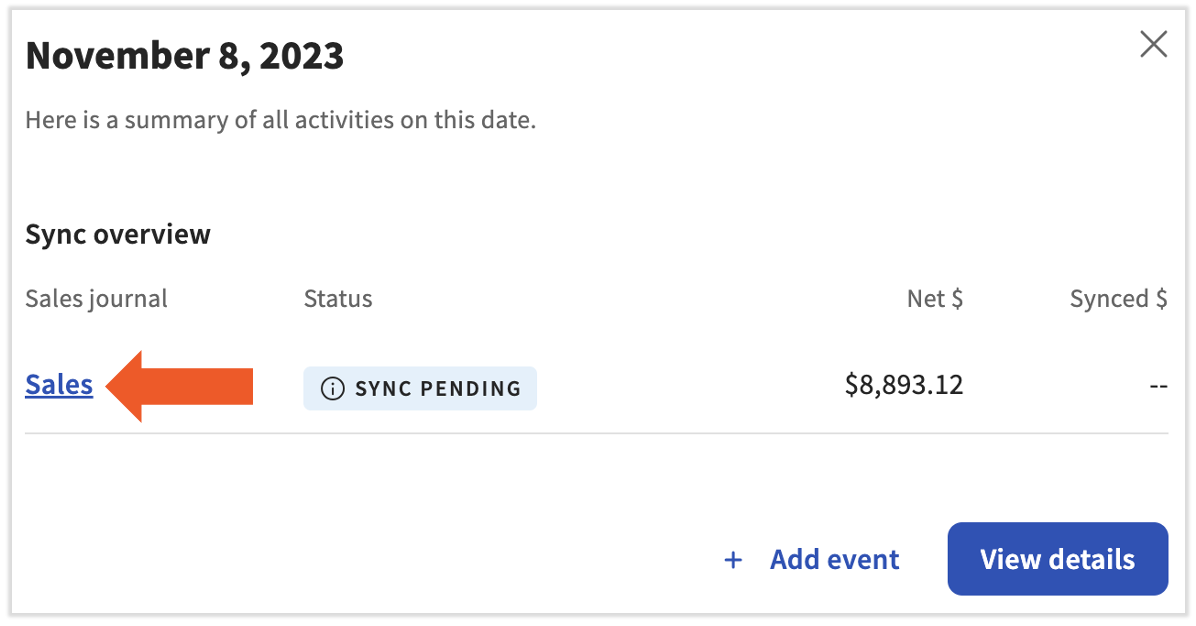
- Select a date to view that day's journal entries.
- Select a link to open a journal entry.
Edit a Journal Entry
The Sync Monitor sales entries can edited directly in xtraCHEF. When sales have synced from Toast POS on a given day, you will have the ability to edit the sales data to include alternate sales sources (food truck sales, special events) that may not be available from the POS. Two modes will be available: View and Edit.
When in edit mode, the ability to update the data will be available.
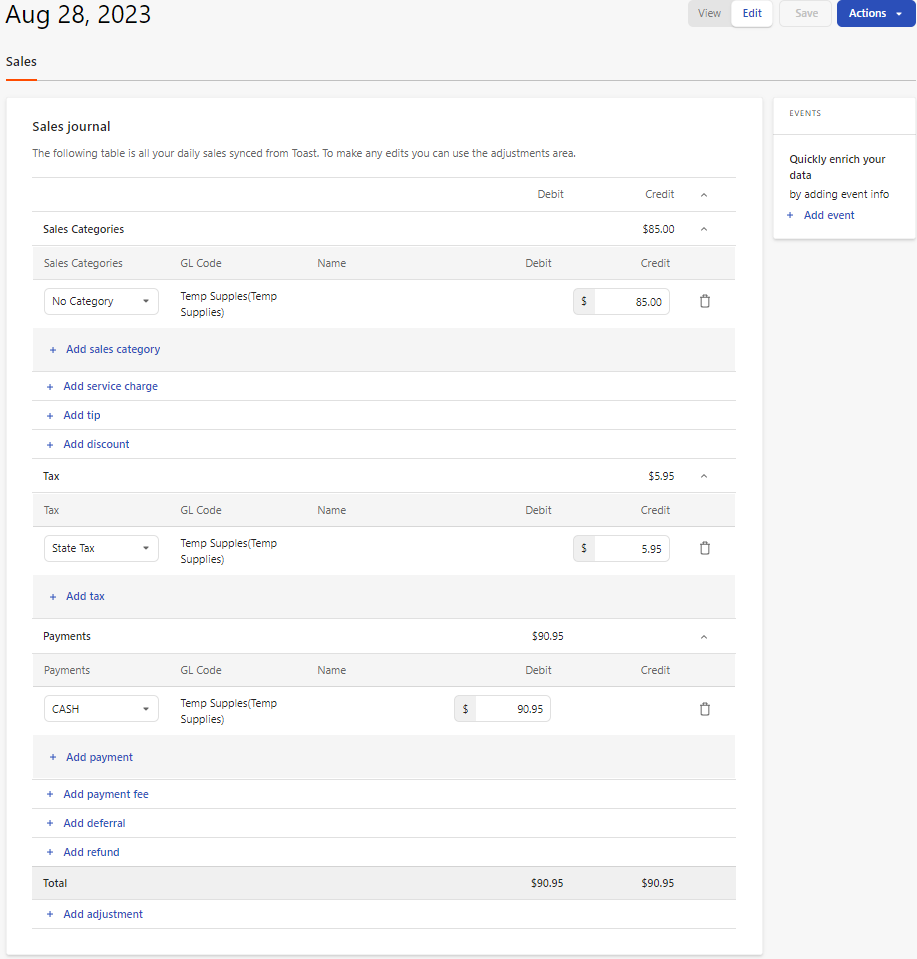
You can add an adjustment to sales journal entries. Select + Add adjustment at the bottom.

You'll first need to select the adjustment type (the first drop-down menu). Once added, you'll see the GL Code associated with the adjustment. Next, add a Debit or Credit amount.

When adding adjustments, you'll typically need to add both a credit and a debit adjustment to keep the sales journal balanced. Once all adjustments are added and the journal entry is balanced, select Save to save the work.
Back to top
View Your Sync Audit Trail
You may view the audit trail related to your journal sales entry by selecting Actions > View Audit.
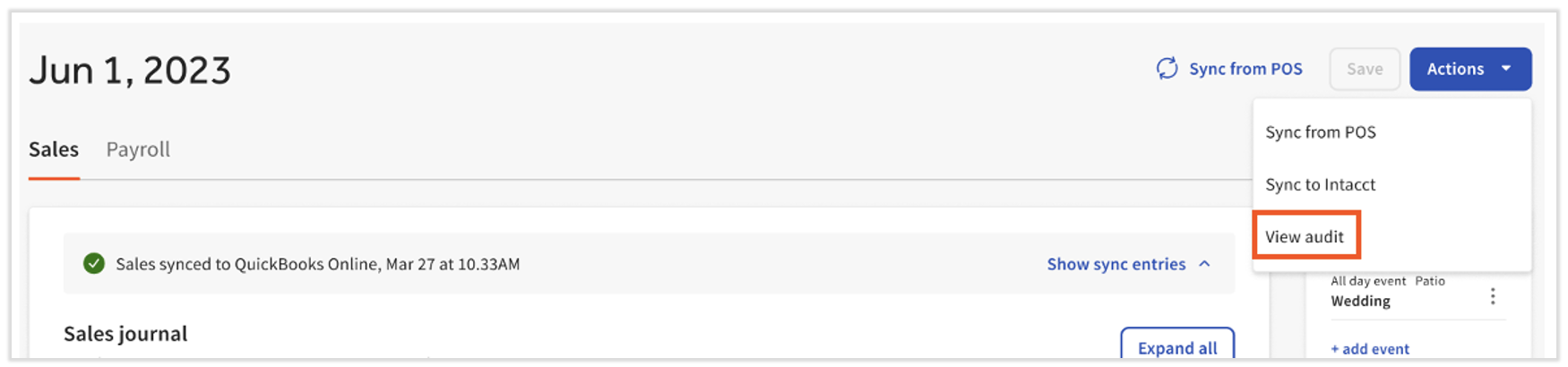
This will provide you information on when the sync started and ended.
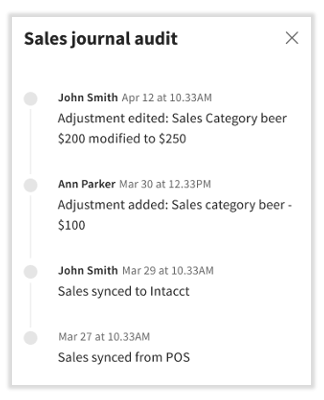
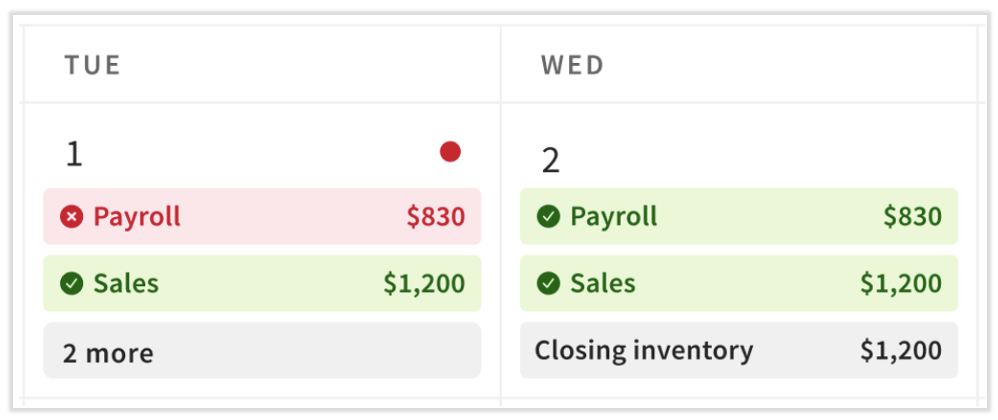
In the same way, you may view your sales audit trail. If your data is successfully synced to Intacct, the journal entry will appear in green. If any errors occur in data sync, it will appear in red. Select the Notifications button from the upper-right corner of the page to view more about this error.
View Your Sales Journals in Intacct
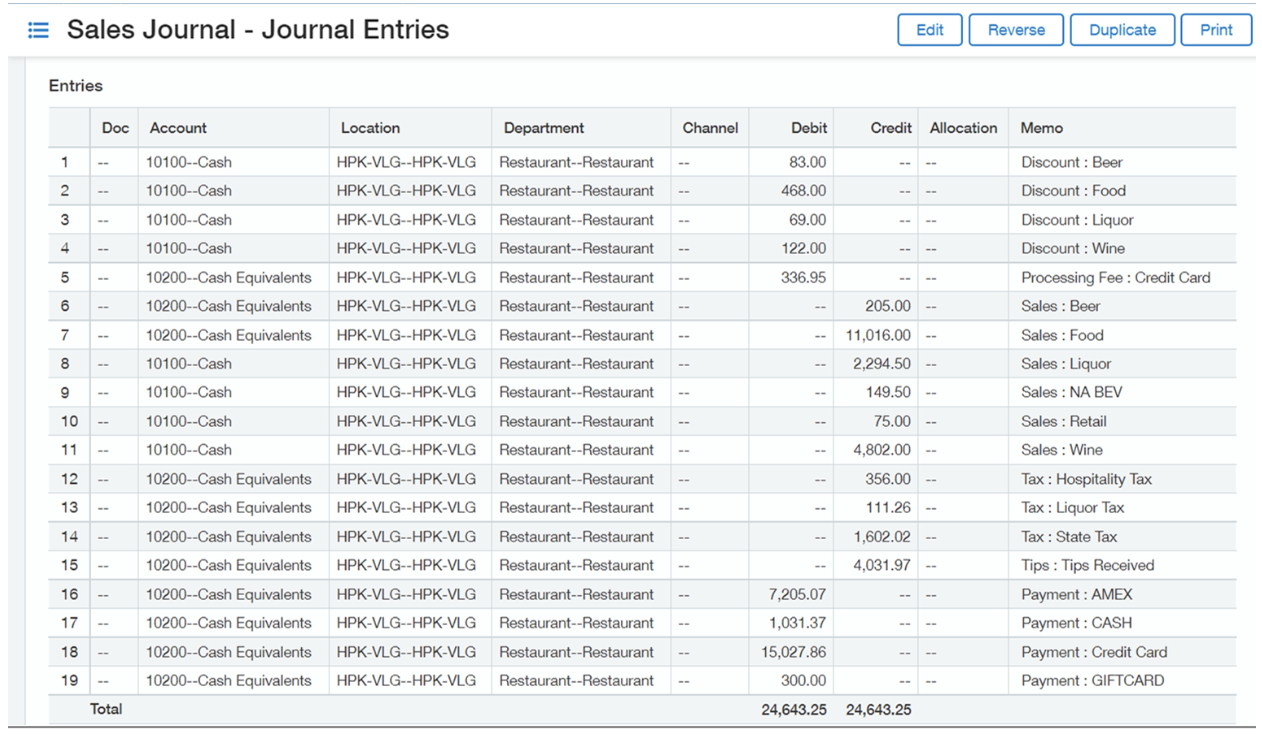
Once the data is posted, your journal will appear in Intacct. Navigate to Sales Journals to view the transactions.