Agregar o quitar una integración con las integraciones de socios de Toast
Última actualización: 23 jun 2026, 2:10 p.m.
Agregar nuevos socios, quitar integraciones existentes, gestionar configuraciones de múltiples ubicaciones y revisar la actividad en el portal de integraciones de socios de Toast (también llamado Conexión de socios de Toast).
- Antes de comenzar
- Abrir el portal de integraciones de socios de Toast
- Filtrar socios por categoría
- Agregar una integración en una ubicación
- Agregar una integración a múltiples ubicaciones
- Agregar una nueva ubicación a una integración existente
- Agregar o modificar identificadores externos
- Quitar una integración
- Ver historial de auditoría de integraciones
- Solicitar un socio que no esté en el mercado
- Preguntas frecuentes
- Artículos relacionados
Antes de comenzar
Aplica a: Toast Web
Permisos necesarios:
- 8.4 Gestionar integraciones
Lo que lograrás: Agrega una nueva integración de socio a una o más ubicaciones de restaurantes, elimina una integración existente, gestiona identificaciones externas y revisa los cambios en el historial de auditoría de integraciones.
Nota: El acceso al portal de Integraciones de Socios de Toast requiere un conjunto de Gestión de Restaurantes (Esenciales o Pro). Algunas integraciones, como DoorDash, Grubhub y Uber Eats, no requieren un conjunto de Gestión de Restaurantes y se pueden agregar sin costo alguno. Para confirmar la elegibilidad o actualizar tu conjunto, consulta Configurar Integraciones de Socios de Toast.
Abrir el Portal de Integraciones de Socios de Toast
El portal de Integraciones de Socios de Toast es el mercado donde puedes explorar socios, agregar integraciones a tu restaurante y revisar o eliminar integraciones que ya has agregado.
- Inicia sesión en Toast Web.
- Navega a Integraciones > Gestión de integraciones > Explorar y comprar integraciones.
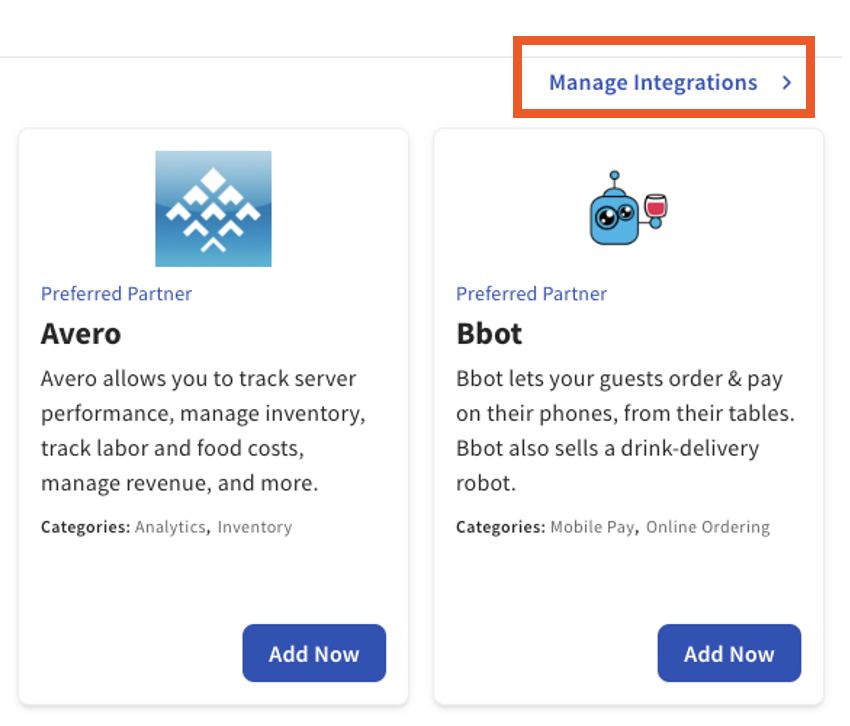
- Selecciona Gestionar integraciones en la esquina superior derecha de la página para revisar las integraciones que ya están agregadas a tu restaurante.
Resultado esperado: Ves la página Mis Integraciones que lista cada socio actualmente conectado a tu cuenta.
Filtrar Socios por Categoría
El filtro de socios reduce el mercado a socios que coinciden con una categoría específica, como mano de obra, contabilidad, pedidos en línea o marketing. Utiliza esto cuando sepas el tipo de solución que necesitas pero no el socio específico.
- Desde el portal de Integraciones de Socios de Toast, selecciona una categoría de la lista en el lado izquierdo de la página.
- Revisa las fichas de los socios que aparecen. Los socios que encajan en más de una categoría enumeran cada categoría aplicable en la ficha.
- Para aprender más sobre un socio, selecciona el logo o nombre del socio para abrir el sitio web del socio.
Resultado esperado: El portal muestra solo a los socios en la categoría que seleccionaste.
Agregar una integración en una ubicación
Después de encontrar un socio que deseas utilizar, agrega la integración directamente desde la ficha del socio.
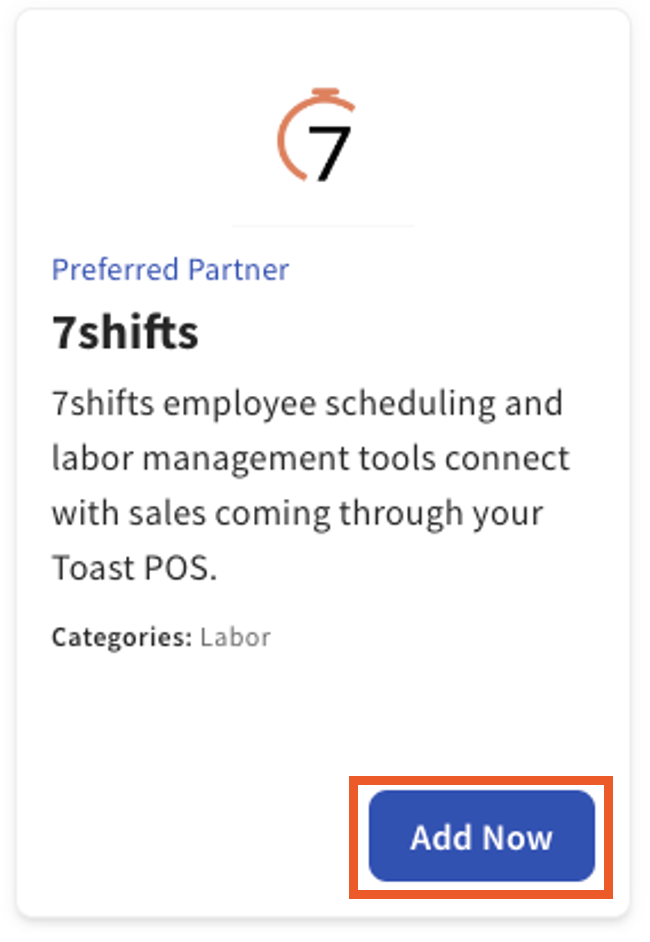
- Selecciona Agregar ahora en la ficha del socio.
- Revisa los detalles de visibilidad de datos del socio y los términos y condiciones.
- Selecciona Confirmar para agregar la integración a la ubicación actual del restaurante.
- Para regresar al mercado, selecciona Volver a mis integraciones.
Resultado esperado: El socio aparece en tu página Mis integraciones. Se notifica al socio que has agregado la integración y se pondrá en contacto contigo para completar cualquier configuración requerida de su parte.
Nota: Agregar la integración en Toast es el primer paso. La mayoría de los socios requieren configuración adicional en su plataforma, lo que puede tardar varios días o semanas dependiendo del socio. Si un socio no se pone en contacto contigo, comunícate directamente con ellos para confirmar los próximos pasos. Consulta Resumen de visibilidad de datos de integraciones de socios de Toast para obtener detalles sobre qué datos se comparten durante este paso.
Agregar una integración a múltiples ubicaciones
Si tu grupo de restaurantes tiene más de una ubicación, agrega una integración de socio a varias ubicaciones en un solo flujo de trabajo en lugar de repetir los pasos de una sola ubicación para cada ubicación.
- Navega a Integraciones > Gestión de integraciones > Explorar y comprar integraciones.
- Selecciona Gestionar integraciones en la esquina superior derecha.
- Seleccione Agregar más integraciones en la parte inferior de la página.
- Encuentre el socio que desea y seleccione Agregar ahora en la tarjeta.
- Abra el menú desplegable de ubicación en el lado izquierdo de la página y elija las ubicaciones que deben recibir esta integración. Para agregar la integración a cada ubicación elegible, seleccione Seleccionar todo.
- Seleccione Aplicar. El selector se colapsa para mostrar una lista de confirmación de las ubicaciones que eligió.
- Revise sus selecciones. Para cambiar una selección, seleccione la flecha hacia abajo y ajuste la lista.
- Revise los detalles de visibilidad de datos del socio y los términos y condiciones, luego seleccione Confirmar.
Resultado esperado: La integración se agrega a cada ubicación seleccionada. Recibirá un correo electrónico de seguimiento resumiendo las ubicaciones que recibieron la integración.
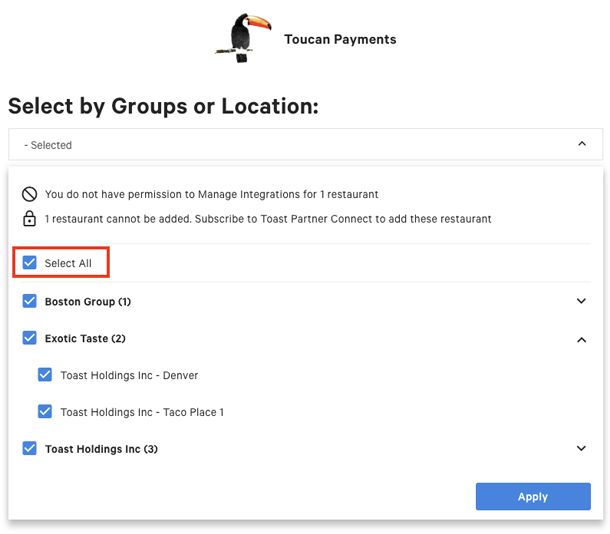
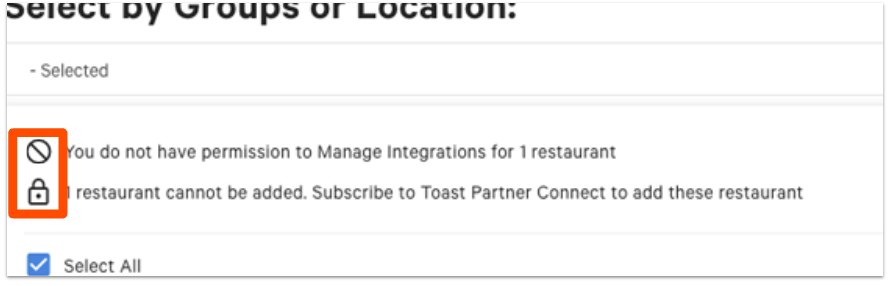
Nota: Una ubicación puede aparecer atenuada o mostrar un ícono en el menú desplegable. El ícono indica por qué no se puede agregar la integración en esa ubicación:
- Ubicación atenuada: La integración ya está habilitada en esa ubicación, no tiene el permiso 8.4 Administrar integraciones en esa ubicación, o esa ubicación no tiene acceso a las integraciones de Toast Partner.
- Ícono de candado: La ubicación no tiene acceso a las integraciones de Toast Partner. El conteo total de ubicaciones sin acceso aparece en la parte superior del menú desplegable.
- Señal de prohibición: No tienes permiso para agregar una integración en esa ubicación. El conteo total de ubicaciones donde no tienes permiso aparece en la parte superior del menú desplegable.
Nota: No se pueden eliminar integraciones de múltiples ubicaciones a la vez. Para eliminar una integración de varias ubicaciones, elimínala de cada ubicación por separado. Consulta Eliminar una Integración a continuación.
Agregar una Nueva Ubicación a una Integración Existente
Si un socio ya está conectado a una de tus ubicaciones, agrégalo a otras ubicaciones desde la página Mis Integraciones sin regresar al mercado.
- Navega a Integraciones > Navegar y comprar integraciones.
- Selecciona Gestionar integraciones en la esquina superior derecha.
- Selecciona la integración que deseas extender a más ubicaciones.
- En la columna Acciones, selecciona el símbolo de más junto a la integración.
- En el menú desplegable Seleccionar Ubicaciones, elige cada ubicación que debe recibir la integración.
- Seleccione Aplicar.
- Revisa el acuerdo con el socio y completa los pasos de adición.
Resultado esperado: La integración se agrega a cada ubicación seleccionada y aparece bajo Mis Integraciones en cada una.
Nota: Si ves un signo de exclamación en lugar de un símbolo de más, la ubicación aún no tiene acceso a Integraciones de Toast Partner. Para agregar la integración en esa ubicación, cambia a la ubicación en Toast Web, navega a Integraciones > Navegar y comprar integraciones, busca la integración y selecciona Más Información en la tarjeta. Toast Shop se abre para que puedas agregar el paquete que incluye Integraciones de Toast Partner.
Agregar o Modificar IDs Externos
Algunos socios requieren un ID de Ubicación o ID de Grupo para completar la configuración. Si tu socio ha solicitado un cambio de ID externo, gestiona los IDs para una o más ubicaciones desde la página Mis Integraciones.
- Desde el portal de Integraciones de Toast Partner, selecciona Mis Integraciones.
- Localiza la integración que deseas gestionar.
- En la columna Acciones, selecciona el ícono de engranaje para abrir el menú de ID externo.
- Utiliza la barra de búsqueda a la izquierda para encontrar una ubicación específica, o desplázate por la lista de todas las ubicaciones asociadas con tu cuenta de Toast que tienen acceso a las Integraciones de Toast Partner.
- Edita el ID externo para una o más ubicaciones.
- Selecciona Aplicar para guardar los cambios.
Resultado esperado: Los IDs externos actualizados se guardan para cada ubicación que editaste.
Nota: No todas las integraciones de socios requieren un ID externo. Si tu socio no te ha solicitado uno, puedes omitir esta sección. Para aprender más sobre los IDs de ubicación y grupo de socios, consulta Encontrar ID de Ubicación de Socio de Integración.
Eliminar una Integración
Elimina una integración de socio cuando ya no la necesites en una ubicación específica. Las eliminaciones se aplican a una ubicación a la vez.
- En Toast Web, navega a Integraciones > Navegar y comprar integraciones.
- Selecciona Gestionar integraciones para abrir la página Mis Integraciones.
- Localiza al socio que deseas eliminar y selecciona el ícono de papelera junto al nombre del socio.
- Selecciona Guardar.
Resultado esperado: El socio es eliminado de la página Mis Integraciones de la ubicación actual. Para agregar otro socio, selecciona Agregar Más Integraciones y sigue los pasos en Agregar una Integración en Una Ubicación.
Nota: Si te suscribiste a las Integraciones de Toast Partner como parte de un paquete de Gestión de Restaurantes y eliminas todas las integraciones, seguirás siendo cobrado la tarifa mensual del paquete. Para cancelar la suscripción, contacta a Toast Customer Care.
Ver el historial de auditoría de integración
El historial de auditoría de integración registra cada adición o eliminación realizada a los socios conectados de su restaurante, incluyendo quién realizó el cambio.
- En Toast Web, navegue a Integraciones > Gestión de integraciones > Historial de auditoría de integración.
- Utilice los menús desplegables en la parte superior del informe para seleccionar un rango de fecha y hora.
- Seleccione Actualizar para cargar el informe.
Resultado esperado: El informe lista cada adición y eliminación en el rango seleccionado con el nombre de usuario, nombre del socio, fecha y hora, y la acción realizada.
Nota: Para obtener ayuda con la configuración o comportamientos inesperados en una integración que ya está añadida, contacte directamente al socio. El socio de integración es responsable de la configuración continua y la solución de problemas de su producto.
Solicitar un socio que no está en el mercado
Si el socio que desea no está listado en el portal de Integraciones de Socios de Toast, hay dos caminos dependiendo de quién esté preguntando.
- Usted es un cliente de Toast: Póngase en contacto con su representante de ventas de Toast, quien puede enviar una solicitud de socio en su nombre.
- Usted es un socio que desea integrarse con Toast: Solicite a través de la Página de Socios de Integración de Toast. Para obtener más información, consulte Conviértase en un socio de integración de Toast.
Nota: Toast no admite actualmente todos los servicios de terceros. Ejemplos de socios no disponibles a través de Integraciones de Socios de Toast incluyen ADP, ezCater y GratShare. Esta lista no es completa y cambia con el tiempo.
Preguntas Frecuentes
¿Cuánto cuesta una integración con un socio?
Los precios de integración con socios varían según el socio. Algunas integraciones están incluidas en su suite de Gestión de Restaurantes sin costo adicional, y algunas requieren una suscripción separada pagada al socio o a Toast. El mosaico del socio en el portal de Integraciones de Socios de Toast muestra los detalles de precios antes de que seleccione Agregar Ahora. Para preguntas sobre la tarifa mensual de un socio específico, comuníquese directamente con el socio o con el Servicio al Cliente de Toast.
También preguntado como:
-
- "¿Cuánto es la tarifa mensual para esta integración?"
- "¿Toast cobra por las integraciones?"
- "¿Hay un costo adicional por una integración con un socio?"
¿Por qué no veo Agregar Ahora o Administrar integraciones?
Si no ve Agregar Ahora o Administrar integraciones, generalmente se aplica una de tres condiciones. Primero, su cuenta puede no tener una suite de Gestión de Restaurantes, que es necesaria para acceder a la mayoría de las integraciones con socios. Segundo, su usuario de Toast Web puede no tener el permiso 8.4 Administrar integraciones. Tercero, puede haber un bloqueo en su cuenta de Toast que impida nuevas integraciones. Para confirmar su suite y solicitar el permiso, consulte Configurar Integraciones de Socios de Toast y Guía de Referencia de Permisos. Si el problema persiste, comuníquese con el Servicio al Cliente de Toast.
También preguntado como:
-
- "¿Por qué está gris Agregar Ahora?"
- "No puedo agregar una integración en mi ubicación"
- "El botón Agregar Ahora no está funcionando"
¿Qué sucede después de seleccionar Agregar Ahora?
Después de seleccionar Agregar ahora y confirmar los términos de visibilidad de datos, el socio es notificado de que su cuenta está lista para conectarse. La mayoría de los socios luego se comunican contigo para completar la configuración de su lado, lo que puede incluir crear una cuenta de socio, mapear ubicaciones, otorgar acceso o proporcionar credenciales. El tiempo de configuración varía según el socio, desde unos minutos hasta varias semanas. Si un socio no se comunica contigo, contacta directamente al socio para completar la conexión.
También preguntado como:
-
- "¿Cuáles son los siguientes pasos después de haber agregado la integración?"
- "Agregué la integración, pero aún no está funcionando"
- "¿Cómo termino de conectar la integración?"
¿Cómo puedo rehacer o actualizar una integración?
Para rehacer o actualizar una integración, elimina la integración de la ubicación afectada y luego agrégala nuevamente. Eliminar la integración desconecta al socio; volver a agregar la integración le pide al socio que se reconecte y te guía nuevamente a través del paso de visibilidad de datos. Si tu socio ha restablecido su lado o te ha pedido que reautoricen, este es el camino estándar.
También preguntado como:
-
- "¿Cómo restablezco una integración?"
- "¿Cómo reautorizo una integración?"
- "Mi integración dejó de funcionar — ¿cómo la arreglo?"
¿Puedo eliminar una integración de múltiples ubicaciones a la vez?
Las integraciones no se pueden eliminar de múltiples ubicaciones al mismo tiempo. Para eliminar una integración de varias ubicaciones en un grupo de restaurantes, sigue los pasos en Eliminar una integración en cada ubicación por separado.
También preguntado como:
-
- "Eliminar integraciones en masa de ubicaciones"
- "Eliminar integración de todas las ubicaciones"
¿Qué pasa si el socio que quiero no está en el mercado?
Si el socio que deseas no está listado en el portal de Integraciones de Toast, contacta a tu representante de ventas de Toast, quien puede enviar una solicitud de socio en tu nombre. Si eres un socio que desea integrarse con Toast, solicita a través de la Página de Socios de Integración de Toast.
También preguntado como:
-
- "¿Cómo agrego un socio que no está en la lista?"
- "¿Puedo agregar una integración personalizada?"
- "¿Cómo solicito una nueva integración de socio?"
Artículos Relacionados
- Configurar Integraciones de Socios de Toast
- Resumen de Visibilidad de Datos de Integraciones de Socios de Toast
- Encontrar ID de Ubicación de Socio de Integración
- Guía de Referencia de Permisos
- Conviértete en un Socio de Integración de Toast