Este artículo aún no está disponible en tu idioma. Se mostrará en el idioma predeterminado.
Force Update the Time on a Terminal
Última actualización: 13 oct 2026, 1:14 p.m.
Pregunta
How do I force update the time on a terminal?
Respuesta
Note: These steps refresh the device’s time, not its time zone — those are two separate settings. If your terminal shows the wrong time zone, these steps won’t fix it.
- If your device uses the Toast Launcher start page, or is on Android 12 or above, set the time zone in Toast Guardian instead. See this article Setup Device Time Zone Using Toast Guardian reference.
- To check your Android version, open device settings and navigate to System > About.
- If the device time is correct but reports, clock-ins, or online orders are still off, your restaurant’s time zone may need to be corrected — this requires contacting Toast Customer Care.
Before starting the following steps, make sure that the Meraki and/or your Toast Network is online before trying to update the date and/or time.
- Select the setting icon on the home screen of the terminal.
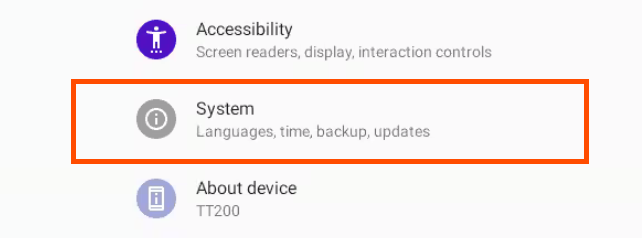
- Navigate to System.
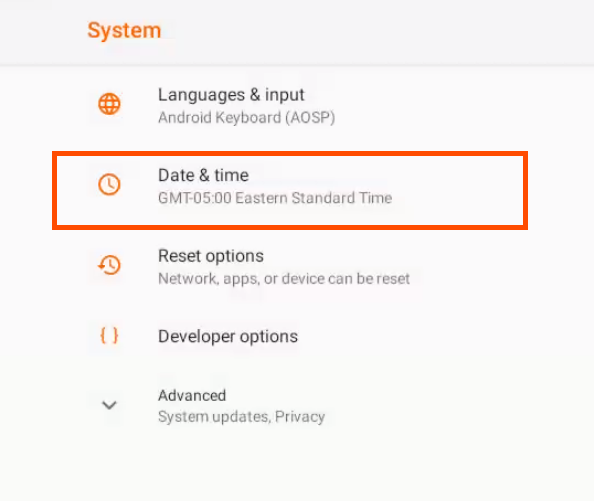
- Select Date & time.
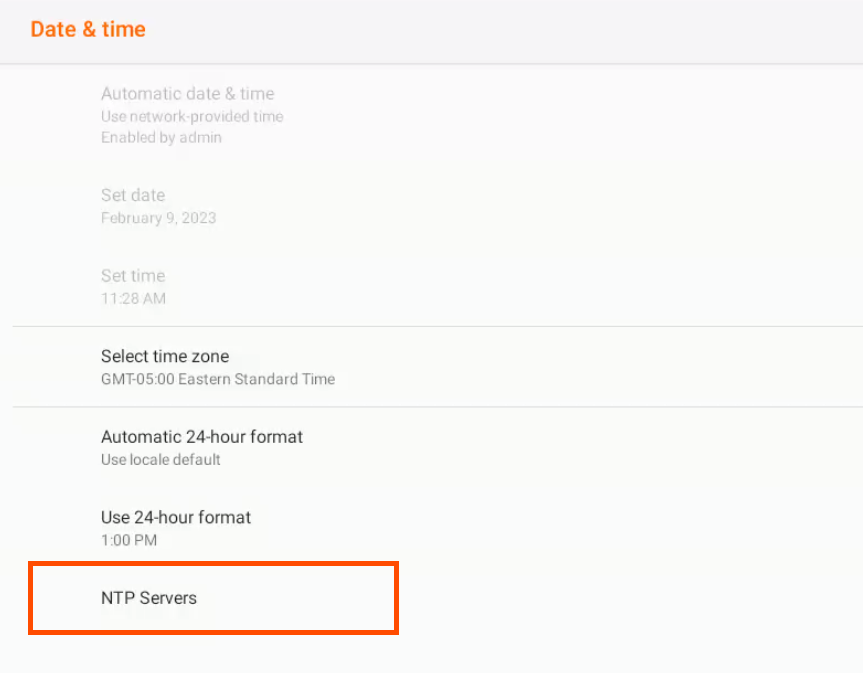
- Select NTP Servers.
- Select REFRESH in the top right corner of the screen.
- Your device should automatically update with the time and date of the network it is connected to.