Prepare Devices for Canadian Daylight Saving Time
Última actualización: 30 oct 2026, 2:25 p.m.
Prepare for the Canadian Daylight Saving Time clock change. Learn how to adjust device time zones so your POS time and schedules stay accurate.
| Some Canadian provinces and territories are moving away from seasonal clock changes, but Toast Point of Sale (POS) devices still have automatic Daylight Saving Time rules built in. Until a software update is available for your hardware, set each device to the city listed below so its clock does not roll back an hour on Sunday, November 1. |
- Before You Begin
- Find Your Proxy City
- Set the Time Zone on Every Device
- Publish Your Changes From Toast Web
- Check Your Devices on Sunday Morning
Before You Begin
Applies to: Toast POS devices in British Columbia, Alberta, the Northwest Territories, Yukon, and Manitoba, including the Toast Flex terminal, Toast Go® handheld, and Kitchen Display System (KDS) device.
Permissions needed: Access to Toast Guardian on the device (Android 12 and above)
What you'll accomplish: Keep your terminal clocks, kitchen tickets, online ordering hours, and auto-closeout schedules accurate through the November 1 clock change.
Find Your Proxy City
Find your location in the table, and use the city in the middle column instead of your actual city. These cities do not observe Daylight Saving Time, so selecting one keeps your device from falling back an hour.
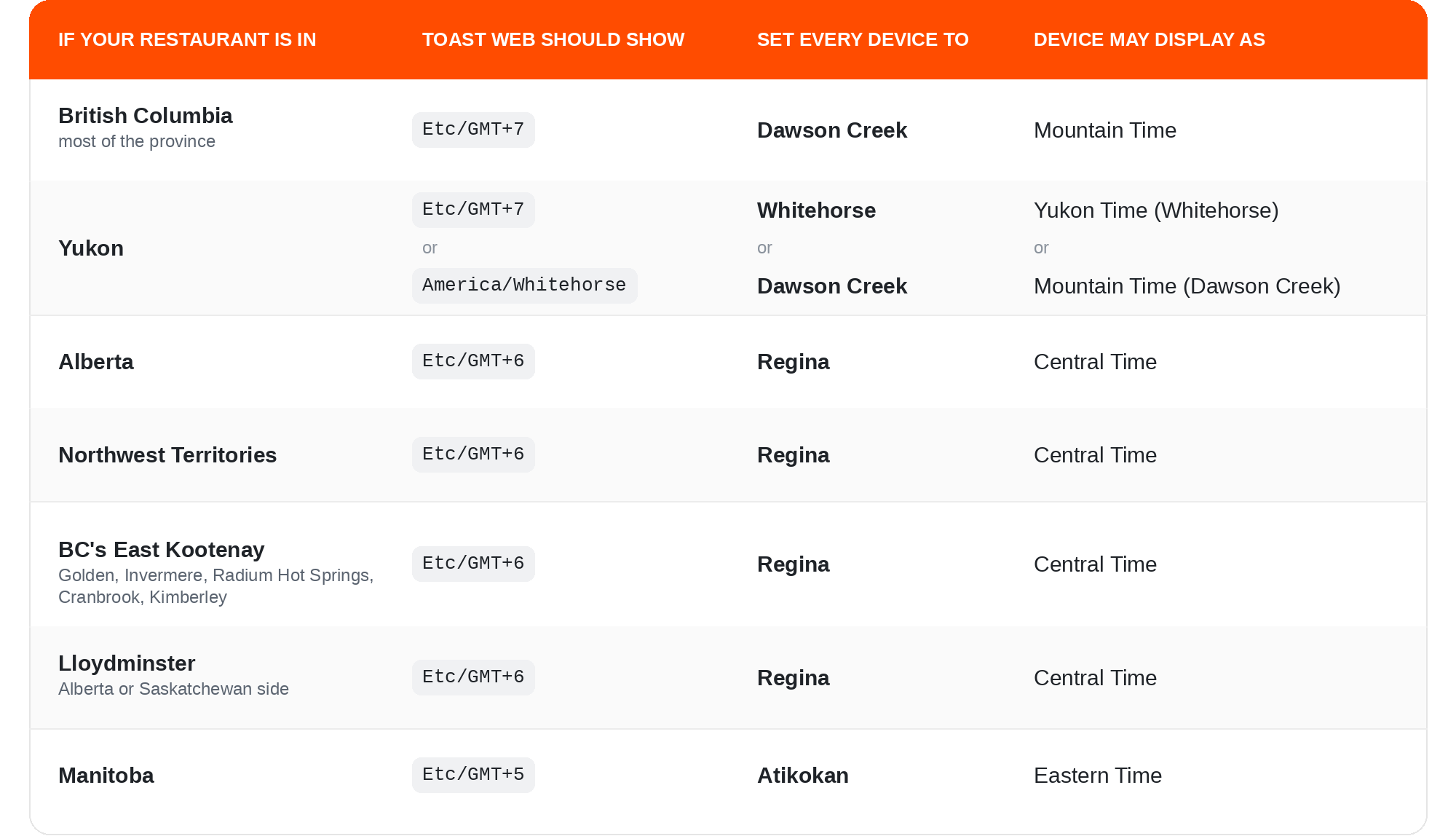
Note: Please avoid selecting Vancouver, Edmonton, Calgary, or Winnipeg for now. Your screen may show a different region name than you expected, such as "Central Time" for Regina. That is expected and keeps your terminal clock accurate.
Set the Time Zone on Every Device
Complete this at closing on Saturday, October 31, or before opening on Sunday, November 1. Repeat these steps on every terminal, handheld, and KDS screen in your restaurant, because the setting is specific to each device.
If Your Device Is on Android 12 or Above
- Open Toast Guardian on your device.
- Select the overflow menu (the three dots) in the top-right corner.
- Select Settings.
- Select Date & Time.
- If Set time zone automatically is turned on, switch it to OFF first.
- Select the Time zone field and choose the city from the table above instead of your actual location.
If Your Device Is on Android 11 or Below
- Open your device settings.
- Navigate to System > Date & time.
- Select the Time zone field and choose the city from the table above instead of your actual location.
Publish Your Changes From Toast Web
- Log in to Toast Web.
- Select Publish Config in the top-right corner.
For more detail, see Toast Web from Publish Changes in Toast Web.
Expected outcome: Each device shows the correct local time after you exit Toast Guardian and reopen the Toast app.
Check Your Devices on Sunday Morning
After the clock change passes at 2:00 a.m. on Sunday, November 1, take a moment during morning prep to confirm the following before service begins:
- In-store clocks and printed chits: Terminal displays, customer receipts, and printed kitchen chits match your local wall-clock time.
- Operating schedules: Online ordering availability, happy hour pricing, and auto-closeout schedules run at your regular hours.
- Toast Tables reservations: If you use Toast Tables, Toast has adjusted future reservations forward by one hour to match your local service times. Spot-check bookings placed after November 1 to confirm they look correct.
Note: Toast has already updated or verified your restaurant's time zone in your account settings, so you do not need to contact Toast Customer Care to change it. This section only covers your devices.
Note: This is a temporary setting. Once a software update is available for your hardware, Toast will contact you with instructions on when to switch your devices back to your city's time zone.
If a device's time zone setting is grayed out or does not save, contact Customer Support with your restaurant location, device type, and Android version.