Nómina Toast: Primeros pasos con los gastos
Última actualización: 14 oct 2026, 5:48 p.m.
| Este módulo solo está disponible para clientes que ya lo tienen. El módulo Gastos de nómina de Toast ya no está disponible para cuentas sin él. |
- Crear un informe de gastos
- Aprobar un informe de gastos a través de “Hacer”
- Panel de informe de gastos
- Aprobar informes de gastos pendientes a través del panel
- Resumen del filtro
- Informes de gastos en nómina
Crear un informe de gastos
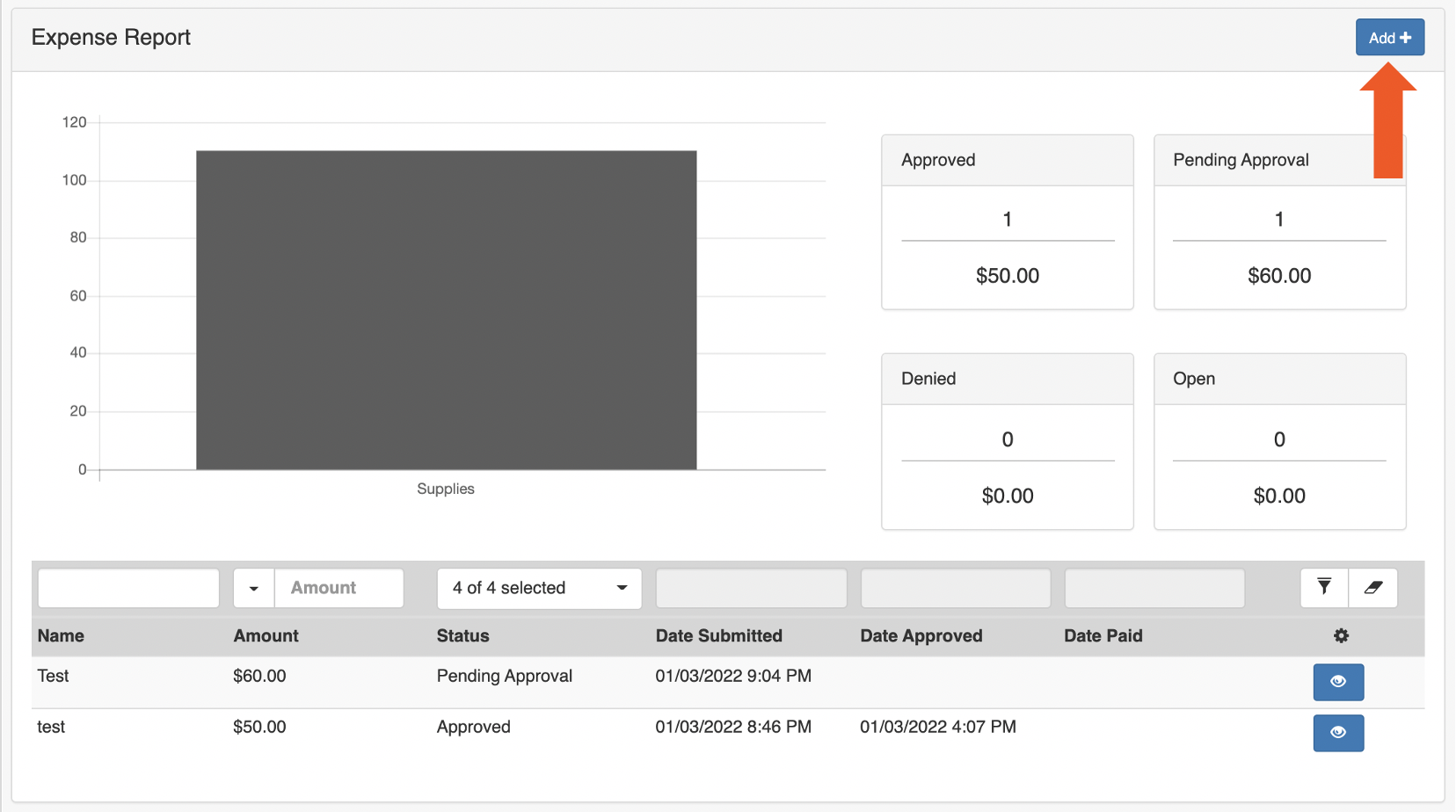
- Los empleados pueden crear informes de gastos ingresando a Nómina Toast, yendo a Mi Perfil > Activos y gastos > Informe de gastos.
- Selecciona Agregar+ en la esquina superior derecha.
- Comienza nombrando el informe. Junto a Entradas, selecciona Agregar+ nuevamente para ingresar un gasto en tu informe de gastos.
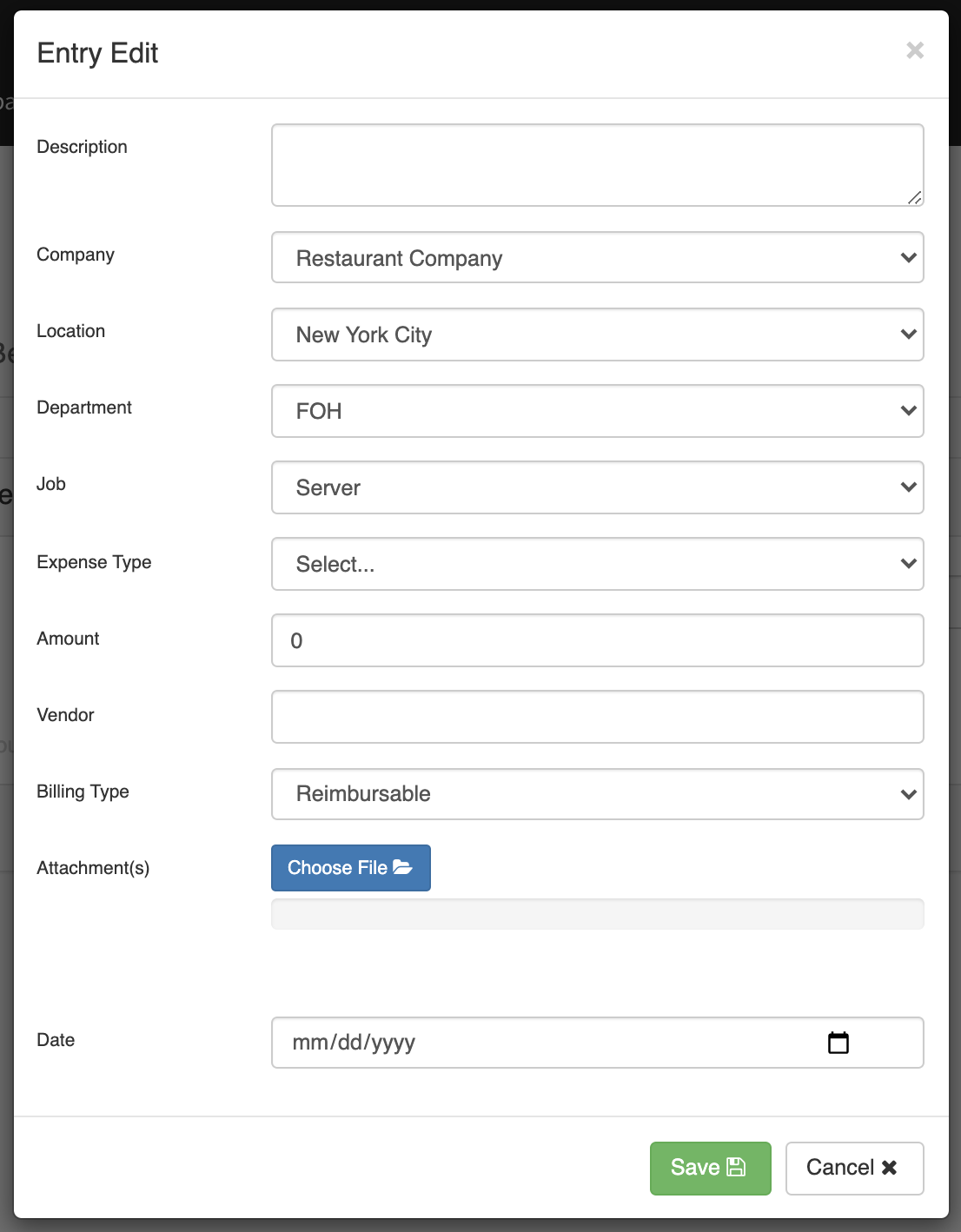
- Registra una descripción del gasto y verifica la empresa, la ubicación, el departamento (si corresponde) y la tarea.
- Selecciona un tipo de gasto que categorice tu gasto. Es posible que se agreguen más tipos de gastos si tu equipo de gestión contacta a Nómina Toast.
- Ingresa el Monto y el Proveedor de este gasto. Ahora elige un Tipo de facturación para este gasto. Ten en cuenta el texto rojo cuando se elige Empleado de débito o Empresa pagada.
- Por último, adjunta un recibo o documento similar si es necesario y elige la fecha de este gasto.
- Selecciona Guardar.
- Se pueden agregar más gastos al mismo informe si se selecciona Agregar + nuevamente. Los empleados también pueden seleccionar Guardar para más tarde si el informe no está terminado o pueden enviar o cancelar el informe. Una vez enviados, los informes de gastos deberán ser aprobados por la empresa antes de que se procesen.
Aprobar un informe de gastos a través de de tareas pendientes
Una vez que un empleado haya enviado un informe de gastos para que lo veas, los empleadores recibirán una notificación de tarea pendiente en el panel de Nómina Toast. Selecciona para continuar.
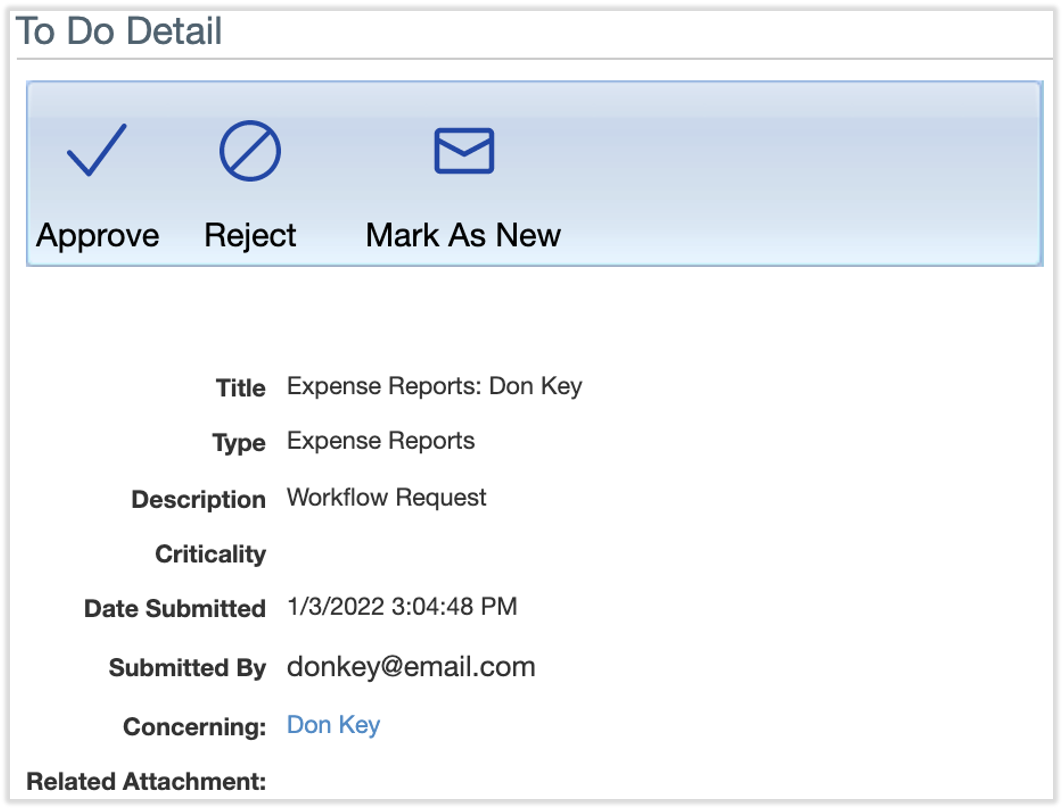
Aquí, los empleadores pueden aprobar, rechazar o marcar como nuevo.
- Si se selecciona Marcar como nuevo, la notificación aparecerá como nuevo en el panel.
- Aprobar aprobará el informe de gastos.
- El rechazo rechazará el informe de gastos del empleado.
- Agrega una nota antes de aprobar o rechazar el informe de gastos en la parte inferior de la tarea pendiente.
Si seleccionas Ver datos, se describirá la información incluida en el informe de gastos que se envió para su aprobación. Esto también te permitirá ver una copia de los recibos que se hayan adjuntado. Puedes descargar esta información en PDF o XLS.
Panel de informe de gastos
Los empleadores también pueden ver y aprobar los informes de gastos de todos los empleados a los que gestionan el acceso si van a Nómina > Más acciones > Gastos.
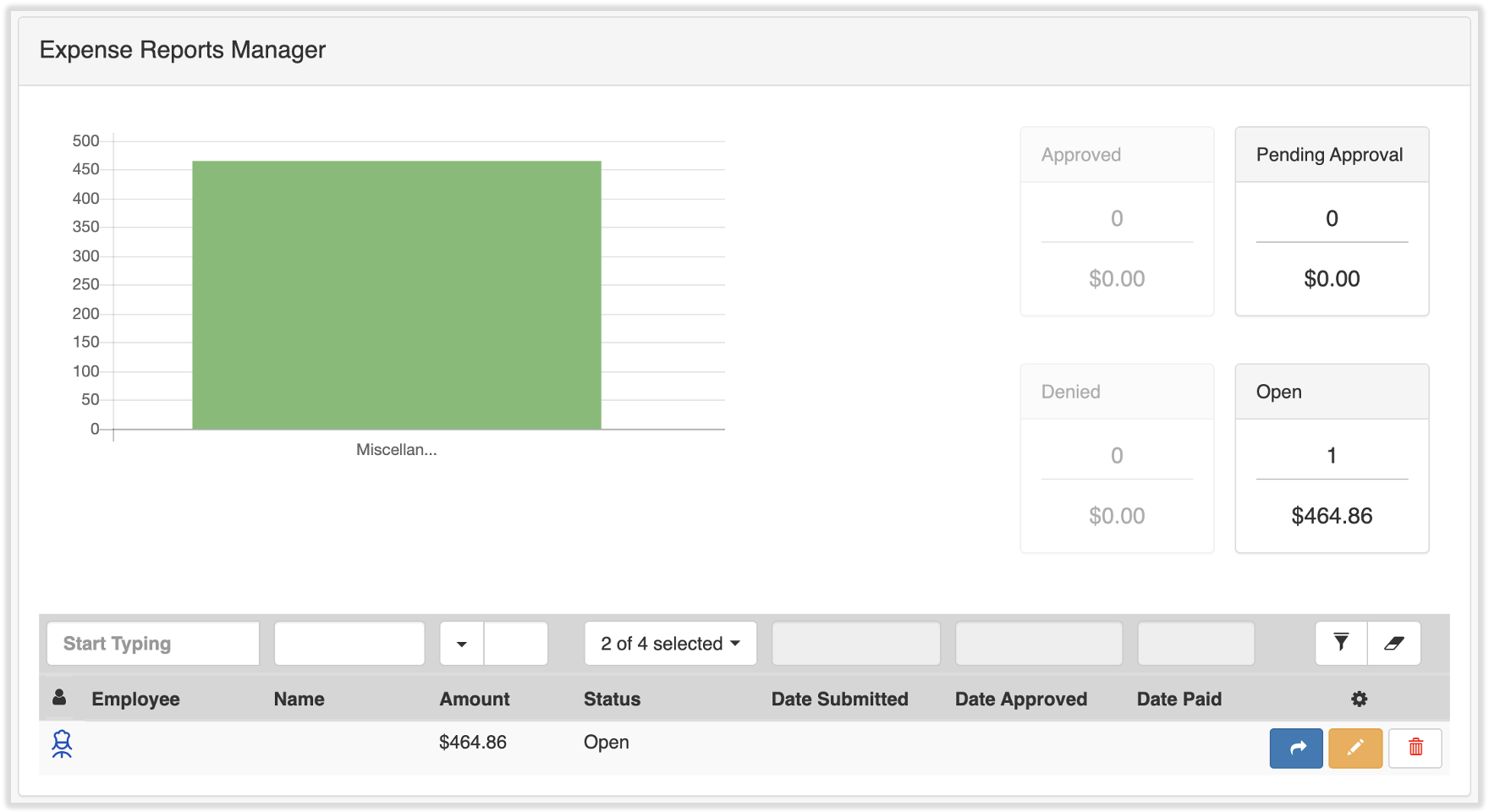
En el panel, puedes ver los totales de gastos pendientes y abiertos en el lado derecho de la página. Para ver un informe de gastos de un empleado en particular, usa las herramientas de filtro o escribe el nombre del empleado en la barra gris.
Esta página usará de manera predeterminada los informes de gastos que están abiertos y pendientes de aprobación. Los informes de gastos pueden tener uno de cuatro estados diferentes:
- Abierto: Estas son plantillas horarias que todavía no se enviaron a la aprobación del empleado (es posible que el empleado aún las esté trabajando).
- Aprobación pendiente: Estos son informes de gastos que los empleados han enviado a aprobar. Están listas para que el gerente las vea.
- Aprobado: Estos son informes de gastos que fueron aprobados por el gerente y están listos para importarse a la nómina.
- Pagado: Estos son informes de gastos que se importaron y pagaron a los empleados. Estos empleados recibieron el reembolso o los gastos se registraron en la nómina (en los casos en que el empleador no se lo reembolsa realmente al empleado)
Verás hasta seis botones diferentes en esta página. Aparecerán diferentes botones para los informes de gastos según en qué estado se encuentre.
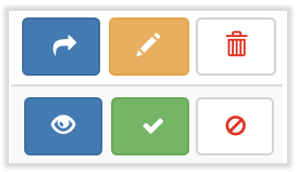
Con los informes de gastos en estado Abierto, selecciona la flecha azul para enviar el informe en nombre del creador. Selecciona el lápiz de edición amarillo para editar el informe o elige el ícono de papelera para eliminar por completo el informe de gastos.
Con los informes de gastos en estado Aprobación pendiente, selecciona el ícono de globo ocular azul para ver más detalles sobre cada informe de gastos. De lo contrario, elige la marca de verificación verde o el ícono rojo de cancelación para aprobar o rechazar el informe de gastos.
Los informes de gastos aprobados y denegados solo se pueden ver. Para ver estos informes, selecciona el menú desplegable 2 de 4 y marca estos estados. Luego, selecciona el ícono de embudo a la derecha de esta barra para filtrar la página e incluir informes de gastos aprobados y denegados.
Aprobar informes de gastos pendientes a través del panel
Para aprobar informes de gastos en el panel que se hayan completado y estén listos para que los gerentes los vean, selecciona los gastos que están en el estado Aprobación pendiente.
Verás tres opciones diferentes en el lado derecho de la página para los informes de gastos de aprobación pendientes.
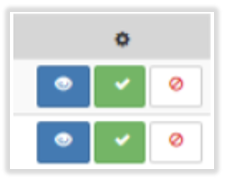
- Ver: Para ver las entradas del informe de gastos, selecciona el ícono azul.
- Aprobar: Para aprobar el informe de gastos, selecciona la marca verde junto al nombre del informe de gastos del empleado.
- Negar: Para negar el informe de gastos, selecciona el ícono de cancelación en el lado derecho del nombre del empleado para enviarlo de vuelta como no aprobado.
Por último, también puedes aprobar informes de gastos en el perfil del empleado si vas al perfil del empleado y seleccionas Activos y gastos > Informe de gastos. En esta página, también verás la marca de verificación verde y el botón rojo Cancelar para aprobar o denegar informes de gastos.
Filtrar resumen
Para ubicar los informes de gastos, ve a Nómina > Más acciones (en el lado derecho de la pantalla) y selecciona Gastos. En el panel, puedes filtrar los informes usando los menús desplegables de la barra gris.
- Nombre del empleado: Escribe el nombre del empleado para ver sus informes de gastos.
- Estado: Todo, abierto, pendiente de aprobación, aprobado y denegado
- Fecha de aprobación: Ingresa una fecha que incluya lo que estás buscando
- Fecha de envío entre: Ingresa una fecha que incluya lo que estás buscando.
- Fecha de pago: Ingresa una fecha que incluya lo que estás buscando
Selecciona el ícono Filtro (embudo) para activar los filtros. Para ver los detalles de un informe de gastos, selecciona el ícono azul junto al informe. Desde aquí, puedes aprobar, denegar o devolver los informes de gastos utilizando los íconos correspondientes.
Nota: Si estás rechazando un informe de gastos, agrega una nota antes de seleccionar el botón Rechazar para que el empleado sepa por qué se rechazó. Una vez que se apruebe un informe de gastos, aparecerá en el paso de importación en la nómina para pagarle al empleado.
Informes de gastos en nómina
Una vez que se haya aprobado un informe de gastos, los reembolsos de gastos pasarán automáticamente a la siguiente nómina que se abra después de que se aprueben los gastos. Los informes de gastos aparecerán en el paso de vista previa de la nómina.
Al seleccionar Siguiente en el paso de vista previa, se extraerá automáticamente todo lo vinculado a esa nómina, incluidos los informes de gastos.
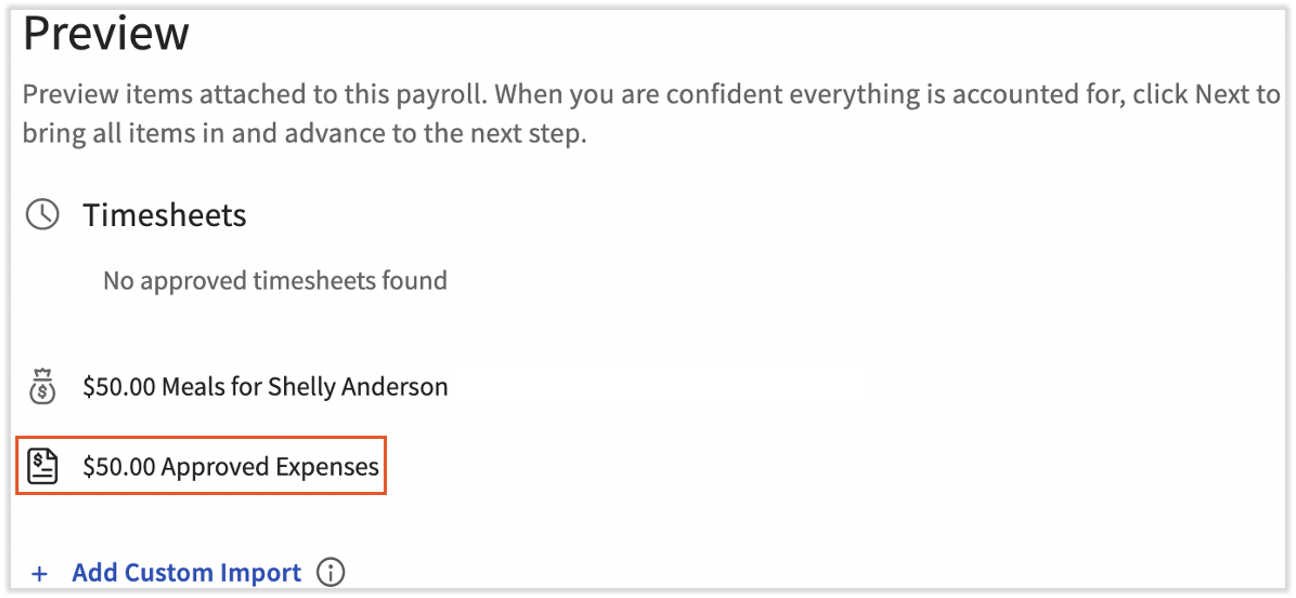
Una vez que los empleados hayan recibido el reembolso de sus gastos, la fecha de pago aparecerá en el panel del informe de gastos de su perfil.
Este contenido se publica con fines informativos y no tiene como propósito brindar asesoramiento legal, fiscal, de recursos humanos ni ningún otro tipo de recomendación profesional. Ponte en contacto con un abogado u otro profesional para recibir asesoramiento.