View SmartQuote Analytics
Última actualización: 8 abr 2026, 10:18 a.m.
Learn how about how to view your SmartQuote analytics and performance.
In this Article:
| SmartQuote is in limited release with select customers. Check back soon for updates! |
View SmartQuote Analytics
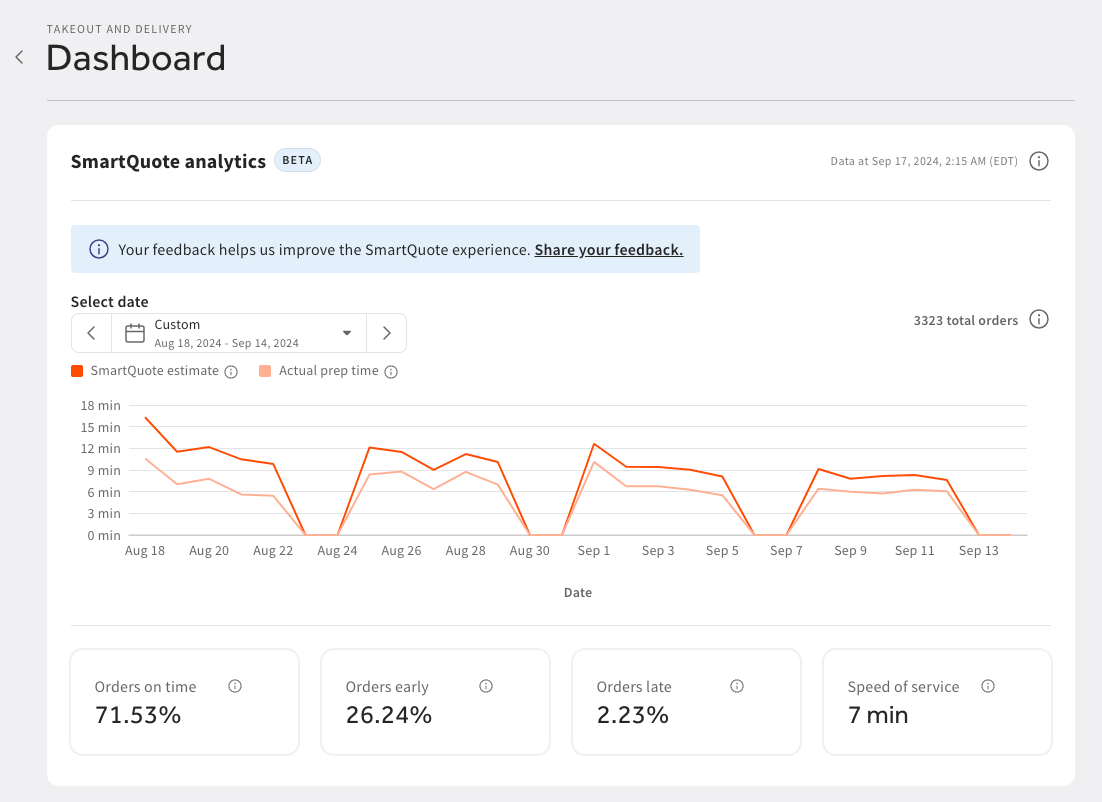
You can view the accuracy and performance of SmartQuote by selecting the View analytics link in the banner above your SmartQuote estimate. This opens the SmartQuote analytics page.
On this page, you can view information and complete the following actions:
- View the date and time the data was last updated
- View filtered reporting data
- View the number of total orders
- View SmartQuote accuracy over your restaurant’s operating hours or days
- View the percentage of orders on time. Orders on time are the number of orders fulfilled within the quoted time, plus or minus 5 minutes
- View the percentage of orders completed early. Orders early are orders fulfilled 5 minutes or more before the quoted time
- View the percentage of orders completed late. Orders late are orders fulfilled 5 minutes or more after the quoted time
- View the speed of service. Speed of service is the time between when an order is fired to the kitchen and when it is marked as ready for takeout or delivery
Note: On the SmartQuote graph, you can choose to show the SmartQuote estimate and/or the actual prep time. To choose which time to show on the graph, select the colored SmartQuote estimate or Actual prep time icons underneath the date picker.
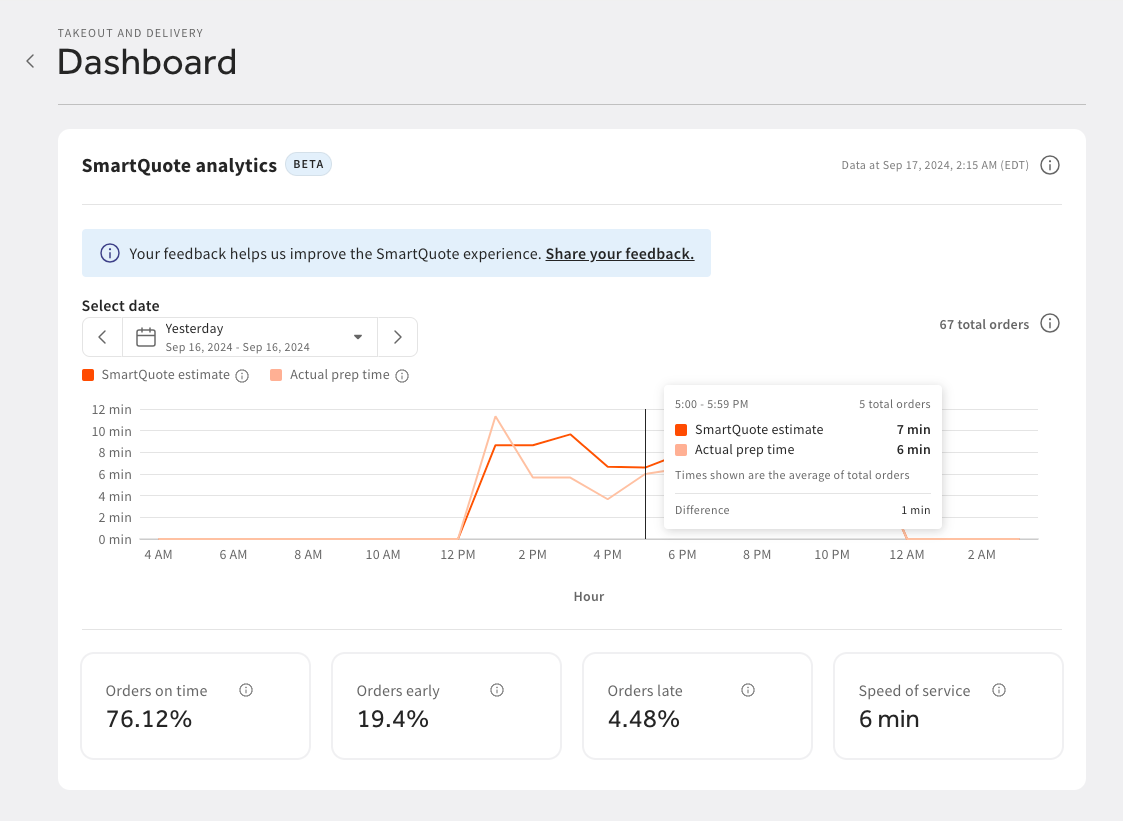
For detailed information about a specific time or date range or set of orders, select a point on the graph to open a dialog box. In the dialog box, you can view the following information:
- Date or time range
- Total number of orders for that date or time range
- SmartQuote estimate
- Actual prep time
- The difference in minutes between the SmartQuote estimate and the actual prep time
Set Date Range Filters for SmartQuote Analytics
You can set a date range to filter SmartQuote reporting data. To set a date range, navigate to the Select date date picker, and select from either the default options on the left pane or set a custom date range using the calendar. If you choose to set a custom date range, you can only set the date range to 31 days in the past.
If no data is available for the selected date range, a message appears prompting you to update the date range and try again.