xtraCHEF: Extracto de recibo para QuickBooks Online
Última actualización: 28 abr 2026, 4:21 p.m.
- Resumen de extracto de recibos
- Extraer configuración
- Asignación de método de pago
- Excepciones de métodos de pago
Resumen de extracto de recibo
Si estableces (o planeas establecer) una integración entre tu cuenta de xtraCHEF y QuickBooks Online, tienes la opción de activar la extracción de recibos junto con las facturas. Una vez configurados, cargados y conciliados, los recibos se extraerán al archivo de la empresa de QuickBooks como gasto. Por el momento, la extracción de recibos solo se puede configurar para QuickBooks Online.
Esta configuración es particularmente útil si utilizas gastos en QuickBooks para hacer un seguimiento de los gastos pagados y separarlos de las facturas.
Extraer configuración
Tu equipo del servicio de atención al cliente de xtraCHEF desempeña un papel vital en la configuración de esta función para tu cuenta. Para activar la extracción de recibos, comunícate con nosotros escribiendo a support@xtrachef.com.
Una vez habilitada, nuestro equipo de atención al cliente te pedirá que completes la asignación de métodos de pago en tu cuenta de xtraCHEF. En este paso, puedes asignar métodos de pago a los recibos y extraerlos a QuickBooks en consecuencia.
Mapeo de métodos de pago
La asignación de métodos de pago conecta tus métodos de pago con el código de LM correspondiente de tu cuenta de QuickBooks Online.
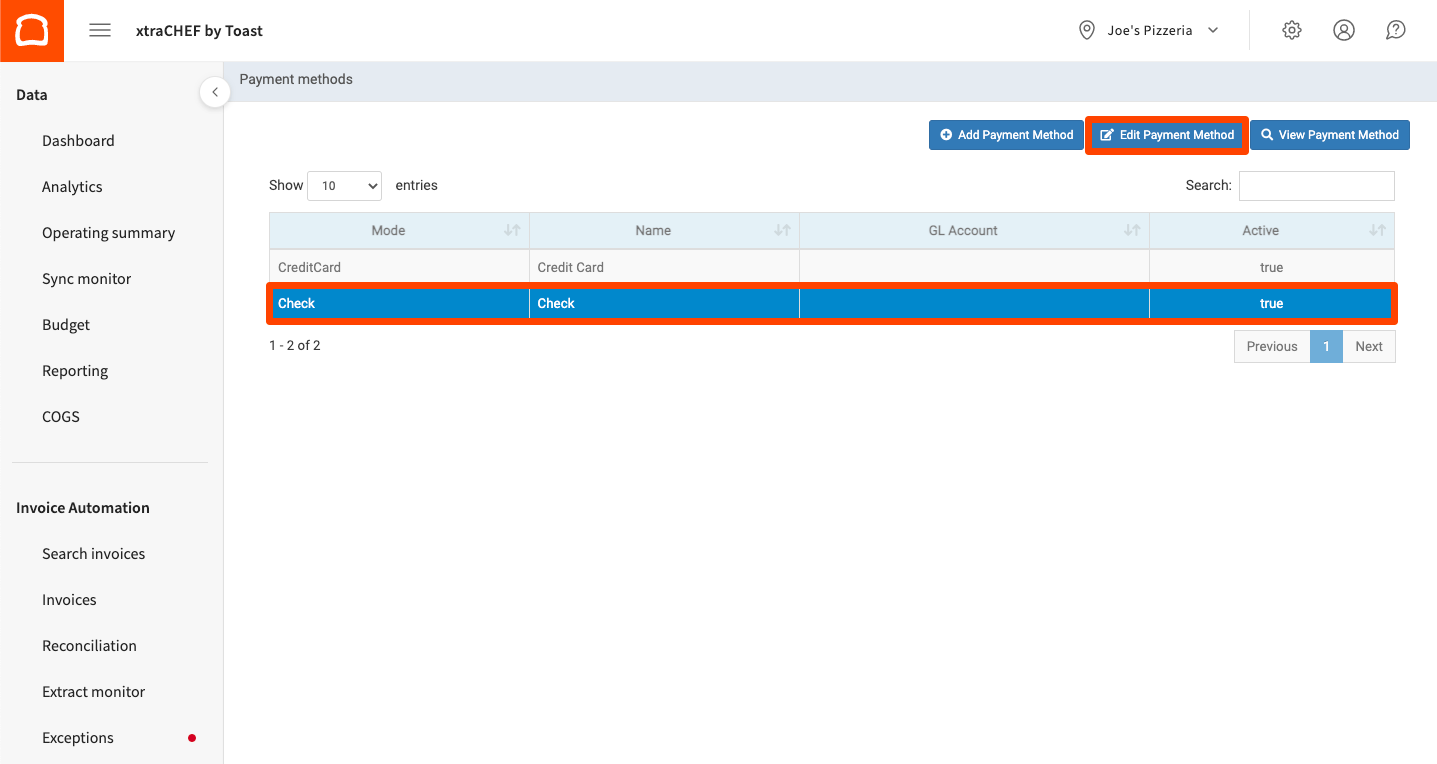
- Para hacerlo, selecciona el ícono de engranaje en la esquina superior derecha de tu cuenta de xtraCHEF. Selecciona Métodos de pago.
- Aquí verás los métodos de pago sincronizados desde tu cuenta de QuickBooks Online. Si no ves métodos de pago aquí, es posible que debas sincronizarlos primero desde la página Configuración de la cuenta, debajo del ícono de engranaje que acabas de seleccionar.
- A continuación, selecciona y resalta un método de pago y, luego, selecciona Editar método.
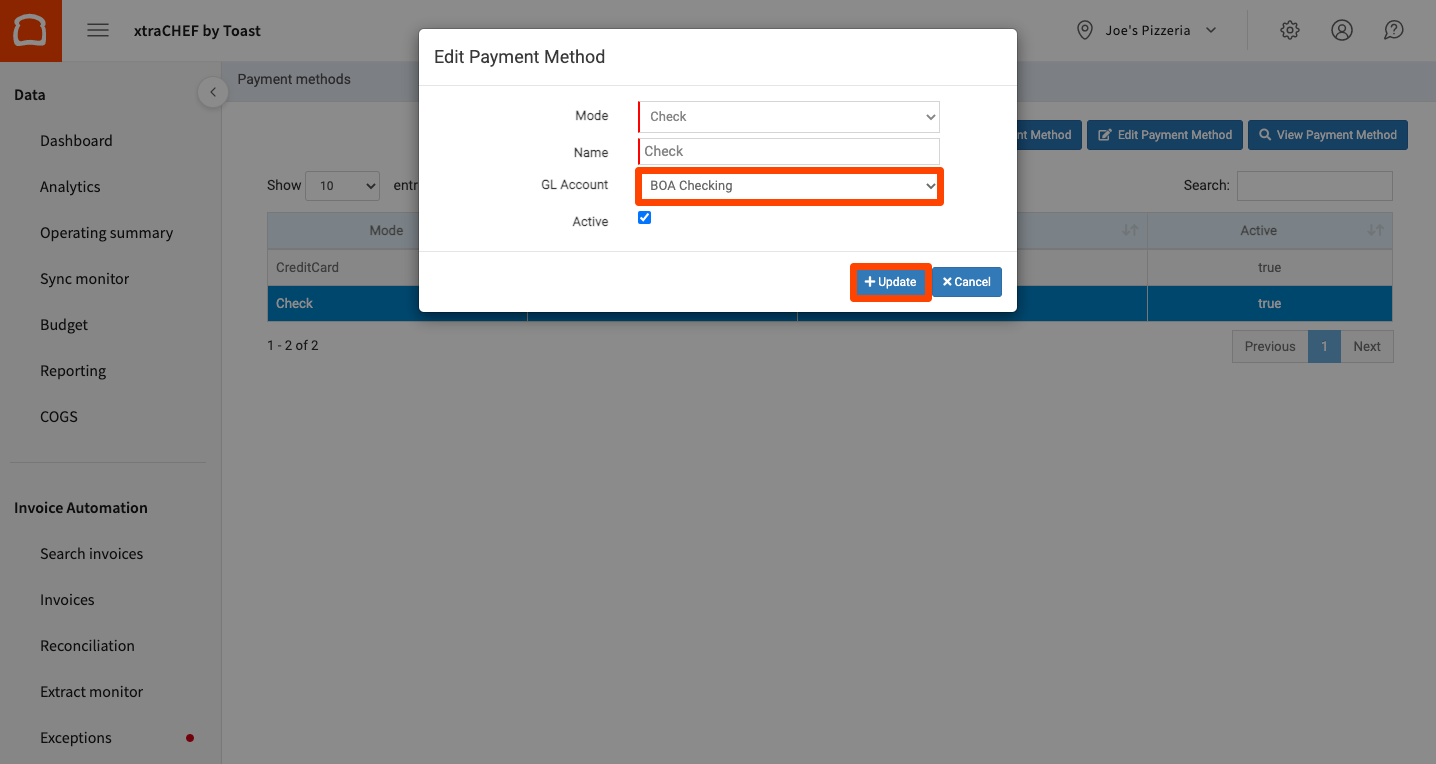
- Por último, selecciona la Cuenta de libro mayor a la que recurriría este método de pago o con la que se correspondería. Cuando termines, selecciona Actualizar.
Excepciones de métodos de pago
Con la extracción de recibos activada, xtraCHEF detendrá los recibos de proveedores sin un método de pago predeterminado. Esto requiere que realices acciones en la página Facturas > Acción necesaria. Selecciona la factura en cuestión; se etiquetará con el estado Información faltante.
Desplázate hasta la parte inferior y selecciona el método de pago correspondiente en el menú desplegable Método de pago utilizado. También puedes seleccionar Establecer como método predeterminado para este proveedor. Selecciona Enviar cambios cuando tengas todo listo. Si aquí no aparecen métodos de pago, es posible que debas completar la asignación.
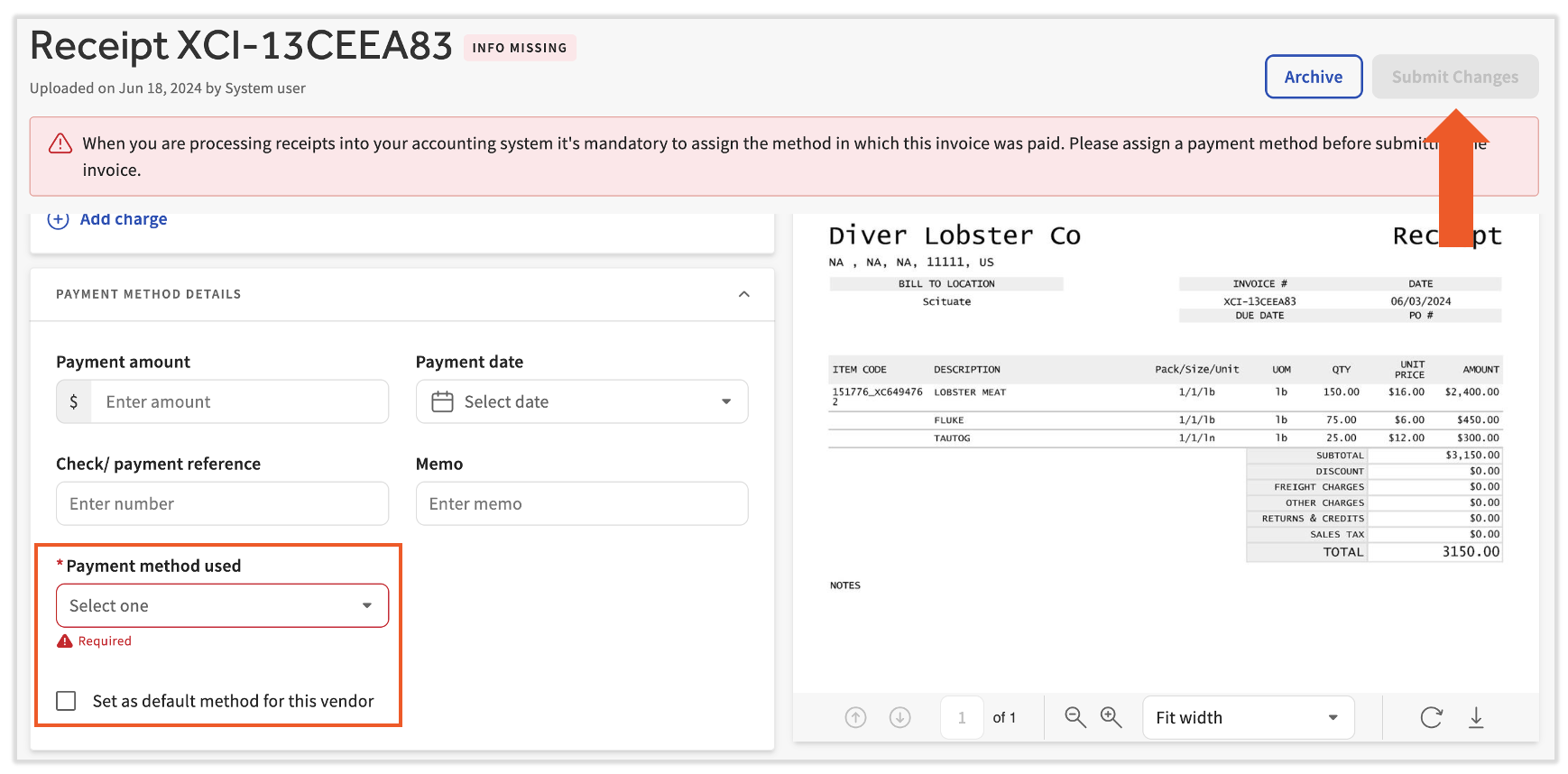
Una vez enviado, el recibo se enviará nuevamente al procesamiento y, una vez conciliado, se extraerá a tu cuenta de QuickBooks como gasto.
Volver al inicio