Configure Allergens on Menu Items
Dernière mise à jour : 7 nov. 2026, 06 h 51
Tag menu items and modifiers with allergens, manage bulk updates, and configure custom allergens in Toast Web.
| Toast Allergens is currently in open beta. Features and settings are subject to change as we continue to improve the experience. |
- Before You Begin
- Overview
- Tag Menu Items With Allergens
- Tag Modifiers With Allergens
- Update Allergens in Bulk
- Create Custom Allergens
- Guest-Facing Allergen Displays
- Related Articles
Before You Begin
Applies to: Toast Web, Toast POS, Online Ordering, Toast Tables
Permissions needed:
- Menu Management. See the Permissions Reference Guide for help granting this permission.
What you'll accomplish: Tag menu items and modifiers with allergen alerts, create custom allergens, and manage bulk allergen updates across menus.
Overview
Use Menu Builder to assign allergen details to menu items and modifiers. These tags display on digital guest-ordering channels and power the allergen alerting workflow for servers and kitchen staff. To configure POS screens and kitchen routing, refer to Manage Allergens on POS and KDS.
Toast supports two categories of allergens:
- Default allergens: Standard local and regulatory allergens for your region, automatically provided by Toast. Contact your Toast representative with questions about the default regulatory list for your region.
- Custom allergens: Unique allergen labels you configure for ingredients outside regional regulatory lists, such as Garlic or Coconut.
Default and custom allergens can be combined on the same item or modifier. Tagged alerts and free-text item descriptions can also exist simultaneously. Tags are required to trigger POS check highlighting and Kitchen Display System (KDS) displays.
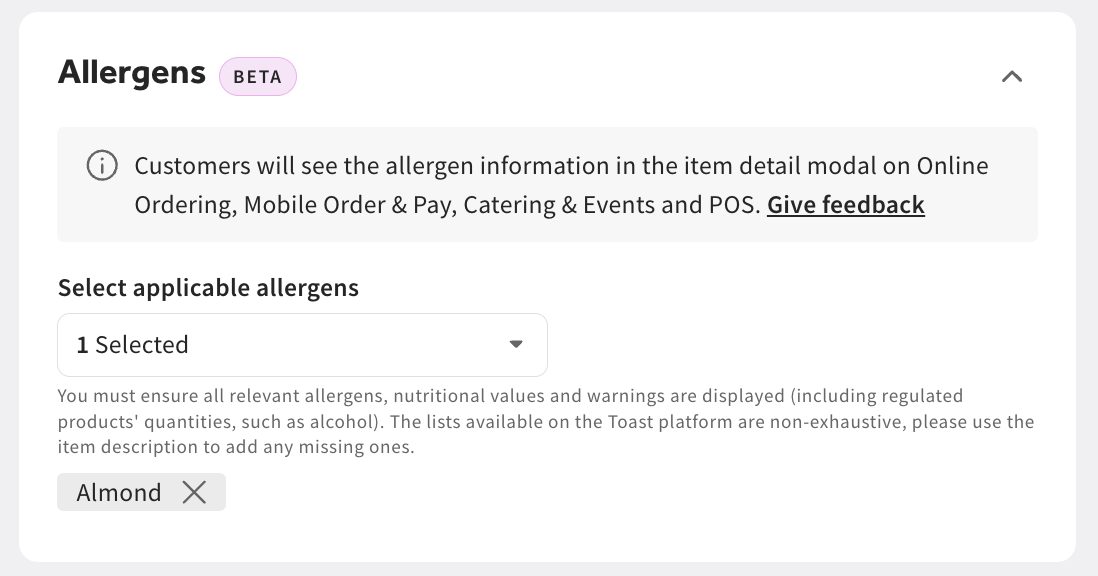
Note: Menu Builder provides reminders to display all relevant allergens, nutritional values, and statutory warnings (including regulated alcohol volume measurements). Because system allergen lists are non-exhaustive, use the item description field to detail any unlisted sensitivities.
Tag Menu Items With Allergens
You only need to tag menu items that contain allergens. Items without tags display no allergen callouts to guests.
- In Toast Web, navigate to Menus > Menu management > Menu manager.
- Locate and select the menu item.
- On the item details page, select the Allergens tab.
- Select all applicable allergens from the drop-down list.
- Select Save, then select Publish.
Expected outcome: The item saves with the assigned allergens, and tags publish to guest-facing ordering channels.
If the Allergens tab does not display on the item details page:
- Refresh your web browser.
- If the tab still does not display, contact Customer Support.
Tag Modifiers With Allergens
Modifiers can introduce allergens that the base menu item does not contain, such as a roll containing gluten or a dressing containing dairy. Tag modifiers using the following steps:
- In Toast Web, navigate to Menus > Menu management > Menu manager.
- Locate and select the base menu item.
- In the Modifier groups section, select the modifier group containing the allergen.
- Select the specific modifier option, such as "Sourdough Roll."
- In the modifier details, locate the Allergens section and select all applicable allergens.
- Select Save, then select Publish.
Expected outcome: Modifier allergen tags appear on Online Ordering and Toast Mobile Order & Pay® item selection modals alongside base item allergens.
Update Allergens in Bulk
Bulk allergen updates allow you to apply or remove default and custom allergens across multiple menu items at the same time.
- In Toast Web, navigate to Menus > Menu management > Menu manager.
- Switch to the Item List view.
- Select the checkbox next to each menu item you want to update.
- Select Edit Allergens from the bulk actions menu.
- Select or clear the allergens you want to add or remove.
- Select Apply Changes.
- Select Save, then select Publish.
Expected outcome: The selected allergen updates apply across all checked items.
Note: Bulk allergen management applies to one restaurant location at a time and cannot be updated across location groups.
Create Custom Allergens
Configure custom allergens for house ingredients not covered by regional defaults. There is no limit to the number of custom allergens you can create. Custom allergens supplement default regional lists rather than replacing them.
- In Toast Web, navigate to Menus > Settings > Manage allergens.
- Select Add custom allergen.
- Enter the allergen name, such as "Garlic."
- Select Save.
- Select Publish allergens to sync the changes to POS terminals, KDS devices, and digital menus.
The Manage Allergens page lists each allergen's Type (Default or Custom) and Status. Use the search bar to locate specific entries. Archived allergens remain hidden unless you enable Show archived.
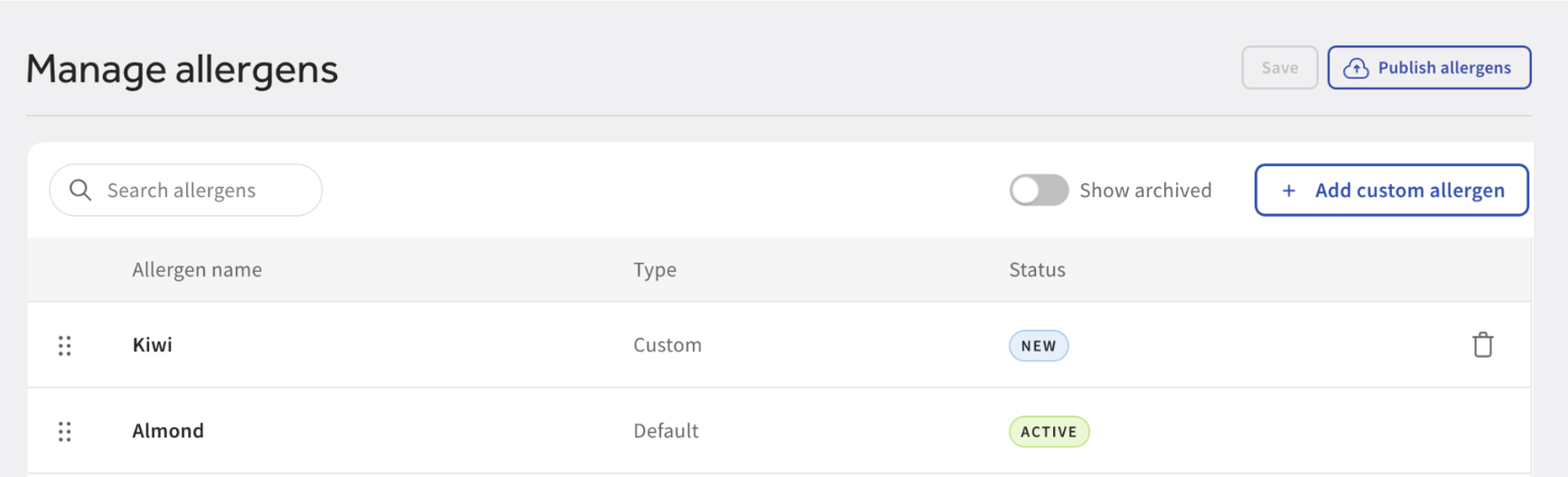
Expected outcome: Custom allergens become selectable in Menu Builder drop-down menus and on POS order screens. Tag custom allergens to items using the standard item tagging procedure.
Guest-Facing Allergen Displays
Published allergens automatically display on digital ordering channels with no secondary configuration required. Default and custom allergens display identically.
| Ordering Surface | Display Location | Guest Experience |
| Online Ordering | Item detail modal | Labeled chips appear directly below the item description. |
| Toast Mobile Order & Pay® | Item detail modal | Labeled chips appear below the item description matching Online Ordering. |
| Kiosk | Item detail header | A "Contains:" summary lists initial allergens with an expandable counter for more. |
| Catering Online Ordering | Item detail modal | Labeled chips appear below the item description matching Online Ordering. |
| Toast Tables™ | Reservation and digital order flow | Tags display during in-restaurant digital ordering experiences. |
Digital ordering surfaces also display a notice informing guests that allergen data may not account for kitchen cross-contamination, advising them to contact restaurant staff directly with safety concerns.
Note: Tagged allergens appear on digital ordering channels only. They do not display on printed guest receipts or printed paper menus.
Related Articles
- Manage Allergens on POS and KDS
- Manage Guest Allergens in Toast Tables
- Add Allergen Information to Guest Facing Menu Items