Toast Payroll: Review and Update TTOC Codes for Form W-2
Dernière mise à jour : 18 nov. 2026, 10 h 29
Review and update the Treasury Tipped Occupation Code (TTOC) for each job and employee in Toast Payroll before 2026 Form W-2s are generated.
- Before You Begin
- About TTOC Codes and Form W-2 Box 14b
- Key Dates for 2026 TTOC Codes
- Review and Update TTOC Codes for All Jobs
- Update a TTOC Code for One Employee
- Add a New Secondary Job With a TTOC Code
- Fix a TTOC Code After Form W-2s Are Generated
- Frequently Asked Questions
- Related Articles
Before You Begin
Applies to: Toast Payroll
Permissions needed:
- HR+ security role in Toast Payroll
What you'll accomplish: Confirm that every job and employee has the correct Treasury Tipped Occupation Code (TTOC) before your 2026 Form W-2s are generated.
About TTOC Codes and Form W-2 Box 14b
Starting with 2026 Form W-2s, Box 14b shows a three-digit Treasury Tipped Occupation Code (TTOC) for each employee. The code shows whether a job is a tipped occupation that may qualify for the federal "no tax on tips" deduction. A code of 000 means the job does not qualify.
TTOC codes are assigned to jobs, not to your restaurant. Toast Payroll has already assigned a default code to every job. You can review and change these defaults. As the employer, you are responsible for making sure your TTOC codes are accurate.
Note: Jobs with general names, such as Training, Hourly, Support, or Floater, are the most likely to need a different code than the default. Review these jobs first.
Key Dates for 2026 TTOC Codes
- December 1st, 2026: The TTOC review becomes available in your year-end tasks in Toast Payroll.
- Your final 2026 check date: The last day you can edit TTOC codes in your year-end tasks. After this date, the TTOC review is read-only.
- December 31st, 2026: Make all TTOC updates by this date. Updates after December 31st, 2026 may result in incorrect Form W-2s.
If you don't review your TTOC codes, the default codes appear on your employees' Form W-2s. Reviewing the codes does not hold up Form W-2 generation.
Review and Update TTOC Codes for All Jobs
Use your year-end tasks to review every job at once. A change here applies to every employee assigned to that job.
- In Toast Payroll, navigate to Taxes.
- When you select Taxes in Toast Payroll, you should see a URL that begins with payroll.toasttab.com. Visit Navigate Toast Payroll Within Toast Web to learn how the new Toast Payroll navigation works.
- On the Current tab, select Review year end tasks.
- Continue to the TTOC review step.
- Select All jobs or Non-qualifying jobs to filter the list.
- For each job, check the code in the Federal tipped occupation column. To change a code, select the drop-down menu and choose the correct code.
- Check the Approved tip occupation column. Yes means employees in that job may qualify for the tip deduction. No means they don't.
- Select the checkbox in the banner at the top of the page to confirm you reviewed the TTOC codes for each job. Then select Next. to continue with the year-end/Form W-2 prep wizard.
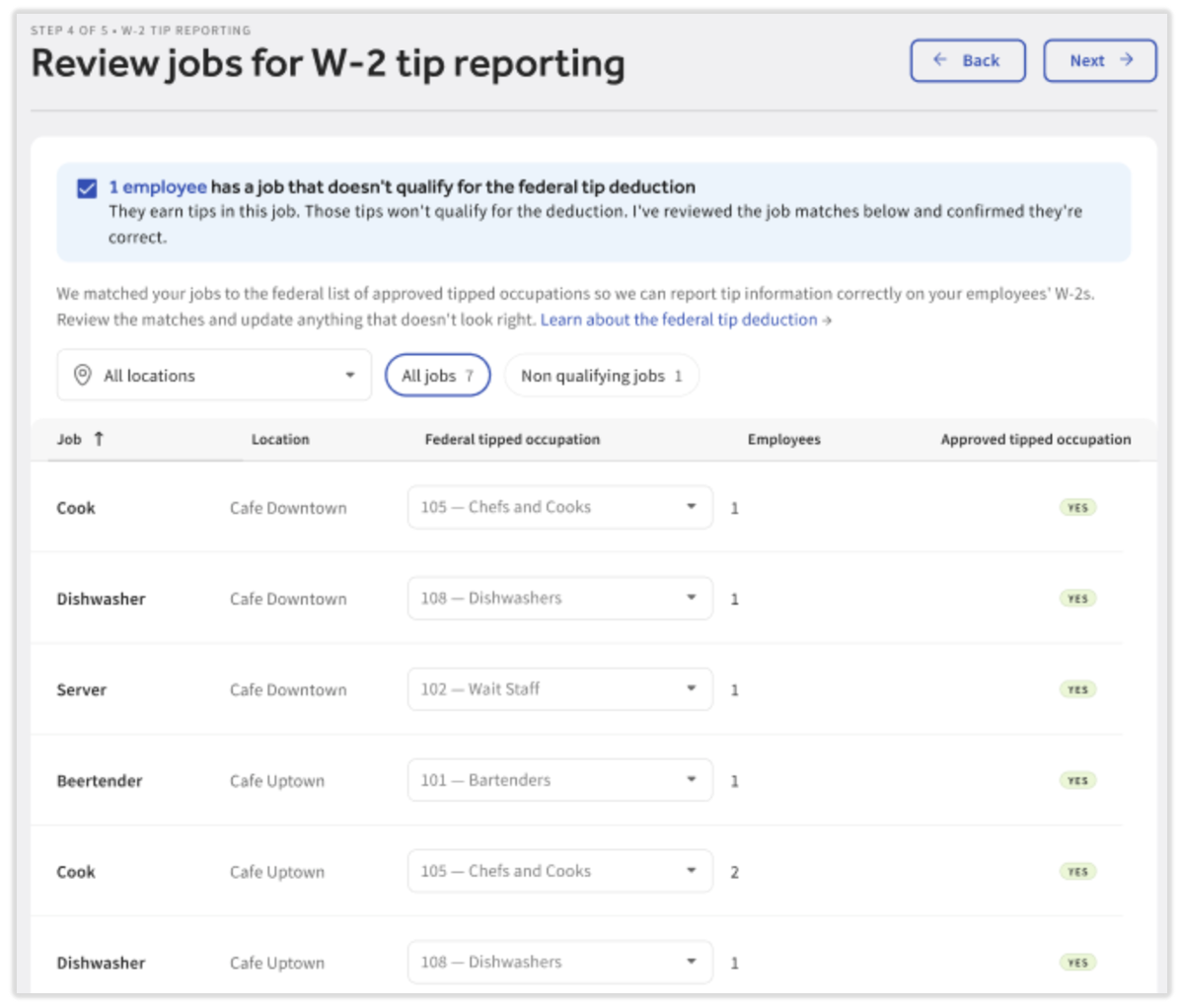
Expected outcome: Each job shows the TTOC code you want on your employees' 2026 Form W-2s, and your review is recorded.
Note: If you have more than one location, a Location column shows where each job is used. Single-location customers will not see this column. If any job has no TTOC code, the confirmation banner shows how many jobs are missing a code.
Update a TTOC Code for One Employee
You can change the code for one employee only on a secondary job. An employee's primary job always uses the job's code from your year-end tasks.
- In Toast Payroll, navigate to Team and select the employee's name.
- When you select Team in Toast Payroll, you should see a URL that begins with payroll.toasttab.com. Visit Navigate Toast Payroll Within Toast Web to learn how the new Toast Payroll navigation works.
- On their profile, select Jobs.
- Select the edit pencil next to the secondary job.
- If the employee's primary job has the wrong code, update the job's code in your year-end tasks, as described in Review and Update TTOC Codes for All Jobs. This changes the code for every employee assigned to that job.
- Select the TTOC drop-down menu and choose the correct code.
- Select Save.
Expected outcome: The new code appears on the job with the word Override next to it. Override appears for any code set on an employee's profile, even if it matches the job's code.
Add a New Secondary Job With a TTOC Code
When you add a new secondary job to an employee's profile, a TTOC field appears for that job. The TTOC field does not appear when you add a primary job. A primary job always uses the job's code from your year-end tasks (or the default code assigned by Toast if the code has not been assigned during year-end tasks).
- In Toast Payroll, navigate to Team, select the employee's name, and then select Jobs.
- When you select Team in Toast Payroll, you should see a URL that begins with payroll.toasttab.com. Visit Navigate Toast Payroll Within Toast Web to learn how the new Toast Payroll navigation works.
- Select Add and choose the job from the drop-down menu.
- Choose how to set the TTOC code:
- To use the default code, select Save.
- To use a different code, select the TTOC drop-down menu, choose a code, and then select Save.
Expected outcome: The secondary job appears on the employee's profile with a TTOC code. If you chose a code, it shows Override, even if it matches the default.
Fix a TTOC Code After Form W-2s Are Generated
If an employee files their taxes with a different TTOC code than the one on their Form W-2, they may receive a verification error from the IRS. Employees with a TTOC question should contact their employer.
Correcting a TTOC code on a Form W-2 requires both a Form W-2 refresh and an amendment:
- The refresh creates a corrected Form W-2 that employees can use to file their taxes as soon as it's uploaded to their profile. They don't need to wait for the amendment to finish.
- The amendment corrects the Form W-2 information already filed with the government. Amendments cost $250 per request and take 10–12 weeks, but employees can use the corrected Form W-2 in the meantime.
- If the wrong code is on a secondary job, update the code on the employee's profile first, as described in Update a TTOC Code for One Employee.
- An HR+ user contacts Toast Customer Care using the blue chat dot in the lower-right corner of any Toast Payroll page. Include:
- The name or employee number of each affected employee
- Your company code
- The job and the correct TTOC code
Expected outcome: Refreshed Form W-2s are uploaded to each affected employee's profile, and the amendment is processed within 10–12 weeks.
If the wrong code is on a primary job:
- The job's code can't be changed until your next year-end tasks open in December 2027.
- The refresh and amendment must include every affected employee assigned to that job.
For more on refreshes and amendments, see Toast Payroll: Get Help With Form W-2 Amendments.
Frequently Asked Questions
Are TTOC codes assigned automatically?
TTOC codes are assigned automatically. Toast Payroll assigned a default code to every job, and those defaults appear on Form W-2s unless you change them. Review the codes in your year-end tasks to confirm they match the work done in each job.
Also asked as:
- Does Toast require me to add TTOC codes?
- Are TTOC codes automatically mapped?
Which TTOC code should I choose for a job?
The right TTOC code depends on the work done in that job. Select the code that matches the job the employee worked. The full list of codes is on the U.S. Department of the Treasury website. If you're unsure which code applies, contact a tax professional.
Does my restaurant have its own TTOC code?
Your restaurant does not have its own TTOC code. Each job has its own code, and an employee's Form W-2 shows the codes for the jobs they worked.
Also asked as:
- What is my restaurant's TTOC code?
How many TTOC codes appear on a Form W-2?
A Form W-2 shows up to two TTOC codes in Box 14b, even if the employee worked more than two jobs.
- If the employee worked a job that doesn't qualify (code 000), 000 is one of the two codes.
- The other codes come from the jobs where the employee earned the most wages.
Box 12 code TP still shows the employee's full amount of qualified tips, even when Box 14b shows only two codes.
Can I change TTOC codes after my final check date?
You can't change TTOC codes in your year-end tasks after your final 2026 check date. The TTOC review stays visible as read-only so you can see your selections. To correct a code after Form W-2s are generated, see Fix a TTOC Code After Form W-2s Are Generated.
Related Articles
- Toast Payroll: No Tax on Tips and/or Overtime
- Toast Payroll: Understand Your Form W-2
- Toast Payroll: Get Help With Form W-2 Amendments
- Toast Payroll: Assign or Change Employee Jobs or Locations
- Toast Payroll: Get Started With the Year-End Checklist
This content is for informational purposes and is not intended as legal, tax, HR, or any other professional advice. Please contact an attorney or other professional for advice.