All To-Go View in Order Manager Overview
上次更新时间:2026年11月23日 17:05
Order Manager (formerly Payment Terminal) includes the All To-Go view, which groups takeout, delivery, and curbside orders by fulfillment stage.
- About Order Manager and the All To-Go View
- Who Can Use the All To-Go View
- Find the All To-Go View
- All To-Go Tabs
- Order Status and Courier Updates
- Fulfillment Action Buttons
- All To-Go View and Orders Hub
- Related Articles
About Order Manager and the All To-Go View
Order Manager is the new name for Payment Terminal mode on the Toast POS. On the POS main menu, the button reads Order Manager (Payment Terminal). All of the features you used in Payment Terminal still work the same way.
Order Manager has two views:
- All checks — The same screen you used in Payment Terminal. It shows every order type, including dine-in, grouped by payment status: Open, Paid, and Closed.
- All To-Go — Shows only takeout, delivery, and curbside orders, grouped by fulfillment stage so your team can see what needs attention next.
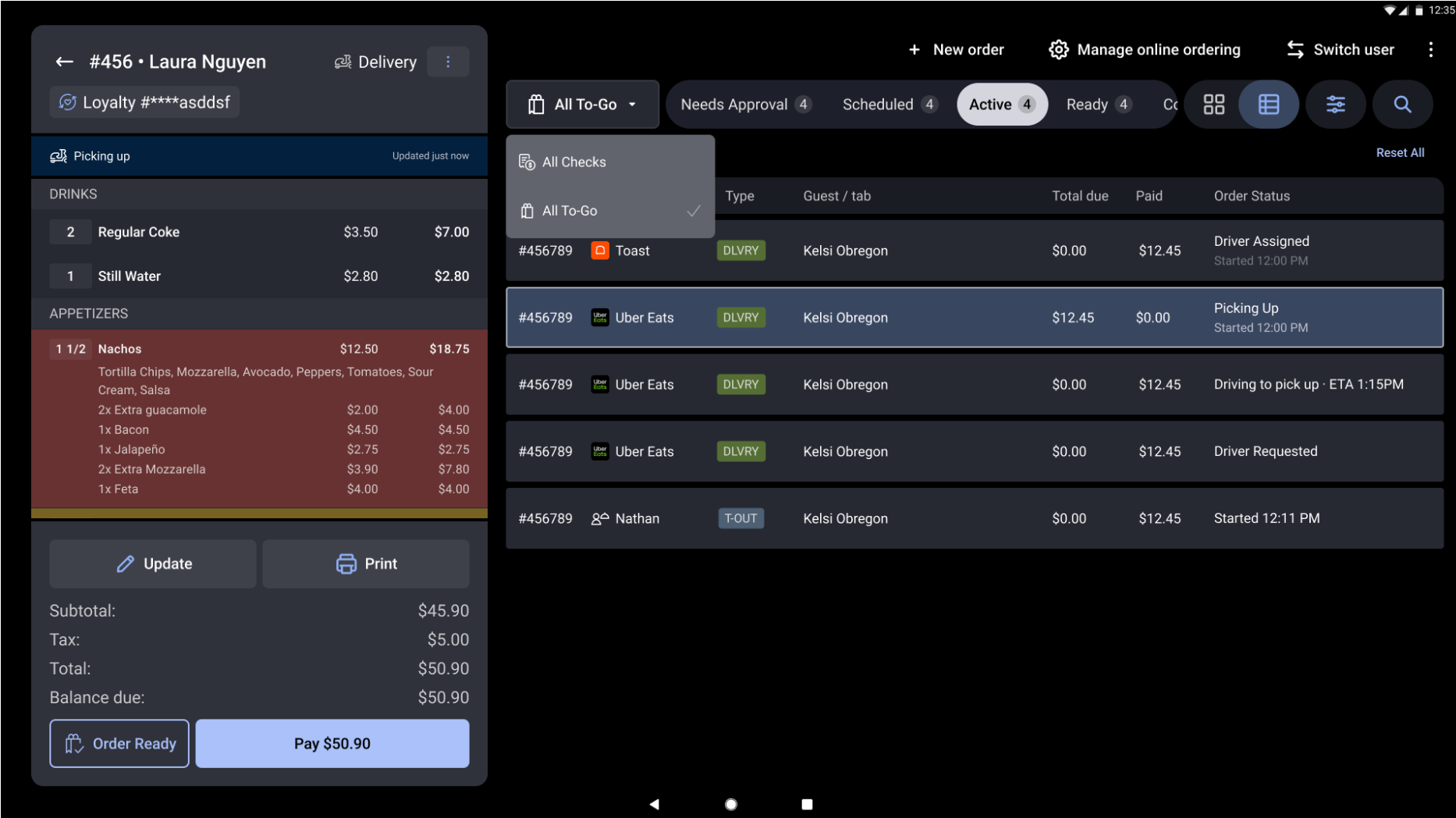
Use the All To-Go view to manage all of your off-premise orders in one place, including Toast Online Ordering orders and orders from integrated third-party partners. You can see live courier status for delivery orders without switching to another mode.
| Note: Uber Eats orders are currently the only third-party orders visible in All To-Go mode. Check back soon for updates! |
Who Can Use the All To-Go View
- Applies to: Toast POS on all tablet sizes and Toast Go® handhelds
- Permissions: Any employee with the 1.4 Payment Terminal Mode permission can open Order Manager and use the All To-Go view. For details, see Permissions Reference Guide.
- Setup: No setup is needed. The All To-Go view is available to every location, and there is no setting in Toast Web to enable or hide it.
- Integrations: Orders from your existing third-party integrations appear in the All To-Go view automatically. You do not need to reconnect or reconfigure them. Note: Uber Eats orders are currently the only third-party orders visible in All To-Go mode.
Find the All To-Go View
Order Manager opens to the All checks view until you choose a different view. To see off-premise orders, select Order Manager (Payment Terminal) on the POS main menu, select the view name All checks in the top-left corner of the screen, and then select All To-Go from the drop-down.
The list now shows only takeout, delivery, and curbside orders. Your selected view stays active as you move between tabs and each time you log in. The view is saved for each employee, not for the whole restaurant, so one employee can keep All To-Go selected while another keeps All checks. To return to every order type, open the view drop-down and select All checks.
The All To-Go view supports the same sort, filter, and search tools as the All checks view. For details, see Check Statuses and Filter Checks on POS.
All To-Go Tabs
The All To-Go view groups orders into five tabs based on where each order is in fulfillment. A count next to each tab name shows how many orders are in that tab, and counts update automatically.
| Tab | Orders shown |
| Needs Approval | Toast Online Ordering orders waiting for approval, if your restaurant approves online orders manually |
| Scheduled | Future orders due at a later time or date |
| Active | Orders that have been fired to the kitchen |
| Ready | Orders marked ready for pickup or delivery |
| Completed | Orders that have been fulfilled |
Order Status and Courier Updates
The Order Status column shows up to two lines for each order. The top line shows the most important thing happening with the order right now. The bottom line adds supporting details, such as when the order started or whether it is still unpaid.
Takeout and Curbside Orders
- Due with a time — The order is scheduled and has not been fired yet.
- Started with a time — The order was fired to the kitchen.
- Ready — Someone marked the order ready. Curbside orders show Ready · Curbside so staff know to bring the order outside.
- Picked up with a time — The guest picked up the order.
When an order is ready but still unpaid, the bottom line shows Unpaid so staff can collect payment before the guest leaves. Ready and Picked up only appear when a team member or a Kitchen Display System (KDS) marks the order. An order that is never marked ready continues to show Started.
Delivery Orders
For delivery orders, live courier status appears on the top line, and the fulfillment status moves to the bottom line. Courier statuses include:
- Driver requested
- Driver assigned
- Driving to pickup (with an ETA when the delivery partner provides one)
- Picking up
- Driving to drop off
- Dropping off
- Delivered
If a delivery fails, the status shows Undeliverable, Order canceled, or Order returned in red.
Note: Live courier status is available for integrated Uber Eats orders and Toast Delivery Services® orders. Courier status for other delivery partners is not available yet.
Fulfillment Action Buttons
Takeout, delivery, and curbside orders show fulfillment action buttons in the check details area. These buttons work the same way they do in Orders Hub. Dine-in orders show only the Fire Now button.
| Button | What it does |
| Approve | Approves a Toast Online Ordering order that requires approval. |
| Fire Now | Sends a scheduled order to the kitchen right away. The order keeps its scheduled due time and does not become an ASAP order. Fire Now is the only action button that appears on dine-in orders. |
| Order Ready | Marks the order ready for pickup or delivery. If your restaurant has Order Ready text messages set up, the guest receives a text. |
| Complete | Marks the order complete after it is fulfilled. The button is unavailable until the order is paid. |
To complete an order, the employee needs the 2.2 Update All Delivery Orders and 2.5 Complete Delivery permissions. If your restaurant uses its own delivery drivers and no driver is assigned to a delivery order, the POS prompts you to assign a driver before you can complete it.
All To-Go View and Orders Hub
The All To-Go view includes the same off-premise order management features as Orders Hub, and its tabs follow the same fulfillment stages. Orders Hub is still available from the POS main menu and works the same way it does today, so you can choose either one.
Toast is exclusively adding new off-premise order management features to Order Manager, so the All To-Go view is the recommended place to manage takeout, delivery, and curbside orders. To learn more about Orders Hub, see Get Started With Orders Hub.
Related Articles
- Manage Payments With Toast POS
- Check Statuses and Filter Checks on POS
- Get Started With Orders Hub
- Toast Delivery Services® Order Status Tracking
- Permissions Reference Guide