本文章目前没有您语言对应的版本。正在显示默认语言。
Get Started With the Ring Cheer Chime Integration
上次更新时间:2026年5月22日 17:54
Learn how to set up the Ring Cheer Chime integration with Toast.
| This integration requires access to Toast Partner Integrations. To learn more, see Set Up Toast Partner Integrations. |
- Ring Cheer Chime Integration Features
- Enable Ring Cheer Chime Integration With Toast
- Ring Cheer Chime Integration: Troubleshooting and Support
Ring Cheer Chime Integration Features
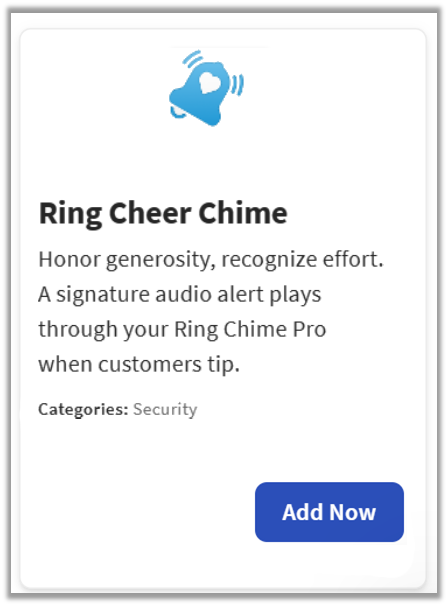
Boost your staff's morale in real-time by connecting Ring Chime Pro to your Toast POS, which plays a customizable audio alert to celebrate whenever your team earns a great tip.
Enable Ring Cheer Chime Integration With Toast
To enable the Ring Cheer Chime integration with Toast, follow these steps:
- To enable Ring Cheer Chime with Toast, log into Toast Web and navigate to Integrations > Integrations management > Browse & purchase integrations.
- Enter Ring Cheer Chime in the search field and select Add Now.
- If you have multiple locations, please select the restaurants you would like to connect to Ring Cheer Chime. Finally, select Apply.
- Note: Your restaurant must have access to Toast Partner Integrations to add this integration. To learn more, see Set Up Toast Partner Integrations.
- Review the data scope visibility terms and conditions, and select Confirm to accept. See the Data Scope Visibility article for more information.
- Once you select Add Now on the Ring Cheer Chime tile in Toast Web, you will select which restaurant(s) you would like to connect to your Ring Cheer Chime account, and select Apply
- After you select Apply, you will be forwarded to a confirmation screen.
- After adding the integration in Toast Web, the Ring Cheer Chime team will reach out to you directly to start your account setup and onboarding if you have yet to create your Ring Cheer Chime account.
Ring Cheer Chime Integration: Troubleshooting and Support
For any questions or support issues relating to the Ring Cheer Chime integration, you can contact Ring Cheer Chime at:
- General Support