Sling by Toast: Employee Documents

上次更新时间:2026年6月11日 15:07

Learn how to add documents to employee profiles on Sling.

In this Article:


Understand Employee Documents 

Admins and Managers on Business accounts can attach important documents, such as certifications, licenses, and forms, to employee profiles. Expiration dates can be set, and notifications can be enabled for upcoming expirations. 


Users assigned to the Manager system role will only have access to an employee's Documents tab if their name has been added as the assigned manager under the employee's profile > Work tab.


Note: Documents can only be viewed on the web version of Sling.


Back to top


Add Employee Documents

To add an employee document:


  1. Access the web version of Sling. 
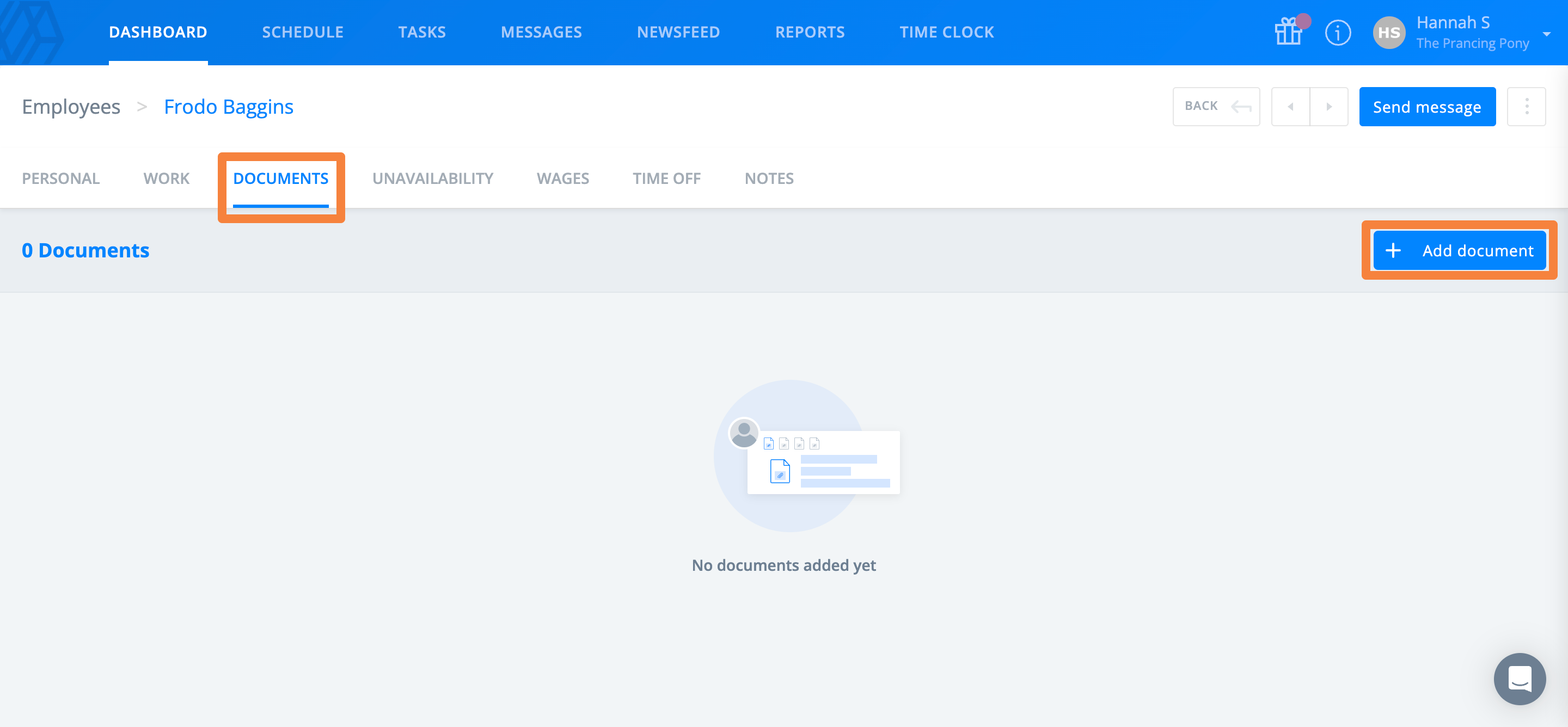
  2. Navigate to an employee's profile, then select the Documents tab. 
  3. Select Add document +.

    Dashboard screen titled "Frodo Baggins," under "Documents" tab. It shows no documents yet added and a highlighted "Add document" button. 

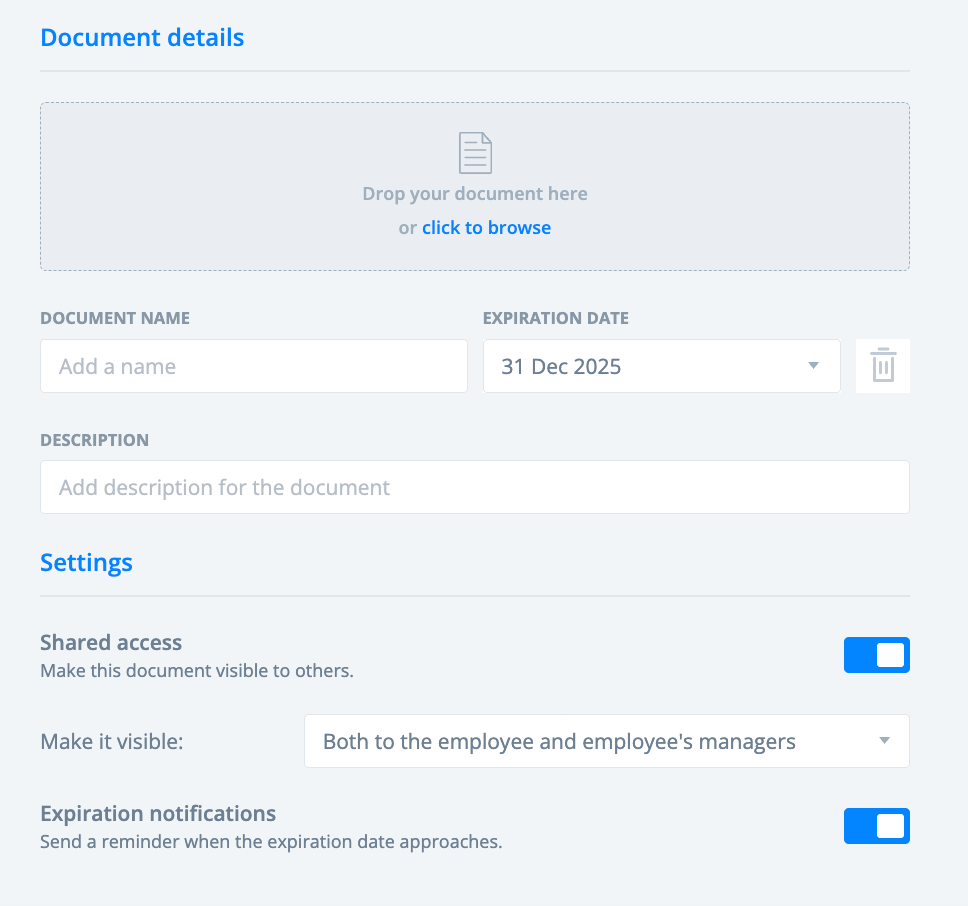
  4. Drag and drop or select a document to upload. 

    Form titled "Document details" with fields for document name, expiration date, and description. Settings include shared access and expiration notifications. 

  5. Add the name of the document and the expiration date.
  6. Choose the document's visibility.
  7. Enable or disable expiration notifications. 
    1. If enabled, you will get a notification 15 days before and on the day of the expiration date. Only Admins and assigned Managers will receive expiration notifications. 
  8. Select Save.


Note: The maximum file size for individual document uploads is 20 MB. There is no limit to how many documents can be added to an employee's profile.