Toast Tables:报告
上次更新时间:2026年9月18日 10:59
Toast Tables 报告
Toast Tables:每日预订摘要
您想要接收一封定期电子邮件,以便了解即将到来的 Toast Tables 预订吗?没问题! 现在您可以配置您的 每日预订摘要 电子邮件通知,以便接收包含未来 14 天预订摘要的电子邮件。
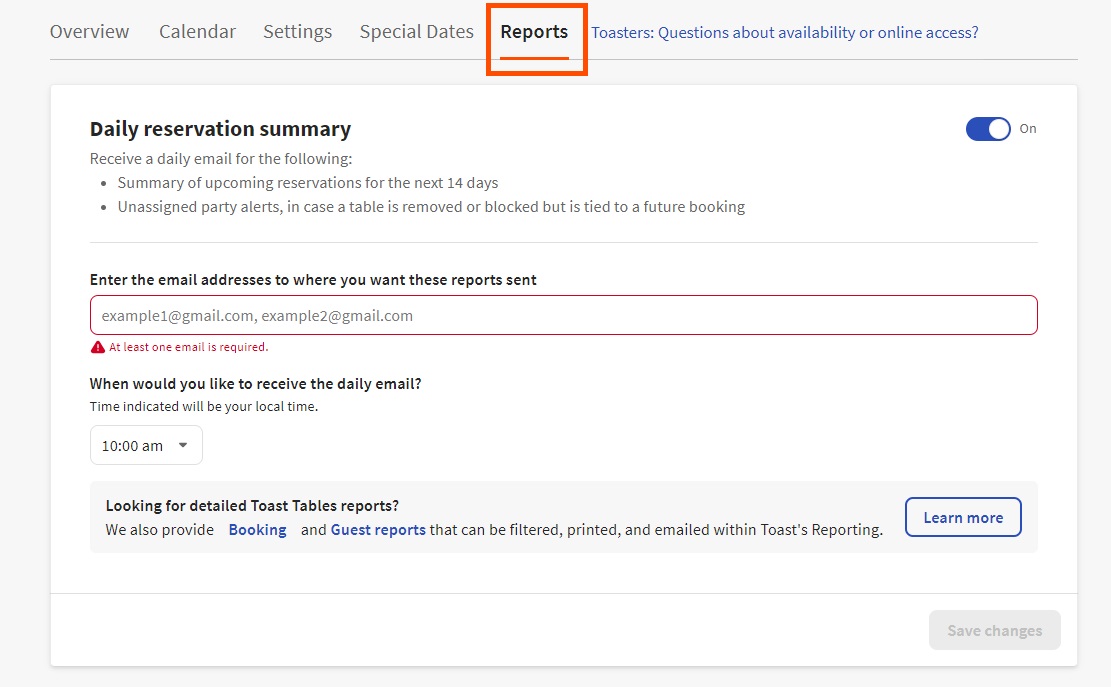
请按照以下步骤设置您的每日预订摘要电子邮件通知:
- 登录 Toast Web,并导航至 等候名单和预订。
- 在 Toast Tables 区域内导航到 报告 选项卡。
- 开启 每日预订摘要。
- 输入您希望接收报告的电子邮件地址。要添加多个电子邮件,请在电子邮件之间使用逗号和空格。
- 指明您希望何时接收每日电子邮件。
- 选择 保存更改。
每日电子邮件摘要包括以下内容:
- 日期
- 时间
- 名称
- 用餐人数
- 桌子和就餐区
这些报告中的 未分配的派对警报 展示了一个罕见的情况,即由于就餐区或桌子在 POS 中被移除或在 Toast Tables 中被阻止,预订需要重新分配到新桌子。
请访问此链接快速访问每日预订摘要页面。
注意:您必须登录到Toast Web才能查看此页面。
返回顶部
Toast Tables:客人和预订报告
您还可以将所有原始数据从Toast Tables应用程序导入到客人报告和预订报告中。这两个报告可以在Toast Web中找到,方法是导航到左侧导航栏中的报告,然后选择预订和等候名单。请访问此链接快速访问报告页面。
但是,如果您降低了Toast Tables服务的销售,您会注意到相关报告不再直接在您通常的仪表板中可访问。您仍然可以通过登录Toast Web并访问此直接链接来访问所有Toast Tables报告。
注意:您必须登录到Toast Web才能查看此页面。
让我们来分析一下这些报告显示的内容。
客人报告
使用报告页面左侧的导航,导航到预订和等候名单,并选择客人以查看客人报告。本报告包含所有已输入到您的Toast等候名单和预订系统中的客人。
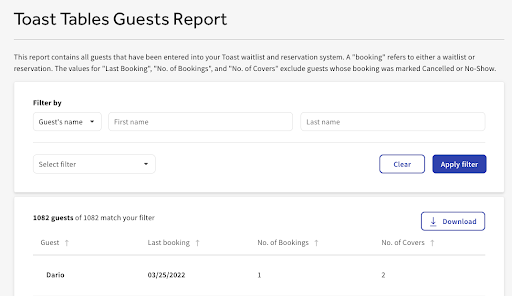
预订是指等候名单或预订。上次预订日期、预订数量和就餐人数的值不包括预订标记为已取消或未到场的客人。您可以对该报告进行排序、筛选和下载。
返回顶部
预订报告
使用报告页面左侧的导航,导航到预订和等候名单预订以查看预订报告。 该报告允许您查看在给定的过去或未来期间内开始的所有预订。您还可以根据预订创建的时间查找预订。
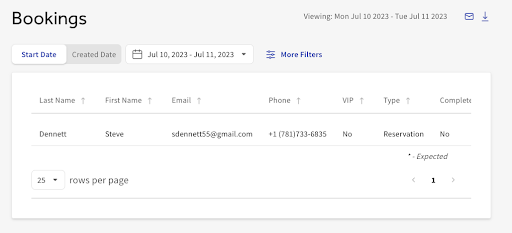
在 预订 报告中提供以下信息:
- 姓氏
- 名字
- 电子邮件
- 电话
- VIP
- 类型
- 完成
- 状态
- 报价与实际等待时间
- 创建时间
- 开始时间
- 下单时间
- 支付时间
- 结束时间
- 翻台时间
- 来源
- 用餐人数
- 服务员
- 特殊请求
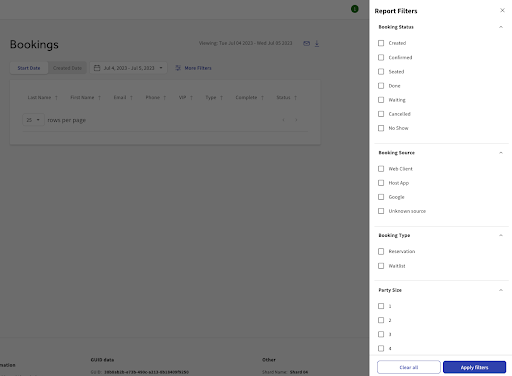
您可以通过选择 日期、预订状态、预订来源、预订类型 和 人数 来过滤此报告,选择 报告过滤器, 如下所示。 您可以根据所选的时间范围和过滤器通过电子邮件发送或下载报告。