Void a Captured Payment on a Closed Check (Australia, Canada, Ireland, and UK)
上次更新时间:2026年11月16日 12:38
Learn how restaurants in Australia, Canada, Ireland, and the UK can void a same-day captured payment on a closed check and collect a new payment.
- Before You Begin
- Void vs. Refund: Which Should I Use?
- Void and Re-tender a Payment
- View Voided Payments in the Sales Summary Report
- Related Articles
Before You Begin
Applies to: Toast POS (version 2.120 or higher; available in Australia, Canada, Ireland, and the UK)
Permissions needed:
- 3.23 Find Checks
- 3.8 Void/Refund Payments or 3.32 Void/Refund Payments (Limited to Same Day Only)
What you'll accomplish: You will void a same-day captured payment on a closed check, restore the check balance, and collect a new payment.
In international markets, credit card payments capture immediately when a guest pays, moving the check directly to the Closed tab. With the Void workflow on Toast POS, you can void a same-day captured payment when a guest wants to change their payment method (for example, switching from a personal card to a corporate card or splitting a bill).
When you select Void, Toast automatically processes a refund, restores the check balance, and returns the check to your Open checks list so you can collect a new payment.
Note: Payment voids only apply to same-day transactions. For Canadian restaurants using Interac, same-day voids must be completed before the 9:00 p.m. ET daily cutoff. Item-level voids are not supported in this workflow—you must enter the void amount as a custom amount.
Void vs. Refund: Which Should I Use?
Both Void and Refund remain available on your POS device. Use the table below to choose the right action:
| Situation | Action to Use | Why? |
| Guest paid with the wrong card and wants to pay with another card or cash | Void | Refunds the original payment, restores the balance, and reopens the check for a new payment. |
| Guest wants to return an item or leave without paying again | Refund | Returns money to the customer and keeps the check permanently closed. |
| Transaction took place on a prior business day | Refund | Payment voids only apply to same-day transactions. |
Void and Re-tender a Payment
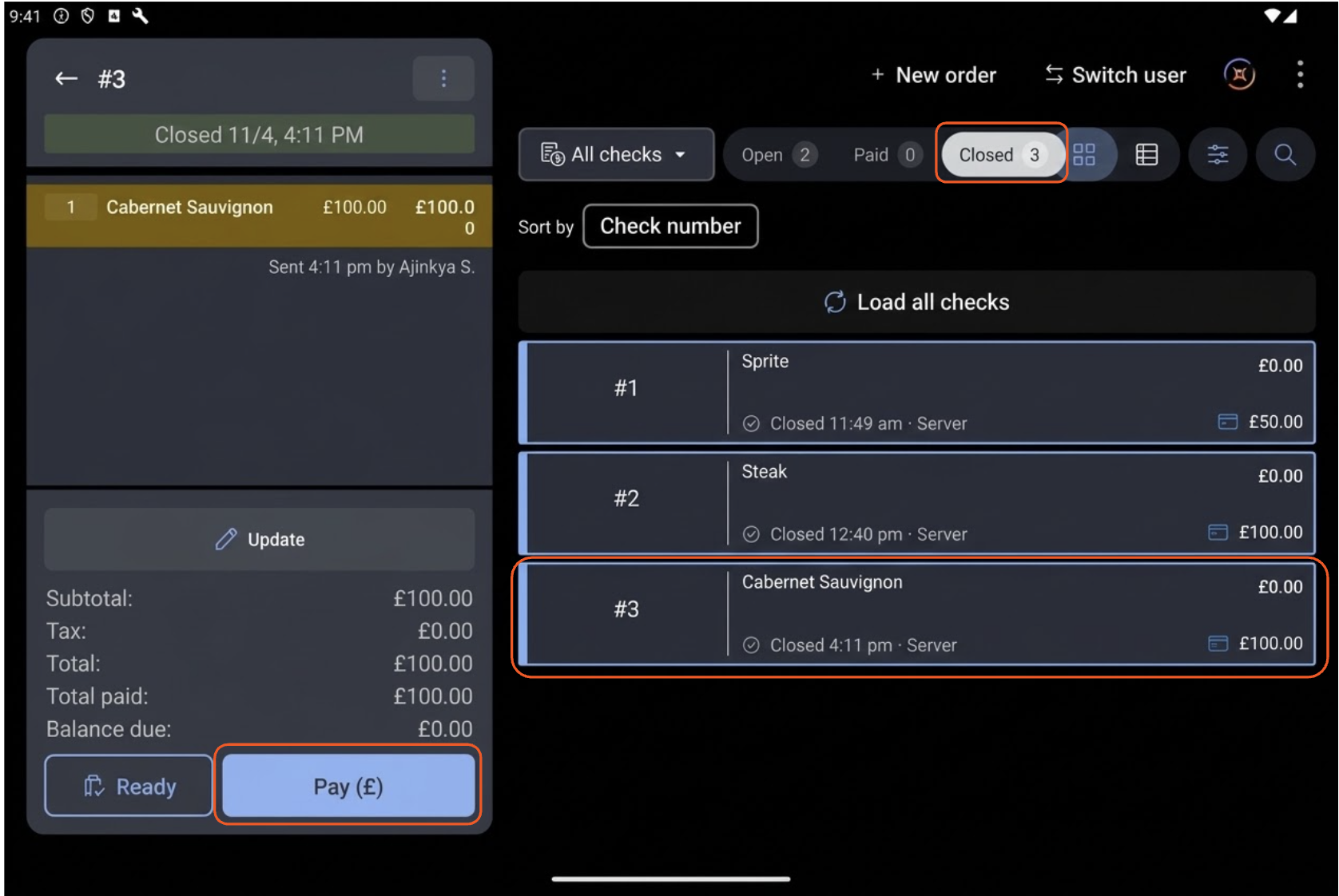
Locate the Closed Check
- From the Toast POS home screen, select Order Manager (Payment Terminal) under the Mode section.
- In the Payment Terminal, select the Closed tab at the top of the check list.
- Select the check you want to update, then select Pay (£ / $ / €) in the bottom-left preview panel.
Select the Void Button
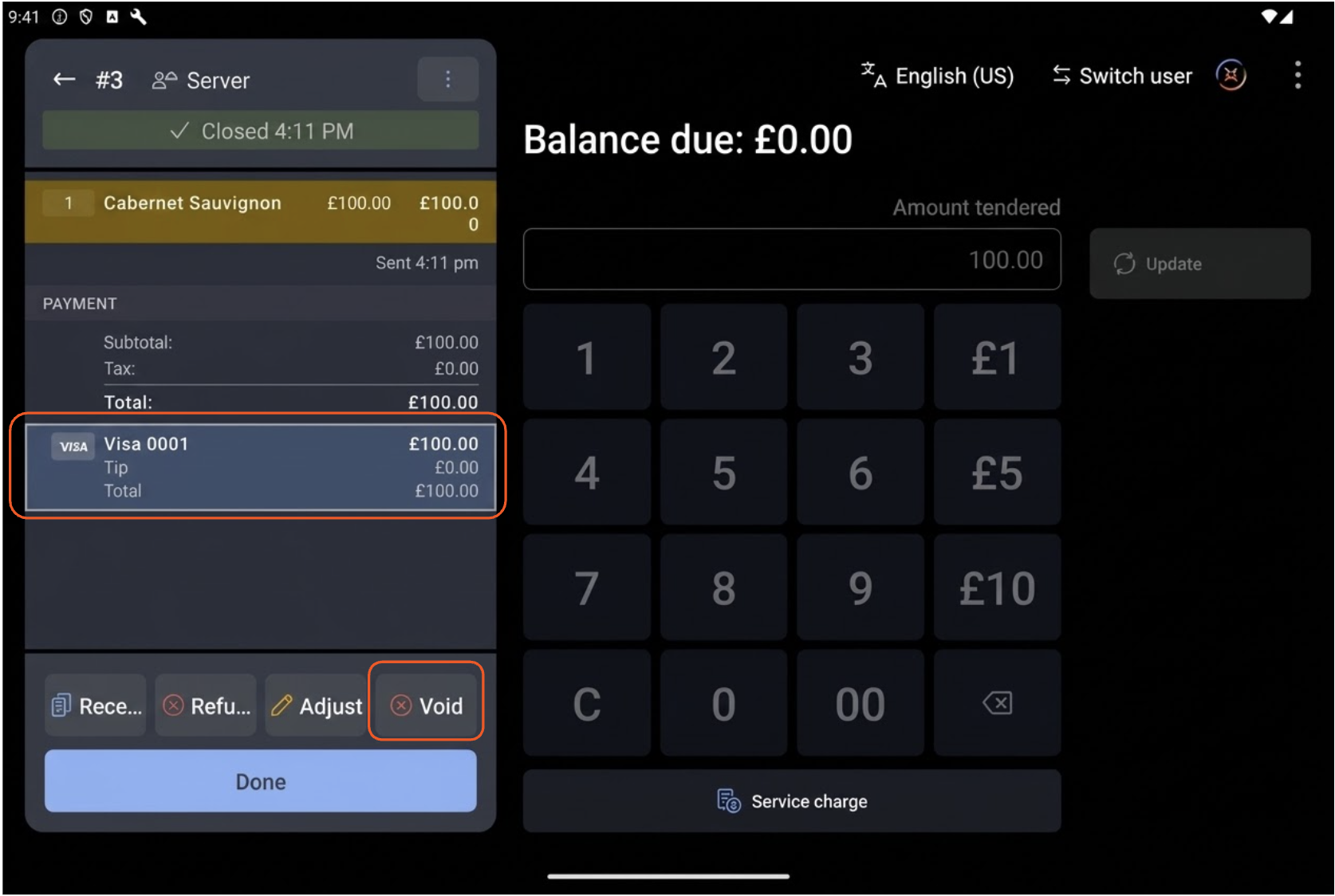
- On the Balance due payment screen, locate the applied card payment under the PAYMENT section on the left.
- Select Void (the fourth action button along the bottom of the payment panel, next to Adjust).
Confirm the Void Warning
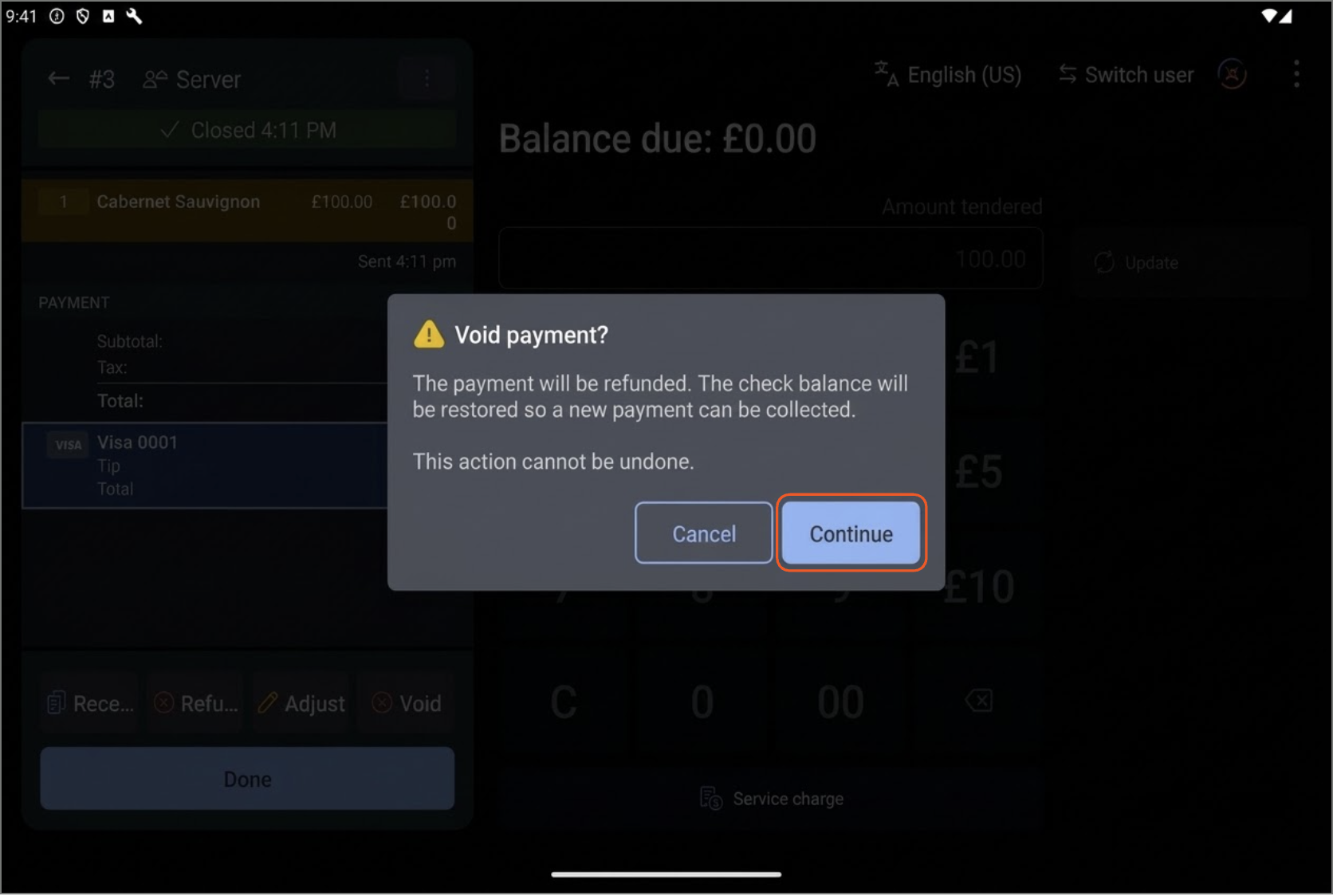
- Review the Void payment? warning pop-up explaining that the payment will be refunded and the check balance restored so a new payment can be collected.
- Select Continue.
Enter the Custom Refund Amount
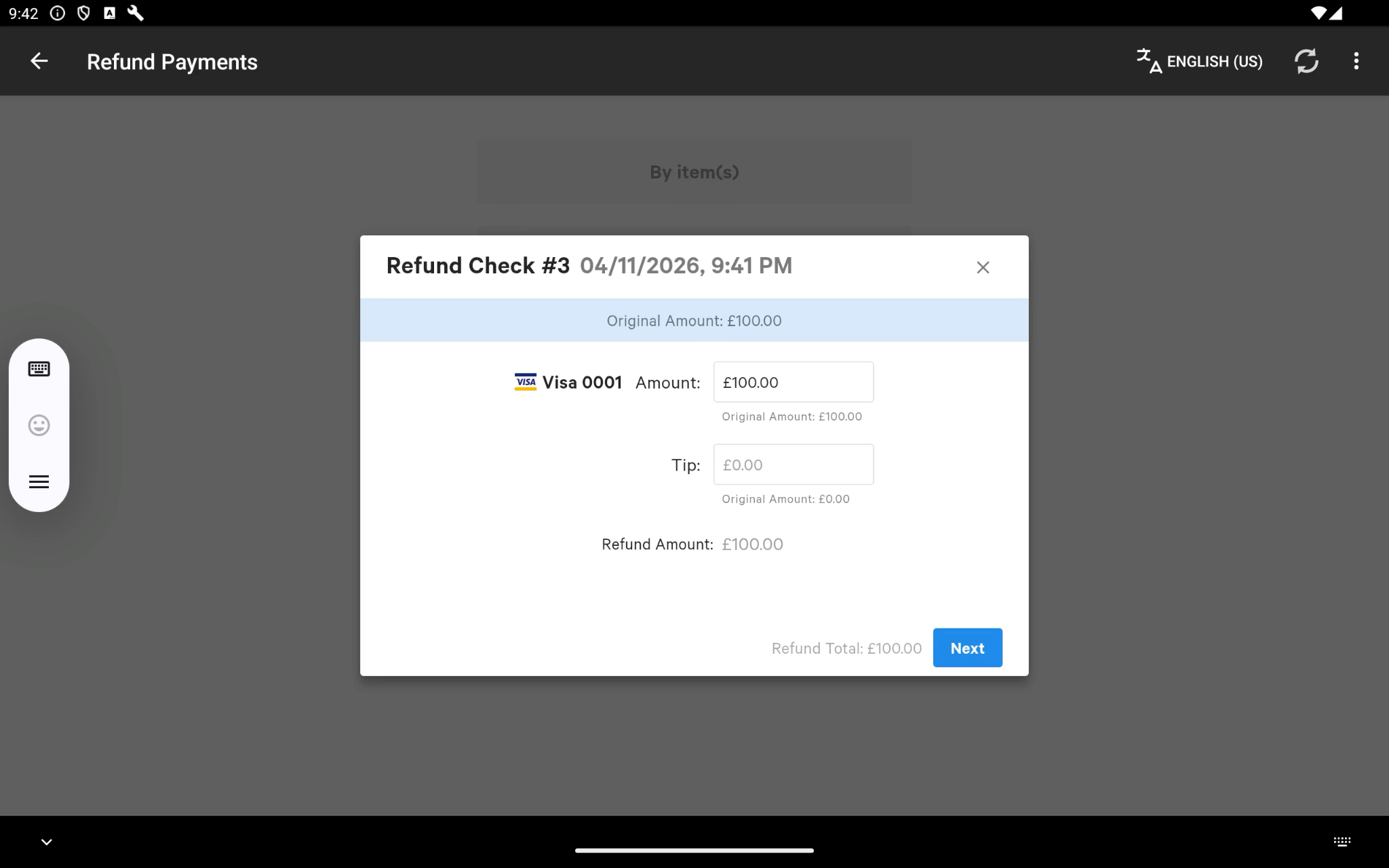
- On the Refund Payments screen, enter the amount to void into the Amount field (item-level selection is disabled for international payment voids).
- Select Next.
- On the Additional Comments (Optional) screen, enter an optional note, then select Next (or Confirm).
- When Your refund has been processed appears, choose your receipt option (Email, Text, Print, or No Receipt).
- On the Refund Completed! confirmation modal, select Ok.
Verify the Restored Balance and Reopen the Check
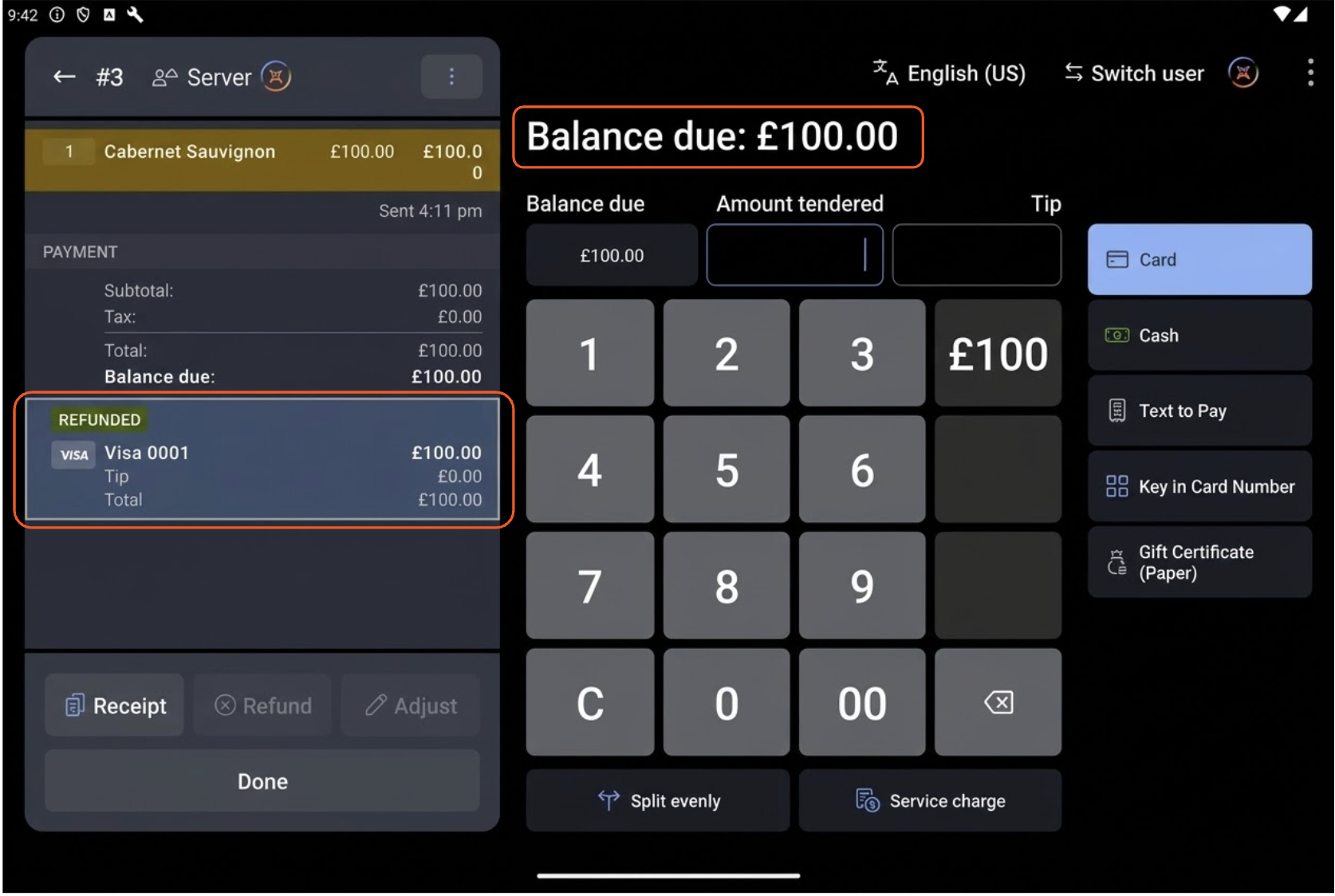
- Return to the payment screen, where the original payment is marked REFUNDED and the Balance due is restored.
- Select Done (or the back arrow in the top-left corner) to return to the Payment Terminal.
- Select the Open tab at the top of the screen to locate your reopened check.
Collect the New Payment
- Select the reopened check under the Open tab, then select Pay in the bottom-left preview panel.
- Choose the guest's preferred payment method (such as Card or Cash) on the right-hand panel.
- Complete the payment on the card reader, follow the signature and receipt prompts, and wait for the Thank you! confirmation screen.
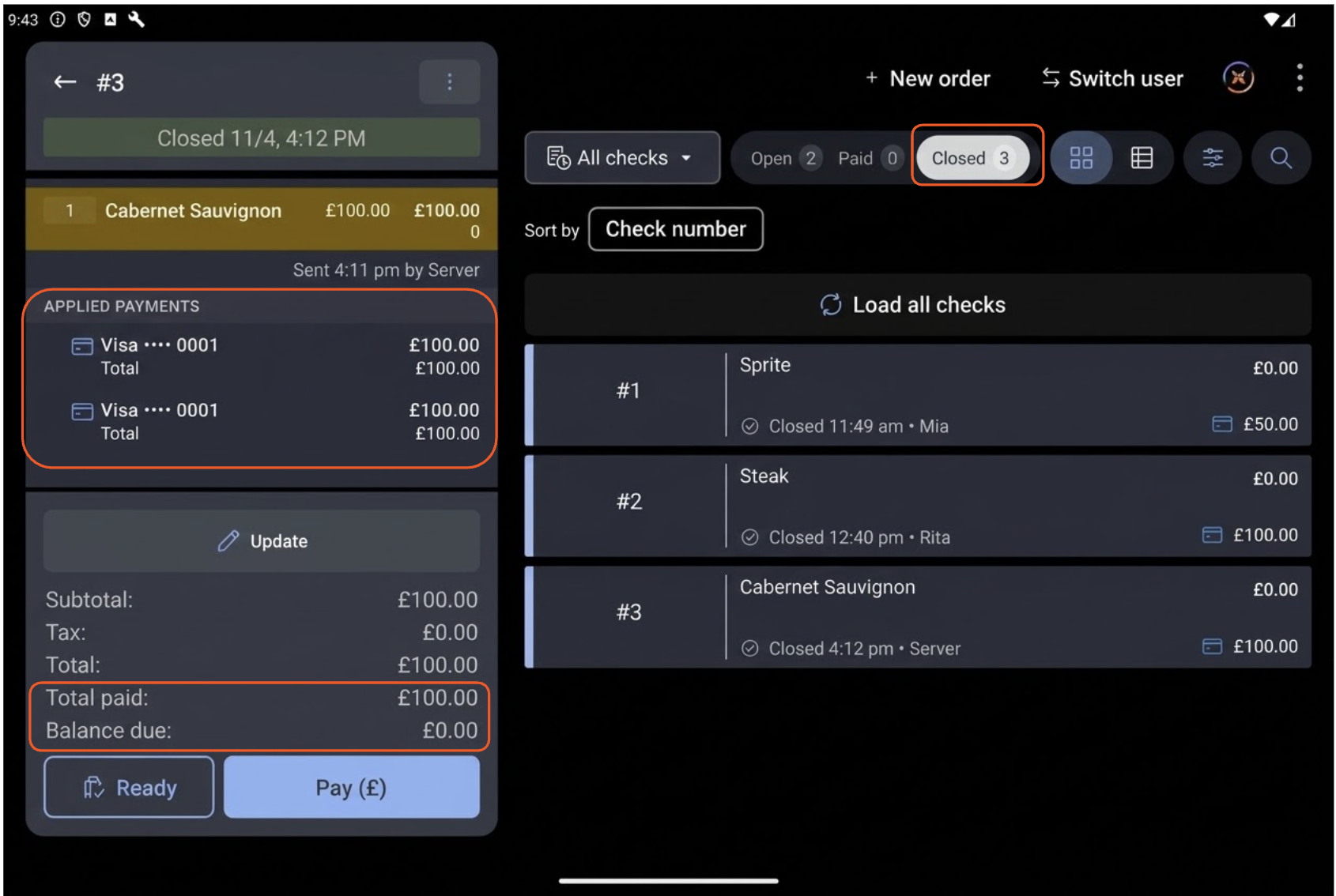
Expected outcome: Your check returns to the Closed tab with a $/£/€0.00 balance due, and both the refunded and replacement payments appear on the check.
View Voided Payments in the Sales Summary Report
Because an international payment void triggers a refund to reopen the check for a replacement payment, your reporting reflects both the gross sales of the order and the individual tender movements without double-counting revenue.
To verify how a voided and re-tendered check appears in Toast Web, navigate to Toast Web > Reports > Sales > Sales Summary.
Revenue Summary and Net Sales Summary
- Gross sales and Net sales reflect the actual value of the items ordered on the check—they are not doubled when you take a second payment.
- Sales refunds remains at $/£/€0.00 because the check remained active and was re-tendered rather than permanently refunded.
![The Revenue Summary and Net Sales Summary panels showing Gross sales (£250.00) and Net sales (£250.00) unaffected by double-counting, with Sales refunds at £0.00.]](https://dwvhey99m5tyy.cloudfront.net/images/ka2PV000000Y7QTYA0/0EMPV000013LzB7)
Payments Summary
- The Amount column records the sum of all payments collected across the shift (both the initial captured payment and the replacement payment).
- The Refunds column displays the voided payment amount as a negative figure (for example, -£200.00).
- The Total column subtracts the refunded void amount from the total collected payments, reconciling to your exact net revenue (£250.00).
![The Payments Summary table showing total collected payments in the Amount column (£450.00), the voided refund in the Refunds column (-£200.00), and the reconciled net balance in the Total column (£250.00).]](https://dwvhey99m5tyy.cloudfront.net/images/ka2PV000000Y7QTYA0/0EMPV000013LxR3)
Related Articles