xtraCHEF: Resolving Unmatched Deposits

上次更新时间:2026年6月30日 11:14

Learn how to settle unmatched deposits when amounts are not matching between xtraCHEF, Toast, and your book keeping software.

In this Article:


Unmatched Deposits

  • If you are experiencing issues when attempting to match your credit card deposits with the daily sales recorded in xtraCHEF from your Toast POS, it may be due to the following reasons:
    • One reason is due to a timing mismatch. xtraCHEF posts journal entries based on daily sales—specifically, what was sold within each 24-hour period. On the other hand, Toast sometimes batches multiple days of credit card sales into a single deposit, which means the amount that shows up in your bank deposit may include more than one day's worth of sales. This is why you are not seeing the numbers line up exactly day-to-day.
    • Another reason this could occur is a POS terminal was offline when a specific day was closed out. Toast often will mix the transactions into the next day(s) when this happens.


Back to top


Options for Resolving Unmatched Deposits

Restrict Access to CLOSE_OUT_DAY_BIT

Option 1 (Preferred method): Restrict employee access to CLOSE_OUT_DAY_BIT role.


  • One or more employees are manually triggering a credit card batch during the restaurant’s open hours. Refer to the Deposit Schedules Overview article in Support Center to gain a better understanding of how capturing a Credit Card Batch manually can impact the Deposit Schedule.
  • Payment capture should be restricted to after sales have completed for the day if you want to avoid payment deposits being combined across multiple sales days. To reduce access to manual capture features, the customer needs to reach out to Toast Support and request that the CLOSE_OUT_DAY_BIT access is restricted to the appropriately trained personnel.


Use Cash Clearing GL Account

Option 2: Use a Cash Clearing GL account for xtraCHEF Sales Journal Entries.


  • A “cash clearing” account (a.k.a. “wash account”, “due to/due from account”, or “funds in transit account”) is primarily used as a holding space for funds or transactions and is located on the balance sheet of your financials.
  • The money or transactions sit in this GL account until they can be classified appropriately and moved to their respective permanent accounts.
  • In this use case, you would assign your Credit Card payments this GL code in your Sales Setup page for xtraCHEF to post your expected credit card deposits to, instead of posting to your Bank GL code directly.
  • The amount we post to this GL code within your daily sales journal entry would represent the expected dollar amount from Toast for your credit card payments for each date of business.
  • Once the funds have cleared (were deposited into) your bank account, you would then transfer the exact amount that was deposited out from this GL account into your Bank GL account for the purpose of smooth and balanced reconciliation.
  • Day to day this clearing GL account would net zero while solving for mismatched/combined transactions between daily sales and daily bank deposits.
    • Pro-tip: Users can set a rule in their QuickBooks Online bank feed to automatically assign this cash clearing GL code to all Toast credit card deposits. This will save the step of having to manually create an entry each time as part of their bank reconciliation process.
  • Users should be sure to keep an eye on this GL account balance, as there should always only ever be 1–3 day's worth of funds held there at any given time.
  • This is the same method we suggest using for 3rd party delivery payments (UberEats, Grubhub, DoorDash).
    • Note: Separate, individual accounts should be used for each for liability tracking purposes.


Manually Split Batched Deposits

Option 3:


Step 1: Verify the QuickBooks Deposit Date

Confirm the settled date and the exact deposit amounts showing in your QuickBooks Account. This gives you the numbers you need to investigate in Toast.


A screenshot of deposit dates within Quickbooks


Step 2: Navigate to Toast Payout Overview Report

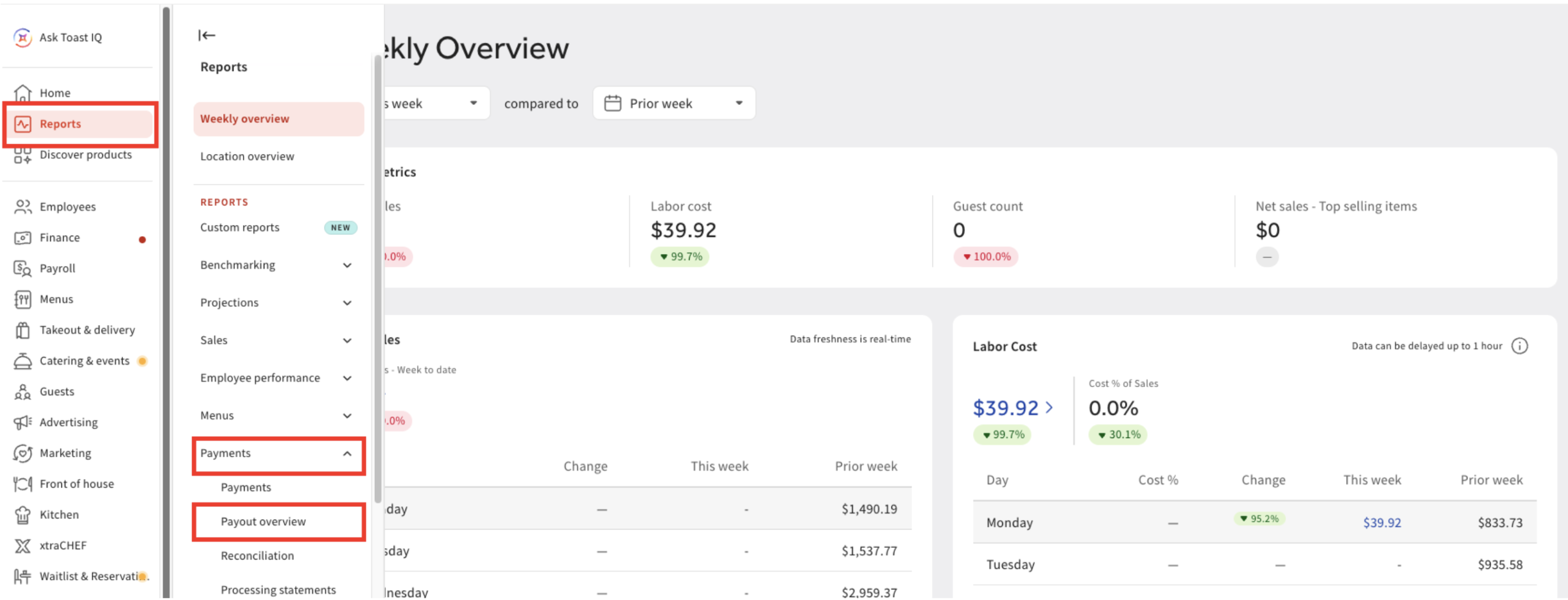
Log into your account in Toast Web and navigate to the Payout Overview report.

  • To do this, go to Reports > Payments > Payout Overview


An image showing a breakdown of selecting Reports followed by Payout Overview within your Toast Account


Step 3: Expand the Date Range

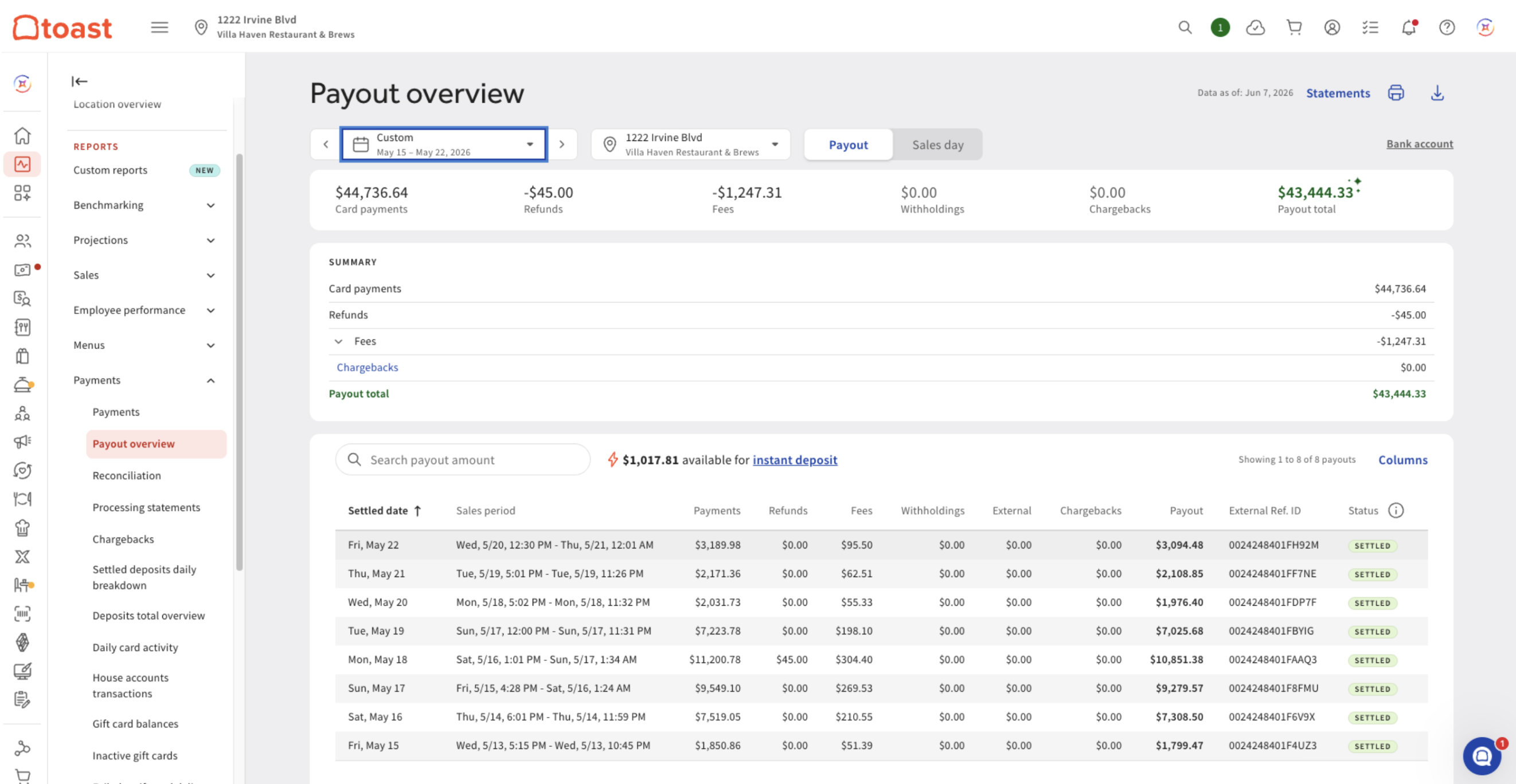
Filter the report for a wide date range around the deposit date (e.g., if the issue is around 05/18, filter from 05/15 to 05/22). This allows you to see if a part of a deposit was batched with sales from an adjacent day.


A Screenshot of the Toast Payout Overview report with the date range of May 15 2026 to May 22 2026


Step 4: Identify the Batched Sales Dates

Locate the total deposit amount and its settlement date in the Payout Overview report.

Example Scenario:

  • QuickBooks Deposit (Settled 05/18 and 05/19): $10,851.38 and $7,025.68.
  • Toast Report Breakdown: The report shows this single $10,851.38 deposit actually covers two sales dates: 05/16 and 05/17. The $7,025.68 deposit on 05/19 covers 05/17 sales.


A screenshot of the deposit amount from the Toast payout overview report


Step 5: Check xtraCHEF Journal Entries for Each Day

Because the deposit spans multiple days, you must determine how much deposit belongs to each specific day.

  1. Open the Sync Monitor in xtraCHEF
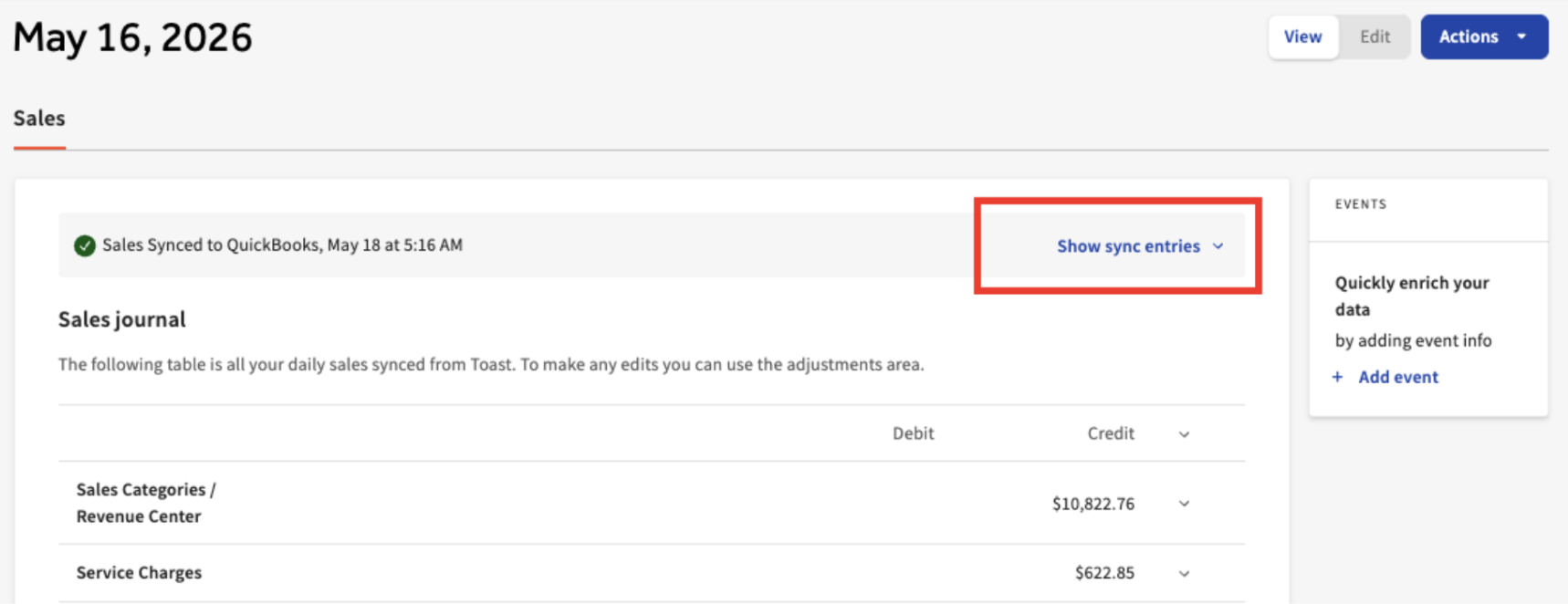
  2. Select the first sales date (05/16) > Select View Details > Show Sync Entries
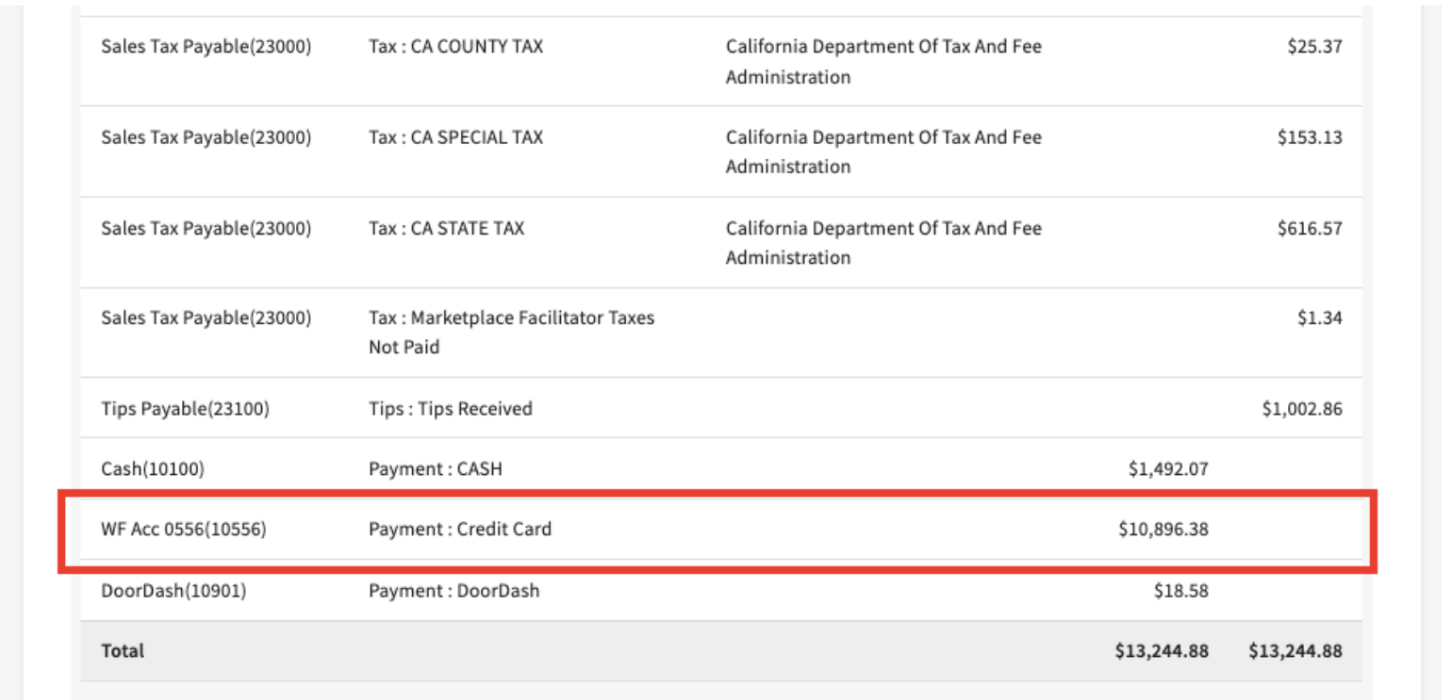
  3. Locate the Credit Card Deposit amount on the Journal Entry
    1. Example JE Amount for 05/16: $10,896.38
  4. Repeat this process for the second sales date (05/17)
    1. Example JE Amount for 05/17: $6,980.68


An Image of the Sales Journal for May 16, 2026 with Show Sync Entries highlighted


A screenshot from the May 16, 2026 sales journal highlighting the line WF Acc 0556


Step 6: Calculate the Variance

Subtract the xtraCHEF Journal Entry amount from the actual QuickBooks deposit amount to find how much revenue belongs to each specific day.

  • Day 1 (05/16) Calculation:
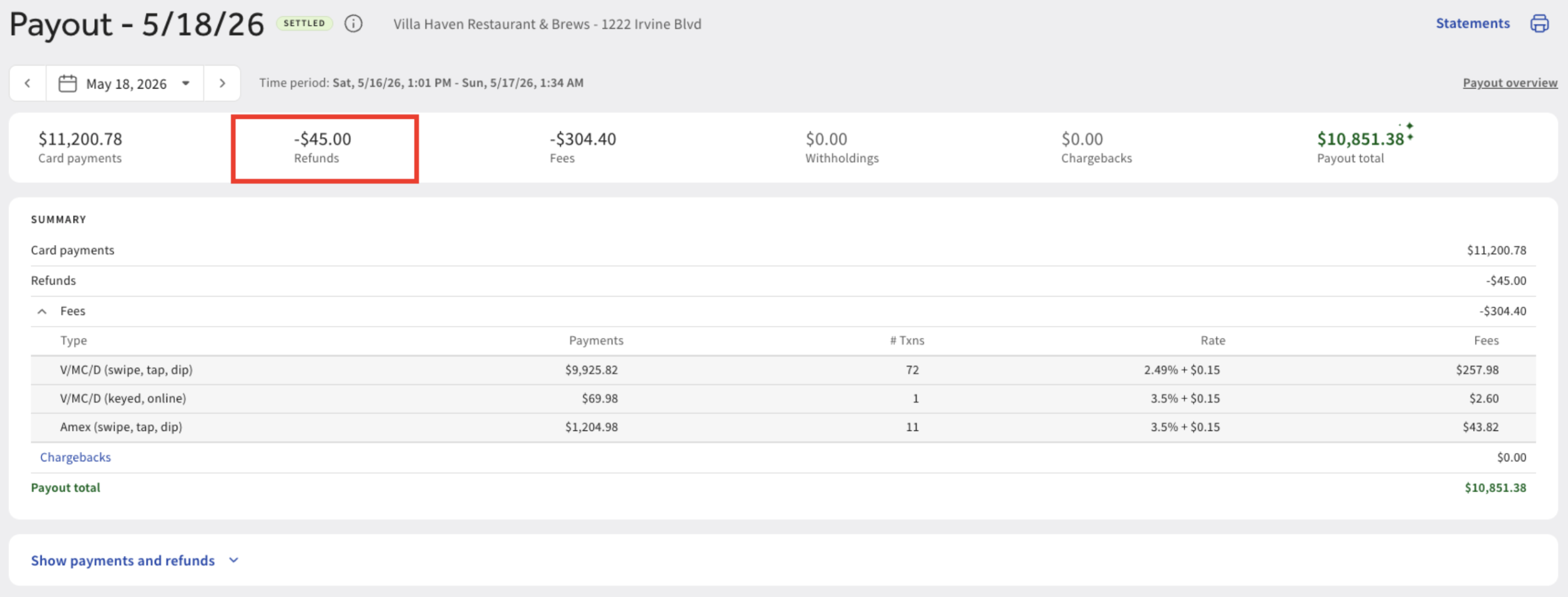
    • $10,896.38 - $10,851.38 = -.45. In this case, it indicates a refund was subtracted from the total for this day.
  • Note: Verify if there is any refund subtracted in the Payout Overview report for that date.
  • Day 2 (05/17) Calculation:
    • The QuickBooks deposit on 05/19 - $7,025.68 and JE entry amount is $6,980.68
      • $7,025.68 - $6,980.68 = 45
    • Therefore, the deposit on 05/17 includes:
      • $6,980.68 from 05/17
      • $45 from 05/16

Insight: This deposit has an extra $45.00, confirming the missing funds from 05/16 were batched there.


An image of the Toast Payout for 05/18/2026 highlighting $45 worth of refunds


Step 7: Fixing amounts on the QuickBooks Side

Manually split the bank deposit in QuickBooks so it matches the daily Journal Entries in xtraCHEF

  • Open the 05/19 Deposit ($7,025.68) in QuickBooks and split it into two lines: $6,980.68 and $45.00
  • Match the $6,980.68 portion to the 05/17 xtraCHEF Journal Entry
  • Apply the remaining $45.00 to the 05/18 Deposit ($10,851.38). This brings that deposit total up to $10,896.38, allowing it to perfectly match the 05/16 xtraCHEF Journal Entry


Back to top