xtraCHEF: Get Started With Unit Comparison Analytics

上次更新时间:2026年4月8日 10:05

Leverage xtraCHEF's Unit Comparison analytics to quickly compare the costs associated with running multiple restaurants.

In this Article:


Unit Comparison Basics

If you run multiple concepts or multiple locations of the same concept, you may wonder how each of your individual restaurants stacks up against one another in terms of spending. Do you expect your fine dining concept to have higher food costs? Should your downtown location spend more on to-go accessories than your suburban outpost?
 

Leverage xtraCHEF's Unit Comparison analytics to quickly get a bird's-eye view of the costs associated with running multiple restaurants. In this article, we'll review where to find your Unit Comparison analytics page and how to use the data effectively. 


Back to top


Navigate to Unit Comparison

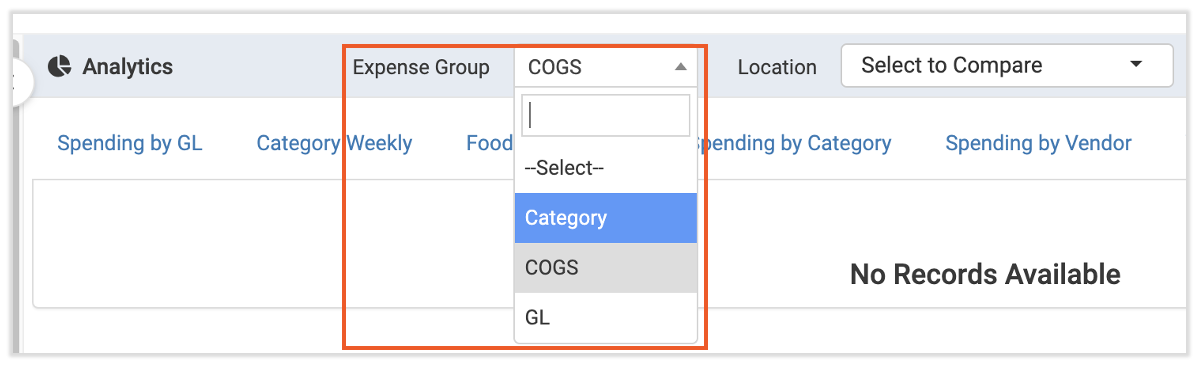
To access your unit comparison analytics, first, navigate to Reports > Unit Comparison. Select Ok to dismiss the pop-up. Next, select an Expense Group from the top of the page. These options will allow you to view this report by Category, Cost of Goods Sold (COGS) Group, or General Ledger Code (GL).


Expense Group


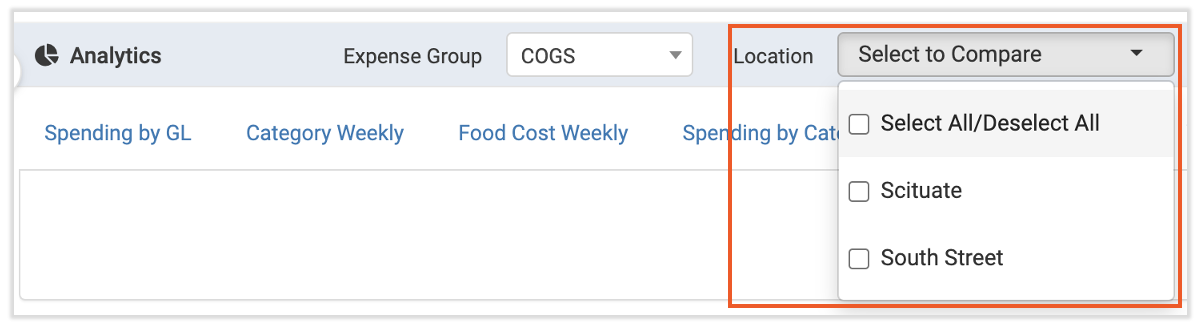
Then select two or more Locations from the top bar on your Analytics screen. This will indicate which location's expense groups should be compared.


Location select


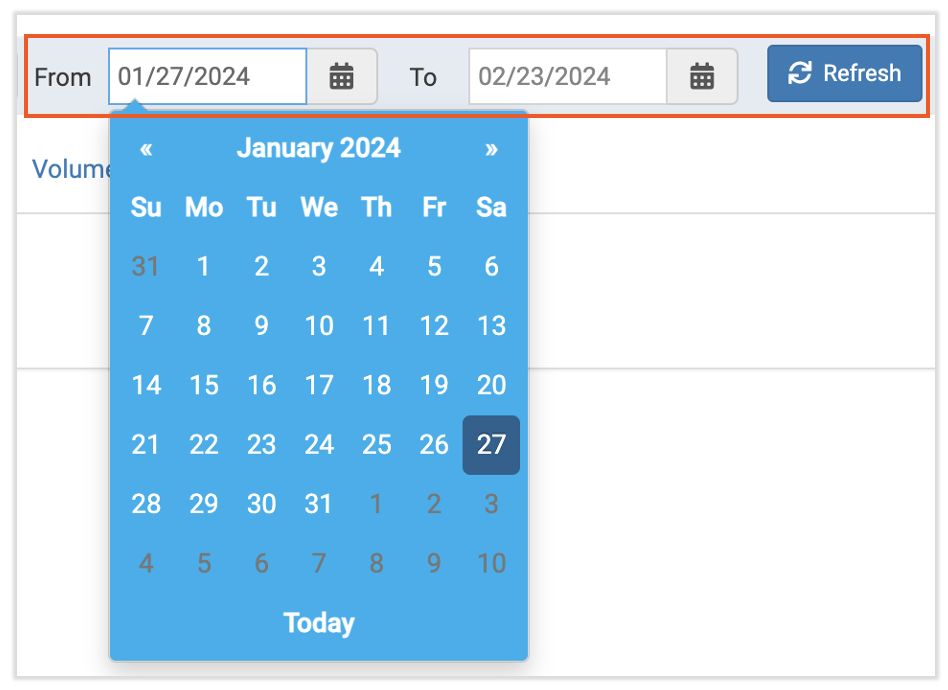
Finally, choose your date range (a maximum of 3 months) and select Refresh. This will populate your report.


Date range < Submit


Back to top


Read Your Unit Comparison Report

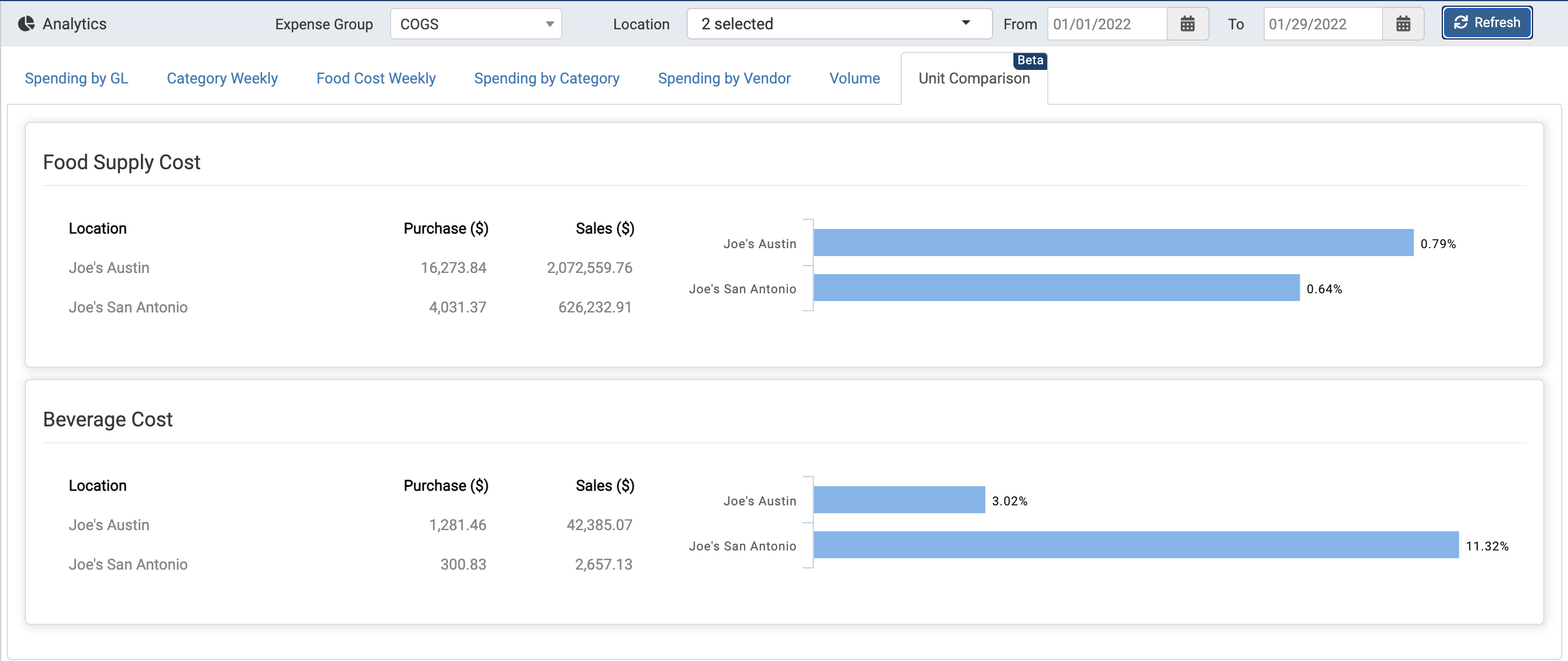
Comparing two or more locations in Unit Comparison gives you side-by-side looks at how each location's Expense Group compares to their total sales.  


side-by-side look of Location's Expense Group


This allows you to control costs across locations and ensure accurate prioritization. You'll also get quick insights into the true cost of items across your organization to get ahead of problematic spending trends before they become an issue. 


Back to top