Update Your Toast App
Last updated: Nov 24, 2025, 9:51 AM
- Touchless Installation of Toast App Updates
- Manually Install a Toast App Update
- Toast App Update Troubleshooting
Touchless Installation of Toast App Updates
With touchless installation, you will no longer have to push a button to start/trigger an installation or update on your Toast device with each upgrade cycle. Instead, the Toast mobile app will download in the background automatically if your device is powered ON.
Any device that is powered on or in standby mode will self-update overnight and be ready for service by early morning, local time. The Toast app will then begin an automated self-restart process, finishing the installation process without any action from you.
| Some Elo v1, Toast Go1, and Elo V2 devices may still require user approval for updates. See the section below for instructions on how to update. |
Sometimes, you'll see your device complete an install just after you power it on; this is normal and part of Toast's touchless installation process.
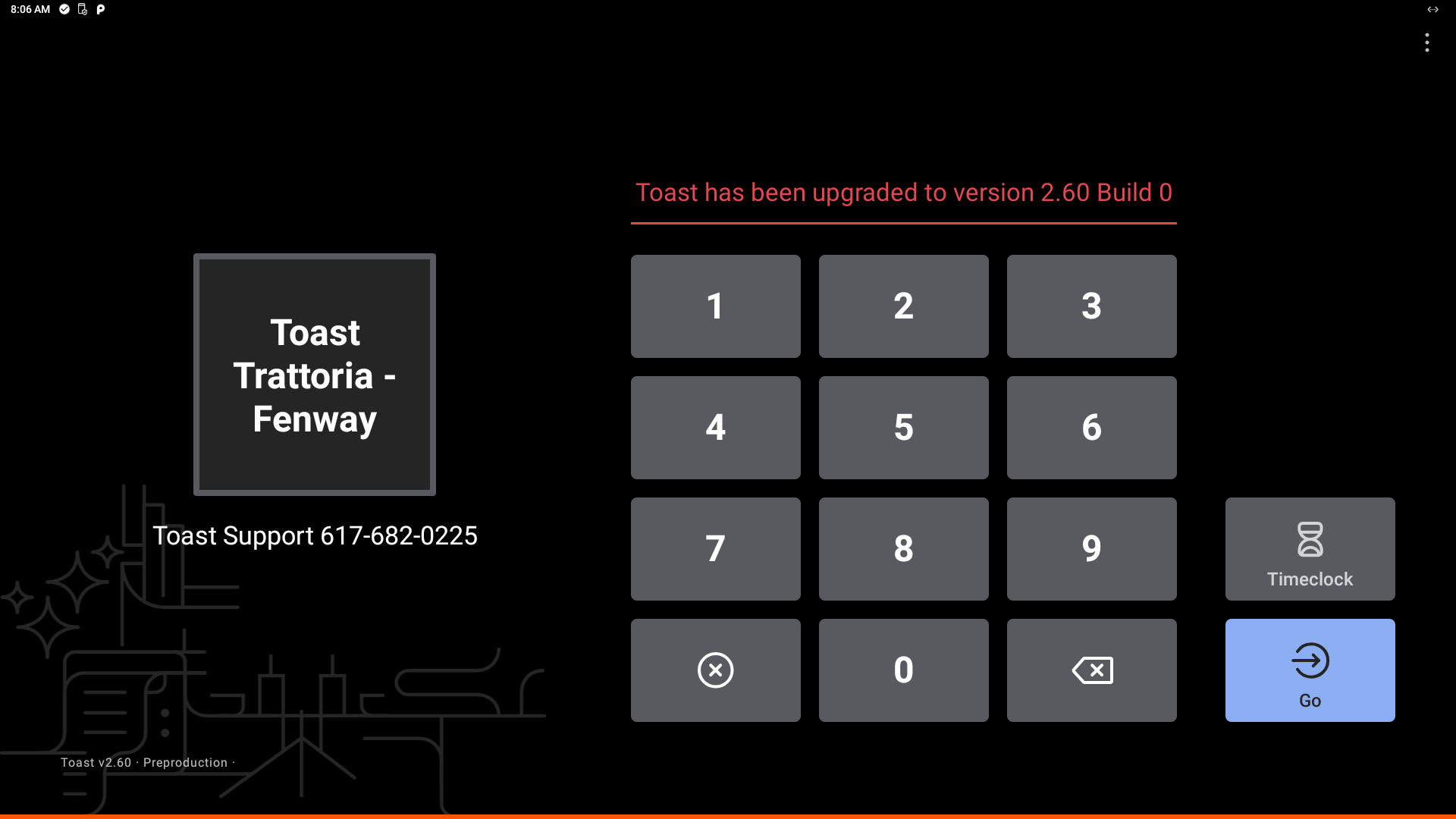
Installation of a new app upgrade should take less than a minute and bring you back to your PIN screen. Your new version will be indicated on the PIN screen, as shown in the image below.
Touchless installation will make updating your Toast device more manageable and seamless. View the video below to understand how a touchless installation for an update would work. Note there is no action required from the user.
The timing of a touchless installation will differ across all of the devices that Toast supports (older devices may take longer to install than the newer ones) and also depends on the network speed at your restaurant. On average, the process could take anywhere between 30 seconds to two minutes.
Manually Install a Toast App Update
If you ever need to manually install a required app update, you can do so in a few simple steps:
Upon logging into Toast, the normal app loading process will divert to installing the update automatically and take you through each next step.
- Log in using your Toast credentials (email and password).
- If you have a required update, downloading the update will begin automatically.
- When complete, select Install.
- Your Toast device will then revert back to the home screen. Wait 30 seconds and re-open the Toast app.
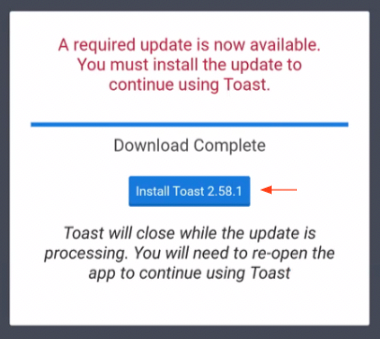
If your app crashes, or you receive a message indicating the update has failed or was unsuccessful, follow the steps outlined below.
Once you open the Toast app, there will be a message indicating that your app has been upgraded.
Toast App Update Troubleshooting
Toast App Missing Update
If one of your Toast devices is not prompting for a Toast POS update, please proceed with logging out and logging back in on this device.
Note: You'll need your Toast login email and password in order to follow these troubleshooting steps.
- Select Switch User.
- Once on the passcode screen, select the three white dots on the top right. Then select Logout.
- Log in to your device with your email and password.
- When the update prompt is displayed, select Update.
Toast App Update Unsuccessful
We know that a very small percentage of devices might encounter an error that crashes the device while trying to update the app. If your Toast app update has failed or was unsuccessful, please follow the steps below.
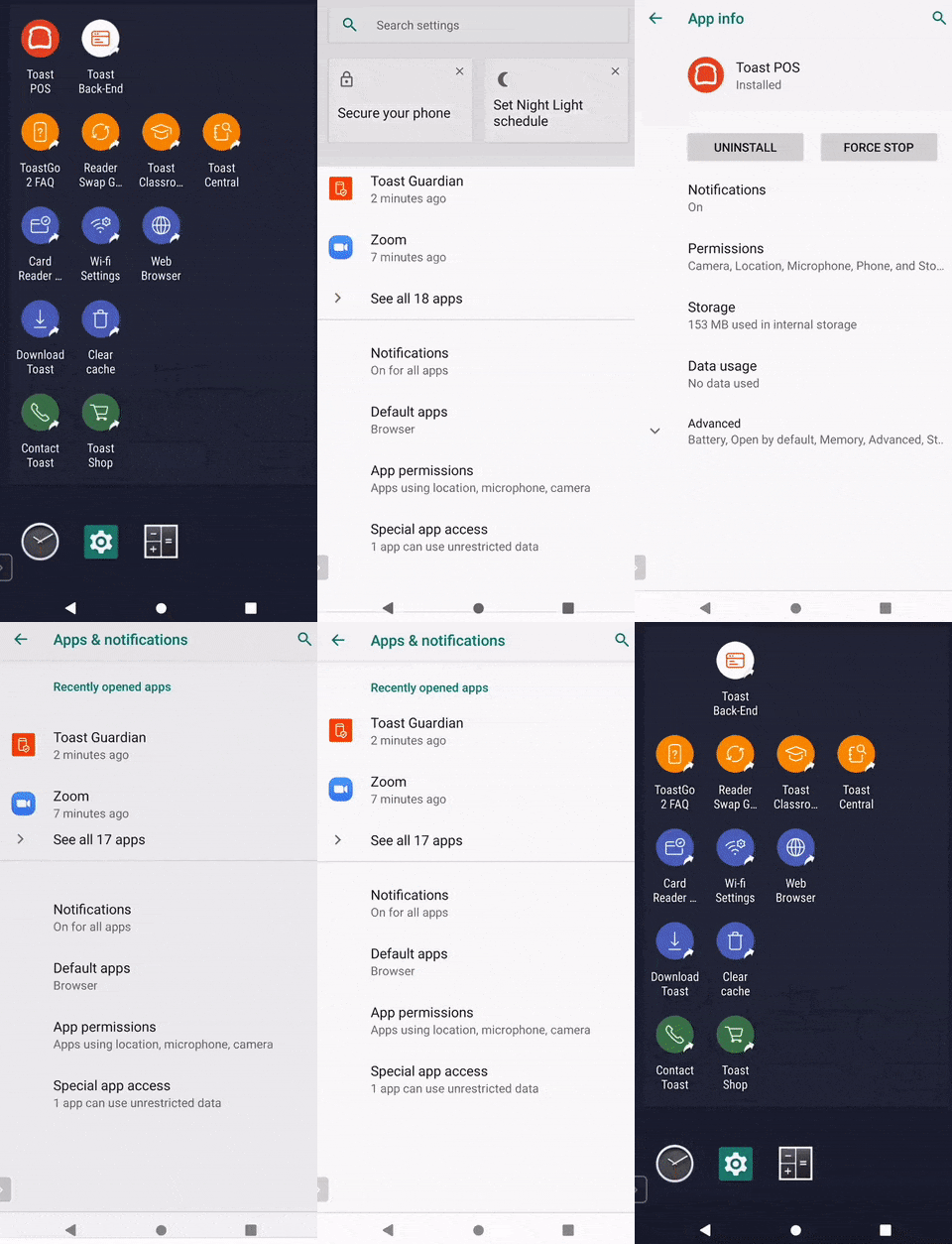
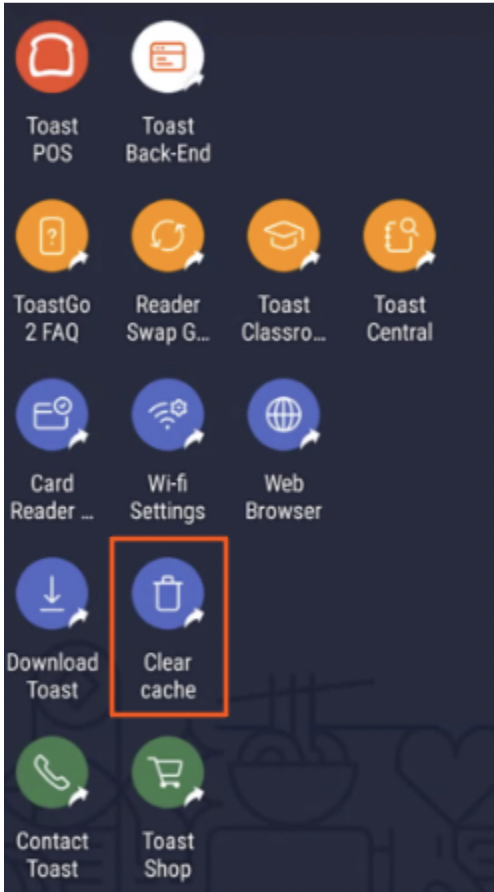
- Begin by selecting the Clear cache icon on your homepage screen.
- From here, reopen the Toast POS app. Proceed with the steps listed in the section of this article.
- If you happened to take any credit card payments on a device before it crashed, double-check your sales on Toast Web to ensure that those payments are there.
- Select the Settings gear at the bottom of your homepage screen.
- Select Apps & notifications, then choose Toast POS > Uninstall. After the app has been removed, select the round home button at the bottom of the device.
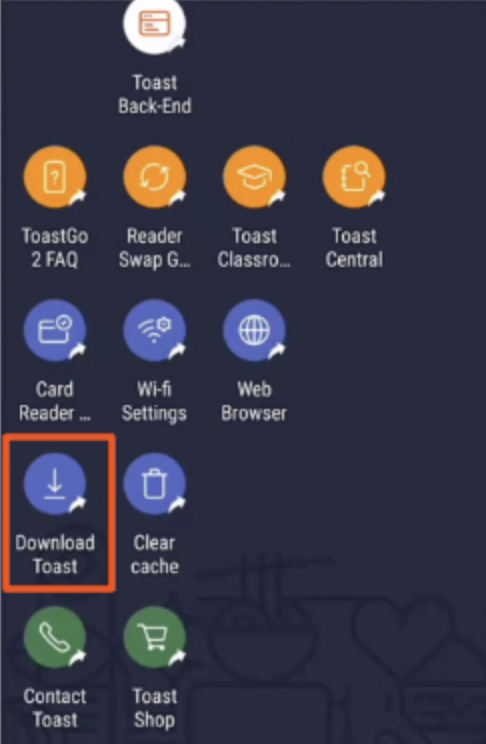
- You'll notice the Toast POS app icon is no longer there. Proceed by selecting the Download Toast icon on the Android homepage.
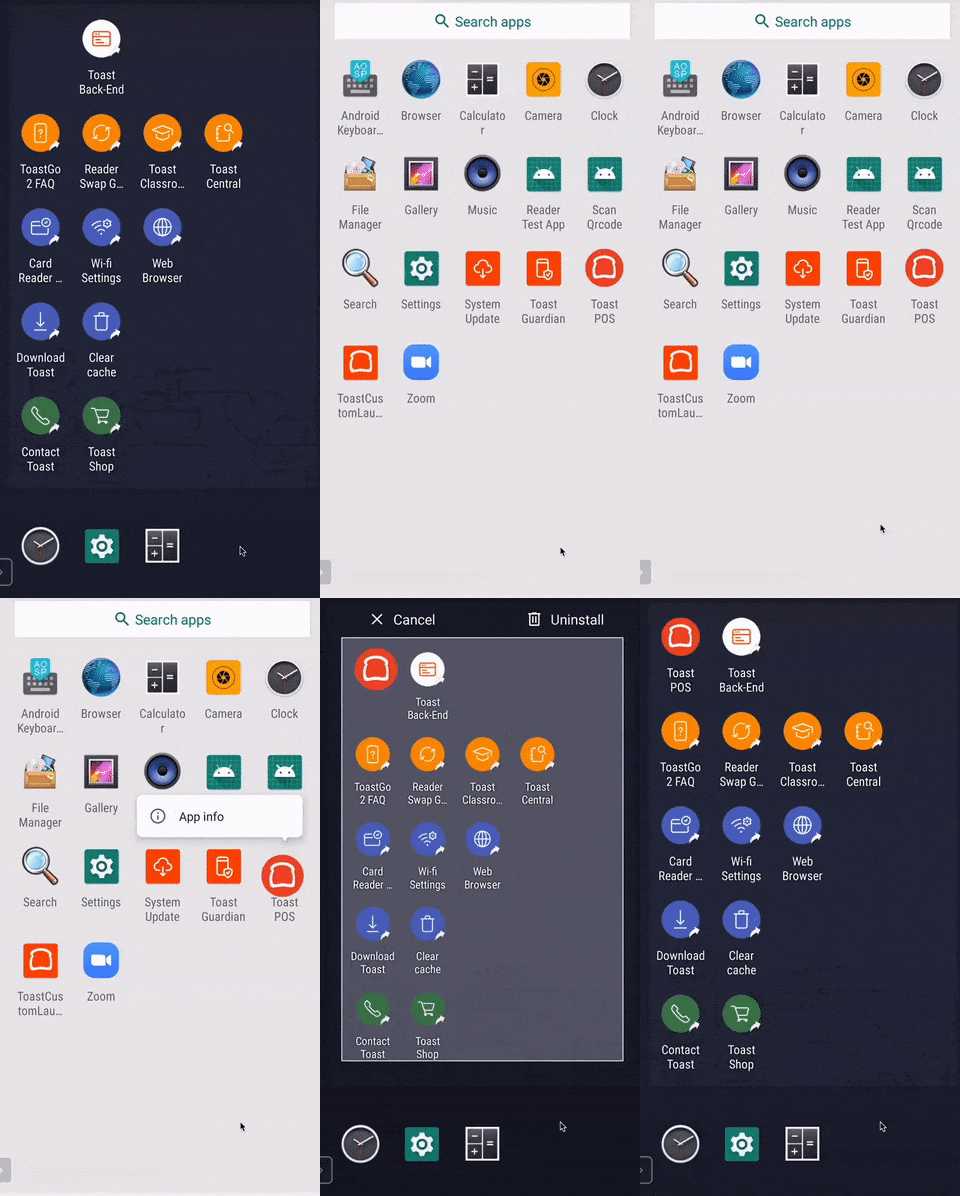
- Once the download is complete, swipe up from the bottom of the page to see an extended list of all apps on the device.
- Select and hold the Toast app to drag this back to your home screen.
- Once the new Toast app has been successfully reinstalled, proceed with the steps listed in the section of this article.
- If the above steps do not work, please for further assistance.