Audit Changes to Employee Time Entries
Last updated: Feb 25, 2026, 12:29 PM
Question
- How do I see who made edits on an employee time entry?
- Which report shows changes or updates that were made to an employee's shift details?
Answer
To verify who made edits on an employee's time entries:
- Log in to Toast Web and navigate to Reports > Labor > Time entry audits. Note: You must have permission 4.3 Labor Reporting to view the audits.
- Update the date range drop-down filter to locate the employee's shift. You might also use the Location, All employees, and/or the All actions drop-down menus to more easily locate this shift.
- Note: In most cases, users will want to update the All actions drop-down menu to Edit and/or Delete to locate unique edits.
- The All employees drop-down menu references the employee whose shift was edited, updated, or changed and not the employee who made the change.
- Once you have the shift pulled up, you'll see three main columns:
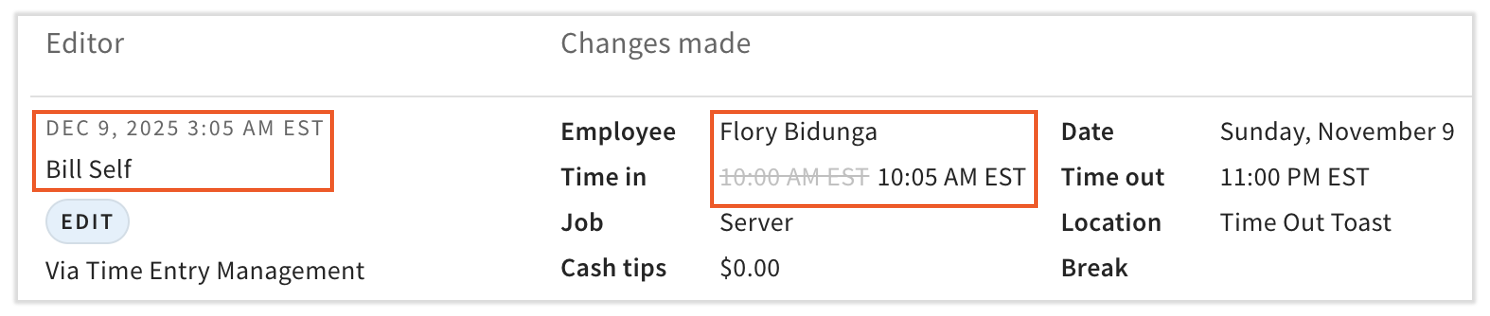
- The Editor column includes the adjustment details, including the date and time of the adjustment, who made the change (Bill Self, in this example), and where they performed the change.
- The Changes made (second and third) columns include the shift details. The top of these columns displays the name of the affected employee (Flory Bidunga, in this example) and the date of the shift in question. Look for a gray, crossed-out field with a correction next to it. That indicates the specific update that was made for this reference point. In this example, Flory's Time in was updated from 10:00 a.m. EST to 10:05 a.m. EST on December 9, 2025 at 3:05 a.m. EST.

For more information about each Labor report, see the Labor Reports Overview.
Note: The blue EDIT tag will always be displayed for employees who clock out on the POS because their time out value updates from None to a recorded clock-out time as seen in the image below.
