Scheduling by Sling in Toast Web
Last updated: May 27, 2026, 10:54 AM
If you navigate to the Scheduling page in Toast Web, you might see a new view. Read this article to discover more.
Use the Scheduling by Sling calendar view in Toast Web—also called Toast Scheduling—to view, create, edit, and publish employee shifts without leaving Toast Web. Some Scheduling Pro features still require the Sling platform at getsling.com.
- About Scheduling by Sling in Toast Web
- Before You Begin
- Verify Your Email to View Scheduling
- Understand Scheduling Permissions
- Navigate the Calendar View
- Create a Shift
- Publish Shifts
- Connect Toast Web Locations to Sling
- Frequently Asked Questions
About Scheduling by Sling in Toast Web
The Scheduling page in Toast Web shows a calendar view of your team's shifts. You can create shifts, edit shifts, and publish the schedule directly from Toast Web; any change you make is also updated in Sling. Scheduling also works with Toast IQ. Try asking it things like:
- Help me create a schedule
- Assign an open shift to an employee
- Does next week's schedule align with my sales/labor forecast?
Some Scheduling Pro features are not available in Toast Web. If you cannot find what you need, for example, schedule templates, day notes, or bulk editing options, log in to the Sling platform at getsling.com.
Note: Toast Scheduling, Sling Scheduling, and Sling by Toast all refer to the same product. The scheduling tab inside Toast Web is one of the surfaces where you can use it; the Sling platform at getsling.com is the other.
Before You Begin
Applies to: Toast Web, Sling by Toast (Scheduling Lite and Scheduling Pro)
Permissions needed:
- Sling system role of Admin or Manager - This can be set on the employee profile in Toast Web or Sling.
- Toast Web permission 8.4 Manage Integrations - This is required to access the Scheduling tab in Toast Web.
- Toast Web permissions 4.9 Employee Info and 4.10 Employee Jobs & Wages - This is required to view the Jobs & Permissions tab on an employee profile, where Scheduling permissions are managed.
Both Toast Web and Sling must be set up with the same email address to sync properly.
What you'll accomplish: View, build, edit, and publish your team's schedule from Toast Web instead of opening the Sling platform separately.
Verify Your Email to View Scheduling
The first time you open Scheduling in Toast Web, you may need to verify the email address you use to log in. Toast Payroll users do not need to verify their email.
- Select Scheduling from the left-hand navigation in Toast Web.
- If a pop-up appears, select Get started. Otherwise, select Set up scheduling on the Scheduling page.
- On the verification page, confirm that the email address shown is the one you use to log in to both Sling and Toast. Select Send email.
- Open your email inbox and find the message titled Verify your email address from no-reply@toasttab.com. Select Verify Email.
- If you do not see the email, check your Spam or Junk folder. You can also return to Toast Web and select Resend email.
- The verification link returns you to Toast Web. Select Start Scheduling.
Note: You will need to be verified and joined on both Sling and Toast Web.
Expected outcome: The Scheduling calendar view opens in Toast Web.
Understand Scheduling Permissions
Scheduling permissions in Toast Web mirror the system roles in the Sling platform. Adjust them on an employee profile.
To open Scheduling permissions, navigate to Toast Web > Employees > Employee management > Employees, select the edit pencil for an employee, then select Scheduling permissions on the left side of the page.
The three system roles are:
- Employee (default for every Toast user) - Can view their own shifts in the MyToast app and the Sling app, exchange shifts (if enabled on Sling settings), and request time off. On the employee's profile, you can select which Manager(s) to be notified when this person requests time off or a shift exchange. If no one is selected, notifications go to all managers at the location.
- Manager - Can create and edit schedules and employees. Managers must also have Toast Web permission 8.4 Manage Integrations to access the Scheduling tab in Toast Web.
- Admin - Initially assigned to the user who first set up Sling by connecting the first location. Admins can create and edit schedules and employees, control organization settings for Scheduling, and assign Manager or Admin roles (and permission 8.4 Manage Integrations) to other users.
If you do not see the Scheduling permissions field on an employee profile, check the following:
- You must have the Admin Sling system role.
- Your Toast Web email and your Sling email must match.
- You must have Toast Web permissions 4.9 Employee Info and 4.10 Employee Jobs & Wages to open the Jobs & Permissions tab of an employee profile.
- You must have Toast Web permission 8.4 Manage Integrations to edit another user's Scheduling permissions.
For a deeper description of each system role, see Sling Scheduling System Roles. For a full list of Toast Web permissions, see Access Permissions Reference.
Navigate the Calendar View
The Scheduling calendar view has four main controls along the top of the page: Scheduling settings, the date selector, the location filter, and the Tools menu.
Open Scheduling Settings
Select the gear icon to open Scheduling settings. From there, you can change:
- The first day of the week on the calendar
- Hours of operation
- Shift visibility for employees
- Shift exchange and available shifts
- Personal shift alarms
- Employee activity notifications (Admins Only)
- Scheduling locations
Two visibility settings are available:
- Visibility of schedules for employees - Enable this if you want every employee to see the entire location's schedule.
- Visibility of co-workers for employees - Enable this if you want each employee to see only the co-workers on their own shifts. This setting is unnecessary if you already enabled the first setting.
Select a Date Range
Use the date drop-down to choose the date range you want to view or build. Select Today to return to the current week.
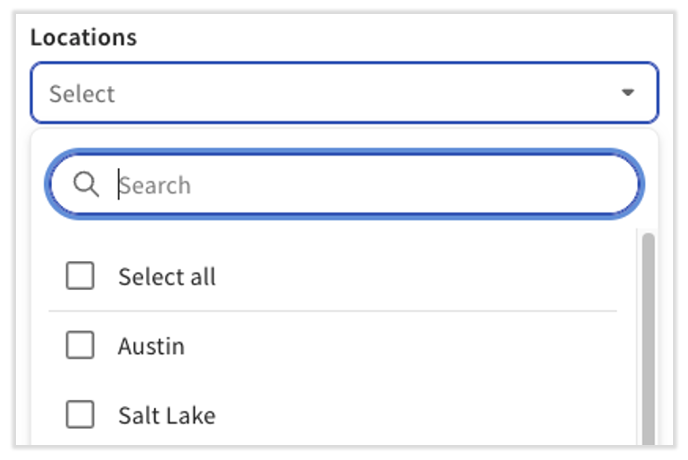
Filter by Location
Your Toast Web location and the shifts visible on the calendar are filtered separately. Select Filters > Locations on the right side of the page to choose the Sling organizations to display. When finished, select Apply Filters.
Your locations in Toast Web may not match your organization in Sling. See Multi-Location Account vs. Separate Sling Accounts in the Sling knowledge base.
Some locations may need to be synced from Sling to Toast first. See Syncing additional Toast locations with your existing Sling account in the Sling knowledge base.
Copy Shifts From a Previous Week
To reuse a schedule from a previous week:
- Use the date selector to open the week you want to copy from.
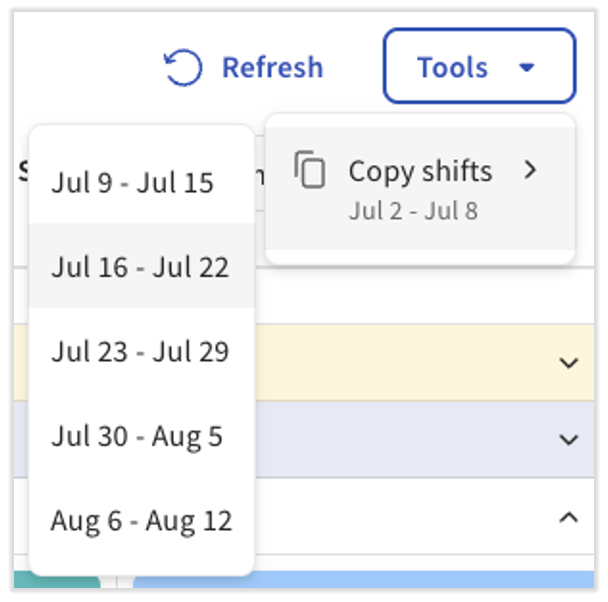
- Select Tools > Copy shifts. The current week's dates appear.
- Select the week you want to copy the shifts into.
Expected outcome: All shifts from the source week appear in the destination week. You can then add, remove, or edit shifts to fit individual scheduling needs.
Create a Shift
You must be assigned the Admin or Manager Sling system role to create shifts. See Understand Scheduling Permissions if you cannot see the Create button.
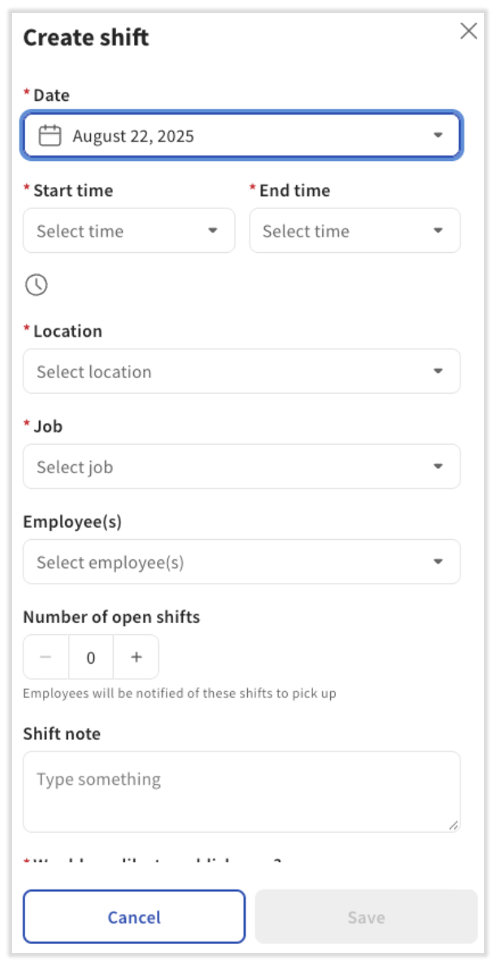
- In the upper-right corner of the Scheduling page, select Create. A sidebar opens where you enter shift details. Only fields with a red asterisk are required.
- If an employee was recently added to Toast Web or Toast Payroll, it can take up to 15 minutes before that person is visible in Scheduling. Wait 15 minutes and refresh the page if you cannot find an employee.
- To create a shift that is not yet assigned to a specific employee, leave the employee field blank. The shift appears in the Open shifts tab at the top of the calendar and can be picked up by any employee who does not already have a shift at that time.
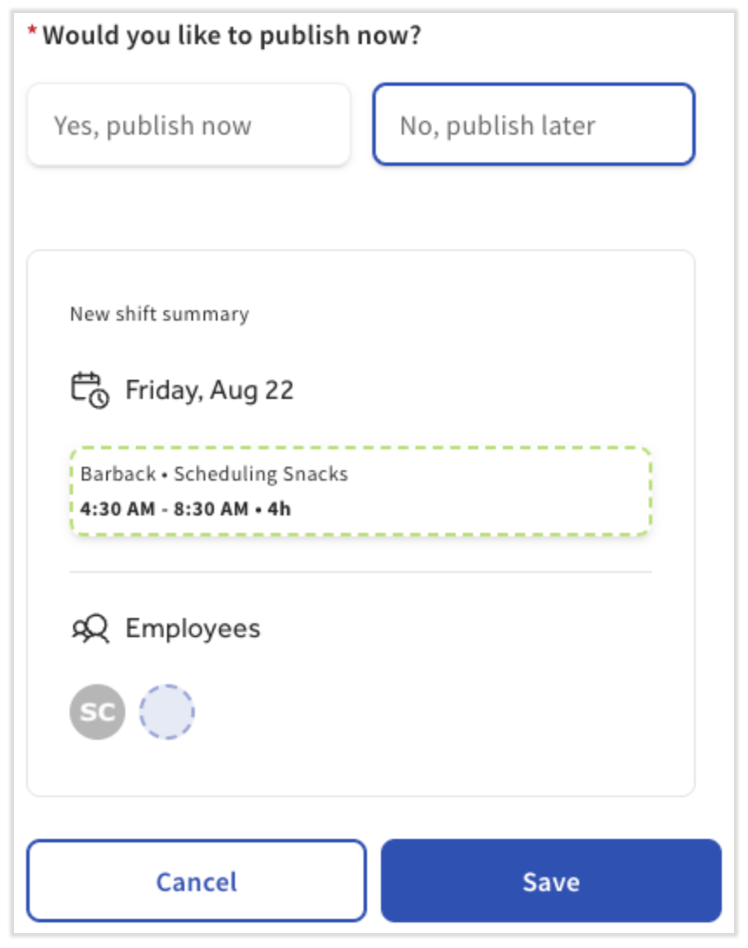
- At the bottom of the sidebar, choose Publish now to make the shift live and notify the employee, or Publish later to keep editing before notifying anyone.
- Select Save.
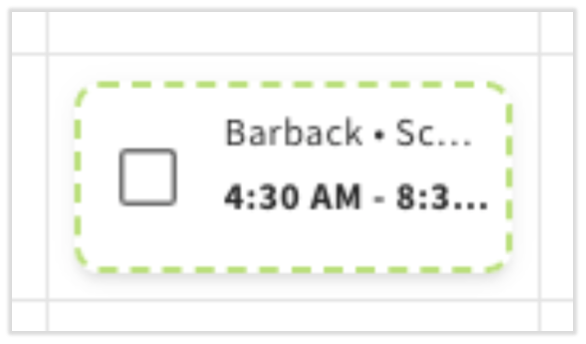
Expected outcome: The shift appears on the calendar. Unpublished shifts have a dotted-line border and can be dragged and dropped to a different day or employee.
Configure Shift Details
When you create a shift, you can enter a start and end time, set the shift as recurring, and assign a location and position. A location and a position are required to save the shift. Additional options include recurring shifts, number of open shifts (only if no employee is assigned), and notes.
Publish Shifts
Publishing a shift makes it visible to the employee and any other staff (subject to your visibility settings). Unpublished shifts are only visible to admins and managers, which is useful while you are still building the schedule.
To publish every unpublished shift:
- Select Publish in the upper-right corner of the page.
Expected outcome: Every shift in your current view with a dotted-line border is published, and the dotted border disappears.
To publish a specific set of shifts:
- Select the down arrow on the Publish button.
- Select Publish selected.
- Select the checkbox on each shift you want to publish.
- Select Publish.
Expected outcome: Only the selected shifts are published. The remaining unpublished shifts stay on the calendar with their dotted-line border.
If you prefer to build your schedule directly in Sling instead of Toast Web, log in to getsling.com.
Connect Toast Web Locations to Sling
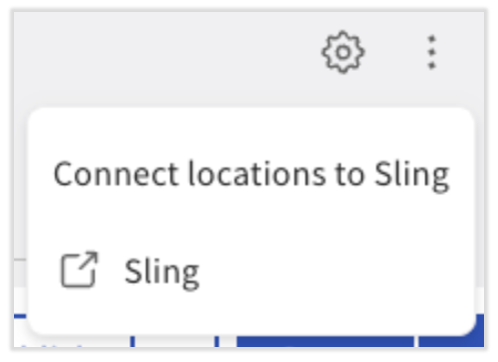
To open the page that lists which Toast Web locations are connected to Sling, the page that appeared on this screen before the calendar view debuted, select the three dots (overflow menu) in the upper-right corner of the Scheduling page and choose Connect locations to Sling.
For step-by-step instructions on connecting new locations, creating a Sling account, or connecting to an existing Sling account, see Create & Sync Your Sling By Toast Account and skip to step 7. If you still need to create your Sling account, see Create & Sync Your Sling By Toast Account. Start at step 1.
Frequently Asked Questions
Why doesn't the Set Up Scheduling button do anything when I select it?
The Set Up Scheduling button does not respond if your Toast Web user does not have all of the permissions required. Review the permissions section and ask the account Admin to grant that missing permission, then return to the Scheduling page and select Set Up Scheduling again.
Also asked as:
-
- "I'm trying to click the Set Up Scheduling button, but it won't work"
- "I press the Set Up Scheduling button, and nothing happens"
- "the Set Up Scheduling button just doesn't go anywhere"
Why is my Scheduling page stuck on "We are still working on building your scheduling experience"?
The Scheduling page in Toast Web shows the message "We are still working on building your scheduling experience." This usually happens directly after you've made that initial connection, and the integration starts mapping your data behind the scenes. It usually takes about 15 minutes for everything to fully sync over from Toast to Sling. If the message persists, contact Customer Care so an agent can check the provisioning status on your account.
Why can't I see the Scheduling tab in the left-hand navigation?
You need Toast Web permission 8.4 Manage Integrations to access the Scheduling tab in Toast Web. If the tab is missing entirely, ask the account Admin to grant 8.4 Manage Integrations to your Toast Web user. After the permission is added, log out of Toast Web and log back in for the change to take effect.
Why isn't my new employee showing up in Sling?
If you recently added an employee to Toast Web or Toast Payroll, it can take up to 15 minutes for them to appear in Scheduling in Toast Web. Wait 15 minutes and refresh the page.
If the employee still does not appear after 15 minutes, refer to the deactivated list under employees on Sling or contact Customer Care.
Can I do everything in Toast Web that I can in the Sling platform?
No. The Toast Web calendar view supports viewing, creating, editing, and publishing shifts, plus basic settings and location filtering. Some Scheduling Pro features—for example, schedule templates, time clock reports, labor cost budgeting, and shift tasks—are only available on the full Sling platform at getsling.com.
What's the difference between Toast Scheduling, Sling, Scheduling Lite, and Scheduling Pro?
Toast Scheduling and Sling by Toast are the same product, accessed through two surfaces—the Toast Web calendar view and the full Sling platform at getsling.com. Toast offers two versions:
- Scheduling Lite - Included with every Toast POS package at no extra charge.
- Scheduling Pro - Includes additional features such as schedule templates, mobile time tracking, geofencing, labor cost management, and bi-directional timesheet sync.
Toast Web Scheduling does not come with an extra cost. This is available on both Scheduling Por and Scheduling Lite.
For a full feature comparison, see Sling by Toast: Compare Scheduling Lite and Scheduling Pro.
Where do I print the schedule, use tags, or use schedule templates?
These features live on the full Sling platform. Log in at getsling.com to use them, or see the Sling Help Center for step-by-step articles.
How do I leave feedback about the Toast Web calendar view?
To share feedback about the Scheduling calendar view in Toast Web, submit feedback through this form.
Related Articles
- Get Started With Sling by Toast
- Create & Sync Your Sling By Toast Account
- Sling Scheduling System Roles
- Creating a Shift
- Sling by Toast: Compare Scheduling Lite and Scheduling Pro