Get Started With Sling by Toast
Last updated: Oct 1, 2026, 10:26 AM
Welcome to Sling! Through your Toast relationship, you may have access to Sling, Toast's employee scheduling and team communications platform. Before getting started on Sling, you will need to first be live on Toast POS or in POS Test Mode. Once you're ready, follow the Steps to Set Up Sling section outlined below.
- What is Sling by Toast?
- Steps to Set Up Sling
- Access Sling by Toast
- Invite Employees to Sling and Toast Web
- Disconnect from Sling
- Troubleshoot Sling
- Sling FAQ
- Is there an extra charge to use Sling by Toast?
- How will I be billed for Sling?
- What's the difference between Sling Lite and Sling Pro?
- Can I use Sling if I am not live on Toast POS?
- Can I enable schedule enforcement for Sling through Toast?
- How do I log in to Sling by Toast?
- Is Sling by Toast available in any other languages?
- Can employees clock in using both Sling and Toast?
- Where do I go for all resources for Sling?
- What version of Sling does Toast offer?
What is Sling by Toast?
Sling is Toast's leading employee management platform that simplifies scheduling, centralizes team communication, and provides insightful labor cost analytics to provide you with greater control over your labor cost. Employers can create schedules in minutes and manage employee time off, availability, and shift trade requests. Best of all, once you connect your Sling account to your Toast account, data from your Toast account will sync into Sling (employee, wage, and position data syncs from Toast to Sling, and schedules sync from Sling to Toast).
- You must be live on Toast POS or in POS Test Mode before beginning to use the Toast and Sling integration.
- Don't have access to Sling? Visit Toast Shop if you're an existing Toast POS customer interested in adding Sling to your account if you have fully onboarded with Toast POS.
Did you know? Staff can clock in from the Sling mobile app and timesheets can easily be uploaded into Toast Payroll, saving hours on calculating payroll each pay period.
Steps to Set Up Sling
Getting started on Sling by Toast is quick and easy -- it only takes a minute or two to create a Sling account. Once set up, you will be able to sync employee data, timesheets, and more directly from Toast Web to your new Sling account.
Note: The integration is only successful while using Google Chrome. Apple Safari conflicts with this setup, so we highly encourage our customers to use Google Chrome for Toast-related work.
Note: You must be live on Toast POS or in POS Test Mode prior to getting started on Sling.
- From Toast Web, navigate to Team > Scheduling from the left-hand navigation menu.
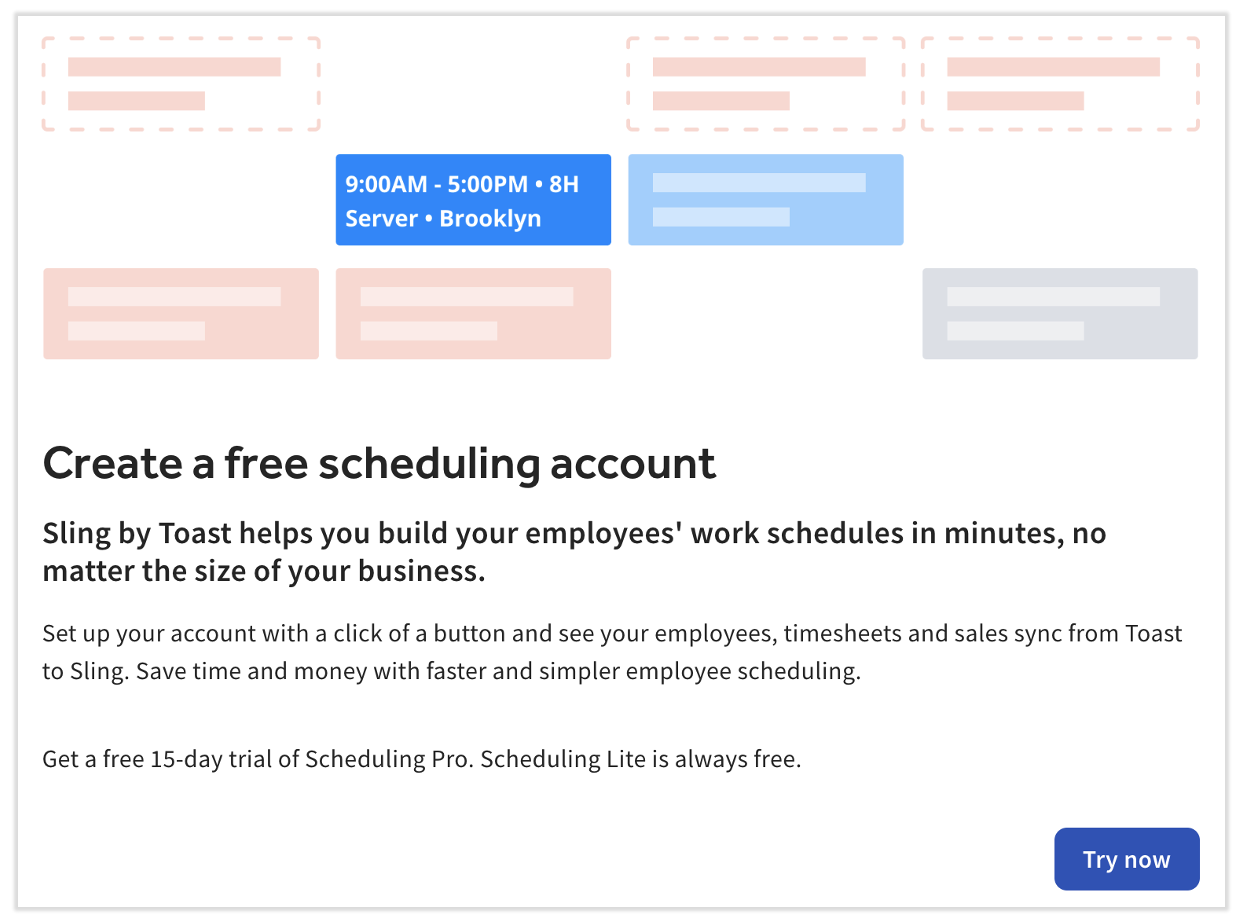
- If you have not begun the Sling setup yet, you will see an introduction page. Select Try now.
- If you instead see an Introducing Toast Scheduling pop-up, visit Get Started With Scheduling in Toast Web for step-by-step instructions. Scheduling is a new "version" of Sling built in Toast Web, but you can still access the Sling website and its features with Scheduling. The two products mirror and sync to each other.
- If you instead see an Introducing Toast Scheduling pop-up, visit Get Started With Scheduling in Toast Web for step-by-step instructions. Scheduling is a new "version" of Sling built in Toast Web, but you can still access the Sling website and its features with Scheduling. The two products mirror and sync to each other.
- Select each location that you would like to connect to your Sling account or use the Select all button if you want to invite all locations. Once you're ready, select Continue.
- If you have multiple locations in Toast, we highly recommend reviewing the benefits to configuring all your locations under one Sling account versus having an individual Sling account for each location or group of locations. For consideration, the settings in a Sling account affect all Toast locations that are connected to it. So if you'd like individual locations to have different settings or some locations to use Sling Pro while others use Sling Lite, you should only connect the relevant locations here.
- On this step, select Create a new Sling account if you do not already have one OR if you're creating a second Sling account, as described in step 3. Otherwise, select Connect to an existing Sling account (if you're onboarding a new location to your existing Sling account).
- If you selected Create a new Sling account, Toast will have pulled your email address automatically, so you only need to set a password to finish activating Sling. Select Create account to continue.
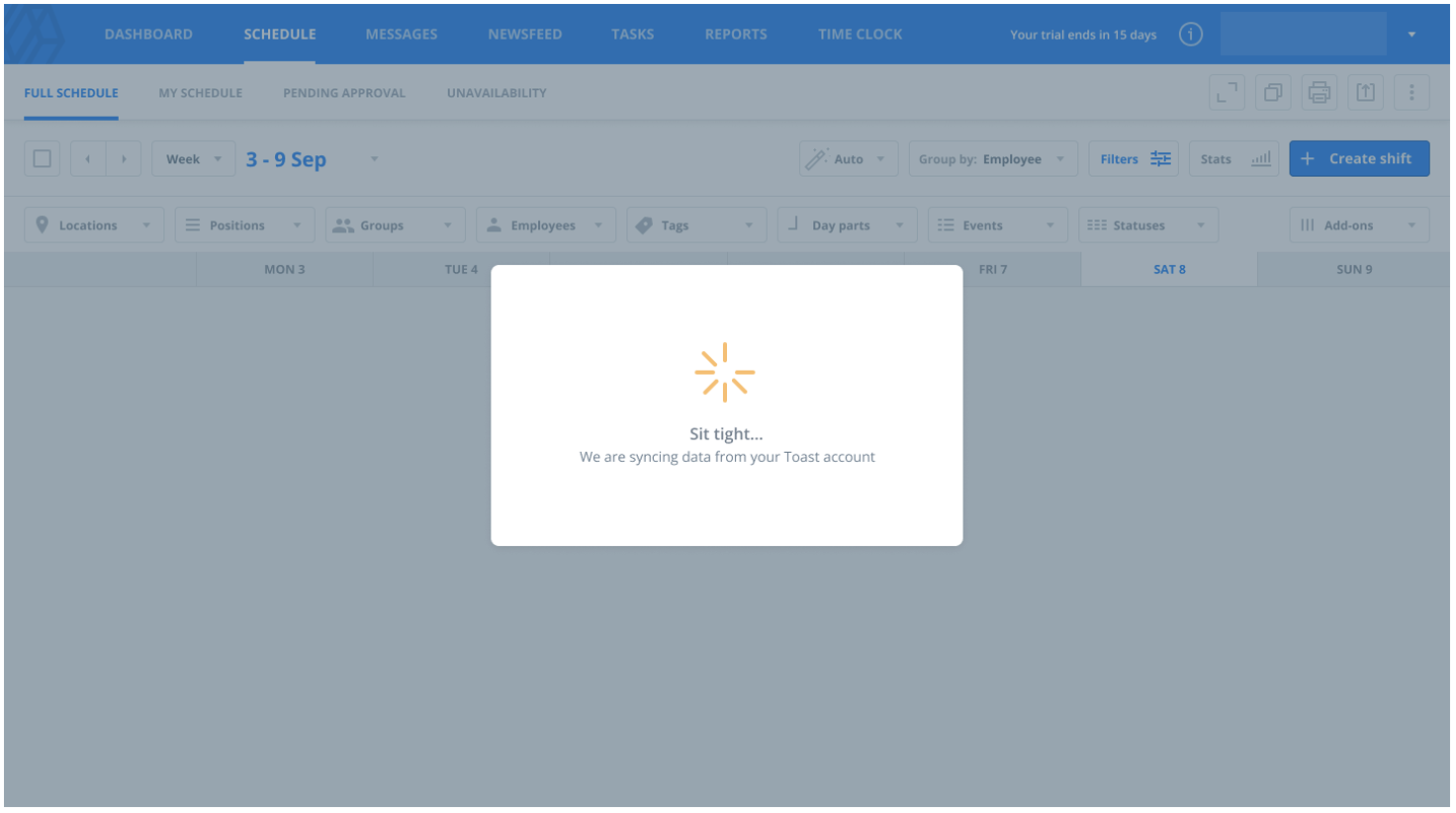
- After a quick sync confirmation (select Connect), Toast and Sling will now work behind the scenes to sync up your employee, wage, location, position, timesheet, and net sales data. This process can take a few minutes to complete, but all setup steps are now complete.
Access Sling by Toast
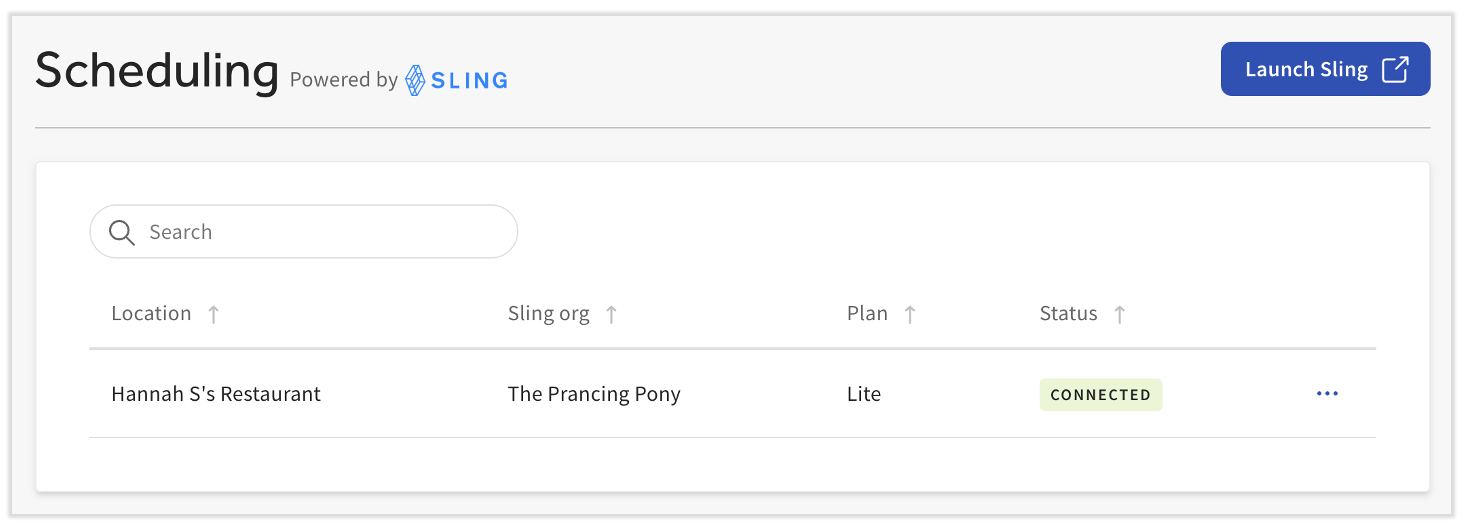
- Sling can be easily accessed from the Toast Web (Toast's back-end). Log into Toast Web and navigate to Team > Scheduling.
- If you see a screen that mentions email verification, check out Manage Scheduling in Toast Web (for Employers).
- In the very upper-right corner, select the three dots > Sling.
- If you instead reach a screen asking you to connect to Sling, setup steps can be found just above in this article.
- If you instead reach a screen asking you to connect to Sling, setup steps can be found just above in this article.
Invite Employees to Sling and Toast Web
Toast has introduced a way for users of Sling to quickly onboard new employees into both systems. In short, when a profile created in Toast Web and the employee is invited to create an account, this will trigger the system to send an invitation that gives them access to Toast Web, the MyToast app, Sling, and the Sling app, all at once.
- To begin, employers should have already set up the Sling and Toast integration.
- Depending on how far you are in your go-live journey and what Toast products you have in addition to Sling and Toast Web, there are different paths to invite your employees into Sling. You'll follow path a, b, or c below:
- If you're brand new to Sling and your restaurant does not use Toast Payroll, you'll add and invite employees in Toast Web. Skip to step 3.
- You do not need to invite employees directly in Sling despite the video in this article or the onboarding checklist in Sling suggesting you do. There is no harm if you already did, but its a step you no longer need to take.
- If your restaurant uses Toast Payroll, most, if not all of your employee's will have accounts in Toast Web and Toast Payroll. Refer to Toast Payroll: New Hire Employees (Employer Guide) to make sure they have an account.
- If you've previously onboarded with Sling, whether you have Toast Payroll or not, your employees will already have Sling accounts. Skip to step 6.
- If you're brand new to Sling and your restaurant does not use Toast Payroll, you'll add and invite employees in Toast Web. Skip to step 3.
- Now it's time to add all employees into Toast Web by navigating to Team > Employees.
- Selecting + Add New Employee and leaving the toggle at the top of the sidebar on Yes will allow you to add an email address and invite this individual to create an account.
- Once this is complete, do not navigate to Sling and invite the employee to create an account there also. This is no longer necessary and it will cause the employee to have unlinked login credentials, even if they use the same email and password. To correct this, they must login to the MyToast app with their Toast Web credentials to link the two accounts.
- Important note: When an employee is invited to create an account, they will not be able to log into a POS device until they finish their account creation.
- The employee will be sent an email invitation. They should open this email and select the link to create a password (and ultimately an account).
- After doing so, the employee should download and log into the MyToast app.
- Once they've signed in, Toast will automatically link their Toast Web account to their Sling account, allowing them access to Toast Web, the MyToast app, Sling, and the Sling app via the credentials they set up in step 5.
- In the end, the employee will be able to see their schedule in both the Sling app and the MyToast app.
Employers will see different statuses to let them know where the employee is on this journey:
- After step 4 above when the email invitation is sent from Toast Web, the employee will appear as Invited. Before Toast and Sling sync, the employee will not appear in Sling.
- If the status shows as Expired, seven days have passed and the employer will need to reinvite this person to proceed.
- After step 5 above when the employee has created their Toast account (by setting a password), the employee will appear as Active in Toast Web. They will still show up in Sling as Not Invited, however.
- Once step 6 above is complete and the employee has synced their account with Sling by logging into MyToast, they will appear as Active in Toast Web and Joined in Sling. These statuses now accurately reflect their account creation journey.
Disconnect from Sling
- To disconnect from Sling by Toast, open Toast Web and navigate to Team > Scheduling.
- If you see the calendar view after selecting Scheduling, select the three dots (overflow menu) in the upper-right corner and choose Connect locations to Sling to continue disconnecting from Sling.
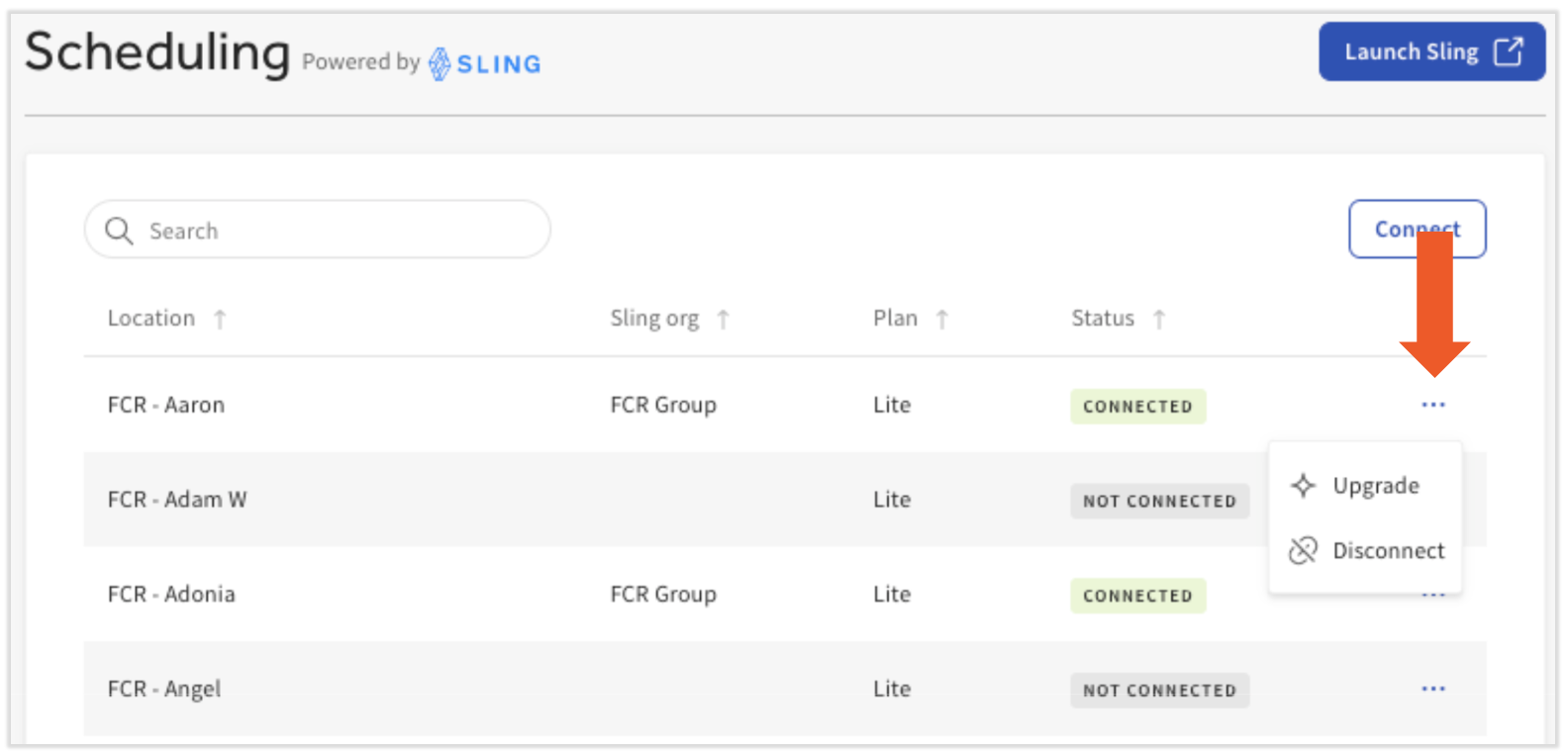
- Next to any location in the Connected status, select the three dots (overflow menu) and choose Disconnect. Once confirmed, that Toast location will be disconnected from Sling.
Troubleshoot Sling
If you need additional support related to the Sling product or the Toast/Sling account integration, contact Sling Support via the in-product chat on getsling.com. Visit the Sling Help Center for helpful articles and the Sling YouTube channel for lots of in-depth instructional videos.
Frequently Asked Questions About Sling
Is there an extra charge to use Sling by Toast?
There is no extra charge to use Sling Lite. Depending on the scope of your Toast contract, Sling Pro access may be included in your subscription. If Sling Pro is not included in your existing Toast subscription, you can explore Sling by creating a free Sling Lite account or purchasing access to Sling Pro via Toast Shop.
If you're new to Toast, visit our Sling product page to learn more.
How will I be billed for Sling?
If you purchased Sling access through Toast (via Toast Shop, your Toast contract, or you upgraded to Sling Pro after onboarding through Toast), you will be billed for Sling through Toast. Please see your broader Toast monthly statement to clarify how you are being billed for this product. If you have further questions regarding billing, check out Toast Billing Process. If you have questions related to billing through Toast, start a live chat here with our Customer Support team. Chat is available in Toast Web and Payroll Web (blue support button in bottom right of every page) and the Support tab in the Toast Now app.
If you purchased this product directly from Sling and then integrated your existing account to your Toast account, you will be billed through Sling. If you have any questions about your Sling-managed billing, contact Sling Support via the in-product chat on getsling.com.
What's the difference between Sling Lite and Sling Pro?
Visit Sling by Toast: Compare Sling Lite and Sling Pro for a comparison of the features of each version of Sling by Toast.
Can I use Sling if I am not live on Toast POS?
Yes, you can use Sling if you are not live on Toast POS, but you must be in Test Mode on Toast POS. If you customize your settings in Sling before being live on Toast POS or being in Test Mode, it may cause go-live problems, such as data integration errors.
Can I enable schedule enforcement for Sling through Toast?
Yes, you can enable schedule enforcement for Sling. Sling by Toast: Set Up Schedule Enforcement offers the steps to do so along with some frequently asked questions.
How do I log into Sling by Toast?
In Toast Web, navigate to Team > Scheduling. In the upper-right corner, select the three dots > Launch Sling on the next page. Log into Sling using the unique login credentials created when you set up your Sling account. If you have forgotten your login credentials, check out this Sling article.
Is Sling by Toast available in any other languages?
Sling by Toast is not currently available in other languages besides English, but it may be in the future.
Can employees clock in using both Sling and Toast?
Whether an employee clocks in/out using a Toast device or the Sling app, the time entries will sync to both Toast and Sling, eliminating the need to make manual adjustments, copies, or spreadsheets. Managers can edit timesheets on Sling and those edits are reflected in Toast. Sling timesheets will sync to Toast Web, and over to Toast Payroll, if applicable.
Where do I go for other help resources for Sling?
Visit the Sling Help Center for helpful articles and the Sling YouTube channel for lots of in-depth instructional videos.
What versions of Sling does Toast offer?
If you are located in the United States, Toast offers two versions of Sling: Lite and Pro. Take a look at the differences between each version here.
If you are a Toast customer outside of the United States, you have access to Sling Pro. Check out the Sling Help Center for more details.